Filter Analyzer
R2026bFilter Analyzer has changed. For more information, see Version History.
Description
The Filter Analyzer app is an interactive tool for visualizing, analyzing, and comparing digital filters. Using the app, you can:
Import filter objects or filter coefficients. For more information, see Import Filter.
View, analyze, and compare responses of multiple digital filters. For more information, see Analysis.
View a list of filters in the Filters table and the details for each filter in the Filter Information table.
Plot a new filter analysis plot in a separate display window.
Specify filter sample rate and analysis sample rate separately.
Save the state of the current session, including filters, displays, and analysis options, for use in a future session of the app.
For more information, see Use Filter Analyzer App.
You can use the filterAnalyzer command-line
interface to add, remove, and update filters, displays, and analysis options.
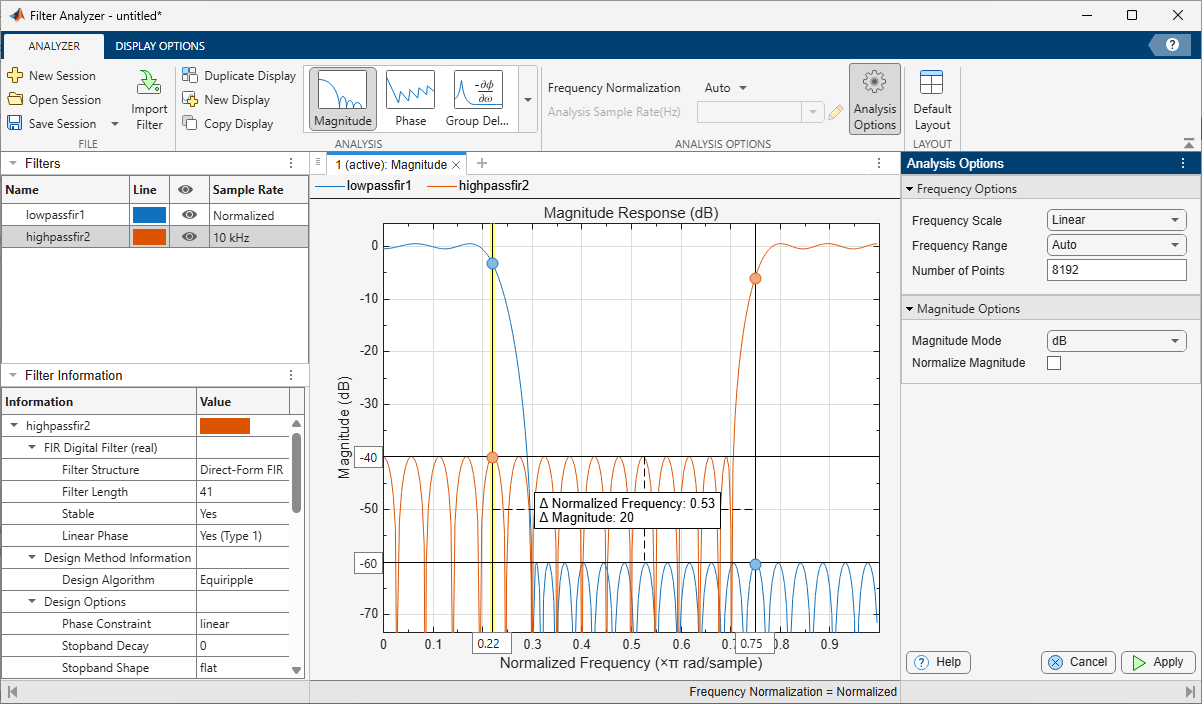
Open the Filter Analyzer App
MATLAB® Toolstrip: On the Apps tab, under Signal Processing and Audio, click the app icon.
MATLAB command prompt: Enter
filterAnalyzer.
Examples
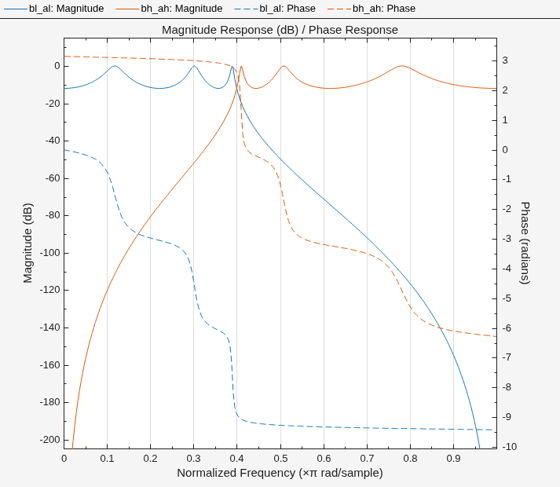
Design sixth-order Chebyshev Type 1 lowpass and highpass filters with a normalized passband edge frequency of rad/sample and 12 dB of passband ripple. Express the designs as cascades of fourth-order transfer functions. Use Filter Analyzer to display the magnitude and phase responses of the filters.
[zl,pl,kl] = cheby1(6,12,0.4);
[bl,al] = zp2ctf(zl,pl,kl,SectionOrder=4);
[zh,ph,kh] = cheby1(6,12,0.4,"high");
[bh,ah] = zp2ctf(zh,ph,kh,SectionOrder=4);

filterAnalyzer(bl,al,bh,ah,OverlayAnalysis="phase")
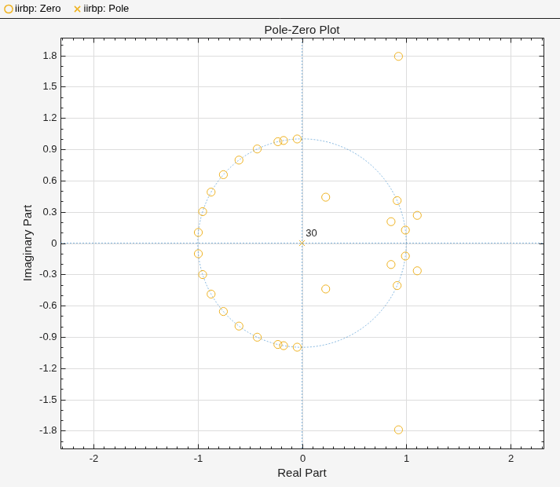
Design a 30th-order FIR bandpass filter to filter signals sampled at 2 kHz. Specify a stopband ranging from 250 Hz to 400 Hz. Use Filter Analyzer to display the poles and zeros of the filter transfer function.
iirbp = designfilt("bandpassfir",FilterOrder=30, ...
    CutoffFrequency1=250,CutoffFrequency2=400, ...
    SampleRate=2000);

filterAnalyzer(iirbp,Analysis="polezero")
Design a tenth-order elliptic bandpass filter with 5 dB of passband ripple and 60 dB of stopband attenuation. Specify passband edge frequencies of rad/sample and rad/sample. Express the design as a cascade of fourth-order transfer functions.
[z,p,k] = ellip(5,5,60,[0.2 0.45]);
[bb,aa] = zp2ctf(z,p,k,SectionOrder=4);
Design a finite impulse response bandpass filter with 5 dB of passband ripple and asymmetric stopbands for use with signals sampled at 2 kHz.
At lower frequencies, the stopband has 80 dB of attenuation and the transition region ranges from 500 Hz to 600 Hz.
At higher frequencies, the stopband has 40 dB of attenuation and the transition region ranges from 750 Hz to 900 Hz.
dfir = designfilt("bandpassfir", ...
    SampleRate=2e3,PassbandRipple=5, ...
    StopbandFrequency1=500,PassbandFrequency1=600, ...
    StopbandAttenuation1=80, ...
    PassbandFrequency2=750,StopbandFrequency2=900, ...
    StopbandAttenuation2=40);
Start a Filter Analyzer session to analyze the filters. Import the filters. On the Analyzer tab, click Import Filter.
To import the elliptic filter, select Filter Coefficients. Select
bbas the Numerator andaaas the Denominator. SpecifyEllipfor the Filter Name, and leave the Sample Rate asNormalized. Click Import.To import the FIR filter, select Filter Objects, select
dfir, and click Import and Close.
Alternatively, open Filter Analyzer by using the command-line interface. By default, the app displays magnitude responses. Only one of the filters has a sample rate, so the app displays the responses using normalized frequencies.
fa = filterAnalyzer(bb,aa,dfir,FilterNames=["ellip" "dfir"]);
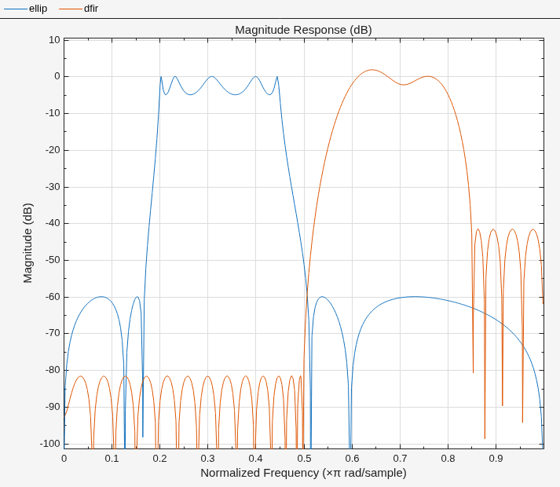
Add a display and use it to plot the magnitude responses and the phase responses of the filters.
On the Analyzer tab, click New Display.
Expand the Analysis gallery so the Overlay Analysis section is visible, and click
Phase.Add the filters by clicking the eye icons on the Filters table.
Alternatively, use the filterAnalysisOptions object and the addDisplays and showFilters functions.
opts = filterAnalysisOptions(OverlayAnalysis="phase");
addDisplays(fa,AnalysisOptions=opts)
showFilters(fa,true,FilterNames=["ellip" "dfir"])
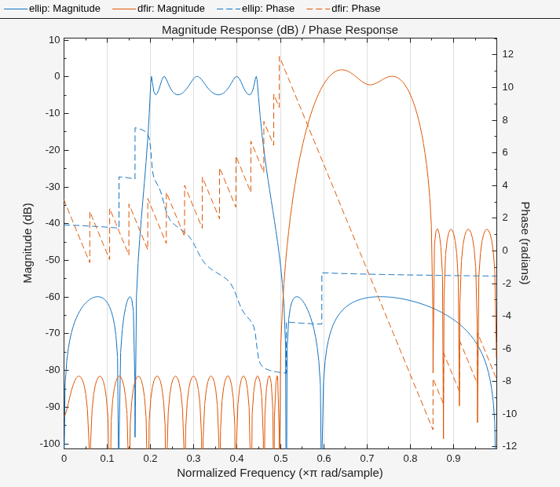
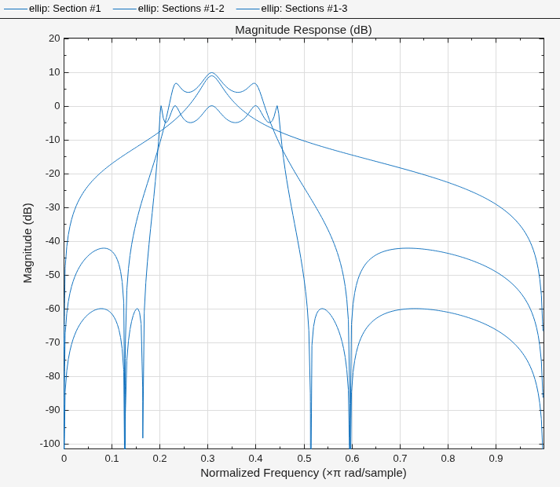
Add another display and show the cumulative magnitude responses of the cascaded transfer functions that specify the elliptic filter.
Click New Display to add the display and click the eye icon for the elliptic filter.
On the Display Options tab, click CTF View ▼ and select Cumulative.
Alternatively, use the command-line interface.
addDisplays(fa,CTFAnalysisMode="cumulative")
showFilters(fa,true,FilterNames="ellip")
Add one more display and show the filter specification mask for the FIR filter.
On the Analyzer tab, click New Display and click the eye icon for the FIR filter. The app displays the frequencies in units of Hz.
For a
digitalFilterobject, the app shows the specification mask by default. To remove the mask, on the Display Options tab, click Mask ▼ and clear Specification.
Alternatively, use the command-line interface.
addDisplays(fa)
showFilters(fa,true,FilterNames="dfir")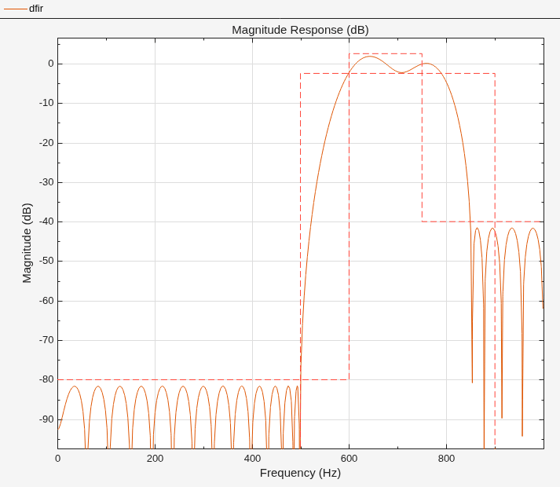
Related Examples
Parameters
Main Pane
Filters Table
Select a filter in the Filters table to edit parameters or see filter information. Interact with the table to change the visualization of each filter.

Name — Double-click an entry in this column to edit the name of the filter. You can also right-click the filter in the Filters table and select Rename.
Line — Click an entry in this column to edit the color used to display that filter response.
Eye — Click an entry in this column to add the corresponding filter to the current display or to remove it. You can also (since R2024b) drag filters from the Filters table onto any display for visualization.
To add or remove all the filter analysis plots at once, click the icon on the header row.
Sample Rate — Click an entry in this column to edit the sample rate for the corresponding filter. Edit the sample rate and units:
Sample Rate, specified as
Normalized(rad/sample) or as a positive scalar that represents cyclical frequencies.Sample Rate Units, specified as
Hz,kHz,MHz, orGHz.
To duplicate, rename, or delete a filter from the app, right-click in the selected filter and select one of these options:
Duplicate — The app names the duplicated filter using the same name as the original one and appends it with the string
_Copy.Rename — Type the new filter name and press Enter. Alternatively, double-click the filter name, type a new filter name, and press Enter.
Delete — Confirm the deletion in the dialog box that appears.
Filter Information Table
After selecting a filter in the Filters table, you can see its filter information.
Display filter information including design specifications and design options.
If you have a DSP System Toolbox™ license, Filter Analyzer also displays filter measurements.
Analyzer Tab
Create a new app session, open an existing session, or save session to file.
Click New Session to clear all the data from the current session and start a new session.
Click Open Session to open a Filter Design session file. The app accepts session files created with previous versions.
Click Save Session or Save Session As to save the state of the current session—including filters, displays, and analysis options—as a MAT file for use in a future session of the app.
Click Import Filter to import the filter you want to analyze.
Filter Analyzer supports these filter types.
digitalFilterObjects — You can use Filter Analyzer to design and modifydigitalFilterobjects. To generate or edit digital filters based on frequency-response specifications at the command line, usedesignfilt.Filter System objects — If you have DSP System Toolbox, then Filter Analyzer supports filter System objects. For more information, see Supported Filter System Objects.
If you select a filter System object™, specify the Arithmetic option to set the coefficient quantization arithmetic of the filter as double-precision, single-precision, or fixed-point.
Note
To use fixed-point arithmetic, you must have a DSP System Toolbox license and a Fixed-Point Designer™ license.
Filter coefficients — You can use Filter Analyzer to import and display filter coefficients specified in cascaded transfer functions (CTF) format. In particular, you can import designs expressed as numerator and denominator coefficients. For more information, see Import Filter Coefficients.
Example: d = digitalFilter([2 4 2;3 2 0],[1 0 0;1 1
0],[1.4;1.4;5]) specifies a digitalFilter
object.
Example: sysObj =
dsp.HighpassFilter(FilterType="iir",PassbandRipple=0.2) specifies a
DSP System object.
Example: [B,A] = zp2ctf([-1 -1 -1 -1], [0.2i -0.2i 0.66i
-0.66i],9) and g=[1.4 1.4 5]' specify a
digital filter with CTF numerator and denominator coefficients
B and A, respectively. The scalar
g represents the scaling gain of the
filter.
Click Duplicate Display to duplicate the active display.
Click New Display to add a new blank display.
Click Copy Display to copy the active display to the clipboard.
Tip
You can alternatively right-click the plotting area and select Copy Display to Clipboard.
Expand this gallery to choose a base and optional secondary analysis for the active display. Choose options using the thumbnail view or the details view of the gallery.
Analysis — Choose the base analysis type.
Overlay Analysis — Optionally, choose the secondary analysis that overlays the base analysis.
To access the options available for each analysis, use the Analysis Options button in the Analysis Options toolstrip section.
Filter Analyzer supports these analysis types.
Frequency-Domain Analyses
| Analysis | Icon | Options | Description |
|---|---|---|---|
| Magnitude response |
| Magnitude Mode: Select
Normalize Magnitude: Toggle on or off |
Tip If you select this analysis, you can zoom in the response to the passband or stopband. Hover on the top-right corner of he display and click the or icons. |
| Phase response |
| Phase Units: Select
Phase
Display: Select | |
| Group delay response |
| Group Delay Units: Select
Samples or
Time | |
| Phase delay response |
| Phase Units: Select
Radians or
Degrees |
|
| Magnitude estimate |
| Magnitude Mode: Select
Normalize Magnitude: Toggle on or off Number of Trials: Specify a numeric scalar |
|
| Round-off noise power spectrum |
| Number of Trials: Specify a numeric scalar |
|
Time-Domain Analyses
| Analysis | Icon | Options | Description |
|---|---|---|---|
| Impulse response |
| Specify Length: Select
Auto or
User-defined | |
| Step response |
| Specify Length: Select
Auto or
User-defined |
Other Analyses
| Analysis | Icon | Options | Description |
|---|---|---|---|
| Pole-zero plot |
| N/A | |
| Filter coefficients |
| Coefficients Format: Select
Decimal,
Hexadecimal, or
Binary |
|
| Filter information |
| N/A |
|
Frequency Normalization
In Filter Analyzer, you can display filter responses using normalized frequencies or in terms of a sample rate of your choice. To select how to display frequencies, in the Analysis Options section of the Analyzer tab, set Frequency Normalization to one of these values.
Auto— If some filters do not have a sample rate, the app analyzes filter responses using normalized frequencies measured in rad/sample. If all filters have a sample rate, the app analyzes filter responses using cyclical frequencies measured in Hz.Normalized— The app analyzes filter responses using normalized frequencies measured in rad/sample.Unnormalized— The app analyzes filter responses using cyclical frequencies measured in Hz.
Analysis Sample Rate
You can choose a reference sample rate, to use to compare the filters plotted in a
display to each other, by entering a value for Analysis Sample
Rate. You can also choose the highest sample rate among all the
filters in the display by selecting Max. To edit the
sample rate units, click the pencil icon.
Analysis Options
Select Analysis Options to open the Analysis Options pane, which contains these options for all frequency-domain analyses:
Frequency Scale — To display responses in linear frequency scale, select
Linear. To use a logarithmic frequency scale, selectLog.Frequency Range — Specify the frequency range of the displayed response as one of these options:
One Sided— Display responses over positive frequencies only.Two Sided— Display responses over the whole frequency range.Centered— Display responses over the whole frequency range centered at zero.User-defined— Display responses over a custom range of frequencies that you specify.
By default, the app displays one-sided responses if all filters under analysis in a display have real-valued coefficients and centered responses if at least one filter has complex-valued coefficients.
Number of Points — Specify the number of discrete Fourier transform points to use to display frequency-domain responses.
This option appears only if you set Frequency Range to
One Sided,Two Sided, orCentered.Frequency Vector Units — Specify the frequency vector in normalized frequencies (×π rad/sample) or in Hz, kHz, MHz, or GHz.
This option appears only if you set Frequency Range to
User-defined.Frequency Vector — Specify an n-element vector that lists n discrete Fourier transform points to use to display frequency-domain responses.
This option appears only if you set Frequency Range to
User-defined.
For a list of options available with each analysis type, see Analysis.
Click Default Layout to restore the display layout. When you click this button, Filter Analyzer arranges all displays into a single tile, while preserving the analysis plots and options within in each display.
Display Options Tab
Filter Analyzer supports these display options:
Legend — Toggle to show or hide legends in the active display. To show or hide the legend in all displays, click Legend▼ and select
Show All LegendsorHide All Legends, respectively.Grid — Toggle to show or hide the grid in the active display. To show or hide the grid in all displays, click Grid▼ and select
Show All GridsorHide All Grids, respectively.
Since R2026b
Click Data Cursors to show or hide data cursors in the active display.
Tip
You can alternatively right-click the plotting area and select Data Cursors.
Click Data Cursors ▼ to modify cursor settings. You can enable one or two cursors. When enabled, you can show each cursor in the active display as a vertical line, a horizontal line, or both.
A vertical cursor tracks a vertical line that you can move left and right along the x-axes.
A horizontal cursor tracks a horizontal line you can move up and down along the y-axes.
If you enable two cursors, you can select these options:
Lock Spacing — Keep the horizontal and vertical distances between cursors the same as you move cursors in the active display.
Show Measurement — Display a box that lists the y-axis distance between horizontal cursors and the x-axis distance between vertical cursors.
Click Mask to show or hide the spectral mask in the active display. You can use a standard filter specification mask or you can define your own.
In Filter Analyzer, a mask is a plot that outlines the passband ripples, stopband attenuation, and transition width of the filter. Showing a mask in the magnitude response serves as a visual reference that aids you to compare the expected magnitude and frequency specifications with the actual filter response, which can help you assess the filter design.
If the filter being plotted in the active display has design specifications, then the app can draw a specifications-based mask.
Note
To use standard specification masks, filters must have design metadata. To include metadata in your design, use a
digitalFilterobject or a filter System object.If you define your own mask, then the app can draw a user-defined mask, based on the mask frequencies and magnitudes that you specify.
Specify a custom mask as a set of frequencies and a corresponding set of values. To specify your selection, click User Settings. You can use normalized frequencies or express frequencies in units of Hz, kHz, MHz, or GHz. You can specify values for the magnitude of interest, the square of the magnitude, or the magnitude expressed in dB. The frequencies and the values must be finite.
For IIR designs that result in filters with second-order cascaded sections, or for filters imported as cascaded transfer functions, you can choose the way that Filter Designer displays section-by-section responses. This option applies only for displays with one filter. In the Display Options toolstrip tab, click CTF View to toggle between displaying the overall response and displaying the responses section by section. Click CTF View ▼ to select one of these options:
Individual — Show filter responses of individual sections.
Cumulative — Show filter responses of cumulative sections.
User-defined — Show filter responses of selected sections or combinations of sections. To specify your selection, click User Settings and specify Sections a cell array.
For example, assume a CTF of sections numbered from 1 through 7:
{1:7}or{[1 2 3 4 5 6 7]}directs the app to display the response for the entire CTF at once.{1 2 6 7}directs the app to display responses for the CTF section 1, CTF section 2, CTF section 6, and CTF section 7.{[1 2 3] [4 5 7]}directs the app to display responses for a first CTF that comprises the sections 1, 2, and 3, and a second CTF that comprises the sections 4, 5, and 7.{1 [2:4] [6 7]}directs the app to display responses for CTF section 1, the CTF of sections 2 through 4, and the CTF of sections 6 and 7.
Click Reference Filters to show or hide double-precision reference responses for quantized filters in the active display.
When you enable Reference Filters, the app:
Displays the responses of all the selected filters using solid lines
Displays the reference responses using dotted lines
Appends the string
QuantizedorReferenceto each legend entry
Click Polyphase View to show or hide polyphase
decompositions of polyphase filters in the active display. For more
information about polyphase decomposition of multirate filters, see
polyphase.
When you enable Polyphase View, the app
displays the response for each decomposed phase of the filters you
select for visualization. If a filter has multiple polyphase sections,
then Filter Analyzer appends the string Polyphase
( to each legend entry,
where p)p varies from 1 to the number of
polyphase sections.

