opticalCoatingPicker
R2026bDescription
Add-On Required: This feature requires the Optical Design and Simulation Library for Image Processing Toolbox add-on.
An optical coating picker UI component enables an app user to visualize the
layer structure and optical performance of an optical coating. For more information about
the interactions that the optical coating picker UI component enables, see Optical Coating Picker Interactions. Properties of the
OpticalCoatingPicker object control the appearance and behavior of the
UI component.
Creation
You can create a OpticalCoatingPicker object using the
opticalCoatingPicker function described below.
Description
coatingPicker = opticalCoatingPicker
coatingPicker = opticalCoatingPicker(PropertyName=Value)opticalCoatingPicker(SelectedCoating=SiO2Coat) visualizes the
properties and performance of the optical coating SiO2Coat in the
optical coating picker UI component.
Output Arguments
Properties
Select Coating
Selected optical coating, specified as an opticalCoating object.
Position
UI component size and location excluding the margins, specified as a
4-element vector of the form [left bottom width height]. The
values of left and bottom specify the
location of the lower-left corner of the UI component, and
width and height specify its
dimensions in the x- and
y-directions, respectively. By default, MATLAB measures the values in units normalized to the container. To
change the units, set the Units property.
This property is read-only.
Inner size and location, represented as a 4-element vector of the form
[left bottom width height]. This property is equivalent
to the Position property.
Size and location including the labels and margin, specified as a 4-element
vector of the form [left bottom width height]. The values of
left and bottom specify the location
of the lower-left corner of the UI component, and width and
height specify its dimensions in the
x- and y-directions, respectively.
By default, MATLAB measures the values in units normalized to the container. To
change the units, set the Units property.
Units of measurement, specified as one of these options.
Units Value | Description |
|---|---|
"normalized" (default) | Normalized with respect to the container, which is typically a
figure or panel. The lower-left corner of the container maps to
(0, 0) and the upper-right corner maps to
(1, 1). |
"inches" | Inches. |
"centimeters" | Centimeters. |
"characters" | Based on the default
|
"points" | Typography points. One point equals 1/72 inch. |
"pixels" | Pixels. On Windows® and Macintosh systems, the size of a pixel is 1/96 inch. This size is independent of your system resolution. On Linux® systems, the size of a pixel is determined by your system resolution. |
Layout options, specified as a GridLayoutOptions object.
This property specifies options for components that are children of grid layout
containers. If the component is not a child of a grid layout container (for
example, it is a child of a figure or panel), then this property is empty and
has no effect. However, if the component is a child of a grid layout container,
you can place the component in the intended row and column of the grid by
setting the Row and Column properties of
the GridLayoutOptions object.
For example, this code places an optical coating picker in the third row and second column of its parent grid.
g = uigridlayout([4 3]);
picker = opticalCoatingPicker(Parent=g);
picker.Layout.Row = 3;
picker.Layout.Column = 2;
Interactivity
State of visibility, specified as "on" or
"off", or as numeric or logical 1
(true) or 0
(false). A value of "on" is equivalent to
true, and "off" is equivalent to
false. Thus, you can use the value of this property as a
logical value. The value is stored as an on/off logical value of type matlab.lang.OnOffSwitchState.
"on"— Display the object."off"— Hide the object without deleting it. You can still access the properties of an invisible UI component.
To make your app start faster, set the Visible property
to "off" for all components that do not need to appear at
startup.
Changing the size of an invisible container triggers the
SizeChangedFcn callback when it becomes visible.
Changing the Visible property of a container does
not change the values of the
Visible properties of child components. This is true
even though hiding the container causes the child components to be
hidden.
Context menu, specified as a ContextMenu object created
using the uicontextmenu function. Use
this property to display a context menu when you right-click on an area of the
component that does not contain any underlying UI components or graphics
objects.
To display a context menu when you right-click on any portion of the custom
UI component, write code to set the ContextMenu property
of all underlying UI components and graphics objects whenever the
ContextMenu property of your custom component is
set.
Color and Styling
Background color, specified as an RGB triplet, a hexadecimal color code, or one of the color options listed in the table.
| Color Name | Short Name | RGB Triplet | Hexadecimal Color Code | Appearance |
|---|---|---|---|---|
"red" | "r" | [1 0 0] | "#FF0000" |
|
"green" | "g" | [0 1 0] | "#00FF00" |
|
"blue" | "b" | [0 0 1] | "#0000FF" |
|
"cyan"
| "c" | [0 1 1] | "#00FFFF" |
|
"magenta" | "m" | [1 0 1] | "#FF00FF" |
|
"yellow" | "y" | [1 1 0] | "#FFFF00" |
|
"black" | "k" | [0 0 0] | "#000000" |
|
"white" | "w" | [1 1 1] | "#FFFFFF" |
|








Callbacks
Size change callback, specified as one of these values:
Function handle.
Cell array in which the first element is a function handle. Subsequent elements in the cell array are the arguments to pass to the callback function.
Character vector containing a valid MATLAB expression (not recommended). MATLAB evaluates this expression in the base workspace.
For more information about specifying a callback as a function handle, cell array, or character vector, see Callbacks in App Designer.
The SizeChangedFcn callback executes when:
The component becomes visible for the first time.
The component is visible while its size changes.
This component becomes visible for the first time after its size changes. This situation occurs when the size changes while the component is invisible, and then it becomes visible later.
Object creation function, specified as one of these values:
Function handle.
Cell array in which the first element is a function handle. Subsequent elements in the cell array are the arguments to pass to the callback function.
Character vector containing a valid MATLAB expression (not recommended). MATLAB evaluates this expression in the base workspace.
For more information about specifying a callback as a function handle, cell array, or character vector, see Callbacks in App Designer.
This property specifies a callback function to execute when MATLAB creates the object. MATLAB initializes all property values before executing the
CreateFcn callback. If you do not specify the
CreateFcn property, then MATLAB executes a default creation function.
Setting the CreateFcn property on an existing component
has no effect.
If you specify this property as a function handle or cell array, you can
access the object that is being created using the first argument of the
callback function. Otherwise, use the gcbo function to access the
object.
Object deletion function, specified as one of these values:
Function handle.
Cell array in which the first element is a function handle. Subsequent elements in the cell array are the arguments to pass to the callback function.
Character vector containing a valid MATLAB expression (not recommended). MATLAB evaluates this expression in the base workspace.
For more information about specifying a callback as a function handle, cell array, or character vector, see Callbacks in App Designer.
This property specifies a callback function to execute when MATLAB deletes the object. MATLAB executes the DeleteFcn callback before
destroying the properties of the object. If you do not specify the
DeleteFcn property, then MATLAB executes a default deletion function.
If you specify this property as a function handle or cell array, you can
access the object that is being deleted using the first argument of the
callback function. Otherwise, use the gcbo function to access the
object.
Button down callback, specified as one of these values:
Function handle.
Cell array in which the first element is a function handle. Subsequent elements in the cell array are the arguments to pass to the callback function.
Character vector containing a valid MATLAB expression (not recommended). MATLAB evaluates this expression in the base workspace.
For more information about specifying a callback as a function handle, cell array, or character vector, see Callbacks in App Designer.
The ButtonDownFcn callback executes when you click the
OpticalCoatingPicker object.
Callback Execution Control
Callback interruption, specified as "on" or
"off", or as numeric or logical 1
(true) or 0
(false). A value of "on" is equivalent to
true, and "off" is equivalent to
false. Thus, you can use the value of this property as a
logical value. The value is stored as an on/off logical value of type matlab.lang.OnOffSwitchState.
This property determines if a running callback can be interrupted. There are two callback states to consider:
The running callback is the currently executing callback.
The interrupting callback is a callback that tries to interrupt the running callback.
Whenever MATLAB invokes a callback while another callback is running, the newly
invoked callback attempts to interrupt the running callback. The
Interruptible property of the object that owns the
running callback determines if interruption is allowed.
A value of
"on"allows other callbacks to interrupt the callbacks of the object. The interruption occurs at the next point where MATLAB processes the queue, such as when there is adrawnow,figure,uifigure,getframe,waitfor, orpausecommand.If the running callback contains one of those commands, then MATLAB stops the execution of the callback at that point and executes the interrupting callback. MATLAB resumes executing the running callback when the interrupting callback completes.
If the running callback does not contain one of those commands, then MATLAB finishes executing the callback without interruption.
A value of
"off"blocks all interruption attempts. TheBusyActionproperty of the object that owns the interrupting callback determines if the interrupting callback is discarded or put into a queue.
Note
Callback interruption and execution behave differently in these situations:
If the interrupting callback is a
DeleteFcnorSizeChangedFcncallback, then the interruption occurs regardless of theInterruptibleproperty value.If the running callback is currently executing the
waitforfunction, then the interruption occurs regardless of theInterruptibleproperty value.Timerobjects execute according to schedule regardless of theInterruptibleproperty value.
When an interruption occurs, MATLAB does not save the state of properties or the display. For
example, the object returned by the gca or gcf command might change
when another callback executes.
Callback queuing, specified as "queue" or
"cancel". The BusyAction property
determines how MATLAB handles the execution of interrupting callbacks. There are two
callback states to consider:
The running callback is the currently executing callback.
The interrupting callback is a callback that tries to interrupt the running callback.
Whenever MATLAB invokes a callback while another callback is running, the newly
invoked callback attempts to interrupt the running callback. The
Interruptible property of the object that owns the
running callback determines if interruption is permitted. If interruption is
not permitted, then the BusyAction property of the object
that owns the interrupting callback determines if it is discarded or put in the
queue. These are the possible values of the BusyAction
property:
"queue"— Puts the interrupting callback in a queue to be processed after the running callback finishes execution."cancel"— Does not execute the interrupting callback.
Deletion status, represented as an on/off logical value of type matlab.lang.OnOffSwitchState.
MATLAB sets the BeingDeleted property to
"on" when the DeleteFcn callback
begins execution. The BeingDeleted property remains set to
"on" until the component object no longer exists.
Before querying or modifying an object, check the value of the
BeingDeleted property of the object to verify that it
is not about to be deleted.
Parent/Child
Parent container, specified as a Figure,
Panel, Tab, or GridLayout
object. By default, the parent container is a new Figure
object.
UI component children, returned as an empty
GraphicsPlaceholder array. Custom UI components have no
children. Setting this property has no effect.
Visibility of the object handle, specified as "on",
"callback", or "off".
This property controls the visibility of the object in the list of children
for its parent. When an object is not visible in the list of children for its
parent, it is not returned by functions that obtain objects by searching the
object hierarchy or querying properties. These functions include get, findobj, clf, and close. Objects are valid even if
they are not visible. If you can access an object, you can set and get its
properties, and pass it to any function that operates on objects.
HandleVisibility
Value | Description |
|---|---|
"on" | The object is always visible. |
"callback" | The object is visible from within callbacks or functions invoked by callbacks, but not from within functions invoked from the command line. This option blocks access to the object at the command line, but allows callback functions to access it. |
"off" | The object is invisible at all times. This option is useful
for preventing unintended changes to the UI by another function.
Set the HandleVisibility to
"off" to temporarily hide the object
during the execution of that function. |
Identifiers
This property is read-only.
Type of UI component object, represented as the character vector
"optics.ui.opticalcoatingpicker".
Object identifier, specified as a character
vector or string scalar. You can specify a unique Tag
value to serve as an identifier for an object. When you need access to the
object elsewhere in your code, you can use the findobj function to search for
the object based on the Tag value.
User data, specified as any MATLAB array. For example, you can specify a scalar, vector, matrix, cell array, character array, table, or structure. Use this property to store arbitrary data on an object.
If you are working in App Designer, create public or private properties in
the app to share data instead of using the UserData
property. For more information, see Share Data Within a Single App Designer App.
Examples
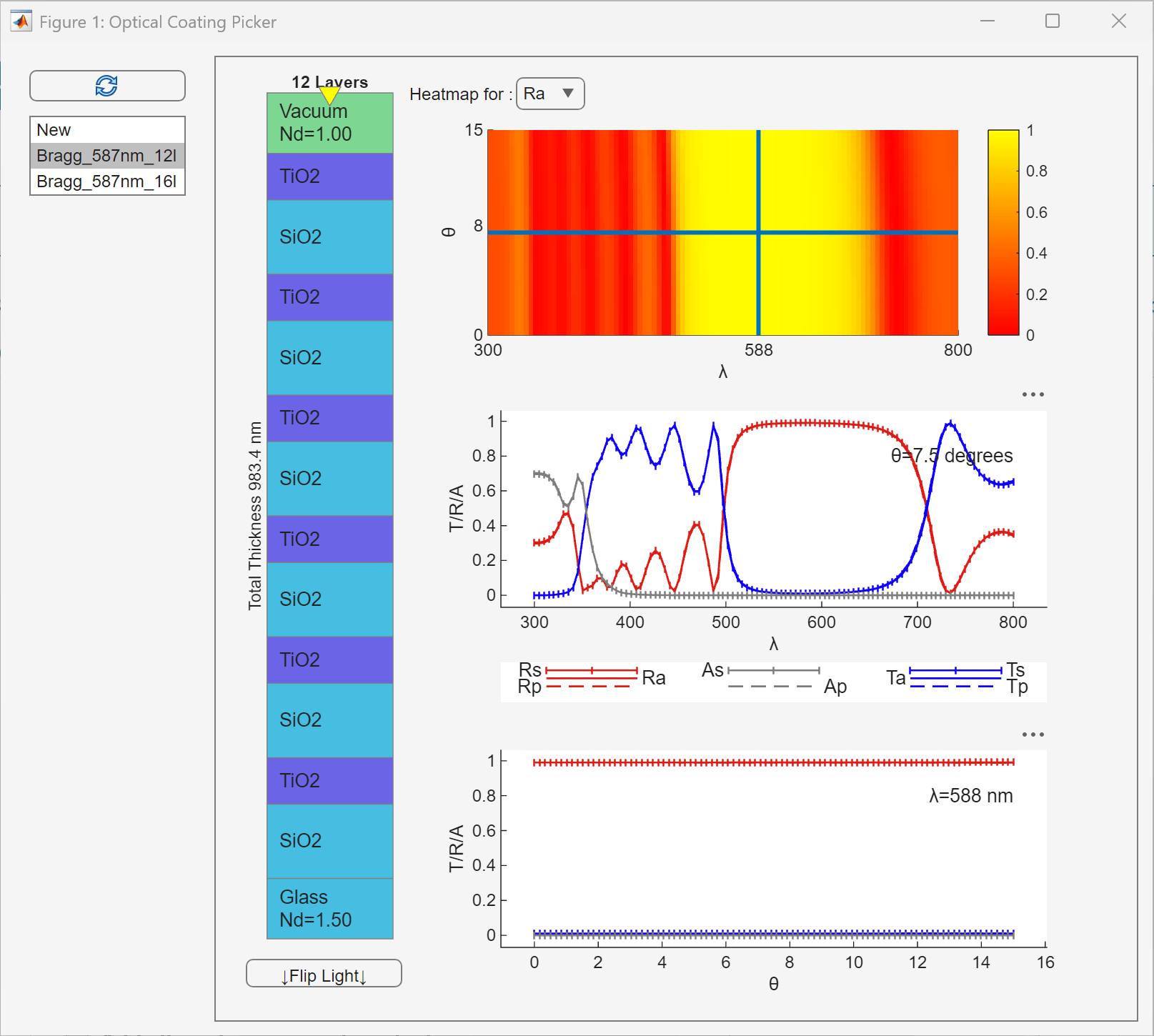
Create an optical coating picker in a UI figure.
fig = uifigure;
hCoating = opticalCoatingPicker(Parent=fig);
In the coating menu, select the first default Bragg reflector coating and inspect the spectral response.
More About
Feature | Picker Interaction | Description |
|---|---|---|
| Refresh coating library and workspace |
| Click the button to refresh the coating library and workspace after adding or removing a coating. |
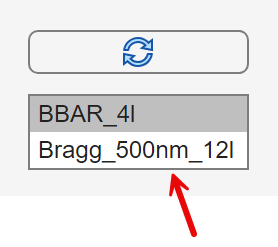
| Select coating |
| Select a coating from the list of coatings that are available in the coating library and workspace. By default, the coating library contains two sample Bragg reflector coatings. |
| Visualize layer structure |
| View the schematic of the layer stack in the coating, including the layer names and thicknesses. The order of the layers places the substrate at the bottom and the medium at the top. Press the Flip Light button to flip the incident light direction. |
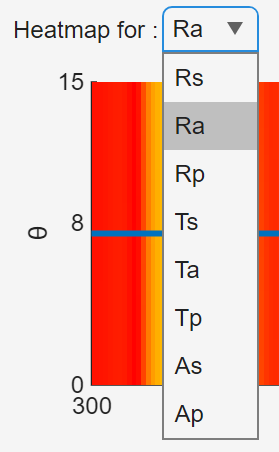
| Heatmap performance parameter selection |
| Use Heatmap for to select a
performance parameter for which to generate a heatmap of the incident
angle against wavelength. By default, the optical coating picker plots a
heatmap of the average reflection coefficient
The electric fields of s-polarized and p-polarized incident light are perpendicular and parallel to the plane of incidence, respectively. |
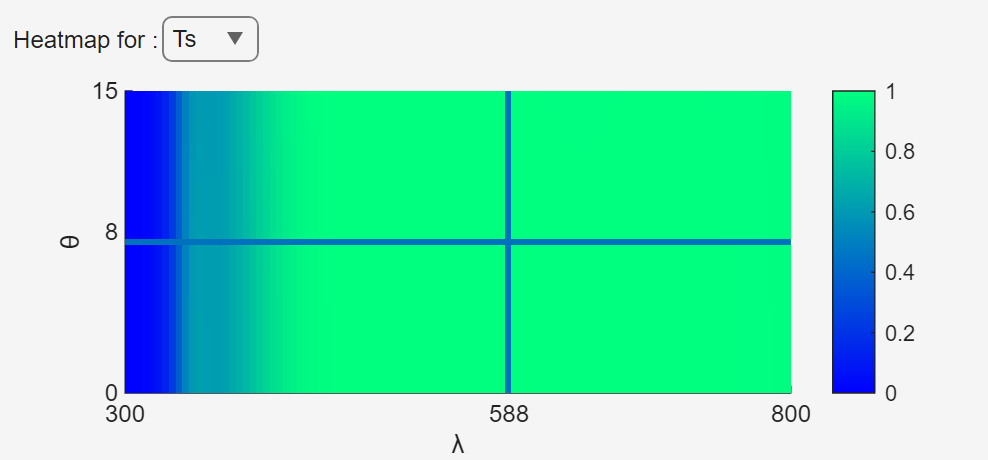
| Heatmap of T/R/A for incident angles and wavelengths |
| Heatmap plot of incident angle against wavelength for the selected performance parameter. Click the figure, or drag the point at which the blue lines cross, to select a value of incident angle and wavelength. The plots of the T/R/A against wavelength and T/R/A against incident angle update to reflect the selected point on the heatmap. |
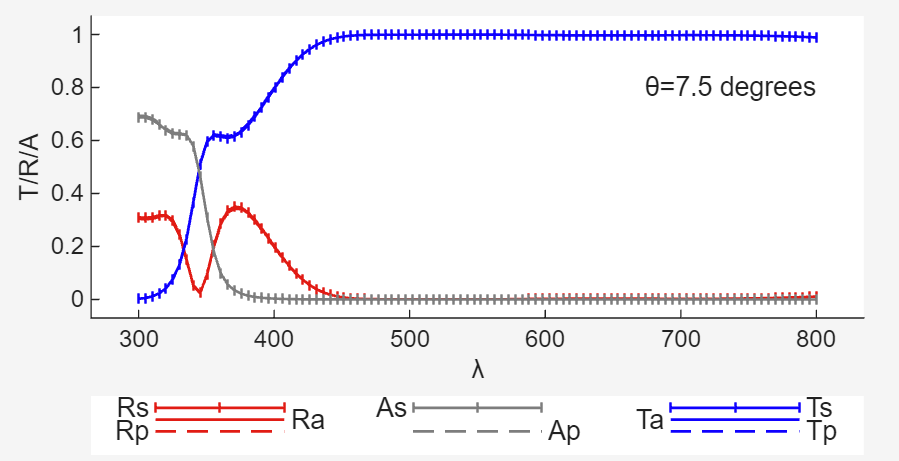
| T/R/A against wavelength |
| Plot of performance parameters against wavelength response for the incident angle that you choose using the heatmap. |
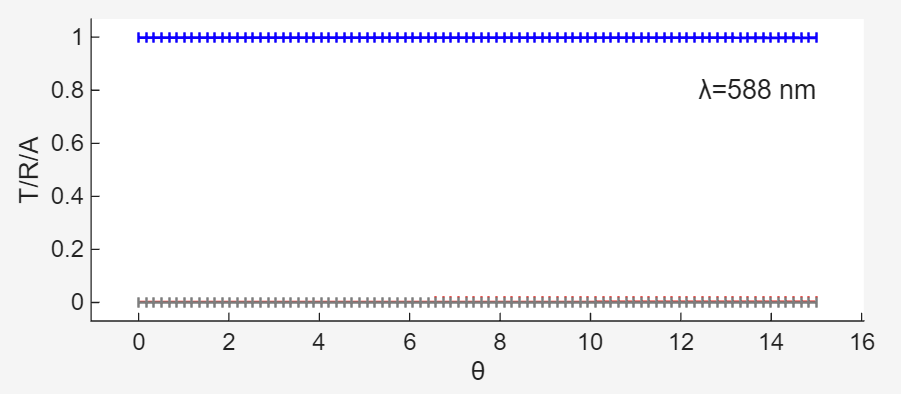
| T/R/A against incident angle |
| Plot of performance parameters against incident angle response for the wavelength that you choose using the heatmap. |


Alternative Functionality
The OpticalCoatingPicker object creates a UI component that enables
you to visualize coating layers and optical response. To create a UI component that enables
you to edit and visualize the optical response of an optical coating, use the OpticalCoatingEditor object, instead.
Version History
Introduced in R2026a
See Also
opticalCoating | opticalCoatingEditor | coatingLibrary | pickCoating | removeCoating | opticalSystem

