Microsoft Excel Import, Export, and Logging Format
R2026bUsing the Simulation Data Inspector or Simulink® Test™, you can import data from a Microsoft® Excel® file or export data to a Microsoft Excel file. You can also load data from an Excel spreadsheet into your model using the Playback block, or log data to an Excel file using the Record block. You can use the same Microsoft Excel file format with the Simulation Data Inspector, the Playback block, and the Record block.
Tip
If the format of the data in your Excel file does not match the specification in this topic, you can write
your own file reader to import the data using the io.reader class.
Basic File Format
In the simplest format, the first row in the Excel file is a header that lists the names of the signals in the file. The
first column is time. The name for the time column must be time, and
the time values must increase monotonically. The rows below the signal names list the
signal values that correspond to each time step.

Excel does not support Inf or NaN values,
which affects both import and export operations. When you import data from an
Excel file, the Simulation Data Inspector:
Supports all built-in data types
Does not support importing data with empty cells or number errors, such as those resulting from
InforNaNvalues, in thetimecolumnTreats empty cells and cells with number errors in a signal value column as missing data
When you export data with Inf or NaN values from
the Simulation Data Inspector to Excel:
The Simulation Data Inspector removes
NaNvalues, leaving those cells empty in the exported spreadsheet.Because Excel does not natively support
Infas a numeric value, Excel convertsInfdata to either an error code or the numeric value65535depending on the version of the Excel software.
Multiple Time Vectors
If your data includes signals with different time vectors, the file can include more
than one time vector. Every time column must be named time. Time
columns specify the sample times for signals to the right, up to the next time vector.
For example, the first time column defines the time for signal1 and
signal2, and the second time column defines the time steps for
signal3.
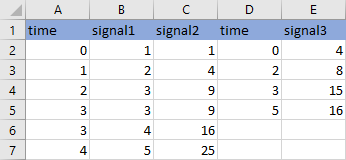
Signal columns must have the same number of data points as the associated time vector.
Signal Metadata
The file can include metadata for signals such as data type, units, and interpolation method. The Simulation Data Inspector uses metadata to determine how to plot the data, how to apply unit and data conversions, and how to compute comparison results. For more information about how metadata is used in comparisons, see How the Simulation Data Inspector Compares Data.
You can specify any combination of metadata for each signal in the rows between the signal names and the signal data. Leave cells blank for signals with less specified metadata.
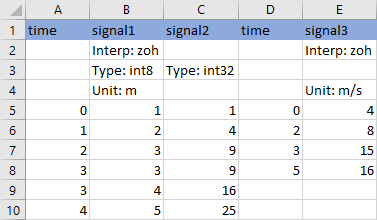
Label each piece of metadata according to this table. The table also indicates which
tools and operations support each piece of metadata. If an imported file does not
specify signal metadata, the Simulation Data Inspector uses double
data type, zoh (zero order hold) interpolation, and
union synchronization.
| Signal Property | Label | Values | Simulation Data Inspector Import | Record Block Logging and Simulation Data Inspector Export | Simulink Test Import and Export |
|---|---|---|---|---|---|
| Data type | Type: | Built-in data type. | Supported | Supported | Supported |
| Units | Unit: | Supported unit. For example, For a list of
supported units, enter | Supported | Supported | Supported |
| Interpolation method | Interp: | linear, zoh for zero order
hold, or none. | Supported | Supported | Supported |
| Synchronization method | Sync: | union or
intersection. | Supported | Not Supported Metadata not included in exported file. | Supported |
| Relative tolerance | RelTol: | Percentage, represented as a decimal. For example,
RelTol: 0.1 specifies a 10% relative
tolerance. | Supported | Not Supported Metadata not included in exported file. | Supported |
| Absolute tolerance | AbsTol: | Numeric value. | Supported | Not Supported Metadata not included in exported file. | Supported |
| Time tolerance | TimeTol: | Numeric value, in seconds. | Supported | Not Supported Metadata not included in exported file. | Supported |
| Leading tolerance | LeadingTol: | Numeric value, in seconds. | Supported Only visible in Simulink Test. | Not Supported Metadata not included in exported file. | Supported |
| Lagging tolerance | LaggingTol: | Numeric value, in seconds. | Supported Only visible in Simulink Test. | Not Supported Metadata not included in exported file. | Supported |
| Block Path | BlockPath: | Path to the block that generated the signal. | Supported | Supported | Supported |
| Port Index | PortIndex: | Integer. | Supported | Supported | Supported |
| Name | Name: | Signal name | Supported | Not Supported Metadata not included in exported file. | Supported |
User-Defined Data Types
In addition to built-in data types, you can use other labels in place of the
DataType: label to specify fixed-point, enumerated, alias, and
bus data types.
| Data Type | Label | Values | Simulation Data Inspector Import | Record Block Logging and Simulation Data Inspector Export | Simulink Test Import and Export |
|---|---|---|---|---|---|
| Enumeration | Enum: | Name of the enumeration class. | Supported Enumeration class definition must be saved on the MATLAB path. | Supported Enumeration class definition must be saved on the MATLAB path. | Supported Enumeration class definition must be saved on the MATLAB path. |
| Alias | Alias: | Name of a | Supported For matrix and complex signals, specify the alias data type on the first channel. | Not Supported | Supported For matrix and complex signals, specify the alias data type on the first channel. |
| Fixed-point | Fixdt: |
| Supported | Not Supported | Supported |
| Bus | Bus: | Name of a | Supported | Not Supported | Supported |
When you specify the type using the name of a Simulink.Bus object and
the object is not in the MATLAB workspace, the data still imports from the file. However, individual
signals in the bus use data types described in the file rather than data types defined
in the Simulink.Bus object.
Complex, Multidimensional, and Bus Signals
You can import and export complex, multidimensional, and bus signals using an Excel file. The signal name for a column of data indicates whether that data is part of a complex, multidimensional, or bus. Excel file import and export do not support arrays of buses.
Note
When you export data from a nonvirtual bus with variable-size signals to an Excel file, the variable-size signal data is expanded to individual channels, and the hierarchical nature of the data is lost. Data imported from this file is returned as a flat list.
Multidimensional signal names include index information in parentheses. For example,
the signal name for a column might be signal1(2,3). When you import
data from a file that includes multidimensional signal data, the Simulation Data
Inspector assigns zero sample values to elements not included in the file, with the same
data type and complexity as the other elements.
Complex signal data is always in real-imaginary format. Signal names for columns
containing complex signal data include (real) and
(imag) to indicate which data each column contains. When you
import data from a file that includes imaginary signal data without specifying values
for the real component of that signal, the signal values for the real component default
to zero.
Multidimensional signals can contain complex data. The signal name includes the
indication for the index in the multidimensional signal and the real or imaginary tag.
For example, signal1(1,3)(real).
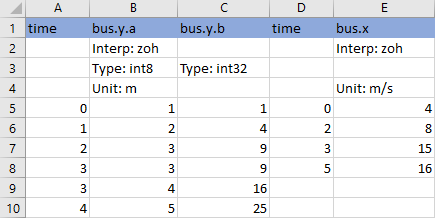
Dots in signal names specify the hierarchy for buses. For example:
bus.y.abus.y.bbus.x
Tip
When the name of your signal includes characters that could make it appear as
though it were part of a matrix, complex signal, or bus, use the
Name metadata option to specify the name you want the
imported signal to use in the Playback block, the Simulation Data
Inspector, and Simulink
Test.
Function-Call Signals
Signal data specified in columns before the first time column is imported as one or
more function-call signals. The data in the column specifies the times at which the
function-call signal was enabled. The imported signals have a value of
1 for the times specified in the column. The time values for
function-call signals must be double, scalar, and real, and must increase
monotonically.
When you export data from the Simulation Data Inspector, function-call signals use the same format as other signals, with a time column and a column for signal values.
Simulation Parameters
You can import and export data for parameter values used in simulation. In the Playback block and the Simulation Data Inspector, the parameter values are shown as signals. Simulink Test uses imported parameter values to specify values for those parameters in the tests it runs based on imported data.
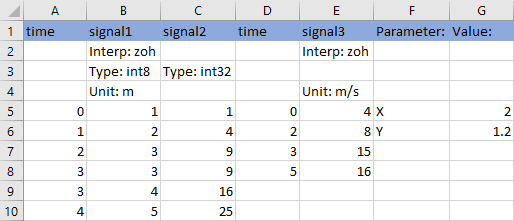
Specify each parameter using two columns. The first column specifies the time values,
with the header cell labeled time. The second column specifies the
parameter values for each time step, with the header cell labeled with the parameter
name. The second column can also include rows that contain metadata associated with each
parameter. Below the metadata or parameter name include a row labeled Domain:
Parameters, followed by the parameter values. For example, this file
specifies values for two parameters that vary over time, X and
Y.
When you import and export data from Simulink
Test to a Microsoft
Excel file, the parameter data uses a two-column format. The first column,
labeled Parameter:, specifies the parameter names. The second column,
labeled Value:, specifies the value for each parameter. Each row
corresponds to a parameter and its value. For more information, see Create External Data Files to Use in Test Cases (Simulink Test).
Before R2026b: The Simulation Data Inspector exported simulation parameter data in the same format as Simulink Test. The Simulation Data Inspector maintains backward compatibility for importing files in that format.
Multiple Runs
You can include data for multiple runs in a single file. Within a sheet, you can
divide data into runs by labeling data with a simulation number and a source type, such
as Input or Output. Specify the simulation number
and source type as additional signal metadata, using the label
Simulation: for the simulation number and the label
Source: for the source type. The Playback block
and the Simulation Data Inspector use the simulation number and source type only to
determine which signals belong in each run. Simulink
Test uses the information to define inputs, parameters, and acceptance criteria
for tests to run based on imported data.
You do not need to specify the simulation number and output type for every signal. Signals to the right of a signal with a simulation number and source use the same simulation number and source until the next signal with a different source or simulation number. For example, this file defines data for two simulations and imports into four runs in the Simulation Data Inspector:
Run 1 contains
signal1andsignal2.Run 2 contains
signal3,X, andY.Run 3 contains
signal4.Run 4 contains
signal5.

You can also use sheets in the Microsoft Excel file to divide the data into runs and tests. If you do not specify simulation number and source information, the data on each sheet is imported into a separate run in the Simulation Data Inspector or the Playback block. When you export multiple runs from the Simulation Data Inspector, the data for each run is saved on a separate sheet. When you import a Microsoft Excel file that contains data on multiple sheets into Simulink Test, Simulink Test creates an iteration for each sheet.
See Also
Simulink.sdi.createRun | Simulink.sdi.exportRun

