Get Started with Optical Design and Simulation
R2026bOptical design and simulation is the process of creating and analyzing optical systems to achieve the desired imaging and illumination performance. Using the Optical Design and Simulation Library for Image Processing Toolbox™, you can programmatically design optical systems, optical coatings, and materials; import designs from ZMX files; create 2-D and 3-D visualizations; perform paraxial analysis, ray tracing and image quality analysis.
Note
You can install the Optical Design and Simulation Library for Image Processing Toolbox from Add-On Explorer. For more information about installing add-ons, see Get and Manage Add-Ons.
You can interactively load and create optical systems, perform ray tracing, paraxial, and aberration analysis, and visualize optical systems and traced rays in the Optical System Designer app. To get started with the Optical System Designer app, see Design Optical System Using Optical System Designer and Analyze Optical System Using Optical System Designer.
This table shows which optical design tasks are supported programmatically and in the Optical System Designer app.
| Task | Programmatic | Optical System Designer App | Get Started Programmatically |
|---|---|---|---|
Import optical designs from ZMX files |
|
| |
| Design custom optical systems from scratch |
|
| |
Visualize optical systems in 2-D and 3-D |
|
| |
Quick focus optical system and compute field of view |
|
| |
Compute or visualize paraxial quantities |
|
| |
Trace rays, create spot diagrams, and perform aberration, field curvature, and lens distortion analysis |
|
| |
Compute ray path data and polarization matrices |
|
| Compute Ray Path, Polarization, and Fresnel Coefficient Data |
| Create custom optical materials and visualize their dispersion properties |
|
| |
Design and edit optical coatings |
|
|


Create Optical Systems
You can import an optical system from a ZMX file, or create a custom optical system from scratch.
Import Optical System from ZMX File
Using the Optical Design and
Simulation Library for Image Processing
Toolbox, you can import optical designs from ZMX files using the zmximport function. The function loads the designs into your
workspace as opticalSystem objects. To read the ZMX file information, use the
zmxinfo function.
For an example of how to import and work with an optical system from a ZMX file, see Apply Configurations to Optical System Imported from ZMX File.
Create Custom Optical System
To simulate a custom optical system, you must first create an empty system using
the opticalSystem object. You can optionally specify optical system
parameters, such as the wavelengths, field points, and ambient material type, using
settable properties.
Add components to the system using these object functions.
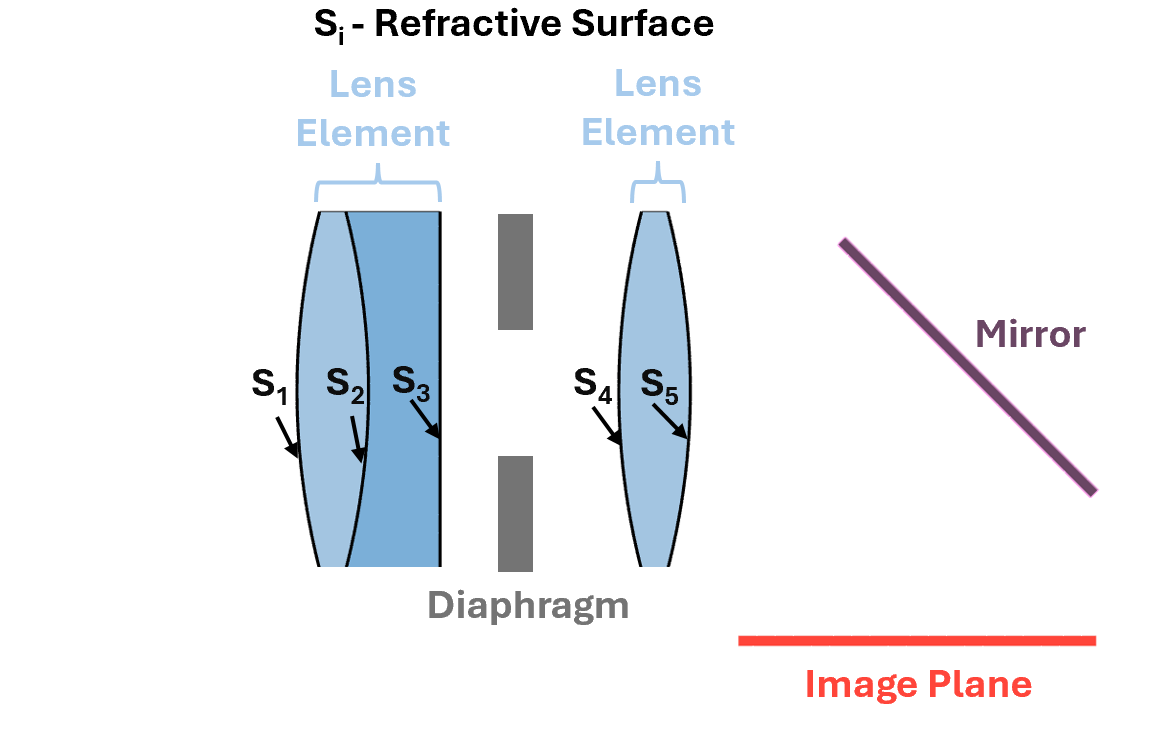
addRefractiveSurface— Create refractive surfaces which compose lens components. When you crate a lens element using this function, you create aLensElementobject.addImagePlane— Create an image plane or sensor. When you create an image plane using this function, you create anImagePlaneobject.addDiaphragm— Create a diaphragm or aperture stop. When you create an diaphragm using this function, you create aDiaphragmobject.addMirror— Create a mirror. When you create a mirror component using this function, you create aMirrorobject.addGap— Add a gap after a component or surface.
This image shows the types of components that you can add to an optical system using these object functions. Create lens elements by adding two or more refractive surfaces in sequence to an optical system.
For an example of how to create a lens system by adding components to an optical system, see Design Cooke Triplet.
Tip
You can use the setConstructionFrame object function to specify the position and
angular orientation of the next components that you add. For example, you can
use this function to tilt and position a mirror and the image plane. To learn
more about optical coordinate systems, see Coordinate Systems in Optics.
Modify Optical Systems
To modify an existing optical system that you have imported or created, you can use these functions to insert, remove, or modify components and gaps:
insert— Insert component before or after another component.remove— Remove a component.changeGap— Modify gap size of specified gap before or after the specified component.distanceAfter— Query the gap distance between a component and the subsequent component.distanceBefore— Query the gap distance between a component and the previous component.
Use Optical Materials
You can load optical materials for use in optical designs using a preloaded
optical material library of vendor catalogs, or create your own custom optical
materials. When you create an optical component such as a lens element or mirror,
you can specify its optical material using the opticalMaterial object. To learn more about how to use optical
materials, see Load, Create, and Use Optical Materials.
To create a UI that enables you to interactively visualize material properties of
custom materials or materials from the library, use the opticalMaterialPicker.
Visualize Optical Systems
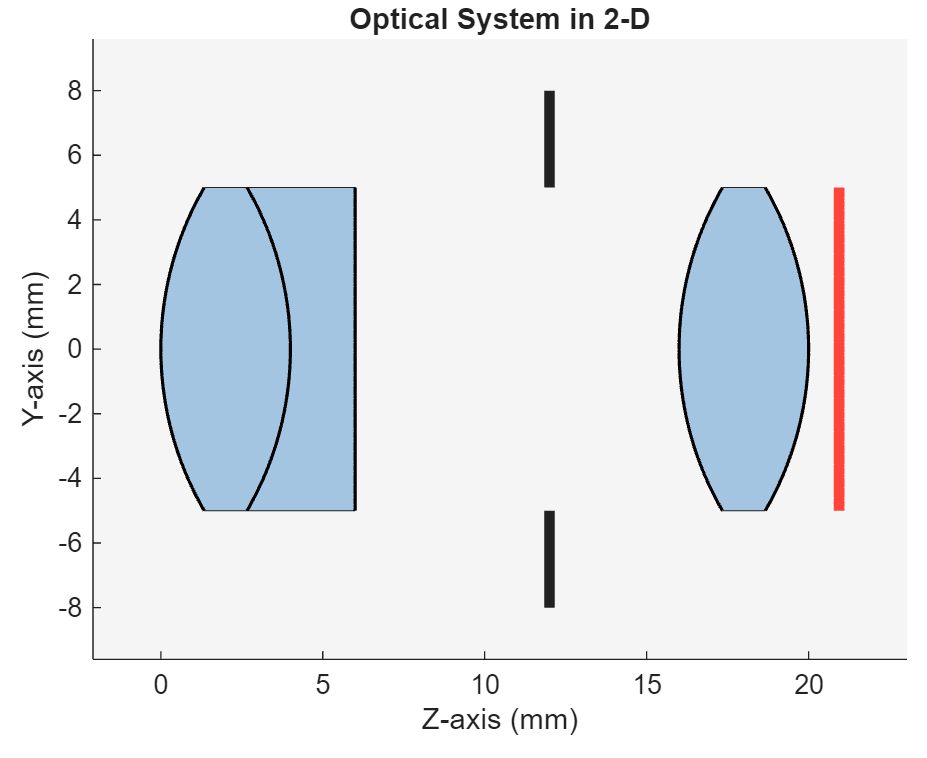
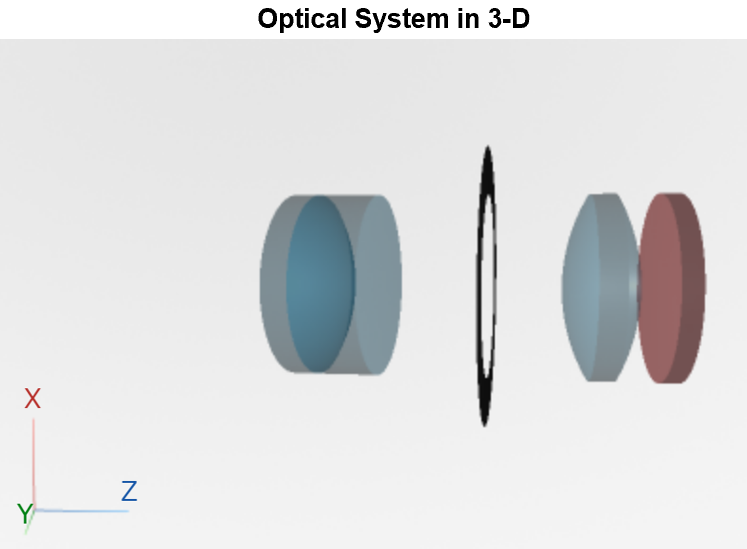
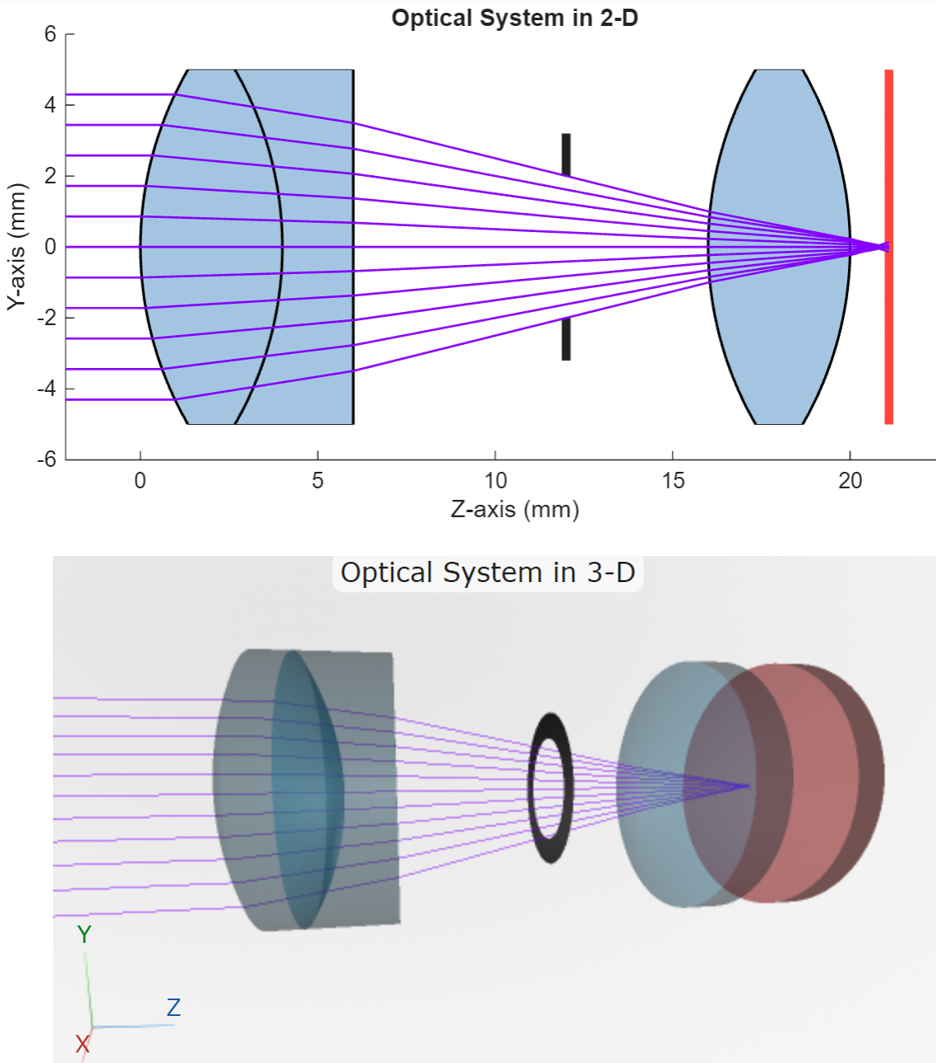
Once you create an optical system, the view2d or
view3d
object function, respectively. The table visualizes the same optical system, containing
a doublet lens, diaphragm, convex lens, and image plane, in 2-D and 3-D.
| 2-D Visualization | 3-D Visualization |
|---|---|
Visualize an optical system using the
view2d(opsys)
| Visualize an optical system using the
view3d(opsys)
|
Tip
To create, import, and visualize optical systems interactively, see Design Optical System Using Optical System Designer.
Apply Optical Coatings
Create an optical coating using the opticalCoating object, or select a default optical coating from the
optical coating library using the pickCoating function. Apply the optical coating to all lens components
in an optical system using the addCoating function, or assign an optical coating to the
Coating property of LensElement
or Mirror
objects.
Use the fresnelCoefficients object function to perform reflectance,
transmittance, and absorbance analysis for optical coating design with specific
wavelength, light angle, and polarization requirements.
To get started with using optical coatings, see Apply Optical Coatings.
Perform Paraxial Analysis
Compute paraxial information to quickly evaluate the image quality and capabilities of your optical system before performing a full ray tracing analysis. Paraxial information of an optical system is the set of parameters that describe how the system behaves under the paraxial approximation, or the result of simplified ray tracing computations that assume small incoming ray angles relative to the optical axis. Paraxial quantities include cardinal points such as the system's focal and principal points, which are the fundamental reference points that define the paraxial imaging properties.
To compute paraxial information for an optical system, use the paraxialInfo object function. For an example of how to use paraxial
information to optimize lens component positions in an optical system, see Optimize Photographic Zoom Lens Component Positions.
Configure Aperture, Focus, and Field of View
Prior to ray tracing analysis, you can tune your optical system by modifying the system aperture, focus, and field of view.
Modify System Aperture
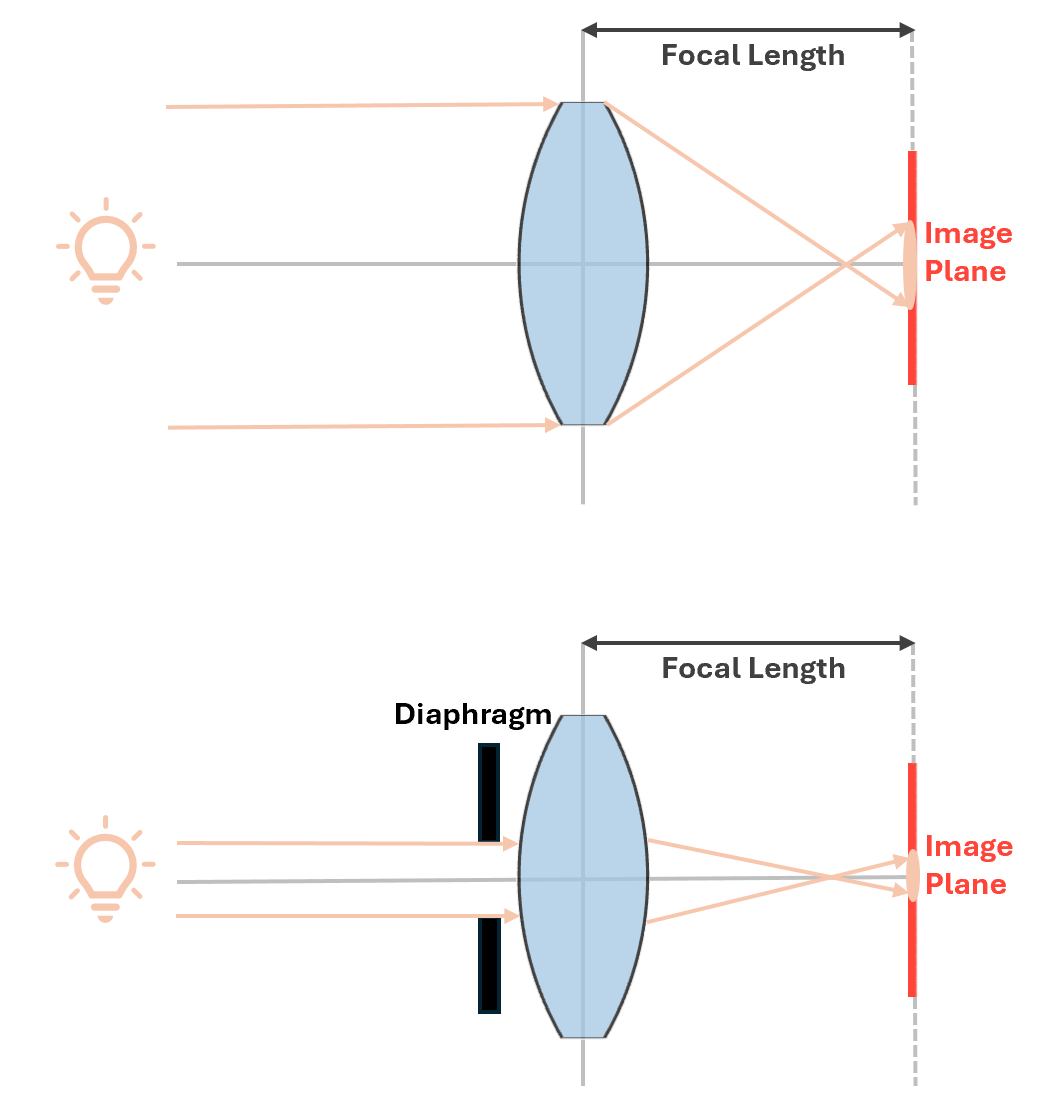
The aperture of an optical system is the opening through which light enters the system. Its size controls the amount of light that reaches the image sensor or image plane. This image shows the effect of adding a diaphragm, a type of aperture stop, to an optical system that consists of a single convex lens and image plane. The addition of the diaphragm limits the system aperture and decreases the size of the blur spot formed on the image plane.
You can tune the size of the aperture of an optical system in these ways.
Add Aperture Stop — Add a diaphragm to the optical system, which is an aperture stop that limits the cone of light entering the system. To add a diaphragm to an optical system, use the
addDiaphragmobject function.Resize Surface Semi-Diameters — Modify the semi-diameters of the optical system surfaces using the
updateSemiDiametersobject function. The semi-diameter of a surface is the circular aperture through which light passes, and is typically equal to half the diameter of the usable optical surface. Increase the semi-diameters of surfaces in the system to increase the system aperture size, allowing more light to enter the optical system.
Focus System and Tune Focal Length
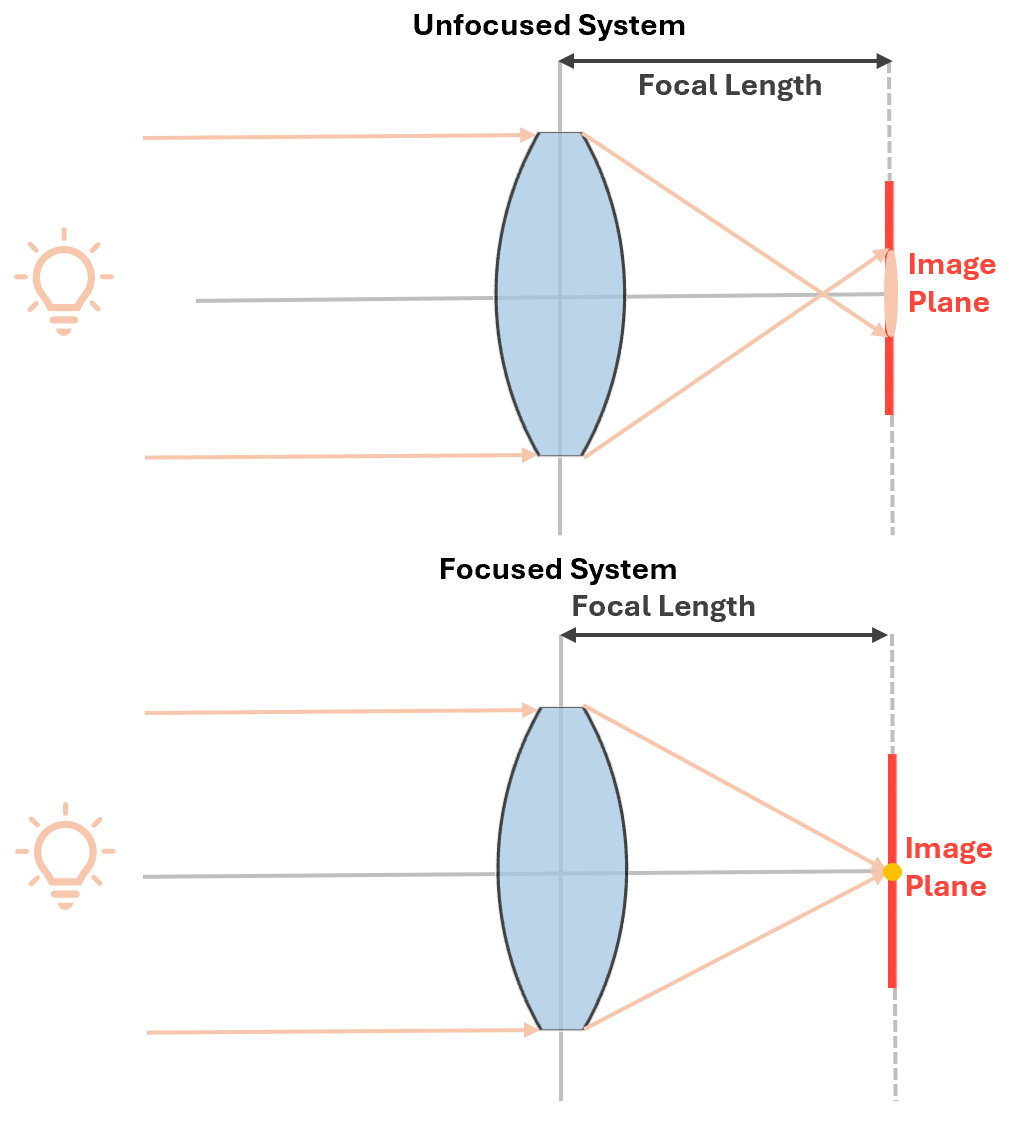
To focus an optical system, minimize the spot size on the image plane by
repositioning it. By moving the image plane, which often represents a sensor, you
adjust the point at which light rays converge to form a clear image. To focus the
optical system in this way, use the focus
object function.
This image shows an unfocused optical system and the same system after it has been focused by repositioning the image plane.
You can tune the focal length by adjusting the position of components. A shorter focal length brings the focus closer to the lens, while a longer focal length extends it further away. To learn how to tune optical component positions for a desired focal length, see these examples:
Compute Half Field of View
For an imaging system, you can optionally tune the half field of view (HFOV) to set what part of the scene can be imaged. The HFOV is the maximum angle from the optical axis at which the system can accept a light ray from the edge of the field and focus it onto the image plane. The chief ray, the ray that passes through the center of the entrance pupil from an off-axis object point, defines the boundary of the field of view. This vertical field of view is the actual size of the area that is visible through the optical system. This diagram illustrates the HFOV and focal length of a simple optical system that consists of a single convex lens and an image plane.
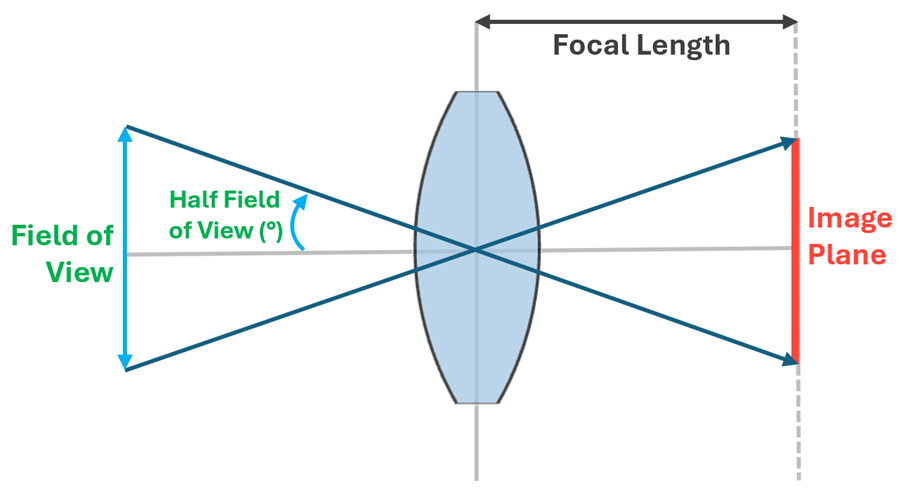
To compute the half field of view of an optical system, use the halfFieldOfView object function.
Tip
To limit vignetting, create an aperture to accommodate the light rays coming from the extremities of the HFOV. Vignetting is a reduction in image brightness or saturation at the periphery compared to the image center.
Perform Ray Tracing and Geometric Analysis
Using the Optical Design and Simulation Library for Image Processing Toolbox, you can create field points from which to trace rays, perform ray tracing, visualize spot diagrams, and perform aberration analysis of an optical system. To perform ray tracing and analysis, you must first add field points to the system.
Create Field Points
Create field points to represent the light source, or describe the object being imaged. You can create these types of field points.
Field Angles: Field angles represent the angular position of a light source located at an infinite distance away from the first surface in the optical system. The chief ray, which passes through the center of the entrance pupil, defines the field angle.
Field Positions: Field positions represent the actual spatial position of a light source, object point in the object plane, or the physical location of points on the imaged object.
To create field points, use the fieldPoint object function. To learn more, see Create Field Points.
Light emitted from field points first passes through the entrance pupil of the optical system. The entrance pupil is the effective aperture for incoming light, determining the angular cone of light that is accepted by the system. If the aperture stop is a lens surface, the entrance pupil is the effective aperture through which light travels. In this case, the aperture is shaped by the optical properties of the lens.
Perform Ray Tracing
Perform ray tracing by simulating light ray paths as they travel from field points through the optical system. Ray tracing visualizations provide insight into how an optical system focuses light, the formation of images, and the presence of aberrations. You can trace these types of rays:
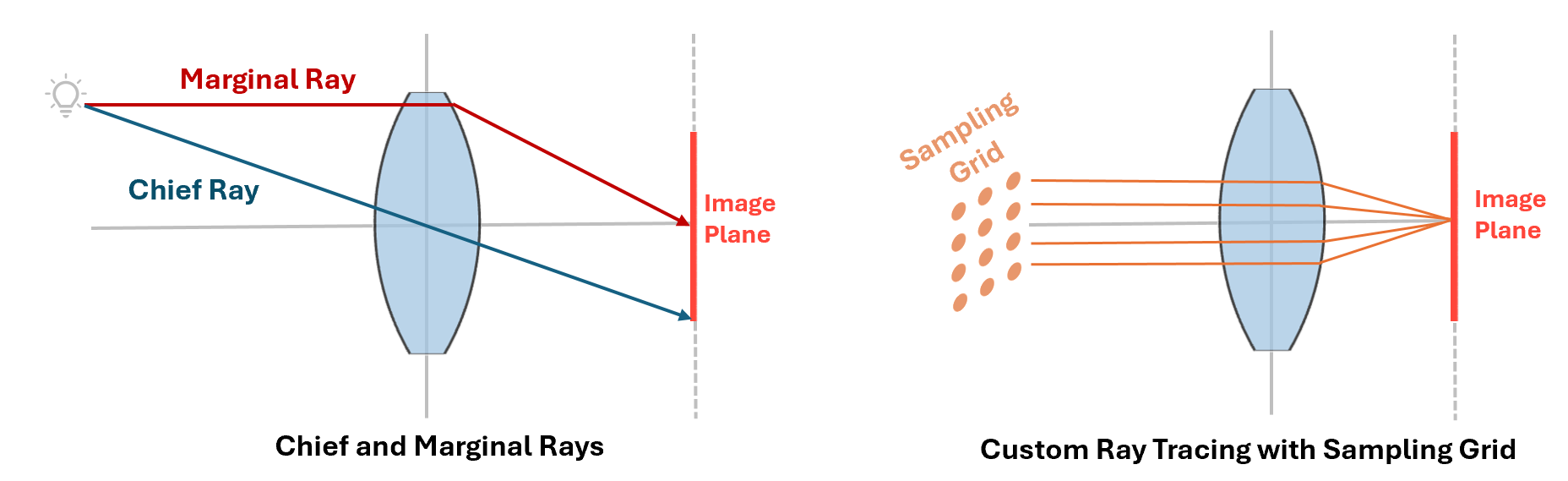
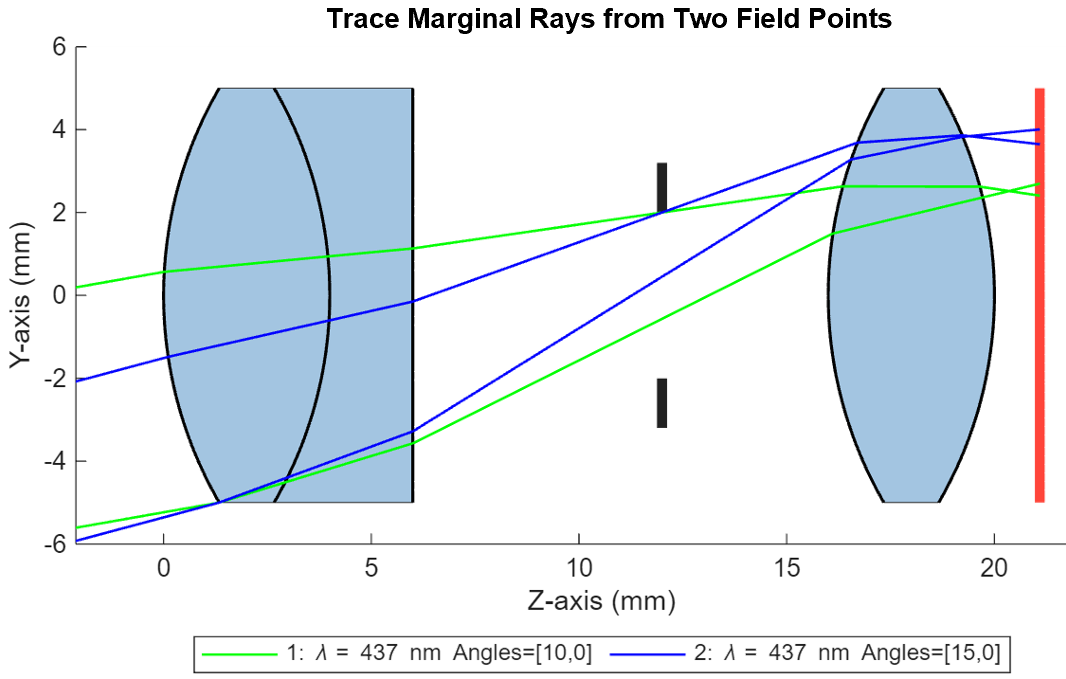
Marginal rays: Marginal rays are outermost rays that pass through the edge of the system surfaces or aperture stop to the image plane.
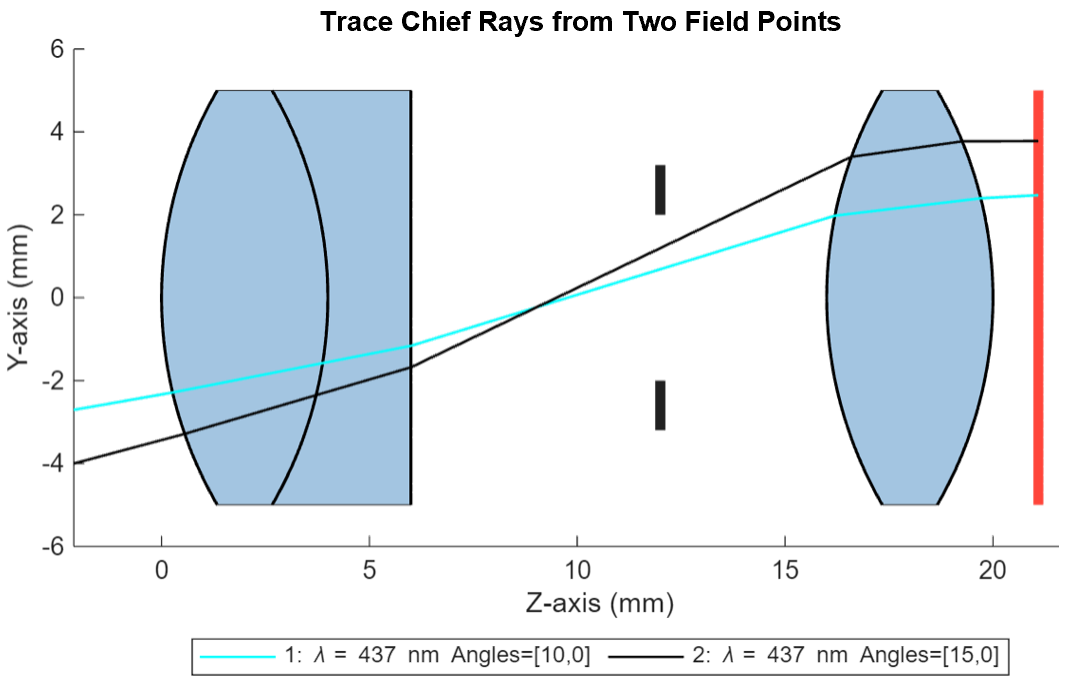
Chief ray: The chief ray passes through the center of the entrance pupil halfway between the upper and lower marginal rays of the optical system.
General rays: General rays are ray bundles that originate from field points and travel into the entrance pupil through the sampling grid. A sampling grid is an array of coordinate points defined in a plane perpendicular to the optical axis that defines the distribution of incoming light rays through the entrance pupil or another aperture of the system.
This image shows 2-D representations of an optical system. One illustrates tracing a chief ray and marginal ray originating from the same field point, and the other illustrates tracing a sampled group of general rays through the same system.
This table describes the ray tracing methods available in the library.
| Ray Tracing Method | Implementation | Sample Visualization |
|---|---|---|
Trace general rays through the system. |
|
|
Trace marginal rays from each field point. |
|
|
Trace a chief ray from each field point. |
|
|
To learn more about sampling traced rays, see Configure Ray Sampling in Optical System.
Visualize Spot Diagram
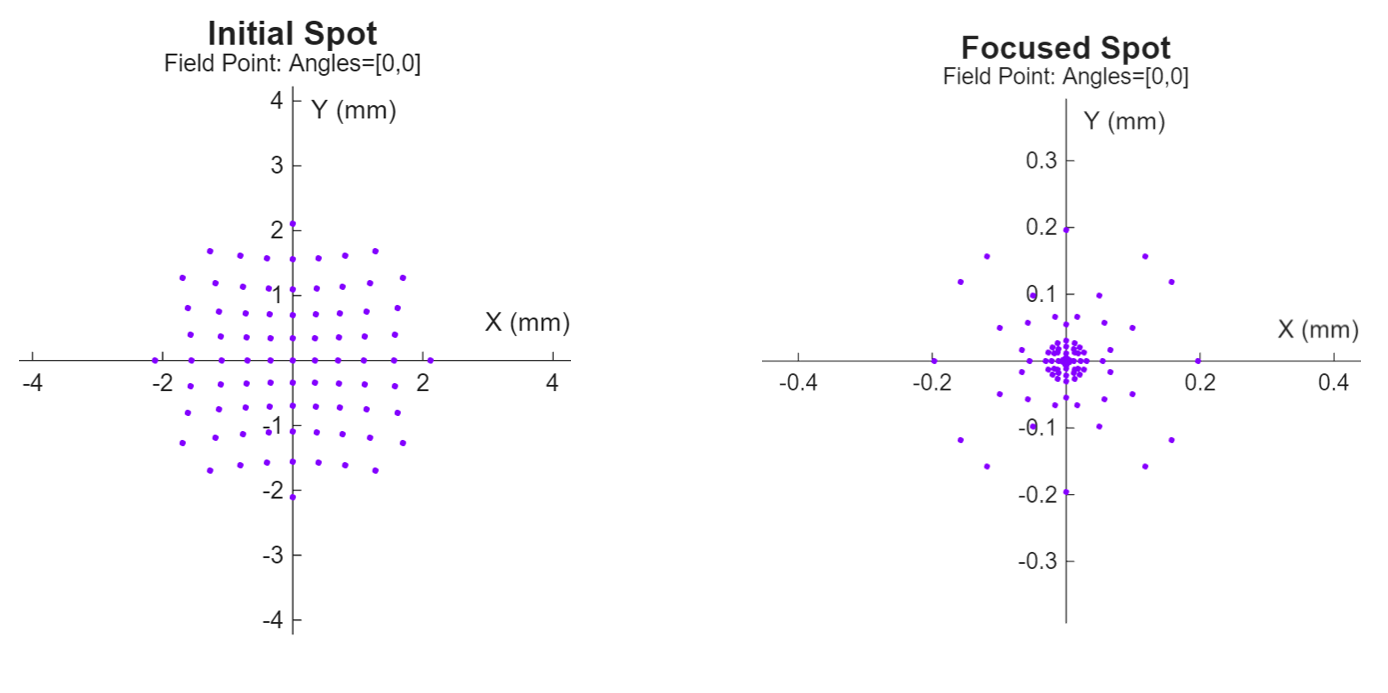
Spot diagrams provide a visual representation of how a system focuses light from a single field point. They illustrate the distribution of light rays at the image plane, revealing deviations from the ideal focus and highlighting aberrations such as astigmatism. The root mean square (RMS) spot size derived from these diagrams represents the average deviation of the rays from the centroid of the spot.
Compute the RMS spot size using the spot
object function. Visualize the spot diagram in 2-D using the spotDiagram object function.
This image shows an example of a 2-D visualization of the spot diagrams for the optical system before and after the system has been focused. A smaller RMS spot size indicates higher optical quality and better focusing performance.
Analyze Image Quality
Analyze the aberrations, or deviations from the ideal image. This table describes the functions available for image quality analysis, and lists the objects which store their corresponding analysis results.
| Function | Computed Aberration | Analysis Result Object |
|---|---|---|
chromaticAberration | Chromatic aberration, or the discrepancy in focal length for different wavelengths, which causes color fringing and image blurring. | ChromaticAberration |
fieldCurvature | Field curvature, or the curvature of the image plane, which leads to astigmatism and focus variations across the field of view. | FieldCurvature |
rayAberration | Tangential and sagittal ray aberration, which leads to unequal focusing of light in different meridians and distorted or blurred images. | RayAberration |
lensDistortion | Geometric lens distortion, or the deviation of light rays from their ideal paths. | LensDistortion |
To visualize the result returned by each analysis function, use the show
object function.
Tip
To perform ray tracing and analysis interactively, see Analyze Optical System Using Optical System Designer.
Compute Ray Path, Polarization, and Fresnel Coefficient Data
When you trace rays using the traceRays,
traceMarginalRays, or traceChiefRays
function, you can use the RayData property of the returned RayBundle
object to inspect geometric information about each ray’s path through the optical
system. Use this data to analyze key aspects of ray geometry, such as origins,
intersection points, directions, and how rays terminate.
Additionally, you can use the RayProperties name-value argument
of the ray tracing functions to return this additional ray data:
Surface normal vectors at intersections
Angle of incidence at each surface
Cumulative optical path length (OPL)
Intersection points in local surface coordinates
Using the RayPropertiestraceRays function, you can additionally return this data for
polarization analysis:
Polarization transformation matrices (bulk, surface, system)
Fresnel reflection/transmission coefficients, power coefficients, bulk transmission and phase shift, total system transmittance
References
[1] Bass, Michael, editor-in-chief. Handbook of Optics, Volume 2. 2nd ed. Edited by Eric W. Van Stryland, David R. Williams, and William L. Wolfe. New York: McGraw-Hill, 1995.
See Also
Functions
Apps
Topics
- Modify Focal Length By Scaling Optical System
- Optimize Photographic Zoom Lens Component Positions
- Design Cooke Triplet
- Apply Configurations to Optical System Imported from ZMX File
- Create Lens Prescription Table for Optical System
- Coordinate Systems in Optics
- Configure Ray Sampling in Optical System
- Create Field Points
- Apply Optical Coatings

