Modify Focal Length By Scaling Optical System
R2026bThis example shows how to modify the focal length of an optical system by appropriately scaling its individual components and gaps between components. Scale the optical system to adapt reference optical system designs to new focal length constraints, or to create reference designs which are normalized to a unit focal length.
This example requires the Optical Design and Simulation Library for Image Processing Toolbox™. You can install the Optical Design and Simulation Library for Image Processing Toolbox from Add-On Explorer. For more information about installing add-ons, see Get and Manage Add-Ons.
Simulate Optical System
Load an aspheric lens from a ZMX file into the workspace.
opsys = zmximport("LensWithAspherics.zmx");Compute Focal Length
Compute the paraxial information for the optical system using the paraxialInfo object function. Define the initial focal length using the FocalLength property.
pInfo = paraxialInfo(opsys);
initialFocalLength = pInfo.FocalLength;
Trace Rays
Trace paraxial rays through the optical system using the traceRays object function.
rays = traceRays(opsys,Wavelengths=558);
Visualize Optical System
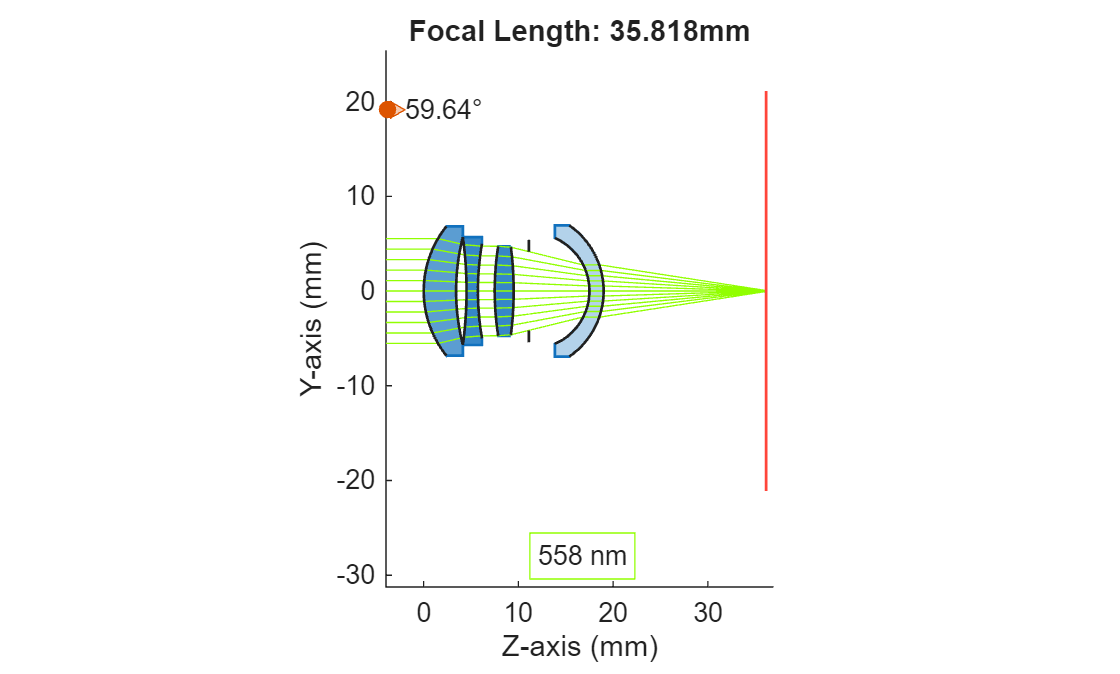
Display the optical system and the initial focal length using the view2d function, and visualize the traced rays through the system using the addRays object function.
hv = view2d(opsys);
hv.Title = "Focal Length: " + initialFocalLength + "mm";
addRays(hv,rays)
Simulate Scaled Optical System
Select a focal length to which to scale the optical system, and scale the optical system and its components using the scaleToFocalLength helper function.
requiredFocalLength =  80;
opsysScaled = scaleToFocalLength(opsys,requiredFocalLength);
80;
opsysScaled = scaleToFocalLength(opsys,requiredFocalLength);Compute Scaled System Paraxial Information
Compute the paraxial information for the scaled optical system using the paraxialInfo object function. Define the scaled focal length using the FocalLength property.
pInfo = paraxialInfo(opsysScaled);
scaledFocalLength = pInfo.FocalLength;
Visualize Scaled Optical System
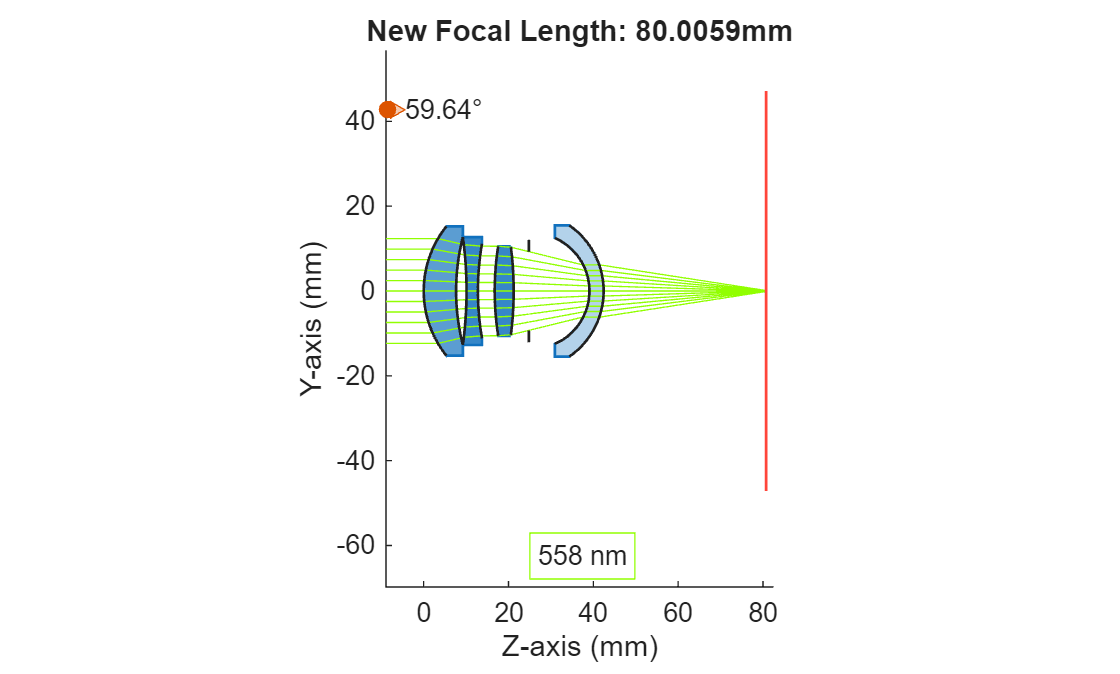
Display the optical system and the initial focal length using the view2d function, and visualize the traced rays through the system. Note the increase in system size, as reflected by the x and y axis limits, and the larger focal length.
hv = view2d(opsysScaled);
hv.Title = "New Focal Length: " + scaledFocalLength + "mm";
rays = traceRays(opsysScaled,Wavelengths=558);
addRays(hv,rays);
Helper Functions
scaleToFocalLength
The scaleToFocalLength helper function determines the scaling factor necessary to achieve the specified focal length, and uses it to scale each lens element and gap between components. The mirror, diaphragm and image plane components are modeled as infinitesimally thin and do not have an associated thickness to scale. The scaleToFocalLength helper function additionally scales the radius, semi-diameters, and the aspherical coefficients of the aspheric surfaces in the system.
function opsysScaled = scaleToFocalLength(opsys,requiredFocalLength)
% To achieve a target focal length, determine the necessary scaling
% factor.
pInfo = paraxialInfo(opsys);
sourceFocalLength = pInfo.FocalLength;
scale = requiredFocalLength/sourceFocalLength;

% Make a copy of the initial optical system.
opsysScaled = copy(opsys);

% Linearly scale the thickness of each lens element by iterating
% through the Components property and updating the thickness of every
% LensElement component.
for cInd = 1:numel(opsysScaled.Components)
    if isa(opsysScaled.Components(cInd),"optics.component.LensElement")
        opsysScaled.Components(cInd).Thickness= opsysScaled.Components(cInd).Thickness.*scale;
    end
end

% Linearly scale the gaps between components.
for cInd = 1:numel(opsysScaled.Components)-1
    curGap = opsys.distanceAfter(cInd);
    newGap = curGap*scale;
    opsysScaled.changeGap(cInd,newGap);
end

% Scale the radius, semi-diameters and the aspherical coefficients of each
% surface. The Surfaces property contains a flat list of all surfaces.
for sInd = 1:numel(opsysScaled.Surfaces)

    % Scale the radius of non-planar surfaces.
    if opsysScaled.Surfaces(sInd).Radius ~=0
        opsysScaled.Surfaces(sInd).Radius = opsys.Surfaces(sInd).Radius*scale;

        % Scale the aspheric terms (nonlinear powers of the radius). Multiply them
        % them by a corresponding nonlinear power of the same order as the aspheric term.
        for aspOrder = 1:numel(opsysScaled.Surfaces(sInd).Aspherics)
            aspCoeff = opsys.Surfaces(sInd).Aspherics(aspOrder);
            opsysScaled.Surfaces(sInd).Aspherics(aspOrder) = aspCoeff * scale^-(2*aspOrder-2);
        end
    end

    % Scale the surface shape, if circular.
    if isa(opsysScaled.Surfaces(sInd).Shape,"optics.shape.Circular")
        opsysScaled.Surfaces(sInd).Shape.SemiDiameter = ...
            opsys.Surfaces(sInd).Shape.SemiDiameter*scale;
    else
        % If the surface shape is rectangular, scale the rectangle size.
        opsysScaled.Surfaces(sInd).Shape.RectangleSize = ...
            opsys.Surfaces(sInd).Shape.RectangleSize.*scale;
    end
end
end

