Export Data from Simulation Data Inspector to Parquet File
R2026bParquet is an open-source file format with efficient compression and encoding of column-oriented data that can be useful for processing big data. Export data from the Simulation Data Inspector to a Parquet file when you are working with data that requires efficient storage and fast read and write performance. You can export scalar or multidimensional signals with real or complex data of any built-in data type, as well as enumerations, strings, fixed-point data, buses, and arrays of buses to a Parquet file. You can also export messages to a Parquet file as double values. When you export data to a Parquet file, the way the data is stored in the file depends on the type of data that you export. For more information, see Parquet File Format for Simulation Data.
Export Data to Parquet File Interactively
To export data from the Simulation Data Inspector to a Parquet file, in the toolbar on
the left, click Export  . In the Export dialog box, select File and choose the
 Parquet (*.parquet) extension. Specify
a file name and location. By default, the Simulation Data Inspector saves the file in the
current working directory with the file name New_Export.parquet. To
configure Parquet file export settings, such as the compression type, time column
configuration, or row group options, click the options button  .
.
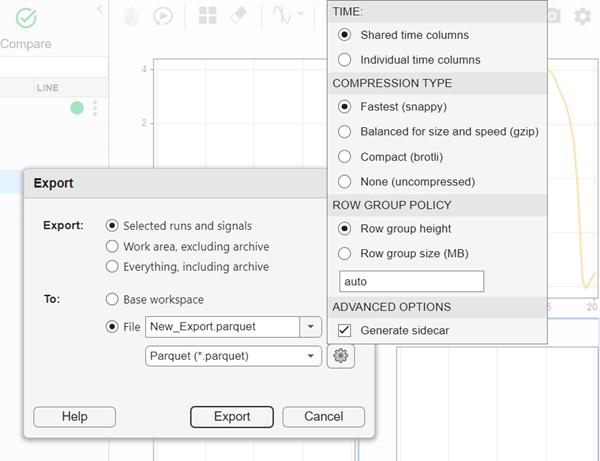
Time Options
You can specify how to save time information:
Shared time columns — Save multiple columns of data with a single shared column of time data (default).
Individual time columns — Save data in pairs of time and data columns such that each column of data has its own associated time data.
Compression Options
You can also specify the compression type, selecting a tradeoff between save speed and file size.
Fastest (snappy) — Similar save speed to an uncompressed file, smaller file size (default)
Balanced for size and speed (gzip) — Balance between file size and save speed
Compact (brotli) — Smallest file size, slowest save speed
None (uncompressed) — Largest file size, fastest save speed
Row Grouping Options
You can also configure the row group policy for exporting data to the Parquet file.
To specify the number of rows in a row group, select Row group height and use the text box below to specify the number of rows in each row group. By default, the value is
auto, which creates the largest possible row group without exceeding 512 MB per group. The maximum number of rows in a group must be less than 67,108,864.To specify the size of the row groups, select Row group size (MB) and use the text box to specify the size of each row group in megabytes, up to 1024 MB. By default, the size of each row group is 512 MB.
JSON Sidecar Options
By default, the Simulation Data Inspector generates a JSON sidecar containing all the logged metadata when you export data to a Parquet file. If you do not want to generate this file, clear the Generate sidecar option.
Export Data to Parquet File Programmatically
You can programmatically export data from a run or signal in the Simulation Data Inspector to a Parquet file using these functions:
export— Export data from a single run or signal.Simulink.sdi.exportRun— Export data from multiple runs.
To access the data you want to export, use the Simulink.sdi.Signal or Simulink.sdi.Run object. When you export data
to a Parquet file programmatically, you must use name-value arguments to specify that you
want to export the data to a file and provide the filename with a
*.parquet file extension.
For example, suppose you want to export data from a signal in the Simulation Data Inspector to a Parquet file.
Get the
Simulink.sdi.Runobject for the run that contains the signal data you want to export. For example, when the signal is contained in the most recently created run in the Simulation Data Inspector, you can useSimulink.sdi.Run.getLatestto get the correspondingRunobject.runObj = Simulink.sdi.Run.getLatest;
Access the
Simulink.sdi.Signalobject that contains the data you want to export using theRunobject. For example, when you know the name of the signal you want to access, you can usegetSignalsByNameto get theSignalobject.sigObj = getSignalsByName(runObj,"mySigName");Export the signal data to a Parquet file.
export(sigObj,To="file",Filename="mySigData.parquet")
Optionally, you can configure Parquet file export settings such as the
compression type, time column configuration, or row group options using name-value
arguments. For example, export the signal data in sigObj to a Parquet
file in row groups of 15 rows
each.
export(sigObj,To="file",Filename="mySigData15Rows.parquet", ...
    ParquetRowGroupPolicy="height",ParquetRowGroupHeight=15)

