Visualize Object Detection Results from Pretrained PyTorch Model
R2026bThis example shows how to use a pretrained object detection model from the PyTorch® torchvision library in MATLAB®. You run the PyTorch model in Python directly from your MATLAB session, and visualize the predicted bounding boxes, scores, and labels in the Object Detector Analyzer app. The app enables you to efficiently explore and evaluate your PyTorch model performance.
Install PyTorch Libraries
This example requires that you install Python, PyTorch®, and the torchvision library on your system. MATLAB supports the reference implementation of Python called CPython. If you are on a Mac or Linux® platform, Python is installed by default. If you are on Windows, you must install a Python distribution. For information on distributions, and to download one, see the Python website. For more information about installation, see Install Supported Python Implementation. For more information about installing the required libraries, see the PyTorch and torchvision documentation.
After you install the libraries, start the Python environment in MATLAB using the pyenv function. To minimize the risk of Python library conflicts, specify to run the environment in an out-of-process execution mode using the ExecutionMode name-value argument.
env = pyenv(ExecutionMode="OutOfProcess");Load the torchvision module to verify that the Python environment is configured correctly.
module = py.importlib.import_module("torchvision");Load Pretrained PyTorch Object Detector
Load a pretrained Faster R-CNN network from the torchvision library using the TorchVisionObjectDetector Python class in the torchvision_object_detector.py file, which is attached to this example as a supporting file. To use another pretrained model, change the modelName variable to one of the pretrained models available through the torchvision.models subpackage [1]. When you load the model, you automatically download the pretrained weights for the detector. Set the device parameter to "cpu" or "gpu" to process data on the CPU or a GPU, if a suitable GPU is available, respectively.
modelName = "FasterRCNN_MobileNet_V3_Large_320_FPN";
detectorPyTorch = py.torchvision_object_detector.TorchVisionObjectDetector(modelName,device='cpu');
The model is pretrained on the COCO data set with the ability to detect 80 objects [2].
Load Data Set
This example uses the Indoor Object Detection Dataset created by Bishwo Adhikari [3]. The data set consists of 2213 images collected from indoor scenes and contains these classes: fire extinguisher, chair, clock, trash bin, screen, and printer. First, verify if the data set has already been downloaded and, if it has not, use the websave function to download it.
dsURL = "https://zenodo.org/record/2654485/files/Indoor%20Object%20Detection%20Dataset.zip?download=1";
outputFolder = fullfile(tempdir,"indoorObjectDetection");
imagesZip = fullfile(outputFolder,"indoor.zip");

if ~exist(imagesZip,"file")
    mkdir(outputFolder)
    disp("Downloading 401 MB Indoor Objects Dataset images...")
    websave(imagesZip,dsURL)
    unzip(imagesZip,fullfile(outputFolder))
end
Prepare Data for Evaluation
Create an imageDatastore object that stores the test images from the data set.
datapath = fullfile(outputFolder,"Indoor Object Detection Dataset");
imds = imageDatastore(datapath,IncludeSubfolders=true,FileExtensions=".jpg");
To process a batch of 8 images at a time, set the ReadSize property of the ImageDatastore object to 8. To lower memory requirements when processing on the GPU, reduce the batch size at the expense of slower processing time.
imds.ReadSize = 8;
To reduce processing time, optionally select the first 100 images of the data set. Remove this line to process the entire dataset.
imds = subset(imds,1:100);
Detect Objects Using PyTorch Object Detector
The PyTorch object detector predicts the class of the object and returns an index value corresponding to the class. Create a list of classes to use for displaying the class name corresponding to the returned index.
classes = string(detectorPyTorch.classes);
classes = matlab.lang.makeUniqueStrings(classes);
Run the detector on all the images in the image datastore imds and return the bounding boxes, confidence scores, and labels using the helperPredictionsToBoxesScoresAndLabels helper function. The function extracts the bounding boxes, scores, and labels from the PyTorch detector and formats them into a three-column table of boxes, scores, and labels. You can import this table into the Object Detector Analyzer app to visualize and evaluate the detector performance.
n = numel(imds.Files);
results = cell(0,1);
while hasdata(imds)
    batch = read(imds);
    % Set a low score threshold to produce detections with a wide range of
    % scores. The Object Detector Analyzer app enables you to adjust the
    % score during visualization to help assess detector behavior.
    predictions = detectorPyTorch.detect(batch',score_threshold=0.01);
    results{end+1} = helperPredictionsToBoxesScoresAndLabels(detectorPyTorch,predictions,classes);
end
results = vertcat(results{:});
head(results)
        Boxes           Scores              Labels
    _____________    _____________    __________________

    { 2×4 double}    { 2×1 double}    { 2×1 categorical}
    { 5×4 double}    { 5×1 double}    { 5×1 categorical}
    { 5×4 double}    { 5×1 double}    { 5×1 categorical}
    {21×4 double}    {21×1 double}    {21×1 categorical}
    {20×4 double}    {20×1 double}    {20×1 categorical}
    {12×4 double}    {12×1 double}    {12×1 categorical}
    {17×4 double}    {17×1 double}    {17×1 categorical}
    {22×4 double}    {22×1 double}    {22×1 categorical}
Visualize Detections Using Object Detector Analyzer
To visualize detection results using the Object Detector Analyzer app, use the objectDetectorAnalyzer object. Specify the detection results table, results, and the image datastore, imds, as input arguments.
objectDetectorAnalyzer(results,imds)
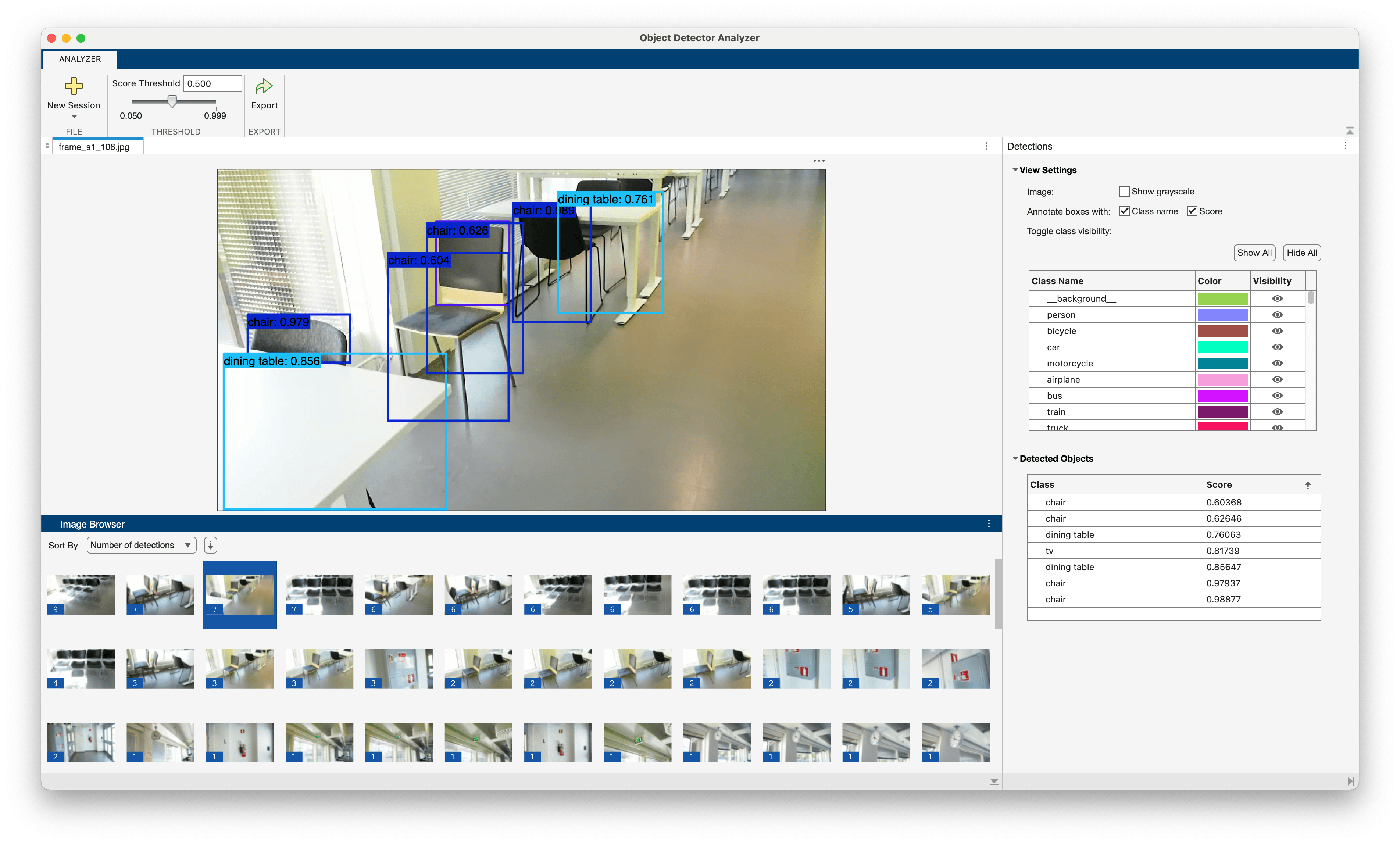
To filter the detections by their confidence scores, in the Threshold section of the app toolstrip, you can adjust the Score Threshold parameter.
If you have ground truth data available, you can use the app to assess model performance by computing evaluation metrics such as mean average precision and plotting precision-recall curves. You can also rapidly identify specific detector failure scenarios, such as missed detections or false positives, by interactively exploring and filtering the results. To get started with the Object Detector Analyzer app for both visualization and comprehensive evaluation, see Get Started with Object Detector Analyzer App.
Supporting Functions
helperPredictionsToBoxesScoresAndLabels
function tbl = helperPredictionsToBoxesScoresAndLabels(detector,predictions,classnames)
% Extract bounding boxes, scores, and labels from the predictions returned
% by torchvision. The predictions input is a Python list.
n = double(py.len(predictions));

% Create a table for the detection results.
tbl = table(Size=[n 3], ...
    VariableType=["cell" "cell" "cell"], ...
    VariableName=["Boxes" "Scores" "Labels"]);

% Convert predictions for each image.
for i = 1:n
    [tbl{i,1}{1}, tbl{i,2}{1}, tbl{i,3}{1}] = ...
        helperPredictionsToBoxesScoresAndLabelsOneImage(detector,predictions{i},classnames);
end
end
helperPredictionsToBoxesScoresAndLabelsOneImage
function [bboxes,scores,labels] = helperPredictionsToBoxesScoresAndLabelsOneImage(detector,predictions,classnames)
% Extract bounding boxes, scores, and labels from the predictions returned
% by torchvision for one image. The input predictions is Python tuple.
p = cell(predictions);

% Extract boxes and scores. The TorchVisionObjectDetector detect method converts
% the bounding box data to the [x y w h] format.
bboxes = double(p{1,1});
scores = reshape(double(p{1,2}),[],1);

% The detector returns class indices. Convert the indices to class names and
% then into a categorical.
names = string(detector.idx2class(p{1,3}));
labels = categorical(names,classnames);
labels = reshape(labels,[],1);
end
References
[1] "Models and Pre-Trained Weights — Torchvision 0.24 Documentation." Accessed November 7, 2025. https://docs.pytorch.org/vision/stable/models.html#object-detection-instance-segmentation-and-person-keypoint-detection.
[2] Lin, Tsung-Yi, Michael Maire, Serge Belongie, et al. "Microsoft COCO: Common Objects in Context," May 1, 2014. https://arxiv.org/abs/1405.0312v3.
[3] Adhikari, Bishwo, Jukka Peltomaki, Jussi Puura, and Heikki Huttunen. "Faster Bounding Box Annotation for Object Detection in Indoor Scenes." 2018 7th European Workshop on Visual Information Processing (EUVIP), November 2018, 1–6. https://doi.org/10.1109/EUVIP.2018.8611732.

