verify
Assess logical expression and log result
Syntax
Description
verify( evaluates the specified
expression to expression)true or false.
verify(
returns the error message, expression,errorMessage)errorMessage, if the expression fails. If
you run the test in the Test Manager, the error message appears in the simulation log. If
you run the test outside the Test Manager, the message appears in the Diagnostic Viewer.
Note
In a real-time environment, verify statement failures do not
produce warnings. If you run a real-time test case in the Test Manager, the
Verify Statements section displays the failures for the test case
results. You can also access information about verify runs using
getVerifyRuns.
If you run test iterations in fast restart simulation mode, verify statements do not print information, errors, or warnings to the Diagnostic Viewer, the Logs section in the Test Manager, or test reports.
verify(
returns the specified error message for the expression and displays the results with the
label expression,resultLabel,errorMessage)resultLabel. If you run the test in the Test Manager,
the resultLabel is the test result signal label. If you run the test
outside the Test Manager, the label appears in the Simulation Data Inspector or, for a
failure, in the Diagnostic Viewer.
verify(
allows the use of special characters in the specified result label. You can use only ASCII
characters in the result label. (since R2026a)expression,'ID',resultLabel,errorMessage)
Input Arguments
Examples
This verify statement evaluates two expressions:
verify(x > y && z > 10)
If this verify statement fails, it returns an error message that
lists the values of x, y, and
z.
verify(x > y && z > 10,'x, y, and z are %d,%d,%d',x,y,z)
The result of this verify statement is prefaced by the label,
TestReq1:bothGreater and, if the test fails, the Test
Manager or Diagnostic Viewer display the error message.
verify(x > y && z > 10,'TestReq1:bothGreater',...
   'x, y, and z are %d,%d,%d',x,y,z)
To only evaluate logical expressions when a statement meets multiple conditions,
define the verify statement by using an if
statements.
if u1 == false && u2 == false
  verify(x1 == false && x2 == false)
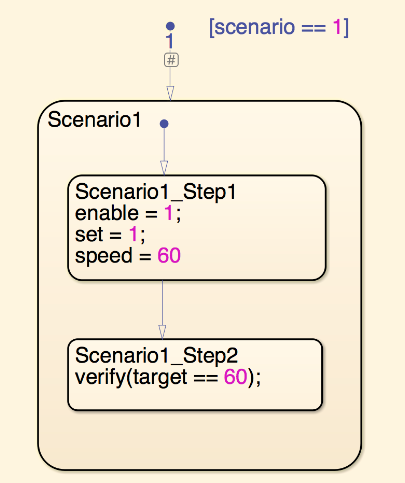
The second step in the Scenario1 state of this Stateflow chart verifies that the target equals 60.
Since R2026a
This verify statement evaluates whether
x is greater than 10. The Simulation Data Inspector and Test Manager
label the results as x > 10. If the statement fails, the Test
Manager or Diagnostic Viewer display the error x must be greater than
10.
verify(x > 10,'ID','x > 10','x must be greater than 10')
Limitations
You cannot use
verifystatements in:Test Sequence blocks that use continuous-time updating. Test Sequence block data can depend on factors such as the solver step time. Continuous-time updating can cause differences in when block data and
verifystatements update, which can lead to unexpectedverifystatement results. If your model uses continuous time and you useverifystatements in a Test Sequence or Test Assessment block, consider explicitly setting a discrete block sample time.Moore, Mealy, Discrete Event, or continuous charts
Charts that use C as the action language
Bind actions in a chart
Transition or condition actions in a chart
MATLAB functions, graphical functions, or truth tables in a chart
MATLAB Function or Truth Table blocks
Simulations in rapid accelerator mode
Code generation targets other than Simulink® Real-Time™ and HDL Verifier™
Standalone Stateflow charts
You cannot use
verifyas a condition immediately afterwhenin aWhendecomposition becauseverifystatements do not produce outputs. You can useverifystatements as actions inWhendecomposition steps. See Verify Model Simulation by Using when Decomposition.If you use parallel test execution to run your tests, and use a
verifystatement in your test, you cannot use the Highlight in Model button in the Test Manager.
Tips
You can use
verifystatements in Test Sequence and Test Assessment blocks and in Stateflow charts. A Stateflow license is required to use a chart.verifystatements in charts are supported in the same locations, execution modes, and for the same code generation targets as the Test Sequence block.You can use
verifystatements with or without a test case. If the model does not include a test case, the results appear in the Simulation Data Inspector. If the model includes a test case, the results appear in the Test Manager.To verify multiple expressions in a single time step, define the
verifystatements in the same test step or add substeps and add averifystatement to each substep. See Manage Test Steps.When comparing floating-point data in
verifystatements, consider the precision limitations associated with floating-point numbers. If you need to use floating-point data, define a tolerance for the verification. For example, instead ofverify(x == 5), verifyxwithin a tolerance of 0.001:For more information, see Floating-Point Numbers.verify(abs(x-5) < 0.001)
To reduce the transfer of data when you simulate a model on target hardware, you can choose to log only tested
verifystatement results and display onlypassandfailresults in the Test Manager and Simulation Data Inspector.To log only
passandfailverifyresults, on the Tests or Harness tab, in the Test Cases section, click Suppress Untested Results. Alternatively, you can useset_paramto set thelogOnlyTestedVerifyResultsparameter to'on'. For example, to log onlytestedverify statement results for the modelmyModel:When you select this option, the setting applies to all Test Sequence or Chart blocks in the model. The setting does not apply when using HDL Verifier.set_param(myModel,'logOnlyTestedVerifyResults','on')

