Design and Train Reinforcement Learning Agents Using Copilot Assisted Training Advisor
R2026bThis example walks you through designing and training reinforcement learning agents, using the Copilot-assisted Training Advisor. The Training Advisor is available in the Reinforcement Learning Designer app.
Introduction
In reinforcement learning, selecting an appropriate learning algorithm and configuring the agent for the environment is important for successful training, and often reduces training time and computational cost. The Training Advisor helps streamline agent design, using MATLAB and Simulink Copilot to analyze reinforcement learning environments and provide suitable recommendations. To help you create and train agents, the advisor provides recommendations such as:
A suitable learning algorithm
Actor and critic network architectures
Hyperparameter settings tailored to the environment
Parallelization and GPU acceleration settings
The advisor requires a MATLAB Copilot license for analyzing MATLAB environments, and Simulink Copilot for Simulink environments. For more information, see Get AI Advisor Guidance in Reinforcement Learning Designer.
Environment
To get recommendations, first import your environments in the Reinforcement Learning Designer app.
For this example, in the MATLAB workspace, create a simple pendulum environment with image observations. To import the environment into the app, click Import in the toolstrip, then select the environment.
env = rlPredefinedEnv("SimplePendulumWithImage-Continuous");
reinforcementLearningDesigner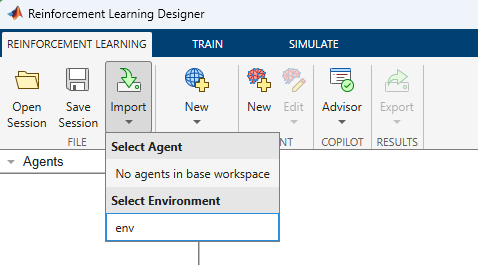
On the toolstrip, click Advisor, then click Training Advisor. A new toolstrip tab opens for configuring the advisor process.
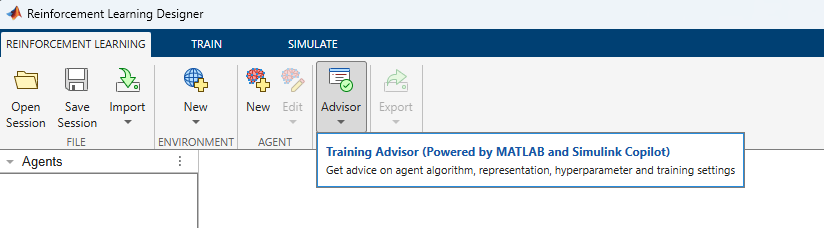
Configure Advisor

Before you request advice, you must complete these steps:
Configure your system. Select the environment to analyze and specify the maximum episode length. If you specify a Simulink environment, also configure the agent sample time.
Analyze the system to get the environment dependencies. The environment dependencies are files in the execution path of the environment that Copilot analyzes.
For this example:
In the System section, set Environment to
envto choose the pendulum environment.Specify the maximum episode length as
500.Click Analyze System to get the environment dependencies. The advisor runs short simulations of the environment to obtain the dependencies, and displays them in the System Files section. You can add files to the list or remove them by using the buttons (add) and (remove). You can also clear the list by using the button (clear). For this example, do not edit the list.
Request Advice From Copilot
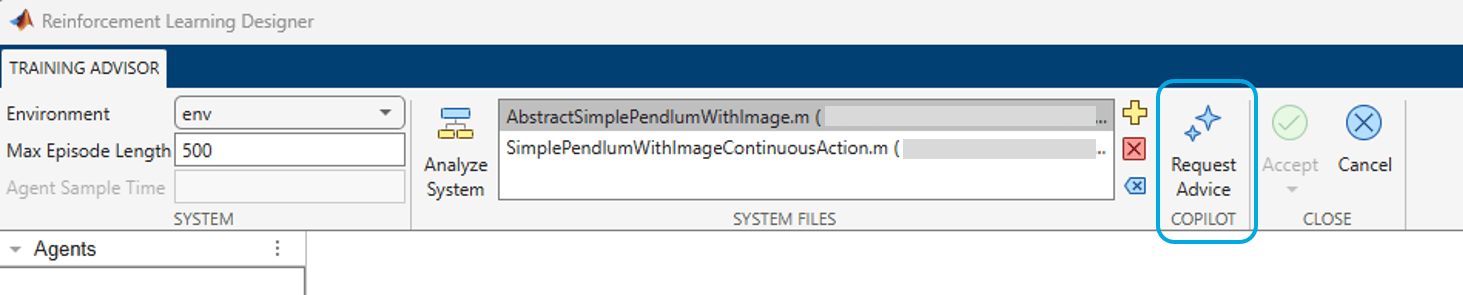
Click Request Advice to initiate the advisor process. This displays a confirmation dialog.
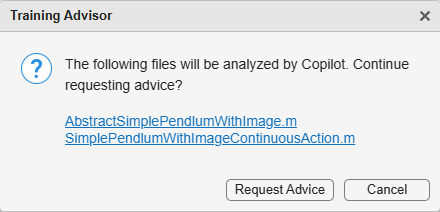
Click Request Advice again to continue the process.
During this process, Copilot completes these steps:
Analyze the source code of the environment dependency files and generate a detailed analysis of the environment.
Per the analysis, choose two suitable agent designs (algorithm, network design, hyperparameters and training settings).
Copilot generates recommendations by querying a large language model (LLM). Because LLMs are stochastic in nature, recommendations are not reproducible. Requesting advice again on the same environment can produce different recommendations.
Inspect Results
AI-generated responses can contain inaccuracies. For this reason, review the analysis results and agent recommendations before you use them. This section explains how to inspect the results.
After the advisor finishes running, a new window opens to display the results. The results are organized into the following sections:
Summary
System
Recommended Agent
Alternative Agent
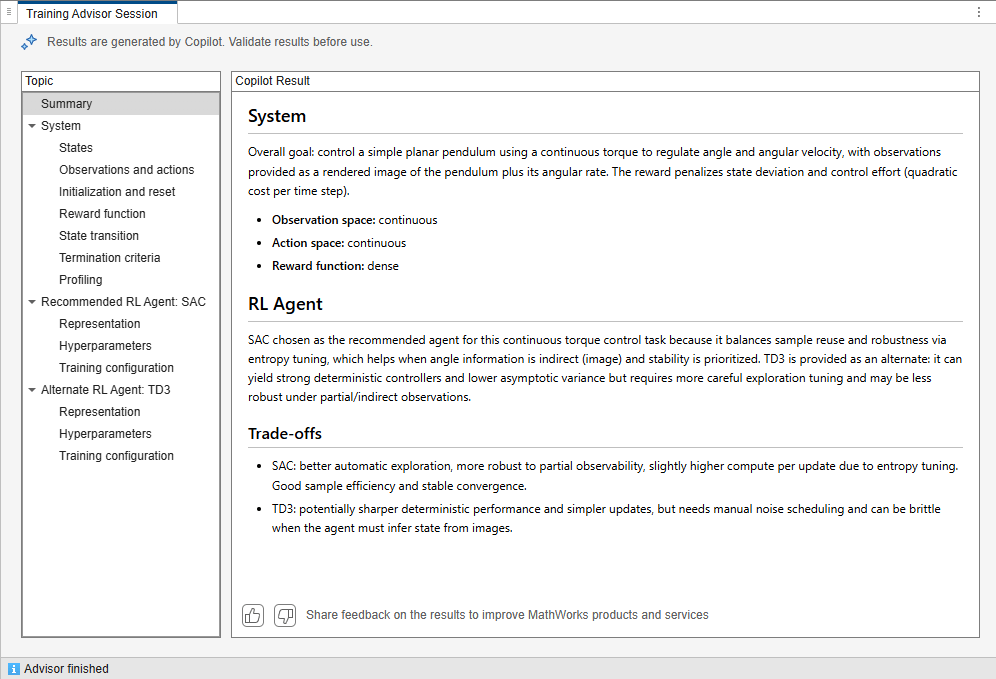
Summary
This section provides a summary of the analysis and recommendations. The summary describes the overall goal of the environment and the two chosen reinforcement learning algorithms for the problem.
System
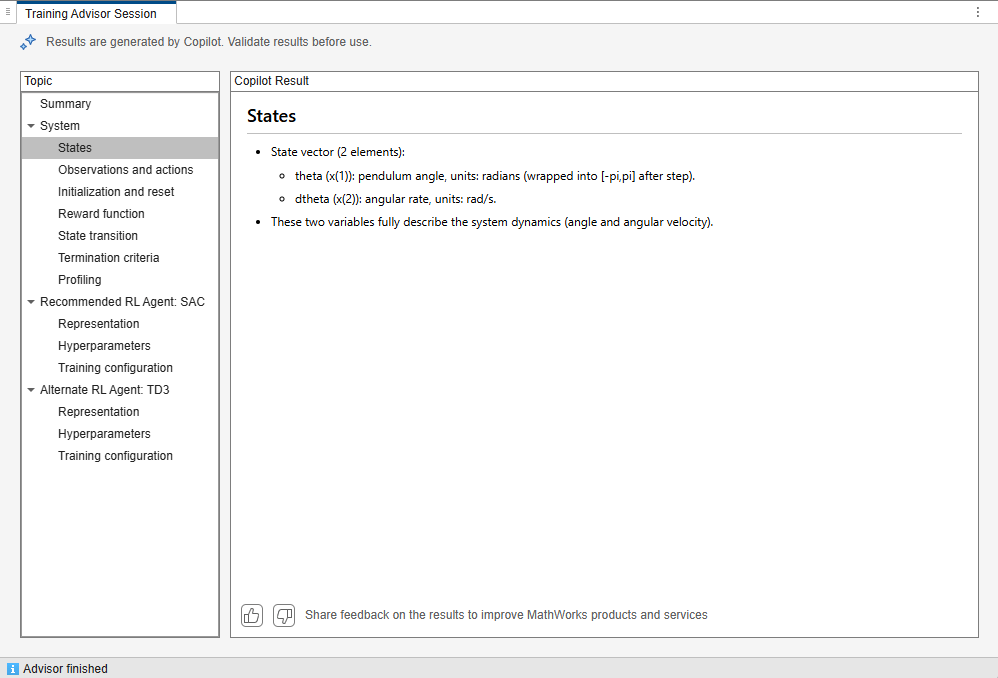
This section provides more details about the environment characteristics. For example, it can provide this information:
States of the system, if they can be reasonably inferred from the source code
Observation and action space descriptions, dimensions and limits
The reset logic
The reward function
The state transition function
The termination criteria
The profiling results from short simulations.
Inspect the sections to get a better understanding of the environment.
Recommended Agent
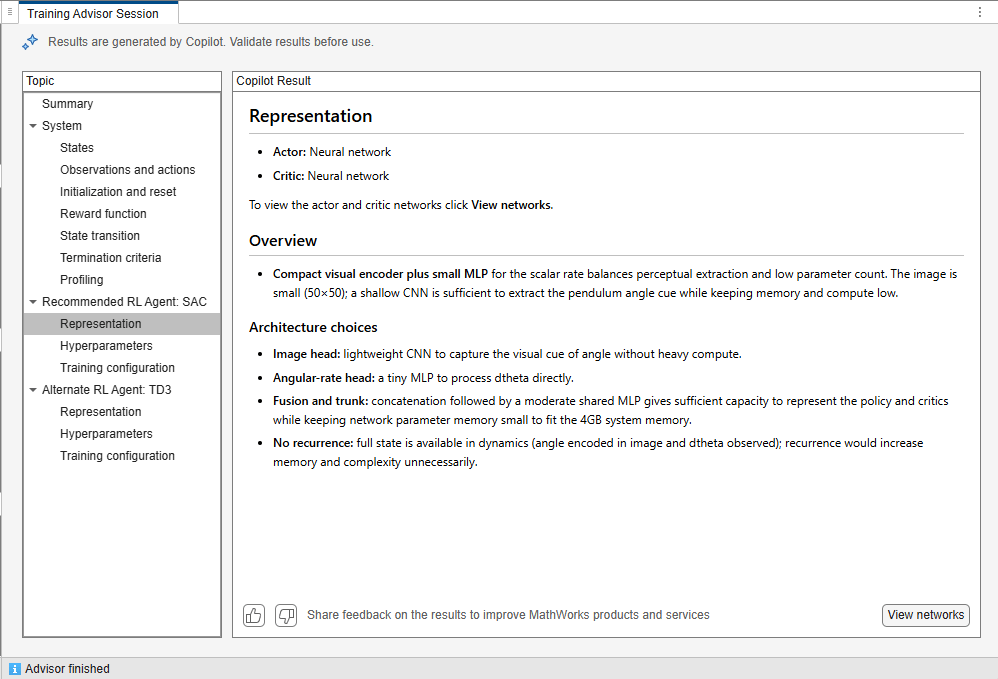
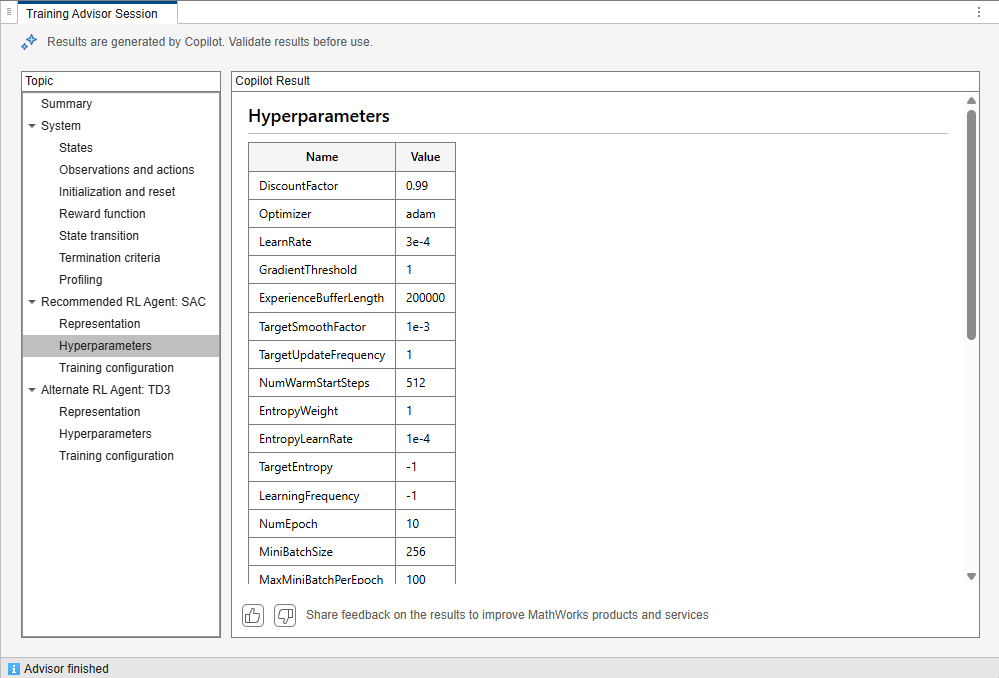
This section describes the recommended agent for the environment. Review the following subsections:
Representation: Describes the recommended design choices for the actor and critic neural networks. To inspect these networks, click View Networks, which opens Deep Network Analyzer.
Hyperparameters: Lists and explains the recommended hyperparameter settings for the problem.
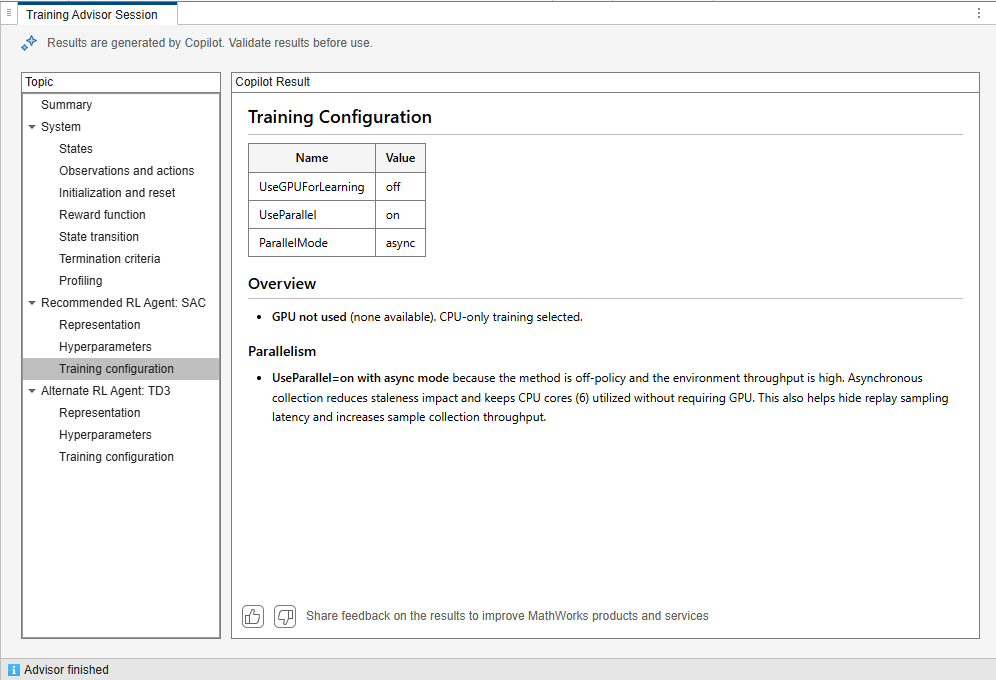
Training Configuration: Describes the recommended GPU and parallelization settings. If Parallel Computing Toolbox is installed, and if a supported GPU is available, the advisor takes these resources into account when it generates the training recommendations.
Alternative Agent
In addition to the primary recommendation, the advisor provides an alternative algorithm and its respective configuration. You can choose either the primary recommendation or the alternative recommendation, depending on your needs.
The Summary section highlights the most important tradeoffs between the recommended and alternative approaches, helping you compare their relative strengths.
Share Feedback to Improve Responses

To help improve the advisor in future releases, you can share feedback on its recommendations by clicking the  and
and  feedback buttons in the results window.
Accept Results
You can request advice multiple times to get different results. When you are satisfied with the recommendations, click Accept on the toolstrip.
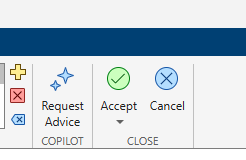
When you click Accept, Training Advisor saves the advisor results in the app workspace. It also creates fully-configured recommended and alternative agent objects in the app workspace. Optionally, you can inspect the agent objects.
To discard the results, and return to the Reinforcement Learning Designer app toolstrip, click Cancel.
Train Agent
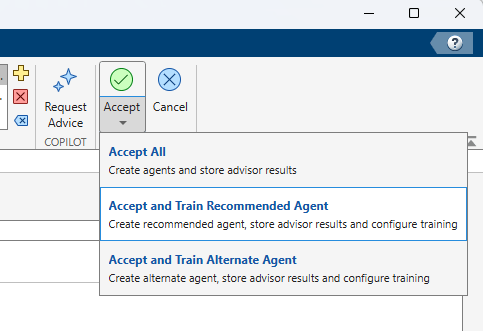
To save the advisor results, create the recommended agent, and navigate to the Train tab, on the Reinforcement Learning Designer toolstrip, click Accept > Accept and Train Recommended Agent. The Train tab is automatically configured with the agent and recommended training settings.
You can optionally adjust these training settings.
Because the advisor results can vary, for this example, apply these settings:
Set Max Episodes to
5000.Enable evaluations during training by selecting Evaluate Agent.
Set Stopping Criteria to
EvaluationStatistic.Set Stopping Value to
-740.

To start the training, click Train. The app displays a training progress. When training is complete, click Accept to save the trained agent.
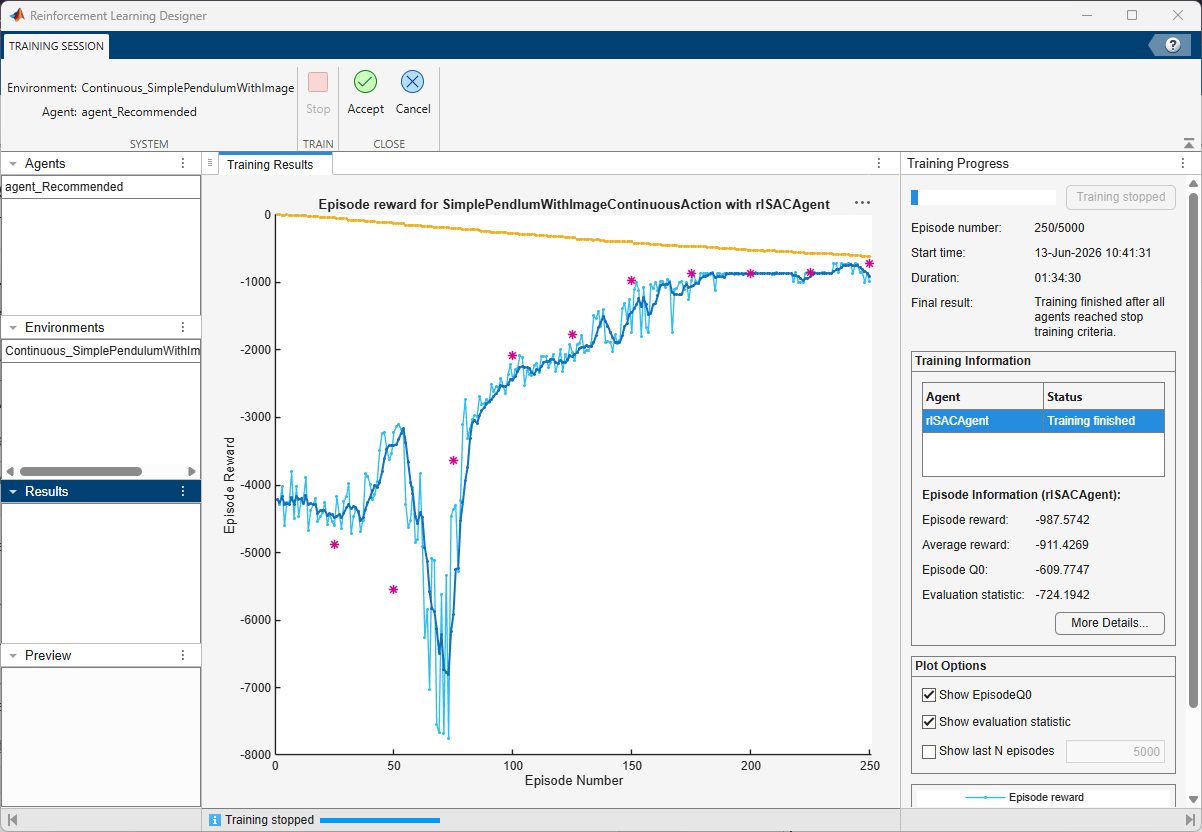
The figure below shows a sample training result. In this example, the training curve and the EvaluationStatistic metric indicate stable learning and convergence. Because the training process is stochastic and results can vary across platforms, your results might differ and might not be fully reproducible.
Conclusion
The Training Advisor helps streamline the early stages of agent design. By analyzing the environment, the advisor provides a structured starting point that can reduce trial and error during setup and improve training efficiency. The advisor recommendations can help you move more quickly from environment design to agent creation, evaluation, and training, while still allowing you to inspect, compare, and refine the proposed configurations before use.
See Also
Apps
Functions
Topics
- Design and Train Agent Using Reinforcement Learning Designer
- Tune Hyperparameters Using Reinforcement Learning Designer
- Create DQN Agent Using Deep Network Designer and Train Using Image Observations
- Load MATLAB Environments in Reinforcement Learning Designer
- Create Agents Using Reinforcement Learning Designer
- Specify Training Options in Reinforcement Learning Designer

