Get AI Advisor Guidance in Reinforcement Learning Designer
R2026bAfter you create or import an environment in the Reinforcement Learning Designer app you can get AI guidance from the Reinforcement Learning Advisor.
The Reinforcement Learning Advisor provides the following information:
An analysis of the environment
Recommended agents to use in that environment
Recommended training settings for the problem
To obtain AI guidance, on the Reinforcement Learning tab, in the Advisor section, select Advisor > Training Advisor.
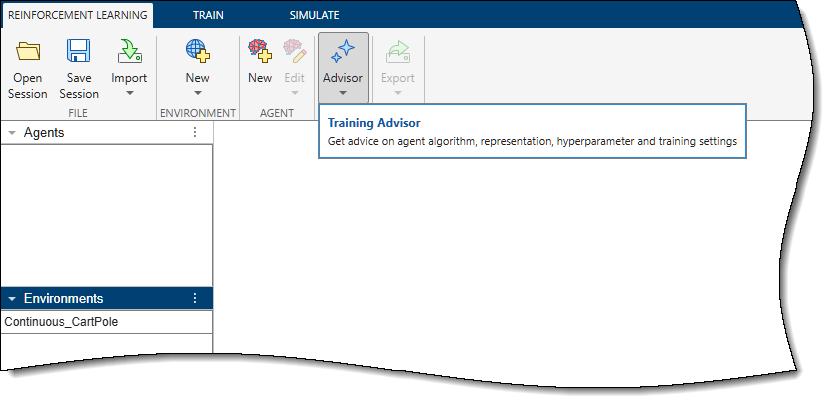
The Training Advisor opens.
To close the Training Advisor tab and return to the Reinforcement Learning tab without saving any recommendations, click Cancel.
To get recommendations, first, select your environment in the Environment dropdown list. Then, to analyze the selected environment and retrieve a list of related source files, click Analyze System.
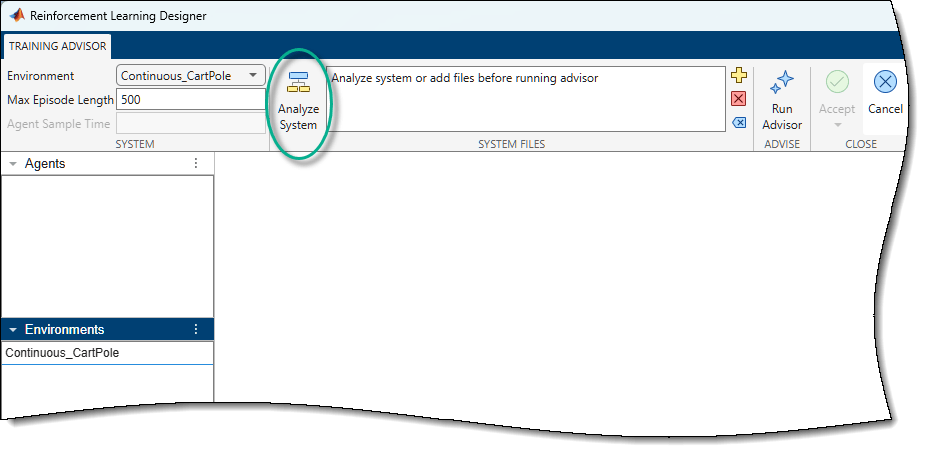
The app populates the System Files edit box with relevant environment files. The AI analyzes these files to understand the environment characteristics. Click to add files, to subtract files, or to clear all files from the list.
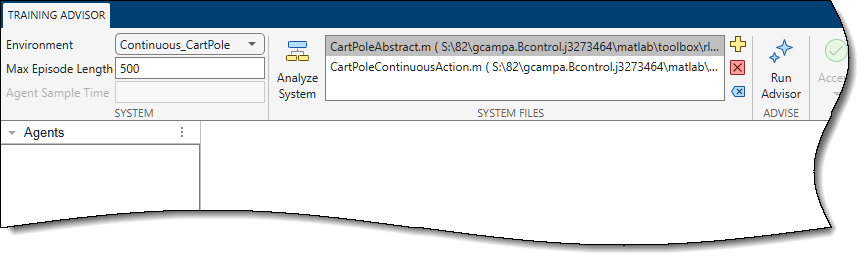
To run the training advisor and generate recommendations for the selected environment, in the Advise section, click Run Advisor.
The advisor generates three groups of recommendation pages and a summary page. This process can take a few minutes.
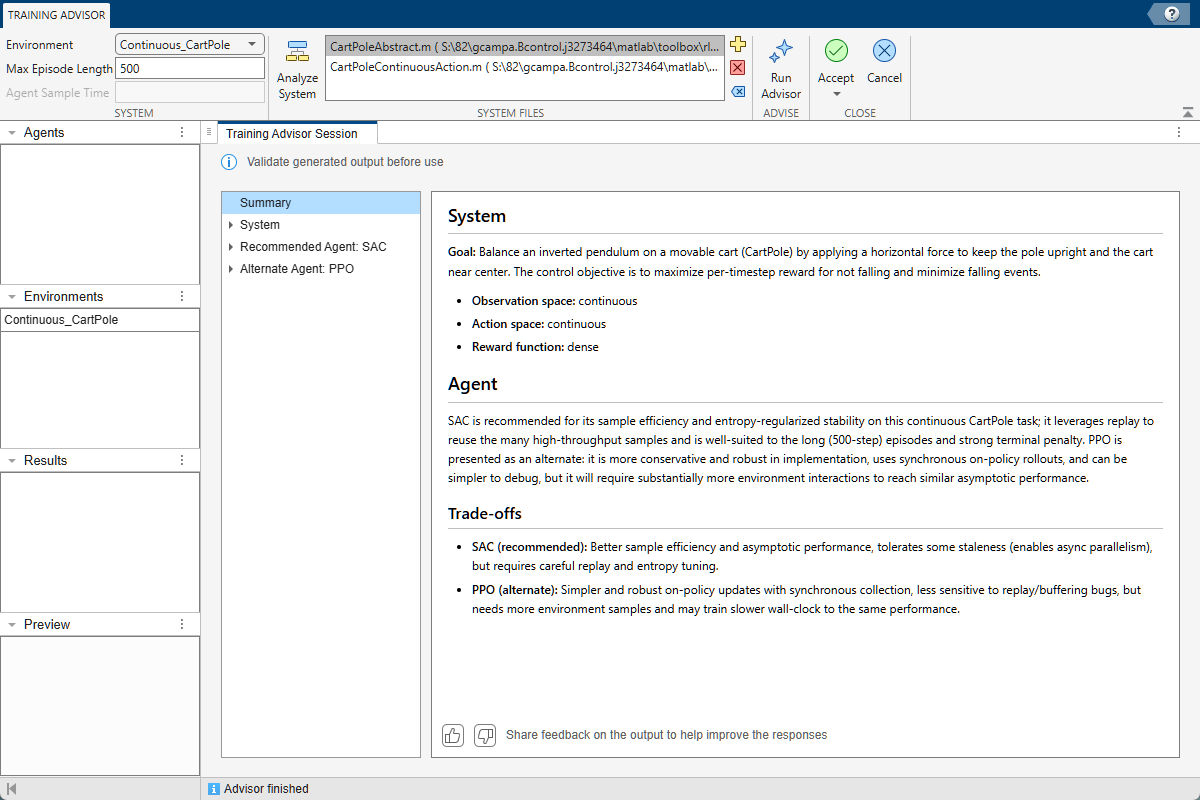
The recommendation pages are organized as follows:
A summary of the recommendations
A group of pages that provide a detailed analysis of the environment.
A group of pages that specify the recommended agent, and its settings, for the problem
A group of pages about an alternate agent, with related settings, which might also work for the problem.
Note
The advisor generates recommendations by querying a large language model (LLM). Because LLMs are stochastic in nature, recommendations are not reproducible. Running the advisor again on the same environment can result in different recommendations.
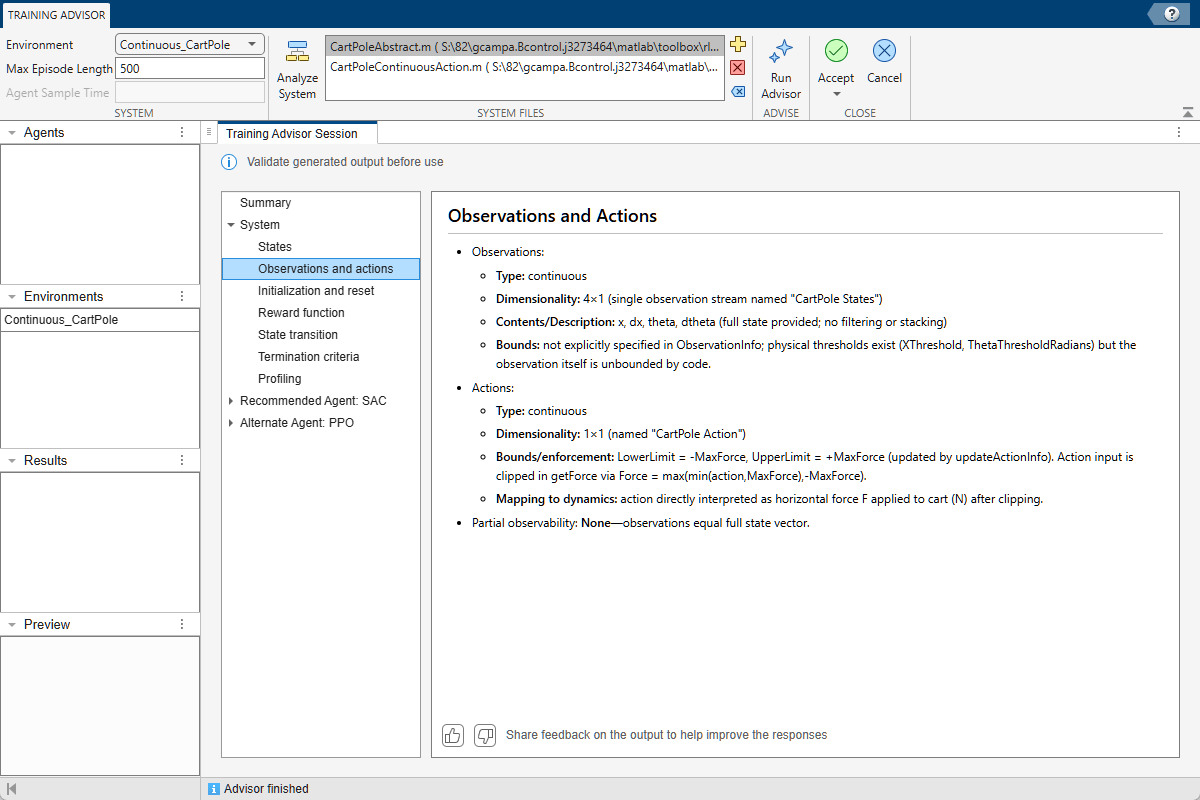
Each group related to an agent includes:
a Representation page that describes the agent and why it was selected.
a Hyperparameters page that suggests possible agent parameters.
a Training Configuration page that suggests parallel training and GPU-related settings.
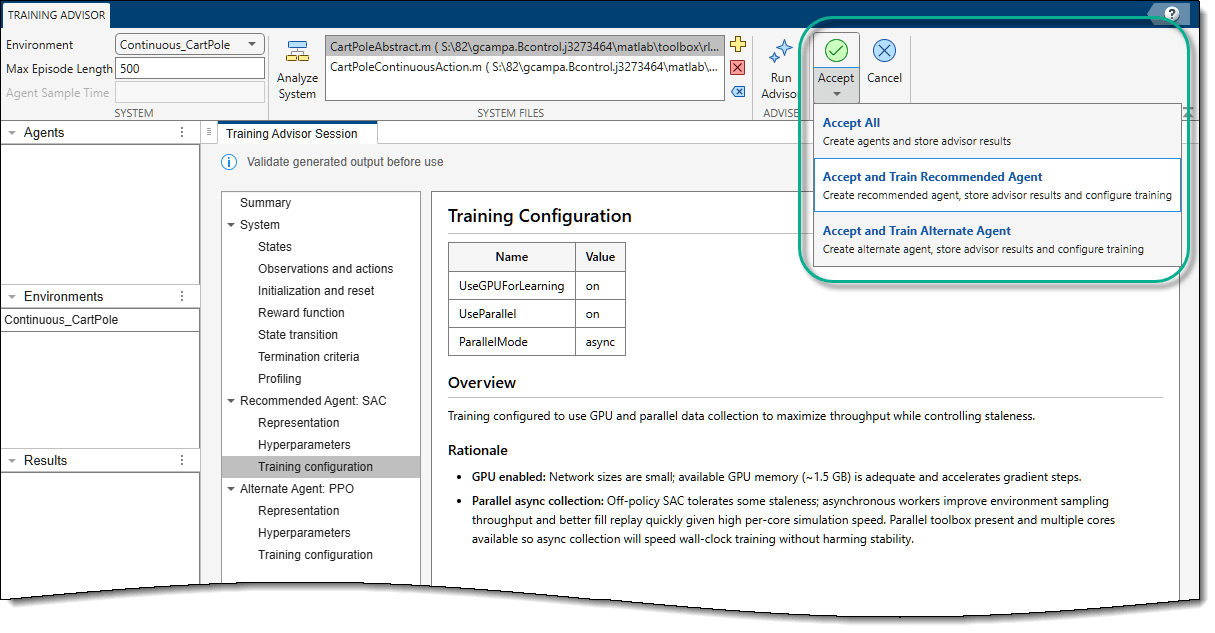
Click Accept to open a menu with the following options:
Accept All — Stores the advisor recommendations in the app workspace and creates all recommended agents, without configuring their training. You can then, if needed, further configure agent options in the Reinforcement Learning, as described in Create Agents Using Reinforcement Learning Designer.
Accept and Train Recommended Agent — Stores the advisor recommendations in the app workspace and creates the recommended agent. This option also configures the agent training according to the training recommendations and opens the Train tab.
Accept and Train Alternate Agent — Stores the advisor recommendations in the app workspace and creates the alternate agent. It also configures the agent training according to the training recommendations, opening the Train tab.
From the Train tab, if needed, you can further configure the training options, as described in Specify Training Options in Reinforcement Learning Designer.
To train the agent, select Train Agent from the Train dropdown button.
For an example on how to design and train an agent with Reinforcement Learning Designer, see Design and Train Agent Using Reinforcement Learning Designer.

