OpticalSystemViewer3D
R2026bDescription
Add-On Required: This feature requires the Optical Design and Simulation Library for Image Processing Toolbox add-on.
An OpticalSystemViewer3D represents a 3-D visualization of an
optical system. . You can customize the visualization by using the object functions of the
OpticalSystemViewer3D object.
Creation
Create an OpticalSystemViewer3D object by using the view3d function
to visualize an optical system in 3-D.
Properties
Optical System
This property is read-only.
Rays in the visualization, represented as an array of Rays3D
objects.
Label
Title of the visualization, specified as a string scalar or character vector.
Data Types: char | string
Type of labels, specified as one of these options.
"component"— The visualization displays labels for only the components in the optical system."surface"— The visualization displays labels for each individual surface in the optical system."none"— The visualization does not display any labels in the optical system.
Data Types: char | string
Appearance
Clip angle in degrees, specified as a numeric scalar. The clip angle indicates the angle at which to clip the optical components in the visualization.
Data Types: single | double | int8 | int16 | int32 | int64 | uint8 | uint16 | uint32 | uint64
Background color, specified as an RGB triplet, a hexadecimal color code, or one of the color options listed in the table.
For a custom color, specify an RGB triplet or a hexadecimal color code.
An RGB triplet is a three-element row vector whose elements specify the intensities of the red, green, and blue components of the color. The intensities must be in the range
[0,1], for example,[0.4 0.6 0.7].A hexadecimal color code is a string scalar or character vector that starts with a hash symbol (
#) followed by three or six hexadecimal digits, which can range from0toF. The values are not case sensitive. Therefore, the color codes"#FF8800","#ff8800","#F80", and"#f80"are equivalent.
Alternatively, you can specify some common colors by name. This table lists the named color options, the equivalent RGB triplets, and the hexadecimal color codes.
| Color Name | Short Name | RGB Triplet | Hexadecimal Color Code | Appearance |
|---|---|---|---|---|
"red" | "r" | [1 0 0] | "#FF0000" |
|
"green" | "g" | [0 1 0] | "#00FF00" |
|
"blue" | "b" | [0 0 1] | "#0000FF" |
|
"cyan"
| "c" | [0 1 1] | "#00FFFF" |
|
"magenta" | "m" | [1 0 1] | "#FF00FF" |
|
"yellow" | "y" | [1 1 0] | "#FFFF00" |
|
"black" | "k" | [0 0 0] | "#000000" |
|
"white" | "w" | [1 1 1] | "#FFFFFF" |
|
"none" | Not applicable | Not applicable | Not applicable | No color |








Background gradient display, specified as "on" or
"off", matlab.lang.OnOffSwitchState.on or
matlab.lang.OnOffSwitchState.off, or as numeric or logical
1 (true) or 0
(false). A value of "on" is equivalent to a
logical on or true, and "off" is equivalent to a
logical off or false. Thus, you can use the value of this property
as a logical value. The value is stored as an on/off logical value of type matlab.lang.OnOffSwitchState.
If you specify BackgroundGradient as "on",
matlab.lang.OnOffSwitchState.on, or as a numeric or logical
1 (true), the function displays a background
gradient in the visualization.
Gradient color, specified as an RGB triplet, a hexadecimal color code, or one of the color options listed in the table.
For a custom color, specify an RGB triplet or a hexadecimal color code.
An RGB triplet is a three-element row vector whose elements specify the intensities of the red, green, and blue components of the color. The intensities must be in the range
[0,1], for example,[0.4 0.6 0.7].A hexadecimal color code is a string scalar or character vector that starts with a hash symbol (
#) followed by three or six hexadecimal digits, which can range from0toF. The values are not case sensitive. Therefore, the color codes"#FF8800","#ff8800","#F80", and"#f80"are equivalent.
Alternatively, you can specify some common colors by name. This table lists the named color options, the equivalent RGB triplets, and the hexadecimal color codes.
| Color Name | Short Name | RGB Triplet | Hexadecimal Color Code | Appearance |
|---|---|---|---|---|
"red" | "r" | [1 0 0] | "#FF0000" |
|
"green" | "g" | [0 1 0] | "#00FF00" |
|
"blue" | "b" | [0 0 1] | "#0000FF" |
|
"cyan"
| "c" | [0 1 1] | "#00FFFF" |
|
"magenta" | "m" | [1 0 1] | "#FF00FF" |
|
"yellow" | "y" | [1 1 0] | "#FFFF00" |
|
"black" | "k" | [0 0 0] | "#000000" |
|
"white" | "w" | [1 1 1] | "#FFFFFF" |
|
"none" | Not applicable | Not applicable | Not applicable | No color |
Position
Chart size and location, including the margins, specified as a 4-element numeric
vector of the form [left bottom width height]. The values are in
the units specified by the Units property.
left— Distance from the left edge of the parent container to the outer-left margin of the chart.bottom— Distance from the bottom edge of the parent container to the outer-bottom margin of the chart.width— Width of chart, including the margins.height— Height of chart, including the margins.
Chart size and location, excluding the margins, specified as a 4-element numeric
vector of the form [left bottom width height]. The values are in
the units specified by the Units property.
left— Distance from the left edge of the parent container to the inner-left edge of the chart, past the margins.bottom— Distance from the bottom edge of the parent container to the inner-bottom edge of the chart, past the margins.width— Width of the chart, excluding the margins.height— Height of the chart, excluding the margins.
Chart size and location, excluding the margins, specified as a 4-element numeric
vector of the form [left bottom width height]. This property is
equivalent to the InnerPosition property.
Position property to hold constant when adding, removing, or changing decorations, specified as one of these values.
"outerposition"— TheOuterPositionproperty remains constant when you add, remove, or change decorations such as a title or an axis label. If any changes require positional adjustments, MATLAB® adjusts theInnerPositionproperty."innerposition"— TheInnerPositionproperty remains constant when you add, remove, or change decorations such as a title or an axis label. If any changes require positional adjustments, MATLAB adjusts theOuterPositionproperty.
Position units, specified as one of these values.
Units | Description |
|---|---|
"normalized" | Normalized with respect to the parent container. The lower-left corner
of the container maps to (0,0), and the upper-right
corner maps to (1,1). |
"inches" | Inches. |
"centimeters" | Centimeters. |
"characters" | Based on the default font of the graphics root object.
|
"points" | Typography points. One point equals 1/72 inch. |
"pixels" | Pixels. On Windows® and Macintosh systems, the size of a pixel is 1/96 inch. This size is independent of your system resolution. On Linux® systems, the size of a pixel is determined by your system resolution. |
To change the position of the chart in specific units, set the
Units property before specifying the
Position property. If you specify the
Units and Position properties in a single
command using name-value arguments, be sure to specify Units
before Position.
Layout options, specified as a GridLayoutOptions object. This
property specifies layout options when the parent container is a
GridLayout object. You can place the chart in the desired row and
column of the parent grid by setting the Row and
Column properties on the GridLayoutOptions
object.
For example, this code places the chart object osv into the
third row and fifth column of a grid
layout.
osv.Layout.Row = 3;
osv.Layout.Column = 5;
Visibility
State of visibility, specified as "on" or
"off", matlab.lang.OnOffSwitchState.on or
matlab.lang.OnOffSwitchState.off, or as numeric or logical
1 (true) or 0
(false). A value of "on" is equivalent to a
logical on or true, and "off" is equivalent to a
logical off or false. Thus, you can use the value of this property
as a logical value. The value is stored as an on/off logical value of type matlab.lang.OnOffSwitchState.
If you specify Visible as "on",
matlab.lang.OnOffSwitchState.on, or as a numeric or logical
1 (true), the function displays the chart.
Otherwise, the function hides the chart without deleting it. You still can access the
properties of the chart when it is not visible.
Parent/Child
Parent UI container, specified as a Figure,
Panel, Tab, or GridLayout
object. By default, the function creates a new Figure object. You
can create these UI containers using their respective creation functions.
Figureobject —uifigurePanelobject —uipanelTabobject —uitabGridLayoutobject —uigridlayout
Visibility of the chart object handle, specified as "on",
"off", or "callback". This property determines
the visibility of the chart object handle in the list of children of its parent object..
"on"— Chart object handle is always visible."off"— Chart object handle is invisible at all times. You can use this option to prevent unintended changes to the chart by another function by temporarily hiding the handle. To do so, for the duration of the execution of that function, setHandleVisibilityto"off"."callback"— Chart object handle is visible from within callbacks or functions invoked by callbacks, but not from within functions invoked from the command line. This option blocks access to the object in the Command Window, but it allows callback functions to access the object.
Object Functions
addRays | Add traced rays to visualization of optical system |
removeRays | Remove traced rays from visualization of optical system |
explode | Explode components in 3-D optical system visualization radially outward |
unexplode | Restore original component locations in 3-D optical system visualization after explosion |
showComponents | Show selected components in 3-D optical system visualization |
Examples
Create a simple optical system.
opsys = opticalSystem;
addRefractiveSurface(opsys,Radius=9,Material=[1.74 25.4],DistanceToNext=3)
addRefractiveSurface(opsys,Radius=-9,DistanceToNext=10)
addImagePlane(opsys)
Visualize the optical system in 3-D.
osv3d = view3d(opsys,Title="Convex Lens")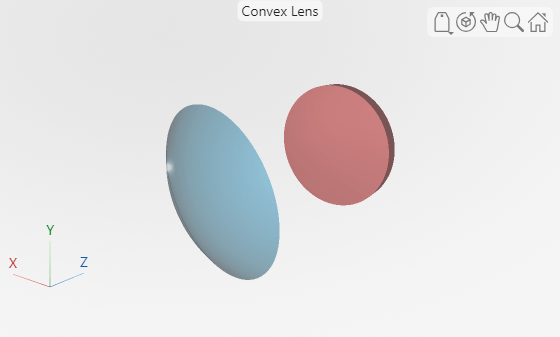
osv3d =
  OpticalSystemViewer3D with properties:

              Title: [0×0 string]
             Labels: "none"
          ClipAngle: 0
               Rays: [0×0 optics.ui.Rays3D]
    BackgroundColor: [0.9608 0.9608 0.9608]
      GradientColor: [0.9020 0.9020 0.9020]
             Parent: [1×1 Figure]

  Show all properties
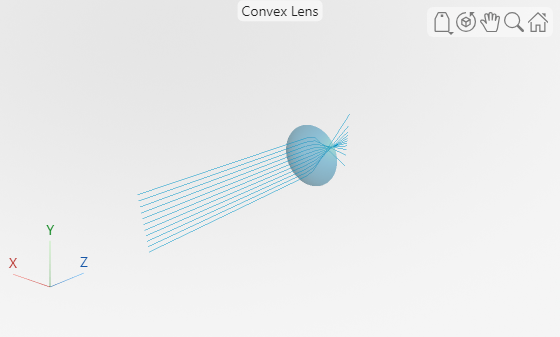
Trace rays in the optical system to add to the visualization. Observe that rays contains three ray bundles.
rays = traceRays(opsys)
rays = 1×3 RayBundle array with properties:
    1×1 RayBundle    1×1 RayBundle    1×1 RayBundle
You can add only one ray bundle to a 3-D visualization. Add one of the ray bundles from the traced rays to the visualization.
addRays(osv3d,rays(1))
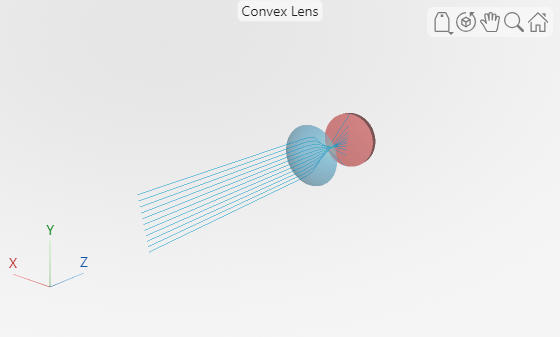
Explode the visualization. The explosion moves each component in the optical system visualization radially outward to enable you to better visualize the internal structure of the optical system.
explode(osv3d)
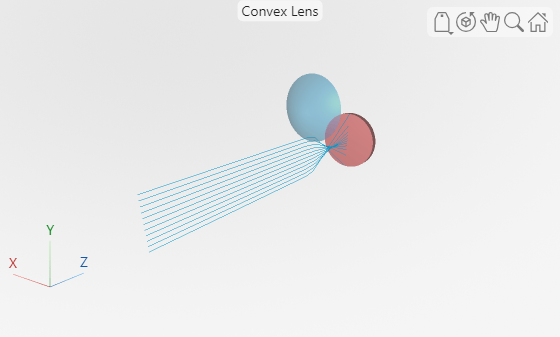
Restore the visualization to its state before the explosion.
unexplode(osv3d)
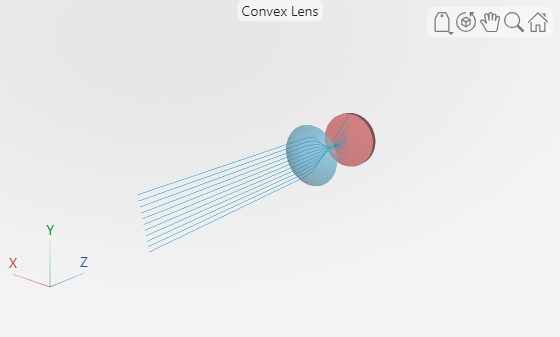
Show only the lens element, which is the first optical component, in the visualization.
showComponents(osv3d,1)
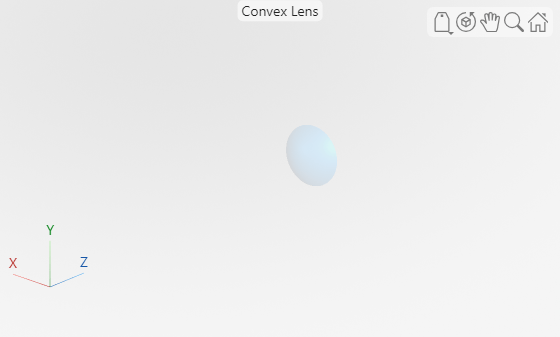
Remove the rays from the visualization.
removeRays(osv3d)
Add component labels to the visualization.
osv3d.Labels = "component";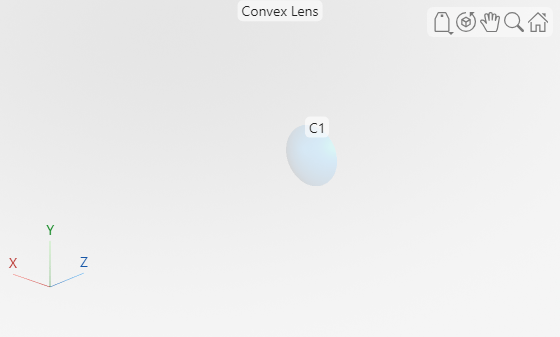
Version History
Introduced in R2026a

