Simulation 3D Lidar
R2026bLidar sensor model in 3D simulation environment
Simulation 3D Lidar block
To add a block to a model, double-click the canvas and start typing the block name. Then, select the block from the list.
Libraries:
Offroad Autonomy Library /
Simulation 3D
Automated Driving Toolbox /
Simulation 3D
Robotics System Toolbox /
Simulation 3D
Simulink 3D Animation /
Simulation 3D /
Sensors
UAV Toolbox /
Simulation 3D
Description
Note
Simulating models with the Simulation 3D Lidar block requires Simulink® 3D Animation™.
The Simulation 3D Lidar block provides an interface to the lidar sensor in a 3D simulation environment. This environment is rendered using the Unreal Engine® from Epic Games®. The block returns a point cloud with the specified field of view and angular resolution. You can also output the distances from the sensor to object points and the reflectivity of surface materials. In addition, you can output the location and orientation of the sensor in the world coordinate system of the scene.
If you set Sample time to -1, the block uses the
sample time specified in the Simulation 3D Scene Configuration block. To use
this sensor, ensure that the Simulation 3D Scene Configuration block is in your
model.
Tip
The Simulation 3D Scene Configuration
block must execute before the Simulation 3D Lidar block. That way, the
Unreal Engine 3D visualization environment prepares the data before the Simulation 3D
Lidar block receives it. To check the block execution order, right-click the
blocks and then click the Properties button  . On the General tab, confirm these
Priority settings:
. On the General tab, confirm these
Priority settings:
Simulation 3D Scene Configuration —
0Simulation 3D Lidar —
1
For more information about execution order, see How Unreal Engine Simulation for UAVs Works.
The Coordinate system parameter of the block specifies how the actor transformations are applied in the 3D environment. The output of the block also follows the specified coordinate system.
Examples
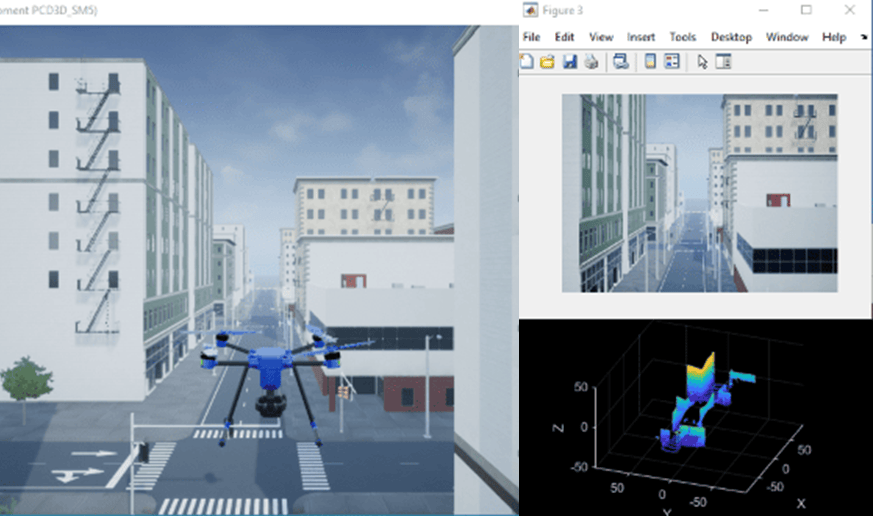
UAV Package Delivery
Simulate a small multicopter simulation taking off, flying, and landing in a city environment.
Ports
Output
Point cloud data, returned as an m-by-n-by 3 array of positive, real-valued [x, y, z] points. m and n define the number of points in the point cloud, as shown in this equation:
where:
VFOV is the vertical field of view of the lidar, in degrees, as specified by the Vertical field of view (deg) parameter.
VRES is the vertical angular resolution of the lidar, in degrees, as specified by the Vertical resolution (deg) parameter.
HFOV is the horizontal field of view of the lidar, in degrees, as specified by the Horizontal field of view (deg) parameter.
HRES is the horizontal angular resolution of the lidar, in degrees, as specified by the Horizontal resolution (deg) parameter.
Each m-by-n entry in the array specifies the
x, y, and z coordinates of
a detected point in the sensor coordinate system that you
specified in the Coordinate system parameter. If the
lidar does not detect a point at a given coordinate, then x,
y, and z are returned as
NaN.
You can create a point cloud from these returned points by using point cloud functions in a MATLAB Function block.
Data Types: single
Distance to object points measured by the lidar sensor, returned as an m-by-n positive real-valued matrix. Each m-by-n value in the matrix corresponds to an [x, y, z] coordinate point returned by the Point cloud output port.
Dependencies
To enable this port, on the Parameters tab, select Distance outport.
Data Types: single
Reflectivity of surface materials, returned as an m-by-n matrix of intensity values in the range [0, 1], where m is the number of rows in the point cloud and n is the number of columns. Each point in the Reflectivity output corresponds to a point in the Point cloud output. The block returns points that are not part of a surface material as NaN.
To calculate reflectivity, the lidar sensor uses the Phong reflection model. This model describes surface reflectivity as a combination of diffuse reflections (scattered reflections, such as from rough surfaces) and specular reflections (mirror-like reflections, such as from smooth surfaces). For more details on this model, see the Phong reflection model page on Wikipedia.
Dependencies
To enable this port, select the Reflectivity outport parameter.
Data Types: single
Label identifier for each point in the point cloud, output as an m-by-n array. Each m-by-n value in the matrix corresponds to an [x, y, z] coordinate point returned by the Point cloud output port.
The table shows the object IDs used in the default scenes that are selectable from
the Simulation 3D Scene
Configuration block. If you are using a custom scene, in the Unreal® Editor, you can assign new object types to unused IDs. If a
scene contains an object that does not have an assigned ID, that object is assigned an
ID of 0. The detection of lane markings is not
supported.
| ID | Type |
|---|---|
0 | None/default |
1 | Building |
2 | Not used |
3 | Other |
4 | Pedestrians |
5 | Pole |
6 | Lane markings |
7 | Road |
8 | Sidewalk |
9 | Vegetation |
10 | Vehicle |
11 | Not used |
12 | Generic traffic sign |
13 | Stop sign |
14 | Yield sign |
15 | Speed limit sign |
16 | Weight limit sign |
17-18 | Not used |
19 | Left and right arrow warning sign |
20 | Left chevron warning sign |
21 | Right chevron warning sign |
22 | Not used |
23 | Right one-way sign |
24 | Not used |
25 | School bus only sign |
26-38 | Not used |
39 | Crosswalk sign |
40 | Not used |
41 | Traffic signal |
42 | Curve right warning sign |
43 | Curve left warning sign |
44 | Up right arrow warning sign |
45-47 | Not used |
48 | Railroad crossing sign |
49 | Street sign |
50 | Roundabout warning sign |
51 | Fire hydrant |
52 | Exit sign |
53 | Bike lane sign |
54-56 | Not used |
57 | Sky |
58 | Curb |
59 | Flyover ramp |
60 | Road guard rail |
| 61 | Bicyclist |
62-66 | Not used |
67 | Deer |
68-70 | Not used |
71 | Barricade |
72 | Motorcycle |
73-255 | Not used |
Dependencies
To enable this port, on the Ground Truth tab, select Output semantic segmentation.
Data Types: uint8
Sensor location along the X-axis, Y-axis, and Z-axis of the scene. The Translation values are returned in the coordinate system that you specified in the Coordinate system parameter.
Dependencies
To enable this port, on the Ground Truth tab, select Output location and orientation.
Data Types: double
Roll, pitch, and yaw sensor orientation about the X-axis, Y-axis, and Z-axis of the scene. The Rotation values are returned in the coordinate system that you specified in the Coordinate system parameter.
Dependencies
To enable this port, on the Ground Truth tab, select Output location and orientation.
Data Types: double
Parameters
Mounting
Specify the unique identifier of the sensor. In a multisensor system, the sensor identifier enables you to distinguish between sensors. When you add a new sensor block to your model, the Sensor identifier of that block is N + 1, where N is the highest Sensor identifier value among the existing sensor blocks in the model.
Example: 2
Specify the name of the parent to which the sensor is mounted. The block provides a
list of parent actors in the model. The names that you can select correspond to the
values of the Name parameters of the Simulation 3D
blocks in your model. If you select Scene Origin, the block
places a sensor at the scene origin. The Custom option allows
you to specify the name of any actor, including child actors in the environment, as the
parent actor.
Example: SimulinkVehicle1
Specify the name of custom parent. This parameter allows you to set any actor in the environment, including child actors as the parent actor to which the sensor is mounted. The name corresponds to the Name parameter of the Simulation 3D block.
Example: SimulinkVehicle1
Dependencies
To enable this parameter, set Parent name to
Custom.
Specify the coordinate system that the actor uses for translation and rotation in the 3D environment.
Default– Unreal Editor coordinate system. Units are in m and rad.MATLAB– MATLAB® coordinate system. Units are in m and rad.ISO8855– ISO 8855 standard coordinate system. Units are in m and deg.AERO– SAE coordinate system. Units are in m and rad.VRML– X3D ISO standard coordinate system. Units are in m and rad.SAE– SAE coordinate system. Units are in m and rad.
For more details on the different coordinate systems, see Coordinate Systems for Unreal Engine Simulation in UAV Toolbox.
Example: MATLAB
Sensor mounting location. By default, the block places the sensor relative to the scene or vehicle origin, depending on the Parent name parameter.
When Parent name is
sim3dactor name, the block mounts the sensor to the origin of the actor, which is the center of the shape. You can set the Mounting location toOriginonly. During simulation, the sensor travels with the actor.When Parent name is the name of a vehicle, the block mounts the sensor to one of the predefined mounting locations described in the table. During simulation, the sensor travels with the vehicle.
When Parent name is
Scene
                            Origin
, the block mounts the sensor relative to the scene origin, and during simulation, the sensor remains stationary.When Parent name is the name of a vehicle, the block mounts the sensor relative to the vehicle origin, and during simulation, the sensor travels with the vehicle.
To specify the relative position and orientation of the sensor with respect to the scene or vehicle origin, use the Relative translation [X, Y, Z] and Relative rotation [Roll, Pitch, Yaw] parameters.
The location of vehicle origin depends on the vehicle type. To select the vehicle type, specify the Type parameter of the Simulation 3D UAV Vehicle block to which you are mounting the sensor. Visit the reference page for each vehicle type for more information on the vehicle dimensions and location of the vehicle origin
Select this parameter to specify an offset from the mounting location by using the Relative translation [X, Y, Z] and Relative rotation [Roll, Pitch, Yaw] parameters.
Translation offset relative to the mounting location of the sensor, specified as a real-valued 1-by-3 vector of the form [X, Y, Z]. Units are in meters.
If you mount the sensor to a vehicle by setting
Parent name to the name of that vehicle, then
X, Y, and Z are
relative to the vehicle origin. If you mount the sensor to the scene origin by setting
Parent name to Scene Origin, then
X, Y, and Z are
relative to the scene origin.
The relative rotation applied and the rotation units depend on the coordinate system selected in the Coordinate system parameter. For more details about the vehicle and world coordinate systems, see Coordinate Systems for Unreal Engine Simulation in UAV Toolbox.
Example: [0,0,0.01]
Dependencies
To enable this parameter, select Specify offset.
Rotational offset relative to the mounting location of the sensor, specified as a real-valued 1-by-3 vector of the form [Roll, Pitch, Yaw]. Roll, pitch, and yaw are the angles of rotation about the X-, Y-, and Z-axes, respectively. The rotation order is Roll, then Pitch, then Yaw. When you update any of the three rotation values and leave others unchanged, the software reapplies all three rotations in the same order.
If you mount the sensor to a vehicle by setting
Parent name to the name of that vehicle, then
Roll, Pitch, and Yaw
are relative to the vehicle origin. If you mount the sensor to the scene origin by
setting Parent name to Scene Origin,
then Roll, Pitch, and Yaw
are relative to the scene origin.
The relative rotation applied and the rotation units depend on the coordinate system selected in the Coordinate system parameter. For more details about the vehicle and world coordinate systems, see Coordinate Systems for Unreal Engine Simulation in UAV Toolbox.
Example: [0,0,10]
Dependencies
To enable this parameter, select Specify offset.
Sample time of the block, in seconds, specified as a positive scalar. The 3D simulation environment frame rate is the inverse of the sample time.
If you set the sample time to -1, the block inherits its sample time from
the Simulation 3D Scene Configuration block.
Parameters
Maximum distance measured by the lidar sensor, specified as a positive scalar less
than or equal to 500. Points outside this range are ignored. Units
are in meters.
Resolution of the lidar sensor range, in meters, specified as a positive real scalar. The range resolution is also known as the quantization factor. The minimal value of this factor is Drange / 224, where Drange is the maximum distance measured by the lidar sensor, as specified in the Detection range (m) parameter.
Specify the lidar field of view sampling as one of these options.
| Option | Description | Available Parameters |
|---|---|---|
Symmetric | The field of view is centered along the forward direction of the
lidar and extends equally in the horizontal and vertical directions. For
example, if you specify a vertical angular resolution of
| |
Asymmetric | The field of view is not centered and extends unequally in the
positive and negative directions from the center. For example, you can
specify a vertical angular resolution of | Vertical field of view bounds (deg) Vertical resolution (deg) Horizontal field of view bounds (deg) Horizontal resolution (deg) |
Custom | The field of view is defined by sample angles. You can use this
option to create custom sampling in specific areas. For example, you can
specify a vertical field of view from | Vertical sample angles (deg) |
Specify the vertical field of view of the lidar sensor as a positive scalar less
than or equal to 90. Units are in degrees.
Dependencies
To enable this parameter, set Field of view specification
to Symmetric.
Specify the vertical angular resolution of the lidar sensor as a positive scalar. Units are in degrees.
Dependencies
To enable this parameter, select Symmetric or
Asymmetric in Field of view
specification.
Specify the horizontal field of view of the lidar sensor as a positive scalar. Units are in degrees.
Dependencies
To enable this parameter, set Field of view specification
to Symmetric.
Specify the horizontal angular (azimuth) resolution of the lidar sensor as a positive scalar. Units are in degrees.
Dependencies
To enable this parameter, set Field of view specification
to Symmetric or
Asymmetric.
Specify the vertical field of view bounds of the lidar sensor as a real-valued
1-by-2 vector of the form [lowerbound upperbound]. The bounds must
lie in the interval [-45, 45]. Units are in degrees. The vertical field of view bounds
define the angular limits of the sensor in the vertical direction relative to its
horizontal axis.
Dependencies
To enable this parameter, set Field of view specification
to Asymmetric.
Specify the horizontal field of view bounds of the lidar sensor as a real-valued
1-by-2 vector of the form [leftbound rightbound]. The bounds must
lie in the interval [-180, 180]. Units are in degrees. The horizontal field of view
bounds define the angular limits of the sensor in the horizontal direction relative to
its forward-facing axis.
Dependencies
To enable this parameter, set Field of view specification
to Asymmetric.
Specify the vertical sample angles in degrees relative to the horizontal axis. You can specify a list of angles that are uniformly or nonuniformly spaced to define the vertical field of view.
Dependencies
To enable this parameter, set Field of view specification
to Custom.
Specify the horizontal sample angles in degrees relative to the forward-facing direction of the sensor. You can specify a list of angles that are uniformly or nonuniformly spaced to define the horizontal field of view.
Dependencies
To enable this parameter, set Field of view specification
to Custom.
Select this parameter to output the distance to measured object points at the Distance port.
Select this parameter to output the reflectivity of surface materials at the Reflectivity port.
Specify the surface reflection model to calculate the intensity of lidar returns from objects in the 3D environment as one of these options:
Phong— Models reflection as a linear combination of specular and diffuse values. Suitable for smooth surfaces.LambertianBeckman— Advanced lidar-specific reflection model that incorporates local surface effects including metalicity and surface roughness. Suitable for rough surfaces.
For more information, see Lidar Reflection Models.
Dependencies
To enable this parameter, select the Reflectivity outport parameter.
Ground Truth
Select this parameter to output a semantic segmentation map of label IDs at the Labels port.
Select this parameter to output the translation and rotation of the sensor at the Translation and Rotation ports, respectively. The Translation and Rotation values are returned in the coordinate system that you specified in the Coordinate system parameter.
More About
Lidar reflection models describe how emitted light interacts with object surfaces and how much of that energy is received back at the sensor. These models compute the returned signal intensity based on surface material properties, geometry, and viewing angle.
The lidar sensor model provides these reflection models:
Phong model — The Phong reflection model [1] is a general-purpose reflection model that treats the lidar emitter as the only light source and calculates received light intensity as the sum of diffuse and specular terms, k d and k s:
where:
k d is the material-dependent diffuse reflectivity value.
k s is the material-dependent specular reflectivity value.
L is the unit vector from light source (lidar) to the surface.
N is the local surface normal.
α is the surface-dependent roughness exponent.
Lambertian Beckman model — The Lambertian-Beckman reflection model [2] weighs received intensity by distance to the target and accommodates microfacets and surface roughness through local material parameters:
where:
R is the distance from the lidar to the target surface.
kd is the material-dependent diffuse reflectivity value.
θ is the angle between the ray connecting the light source to the surface and the local surface normal, where cos θ = L ⋅ N.
m is the local surface roughness.
Tips
To visualize point clouds that are output by the Point cloud port, you can use a
pcplayer(Point Cloud Toolbox) object in a MATLAB Function block.The Unreal Engine can take a long time to start up between simulations, consider logging the signals that the sensors output. You can then use this data to develop perception algorithms in MATLAB. See Mark Signals for Logging (Simulink).
References
[1] Phong, Bui Tuong. “Illumination for Computer Generated Pictures.” Communications of the ACM 18, no. 6 (June 1975): 311–17. https://doi.org/10.1145/360825.360839.
[2] Tian, Wenxin, Lingli Tang, Yuwei Chen, et al. “Analysis and Radiometric Calibration for Backscatter Intensity of Hyperspectral LiDAR Caused by Incident Angle Effect.” Sensors 21, no. 9 (April 2021): 2960. https://doi.org/10.3390/s21092960.
Version History
Introduced in R2020bUse the Reflection Model parameter to specify the surface reflection model that controls how object surfaces affect simulated lidar intensity.
Set the Coordinate system parameter in the Simulation 3D Lidar block to represent the coordinate system for actor transformation in the 3D environment.
Set the parameter Field-of-view specification to one of these options to specify the lidar field of view sampling.
| Option | Available Parameters |
|---|---|
Symmetric | |
Asymmetric | Vertical field of view bounds (deg) Vertical resolution (deg) Horizontal field of view bounds (deg) Horizontal resolution (deg) |
Custom |
Setting the Parent name to
Custom enables the Custom parent name parameter,
with which you can specify the name of the actor to which you want to mount the sensor.
The sensor models in the Unreal Engine executable now run at the same sample rate set in the Simulation 3D blocks. This software update improves the frame rate and model execution time.
Simulating models with the Simulation 3D Lidar block requires Simulink 3D Animation.
See Also
Blocks
- Simulation 3D Scene Configuration | Simulation 3D Camera | Simulation 3D Fisheye Camera | Simulation 3D UAV Vehicle
Objects
pointCloud(Point Cloud Toolbox) |pcplayer(Point Cloud Toolbox)
MATLAB Command
You clicked a link that corresponds to this MATLAB command:
Run the command by entering it in the MATLAB Command Window. Web browsers do not support MATLAB commands.


Web サイトの選択
Web サイトを選択すると、翻訳されたコンテンツにアクセスし、地域のイベントやサービスを確認できます。現在の位置情報に基づき、次のサイトの選択を推奨します:
また、以下のリストから Web サイトを選択することもできます。
最適なサイトパフォーマンスの取得方法
中国のサイト (中国語または英語) を選択することで、最適なサイトパフォーマンスが得られます。その他の国の MathWorks のサイトは、お客様の地域からのアクセスが最適化されていません。
南北アメリカ
- América Latina (Español)
- Canada (English)
- United States (English)
ヨーロッパ
- Belgium (English)
- Denmark (English)
- Deutschland (Deutsch)
- España (Español)
- Finland (English)
- France (Français)
- Ireland (English)
- Italia (Italiano)
- Luxembourg (English)
- Netherlands (English)
- Norway (English)
- Österreich (Deutsch)
- Portugal (English)
- Sweden (English)
- Switzerland
- United Kingdom (English)