Profile Editor
R2026bCreate and manage profiles with stereotypes and properties
Description
The Profile Editor allows you to define a profile that contains stereotypes with properties. In System Composer™ architecture models, stereotyping is necessary to define custom metadata on model elements typed by the stereotype. In Requirements Toolbox™, you can use stereotypes to define custom requirement types and link types with custom properties.
System Composer: Apply a profile to your model or data dictionary. Then, use stereotypes in the model to type model elements such as components, connectors, ports, interfaces, allocations, functions, requirement sets, and link sets. Functions only apply to software architectures. You can define custom property values on each element using the stereotyped template.
Requirements Toolbox: Apply a profile to a requirement set or link set. Then use stereotypes by setting the requirement type or link type to the stereotype and setting the stereotype properties to your desired values.
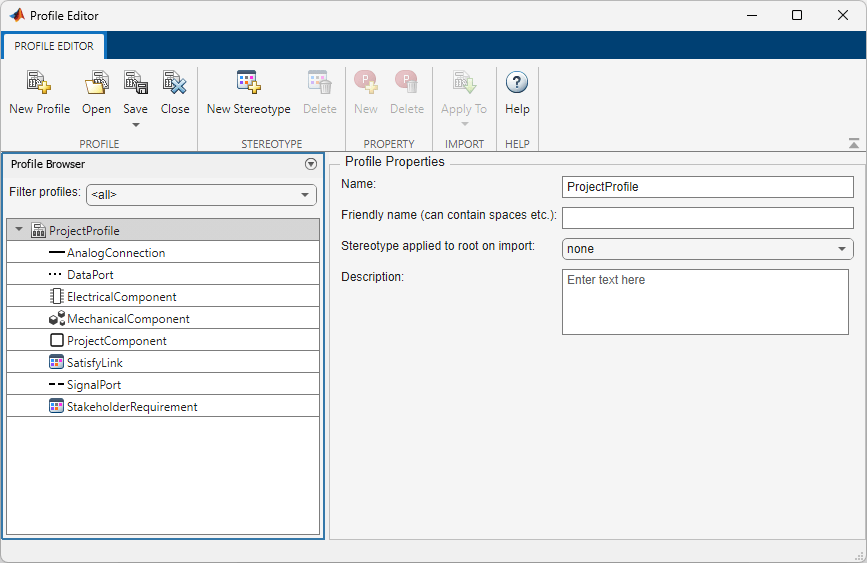
Open the Profile Editor
System Composer
System Composer toolstrip: In the Modeling tab, click Profile Editor.
MATLAB® Command Window: Enter
systemcomposer.profile.editor.
Requirements Toolbox
Requirements Editor toolstrip: Click Profile Editor
 .
.
Examples
- Customize Requirements and Links by Using Stereotypes
- Define Stereotypes and Perform Analysis for Mobile Robot (System Composer)
- Extend System Composer Language Elements Using Profiles (System Composer)
- Define and Apply Stereotypes to Functions (System Composer)
Parameters
Profile
Add new profile to edit in the Profile Editor.
Save profile using one of these options:
Saveto save currently selected profile as an XML file.Save asto save currently selected profile in a new XML file.Save allto save all profiles currently open in the Profile Editor.Export to previousto save currently selected profile to a previous version of MATLAB.
You can save the profile only or the profile and models that the profile is imported into.
Close the selected profile in the Profile Editor.
Stereotype
Add new stereotype on current profile to edit in the Profile Editor.
Delete the selected stereotype in the Profile Editor.
Filter imported profiles:
<all>to show all imported profiles from all loaded models and dictionaries.A model name, such as
model.slx, to show all imported profiles from specified architecture model.A data dictionary, such as
dictionary.sldd, to show all imported profiles from specified data dictionary.<refresh>to refresh profiles from all loaded models and dictionaries.
Property
Create a new stereotype property for the selected stereotype.
Delete the selected stereotype property.
Specify the name of a model, data dictionary, or allocation set into which to import the selected profile.
Stereotype to apply to the root architecture after importing profile into a model. Choose from a list of available stereotypes. The root architecture is at the system boundary of the top-level model that separates the contents of the model from the environment. This option is visible after selecting a profile.
Element type to which the stereotype can be applied.
Stereotype from which the stereotype inherits properties. Choose from a list of available stereotypes.
Select this check box to indicate an abstract stereotype. An abstract stereotype is a stereotype that is not intended to be applied directly to a model element. You can use abstract stereotypes only as the base stereotype for other stereotypes.
Select this check box to indicate whether to display read-only properties inherited from a base stereotype.
More About
A data dictionary is a repository of data relevant to your model. The Architectural Data section of a data dictionary stores shared definitions used in Simulink® and architecture model interfaces, such as port interfaces, data types, and system wide constants. For more information, see What Is a Data Dictionary? (Simulink) You can save local interfaces on a System Composer model to the Architectural Data section of a Simulink data dictionary using the Interface Editor (System Composer). In addition to the Interface Editor, you can also use the Architectural Data Editor (Simulink) to manage and modify interfaces and value types.
System Composer data dictionaries require a System Composer license.
A profile is a package of stereotypes that you apply to a model to classify and annotate elements with domain-specific attributes. You can use profiles to create a domain of specialized element types. Author profiles and apply profiles to a model using the Profile Editor (System Composer). You can store stereotypes for a project in one or several profiles. When you save profiles, they are stored in XML files.
Stereotypes provide a mechanism to extend the core language elements and add domain-specific metadata. Apply stereotypes to core element types. An element can have multiple stereotypes. Stereotypes allow you to style different elements. Stereotypes provide elements with a common set of properties, such as mass, cost, and power.
A property is a field in a stereotype. You can specify property values for each element to which the stereotype is applied. Use properties to store quantitative characteristics, such as weight or speed, that are associated with a model element. Properties can also be descriptive or represent a status. You can view and edit the properties of each element in the architecture model using the Property Inspector. For more information, see Use Property Inspector in System Composer (System Composer).
A component is a replaceable part of a system that fulfills a clear function in the context of an architecture. A component defines an architectural element, such as a function, another system, hardware, software, or other conceptual entity. A component can also be a subsystem or subfunction. Represented as a block, a component is a part of an architecture model that can be separated into reusable artifacts. Transfer information between components using port interfaces and parameters. Port interfaces and parameters can be configured using the Interface Editor (System Composer) and the Parameter Editor (System Composer).
System Composer components require a System Composer license.
A port is a node on a component or architecture that represents a point of interaction with its environment. A port permits the flow of information to and from other components or systems. Component ports are interaction points on the component to other components. Architecture ports are ports on the boundary of the system, whether the boundary is within a component or the overall architecture model. The root architecture has a boundary defined by its ports.
System Composer ports require a System Composer license.
Connectors are lines that provide connections between ports. Connectors describe how information flows between components or architectures. A connector allows two components to interact without defining the nature of the interaction. Set an interface on a port to define how the components interact.
System Composer connectors require a System Composer license.
An allocation establishes a directed relationship from architectural elements — components, ports, and connectors — in one model to architectural elements in another model. Resource-based allocation allows you to allocate functional architectural elements to logical architectural elements and logical architectural elements to physical architectural elements.
System Composer allocations require a System Composer license.
An allocation scenario contains a set of allocations between a source and a target model.
Allocate between model elements in an allocation scenario. The default allocation scenario is called Scenario 1.
System Composer allocations require a System Composer license.
An allocation set consists of one or more allocation scenarios that describe various allocations between a source and a target model. Create an allocation set with allocation scenarios in the Allocation Editor (System Composer). Allocation sets are saved as MLDATX files.
System Composer allocations require a System Composer license.
A data interface defines the kind of information that flows through a port. You can assign the same interface to multiple ports. A data interface can be composite, meaning that it can include data elements that describe the properties of an interface signal. Data interfaces represent the information that is shared through a connector and enters or exits a component through a port. Use the Interface Editor (System Composer) to create and manage data interfaces and data elements and store them in a data dictionary for reuse between models.
System Composer data interfaces require a System Composer license.
A physical interface defines the kind of information that flows through a physical port. The same interface can be assigned to multiple ports. A physical interface is a composite interface equivalent to a Simulink.ConnectionBus (Simulink) object that specifies a number of Simulink.ConnectionElement (Simulink) objects.
Use a physical interface to bundle physical elements to describe a physical model using at least one physical domain.
System Composer physical interfaces require a System Composer license.
A service interface defines the functional interface between client and server components. Each service interface consists of one or more function elements. Once you have defined a service interface in the Interface Editor (System Composer), you can assign it to client and server ports using the Property Inspector (Simulink). You can also use the Property Inspector (Simulink) to assign stereotypes to service interfaces.
System Composer service interfaces require a System Composer license.
Requirements are a collection of statements describing the desired behavior and characteristics of a system. Requirements help ensure system design integrity and should be achievable, verifiable, unambiguous, and consistent with each other. Each level of design should have appropriate requirements. To enhance traceability of requirements, link system, functional, customer, performance, or design requirements to components and ports. Link requirements to each other to represent derived or allocated requirements. Manage requirements from the Requirements Manager on an architecture model or through custom views. Assign test cases to requirements using the Simulink Test Manager (Simulink Test) for verification and validation.
A link is an object that relates two model-based design elements. A requirement link is a link where the destination is a requirement. You can link requirements to components or ports. View links in System Composer by using the Requirements Manager. Select a requirement in the Requirements Browser to highlight the component or the port to which the requirement is assigned. Links are stored externally as SLMX files.
A requirement set is a collection of requirements. You can structure the requirements hierarchically and link them to components or ports. Use the Requirements Editor to edit and refine requirements in a requirement set. Requirement sets are stored in SLREQX files. You can create a new requirement set and author requirements using Requirements Toolbox, or import requirements from supported third-party tools.
Version History
Introduced in R2019aStarting in R2026a, from the Profile Editor, you cannot select line color for interface stereotypes or port stereotypes. You can only choose line color for connector stereotypes. Existing models will remain unchanged, but line color functionality for interface and port stereotypes will be deprecated at a later time.
Starting in R2025a, you can apply stereotypes containing custom properties to
interface elements. Define your interface element stereotypes using the
Profile Editor or using the addStereotype (System Composer)
function with name-value argument
AppliesTo="InterfaceElement".
Starting in R2025a, you can apply stereotypes containing custom properties to activity diagram elements. Define your action node, flow, and parameter node stereotypes for activity diagrams using the Profile Editor.
Starting in R2024a, you can use the Profile Editor to define and edit the minimum and maximum values and the units of properties in the property view.
Additionally, you can use keyboard shortcuts while editing profiles.
Press Ctrl+S keys on your keyboard to save a profile.
Press Ctrl+O keys on your keyboard to open a profile.
Starting in R2022a, you can add stereotypes containing custom properties to software architecture functions. You can define your function stereotypes using the Profile Editor.
See Also
Apps
Tools
- Profile Editor (System Composer)
Functions
systemcomposer.profile.editor(System Composer)
MATLAB Command
You clicked a link that corresponds to this MATLAB command:
Run the command by entering it in the MATLAB Command Window. Web browsers do not support MATLAB commands.


Select a Web Site
Choose a web site to get translated content where available and see local events and offers. Based on your location, we recommend that you select: .
You can also select a web site from the following list
How to Get Best Site Performance
Select the China site (in Chinese or English) for best site performance. Other MathWorks country sites are not optimized for visits from your location.
Americas
- América Latina (Español)
- Canada (English)
- United States (English)
Europe
- Belgium (English)
- Denmark (English)
- Deutschland (Deutsch)
- España (Español)
- Finland (English)
- France (Français)
- Ireland (English)
- Italia (Italiano)
- Luxembourg (English)
- Netherlands (English)
- Norway (English)
- Österreich (Deutsch)
- Portugal (English)
- Sweden (English)
- Switzerland
- United Kingdom (English)