Generate HDL Code from MATLAB Algorithms
R2026bUse HDL Coder™ to convert compatible high-level MATLAB® algorithms into HDL code. In this example, you create an HDL Coder project and generate HDL code for a MATLAB counter algorithm. The MATLAB counter algorithm is compatible with HDL code generation. To make a MATLAB algorithm compatible with HDL code generation, see Create HDL- or HLS-Compatible MATLAB Algorithms. To generate HDL code from a Simulink model, see Generate HDL Code from Simulink Model.
In this example, you:
Create a MATLAB HDL Coder project for the design and test bench files.
Use the HDL Workflow Advisor to convert the floating-point MATLAB design to a fixed-point design.
Use the HDL Workflow Advisor to generate HDL code.
Review the HDL code generation report.
Verify the generated HDL code.
After you convert your design to HDL code, you can perform FPGA synthesis, implementation, and programming. To perform FPGA synthesis and implementation, see Synthesize Generated HDL Code from MATLAB Algorithms.
MATLAB Counter Algorithm
Open this example to obtain the MATLAB counter function and test bench for this tutorial.
open mlhdlc_counter
open mlhdlc_counter_tb
The MATLAB function mlhdlc_counter is a model of a 4-bit synchronous up counter. When the input argument, enable_ctr, is a nonzero value, the persistent variable, count_val, increases by one. The value of count_val increases by one until the count reaches 15. Then the counter returns to zero. To learn more about this function and the associated test bench, see Create HDL- or HLS-Compatible MATLAB Algorithms.
Create a MATLAB HDL Coder Project
To create a MATLAB HDL Coder project:
In the MATLAB Editor, in the Apps tab, select HDL Coder. In the Create HDL Coder Project dialog box, set Name to
mlhdlc_counter.mldatx. Set Folder to the current working directory. Click OK to create themlhdlc_counter.mldatxproject in the specified directory and open the HDL Workflow Advisor.In the HDL Workflow Advisor, in the Define Input Types task, for the MATLAB Function parameter, click Browse to browse to the MATLAB function file
mlhdlc_counter.m. Click Open to add the MATLAB function file to the project. For the MATLAB Test Bench parameter, click the button to browse to the MATLAB test bench file
 mlhdlc_counter_tb.m. Click Open to add the MATLAB test bench file to the project.You must add a MATLAB test bench unless the design does not need fixed-point conversion and you do not want to generate a register transfer level test bench.
Note
Add only the top-level MATLAB function. Do not use spaces in file names or paths to prevent code generation failures.
Click the Run button. The HDL Workflow Advisor infers the input types automatically by executing the MATLAB test bench. If you do not add a test bench, you must define the inputs to the top-level MATLAB function. For more information, see Specify Properties of Entry-Point Function Inputs.
Generate HDL Code
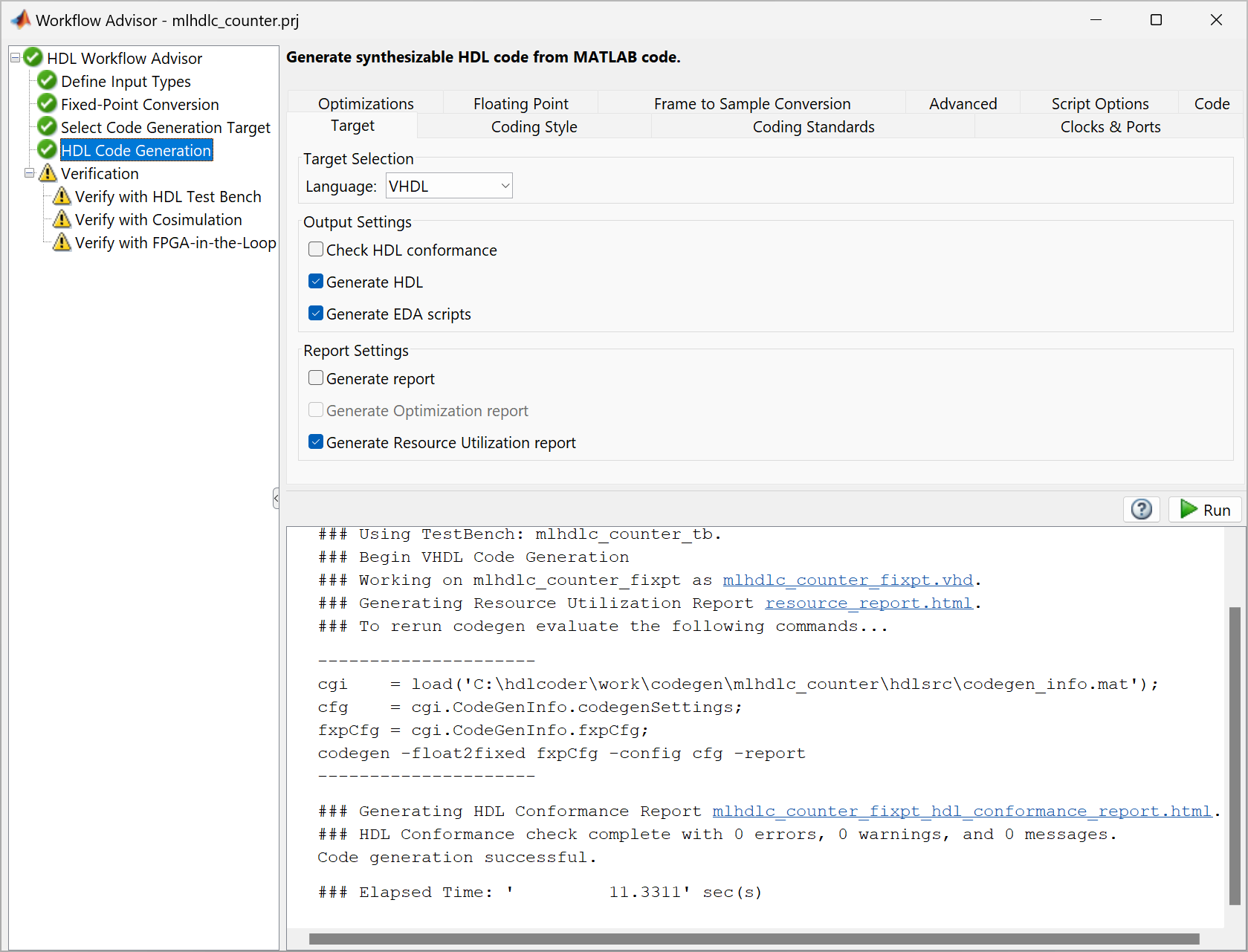
In the HDL Workflow Advisor, right-click the HDL Code Generation task, and select Run to selected task.
To generate HDL code for the MATLAB algorithm, the app runs these HDL Workflow Advisor tasks:
In the Fixed Point Conversion task, the app translates the floating-point MATLAB design to a fixed-point design. For details, see Floating-Point to Fixed-Point Conversion.
In the Select Code Generation Target task, the app configures downstream HDL Workflow Advisor tasks based on the workflow you select. The default Workflow setting,
Generic ASIC/FPGA, targets a generic ASIC or FPGA.In the HDL Code Generation task, the app generates HDL code from the fixed-point MATLAB design. By default, the app generates VHDL® code. For more information about code generation options in the HDL Workflow Advisor, see Workflow Advisor.
To generate HLS (high-level synthesis) code from a compatible MATLAB algorithm, see Get Started with MATLAB to High-Level Synthesis Workflow Using HDL Coder App.
Review HDL Code Generation Report
To identify the mapping between the MATLAB source design and the generated HDL code, create a code generation report. To create this report:
In the HDL Workflow Advisor, in the HDL Code Generation task, click the Target tab. In the Report Settings section, select Generate report.
Click the Coding Style tab. In the Generated Code Comments section, select the Include MATLAB source code as comments parameter, then click Run.
In the HDL Code Generation task, in the bottom of the
right pane, click the hyperlink View report to open the HDL
code generation report.
To review the HDL code generation report:
In the HDL Coder Report Viewer window, in the Generated Code pane, click
mlhdlc_counter_fixpt.vhdto examine the generated HDL code and source MATLAB code.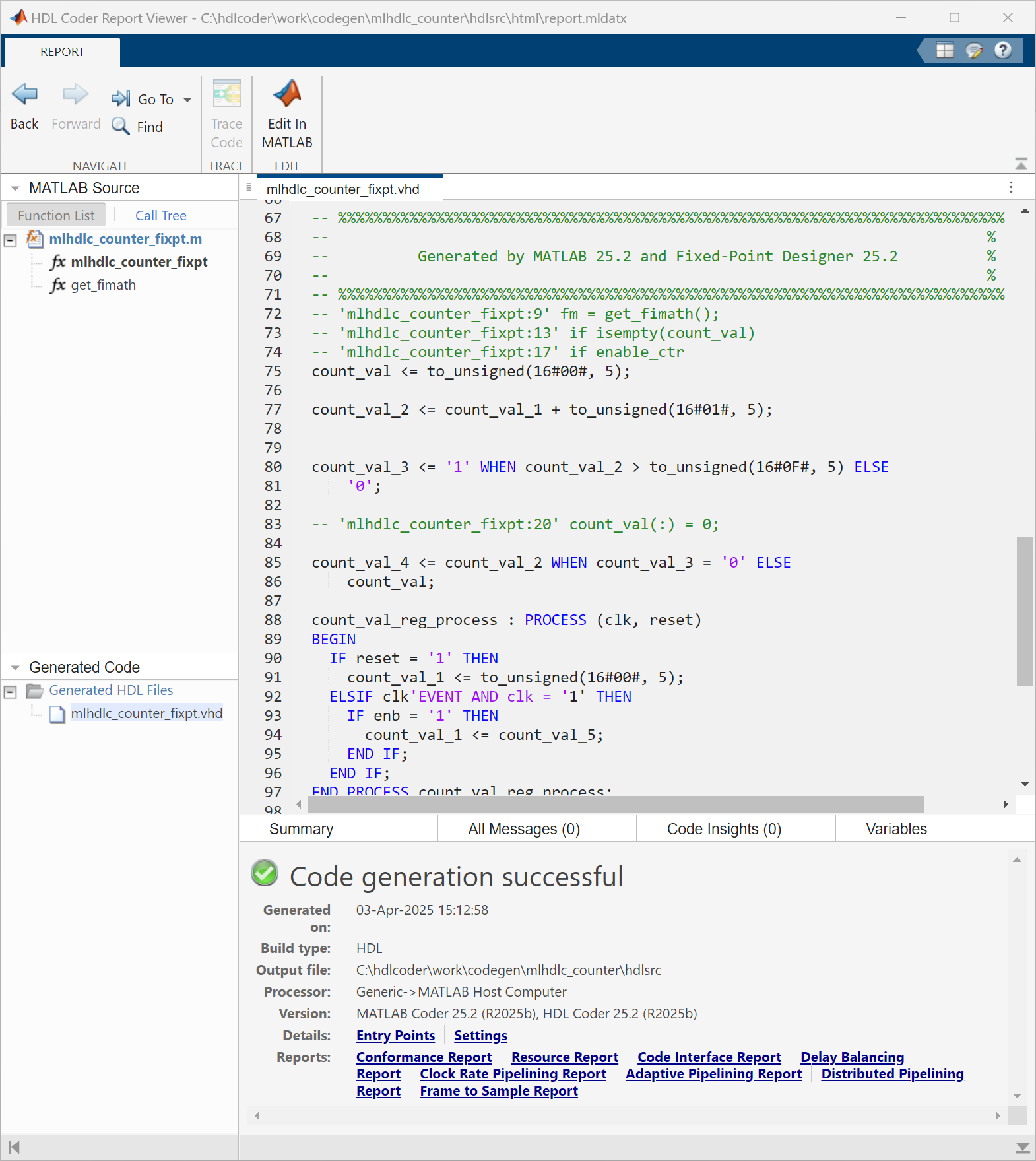
In the right pane, the Code Insights tab shows no potential issues or suggestions for algorithm improvement.
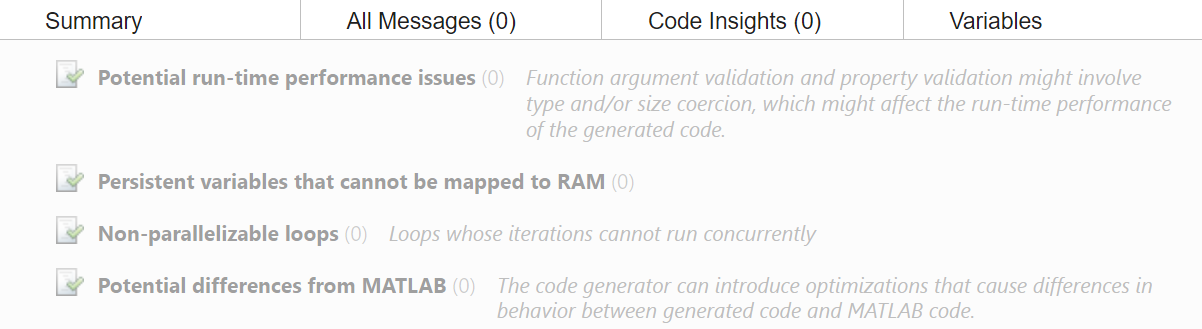
For more information on HDL code generation reports, see Code Generation Reports.
Verify Generated HDL Code
Before you deploy your generated HDL code, you can verify it by using an HDL test bench. The app simulates test vectors from the generated HDL test bench in an HDL simulator. For more information, see Verify Code with HDL Test Bench.
You must install an HDL simulator to simulate the generated HDL test bench. For more information, see HDL Simulator Setup.
To verify the generated HDL code, in the HDL Workflow Advisor, select the Verify with HDL Test Bench task. In the Output Settings tab, select Generate test bench and Simulate generated test bench, then click Run.
The app generates an HDL test bench and opens the HDL simulator in the background to simulate the design.
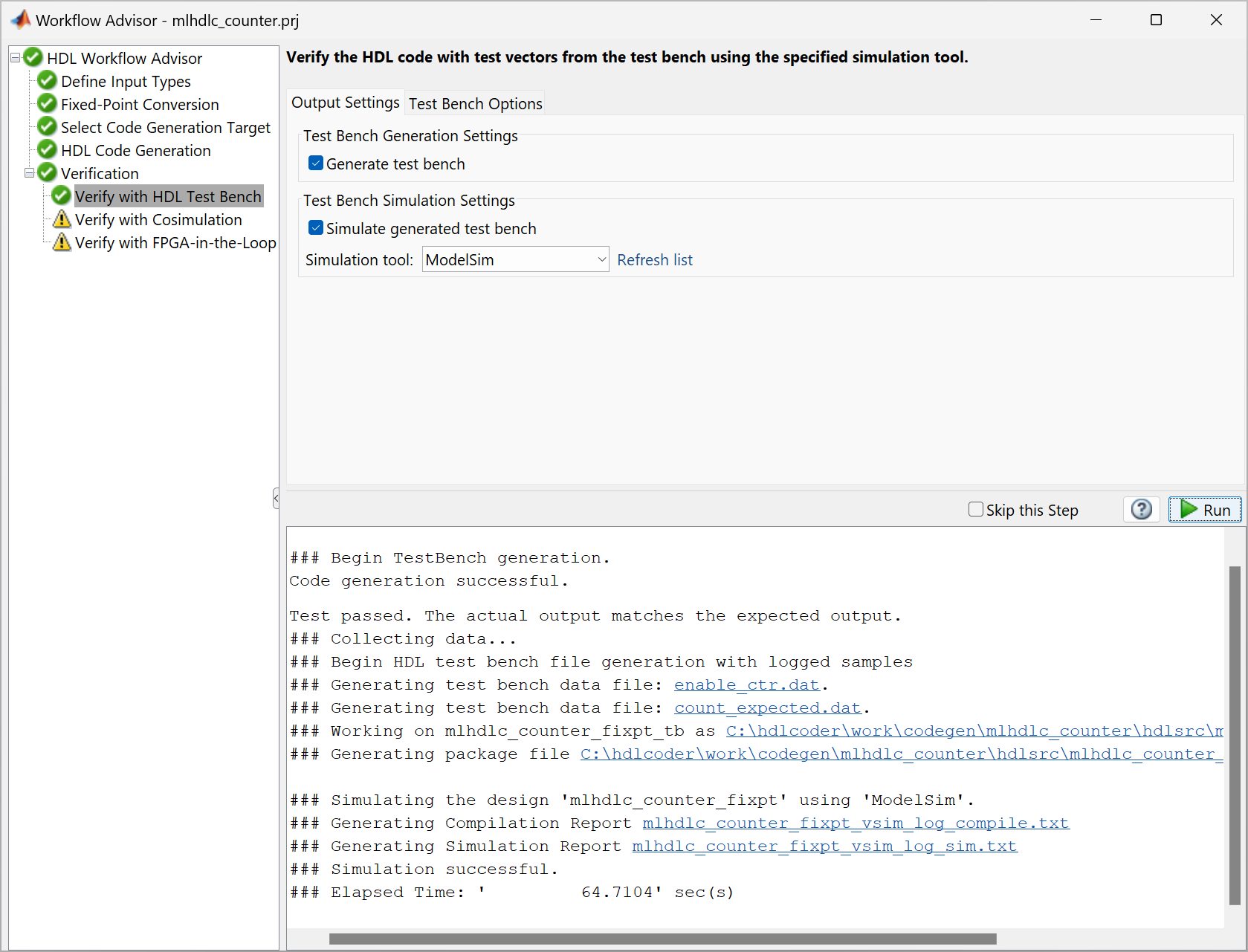
After you generate and validate the HDL code, you can synthesize it for a target device. For more information about synthesis, see Synthesize Generated HDL Code from MATLAB Algorithms.

