Tasking in Simulink
R2026bThe Simulink® engine organizes model execution into distinct computational chunks called tasks. Each task corresponds to a set of blocks that execute at specific hit times or events, according to the timing and event semantics in the model. Tasks are execution units analogous to entry points or runnables in generated code.
In many deployable applications, software executes as a set of periodic and event-driven tasks scheduled by a runtime or operating system on a processor. As a model evolves from an initial prototype toward deployable software, organizing execution into tasks with different rates and priorities helps optimize the use of available hardware resources. By structuring execution around tasks, Simulink software lets you explore how an algorithm might behave when deployed, how data is transferred between tasks, and how higher-priority activities interact with lower-priority activities. Tasking in Simulink software helps bring simulation behavior closer to what runs on hardware. For more information, see Tasking Modes and Execution Order (Simulink Coder).
Task Execution and Scheduling
During compilation, the Simulink engine defines the task schedule by assigning static priorities. The engine also determines the execution order of block operations in each task based on block connectivity.
At run time, the Simulink simulator binds the tasks to the simulation timeline and executes these tasks at their corresponding hit times. For more information about timelines, see Timelines and Execution Timing in Simulation. At each time step, the simulator executes tasks according to the task execution order defined during compilation. The simulator skips tasks that do not have a hit time at that time step.
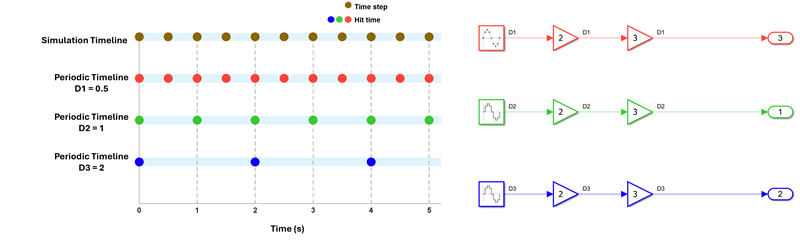
To illustrate this scheduling behavior, the following figure shows four timelines:
The simulation timeline
A timeline for blocks that run every 0.5 seconds (
D1)A timeline for blocks that run every 1 second (
D2)A timeline for blocks that run every 2 seconds (
D3)
Each colored dot represents a hit time for that timeline. At t = 2 seconds, there are hit times on all 3 periodic timelines, and all tasks run in a rate-monotonic order.
Single-Tasking: One Task for All Periodic Sample Times
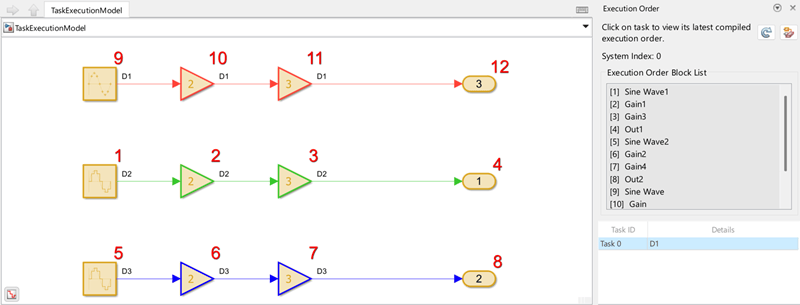
By default, blocks with different sample times execute in one task. Single-tasking mode is useful when you want to focus on algorithm behavior rather than scheduling structure. At each hit time in the simulation timeline, the simulator checks which blocks need to run and skips other blocks until their next hit.
In this example, even though blocks with sample times D1,
D2, and D3 all have hit times at t = 2
seconds, the simulator executes the blocks in one task. Block connectivity determines
the order of the operations in the task, regardless of the sample times of the blocks,
as shown in this image of the Execution Order viewer. For more information,
see Determining Execution Order.
Multitasking: One Task per Periodic Sample Time
In multitasking mode, the engine organizes execution so that block operations at each sample time execute in separate tasks when multiple sample times are present. This contrasts with single-tasking mode, where all block operations execute in a single task, even when they have different sample times. Tasks with slower sample times execute less frequently, leaving more time between those executions.
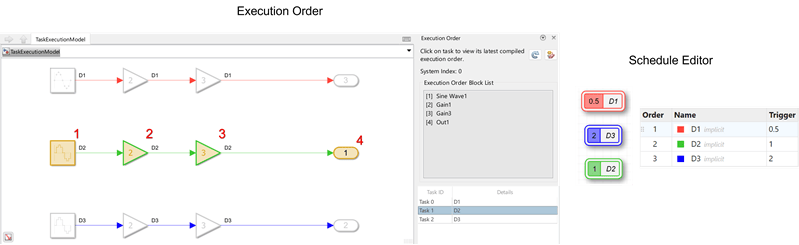
In this case, the engine assigns blocks at D1,
D2, and D3 to three separate tasks. At t = 2
seconds, all three tasks have hit times and must execute. The engine assigns static
priorities and schedules tasks in rate-monotonic order, with faster-rate tasks executing
before slower-rate tasks.
To use multitasking mode, set the solver Type to
Fixed-step and select Treat each discrete rate
as a separate task. For more information, see Treat each discrete rate as a separate task. Use the Schedule
Editor to see how the data flows between tasks. You can view the task
execution order in the Order table in the Schedule
Editor. For more information, see Schedule
Editor.
Define Task Boundaries
By default, the engine determines task grouping during compilation based on sample time propagation and execution dependencies in the model. However, you can define task boundaries explicitly when you want the execution structure to reflect a specific software architecture.
Use explicit tasks when you want to control task boundaries for isolation, timing clarity, or mapping to external schedulers. Explicit tasks can provide several benefits to your modeling and simulation workflow:
Better control over scheduling
Easier testing and debugging
Improved model organization and comprehension
Define Explicit Task Boundaries with Partitions
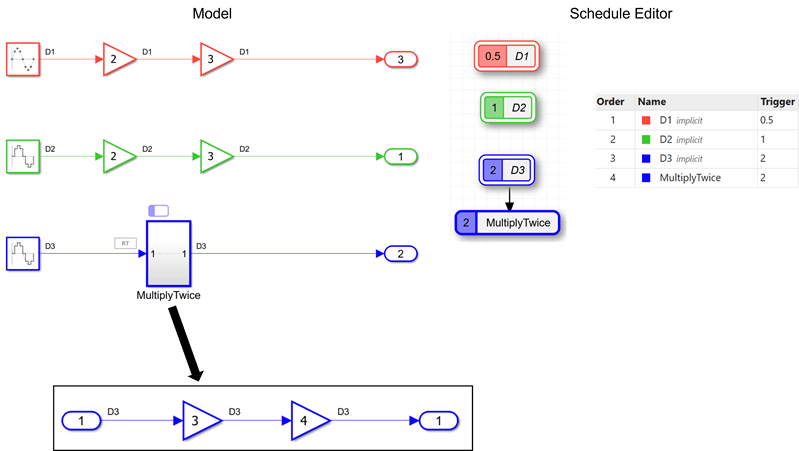
One way to define task boundaries is through partitions. To create a partition,
group blocks into a subsystem and then use the Schedule Editor to
assign that subsystem as an explicit partition. In the figure below, blocks at rates
D1, D2, and D3 are
still present, but the subsystem MultiplyTwice is defined as an
explicit partition. Although MultiplyTwice executes at the same
rate as D3, it appears as a separate task.
Creating Explicit Tasks
Common ways to create explicit tasks include:
Export-function models. For more information, see Export-Function Models Overview.
Partitions created in the Schedule Editor. For more information, see Create Partitions.
Asynchronous task specification. For more information, see Asynchronous Task Specification (Simulink Coder).

