Define AUTOSAR Compositions by Creating or Linking Models
R2026bAfter you add Software Composition blocks in your AUTOSAR architecture model, you can:
Create a model based on the composition block interface.
Link to a composition saved as an independent implementation model.
Create a model from an AUTOSAR XML (ARXML) composition description using the
importFromARXMLfunction.
To perform these actions, select a Software Composition block.
Place your cursor over the displayed ellipsis, and select a composition model cue — Save Composition as Architecture Model, Link to Model, or Import Composition from ARXML.
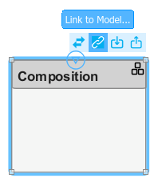
The selections open dialog boxes that help you create or link a model that is defined by the Software Composition block.
The creation and linking actions can be initiated in other ways, for example, from an architecture block context menu or from the toolstrip Modeling tab, in the Elaborate section.
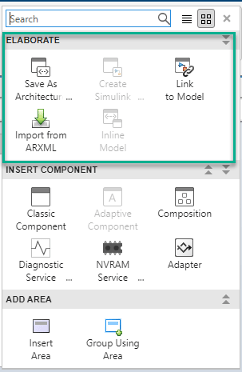
If you have Embedded Coder® software, you can use composition block cues to generate code and export ARXML files. The ARXML export uses the XML options of the parent architecture model.
Create Simulink Behavior Model from AUTOSAR Software Composition
To implement algorithmic behavior for a Software Composition block use
the cue Save Composition as Architecture Model on the
Software Composition block. The pictured composition can be found in
the autosar_tpc_composition example model. Access this model by
running the following code at the MATLAB® command
line:
openExample("autosar_tpc_composition");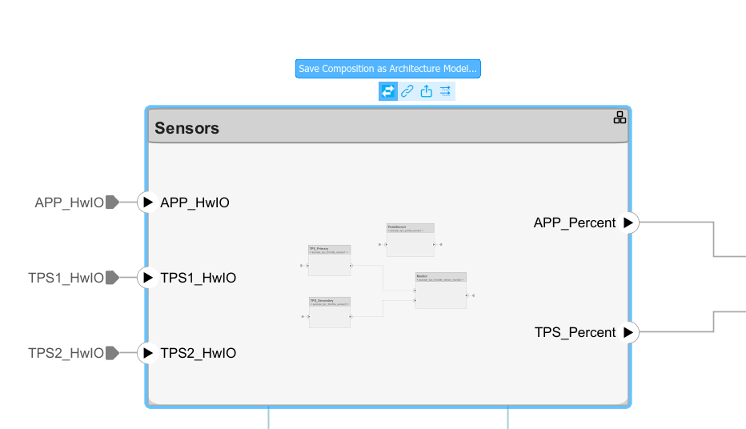
Clicking the cue creates a model based on the interface of the authored composition. Ports that you created on the software composition block are present in the implementation model.
Link AUTOSAR Software Composition Block to Software Architecture or Composition Model
To reference an existing Simulink® implementation model from an AUTOSAR Software Composition block, use the block cue Link to Model. Clicking the cue initiates linking of the composition block to an implementation model that you specify. By linking to existing models, you can deploy verified implementation models in your AUTOSAR design without re-qualification.
The implementation model must meet model linking requirements. The model must:
Use the same AUTOSAR target as the architecture model.
Have a complete mapping of Simulink model elements to AUTOSAR component elements.
Implement root-level ports with In Bus Element and Out Bus Element blocks instead of Inport and Outport blocks.
Use a fixed-step solver.
If the specified model meets the linking requirements, the software links the Software Composition block to the model and updates the block and model interfaces to match.
If the specified model does not meet one or more of the linking requirements, the software opens the AUTOSAR Model Linker app, which offers fixes for the unmet requirements. For example, if an implementation model uses root Inport and Outport blocks, the app offers to fix the issue by converting the signal ports to bus ports. When you click Fix All, the software fixes the unmet requirements and finishes linking the composition block to the model.
This example describes how to link an AUTOSAR Classic software composition to an existing model. The workflow for linking an AUTOSAR Adaptive software architecture model to a Software Composition block is the same.
Create or open an architecture model. To create a model, open the Simulink Start Page. Under AUTOSAR Blockset, open the Software Architecture template.
From the Modeling tab, in the Platform section, confirm that the AUTOSAR platform is correct. For this example, select
Classic Platform.From the Modeling tab or the palette, add a Software Composition block to the model. The Property Inspector displays the component Kind property as
Composition, which is correct for this composition.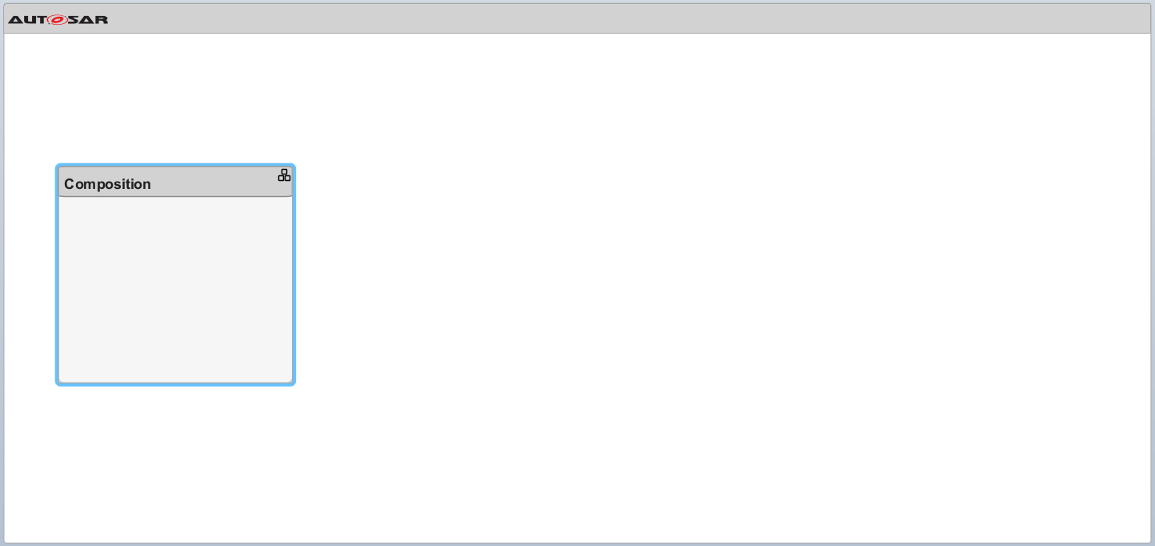
Link the
Compositionblock to an existing AUTOSAR software architecture model that is configured for the same AUTOSAR platform. This example uses theautosar_tpc_compositionsoftware architecture model.openExample("autosar_tpc_composition")Select the
Compositionblock, place your cursor over the displayed ellipsis, and select the block cue Link to Model.In the Link to Model dialog box, browse to the implementation model
swc.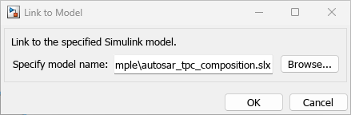
To reference the implementation model from the AUTOSAR Composition block, click OK.
If the specified implementation model does not meet one or more of the linking requirements, the software opens the AUTOSAR Model Linker app, which offers fixes for the unmet requirements.
If the Linking Requirements pane displays a Fix All button, you are ready to fix the unmet linking requirements and link the composition block to the implementation model. Click Fix All.
For more information, see Author AUTOSAR Compositions and Components in Architecture Model.
Simulink links the Composition block to model
autosar_tpc_compositionand updates the block interface to match the model implementation.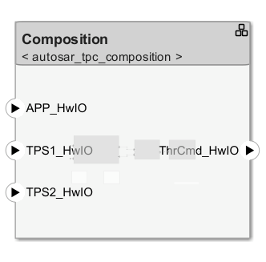
To view the model content, open the
Compositionblock.
Create AUTOSAR Classic Software Architecture from ARXML Composition Description
This example imports a software composition description
ThrottlePositionControlComposition from the AUTOSAR example file
ThrottlePositionControlComposition.arxml into an existing
architecture model. For an example importing AUTOSAR Adaptive software compositions to
software architecture models, see
Open a working folder with the required ARXML file by entering this command in your MATLAB Command Window:
openExample("ThrottlePositionControlComposition.arxml")To create an AUTOSAR software architecture model from an ARXML composition description and map it to an AUTOSAR Software Composition block, use the Software Composition block cue Import Composition from ARXML.
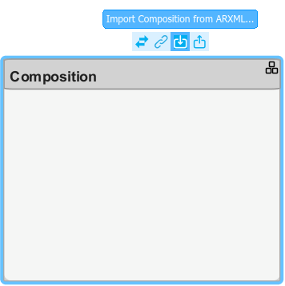
Clicking the cue creates a model based on a specified ARXML description, links the composition block to the model, and updates the block and model interfaces to match.
Create or open an architecture model. To create a model, open the Simulink Start Page. Under AUTOSAR Blockset, open the Software Architecture template.
From the Modeling tab, in the Platform section, confirm that the AUTOSAR platform is correct. For this example, select
Classic Platform.From the Modeling tab or from the palette, add a Software Composition block to the model and name it
Composition.Select the
Compositionblock, place your cursor over the displayed ellipsis, and select the cue Import Composition from ARXML. The AUTOSAR Importer App opens.Work through the import and model creation procedure.
In the Select ARXML pane, browse to one or more AUTOSAR XML files that provide one or more software composition descriptions. This example uses a file copied in an earlier step,
ThrottlePositionControlComposition.arxml. To import the description, click Next.
In the Create Composition pane, select the software component from which to create a model. From the list of components imported in the previous step, this example selects
Controller.
To view optional settings for model creation, select Configure Modeling Options.

You can:
Model periodic runnables as atomic subsystems or function-call subsystems, or accept a default modeling style selection (
Auto).Select an existing AUTOSAR runnable as the initialization runnable for the component.
Specify a Simulink data dictionary into which to import data objects corresponding to AUTOSAR data types in the XML file. If the specified dictionary does not already exist, the importer creates it. The model is then associated with the data dictionary.
Select an AUTOSAR
PredefinedVariantdefined in the AUTOSAR XML file to initializeSwSystemconstdata that serves as input to control variation points. For more information, see Control AUTOSAR Variants with Predefined Value Combinations. In this example, noPredefinedVariantis available for selection.
For more information about model creation options, see
importFromARXML.To create the model and map it to the AUTOSAR Software Composition block, click Finish. Simulink creates model
ThrottlePositionControlComposition.slxin the working folder and updates the block interface to match the model implementation.
To view the model content, open the
Compositionblock.
For an example importing an AUTOSAR Adaptive software composition model, see Programmatically Import AUTOSAR Adaptive Software Descriptions to Software Architecture.
See Also
Software Composition | createCompositionAsModel
Topics
- Configure AUTOSAR Classic Scheduling and Simulation
- Author AUTOSAR Compositions and Components in Architecture Model
- Configure AUTOSAR Ports By Using Simulink Bus Ports
- Import AUTOSAR XML Descriptions Into Simulink
- Control AUTOSAR Variants with Predefined Value Combinations
- Configure AUTOSAR Architecture Model Programmatically

