detect
Syntax
Description
detects objects in all the images stored in the datastore detectionResults = detect(detector,ds)ds.
[___] = detect(___,
detects objects within the rectangular search region roi)roi, in addition
to any combination of arguments from previous syntaxes.
[___] = detect(___,
specifies options using one or more name-value arguments.Name=Value)
Examples
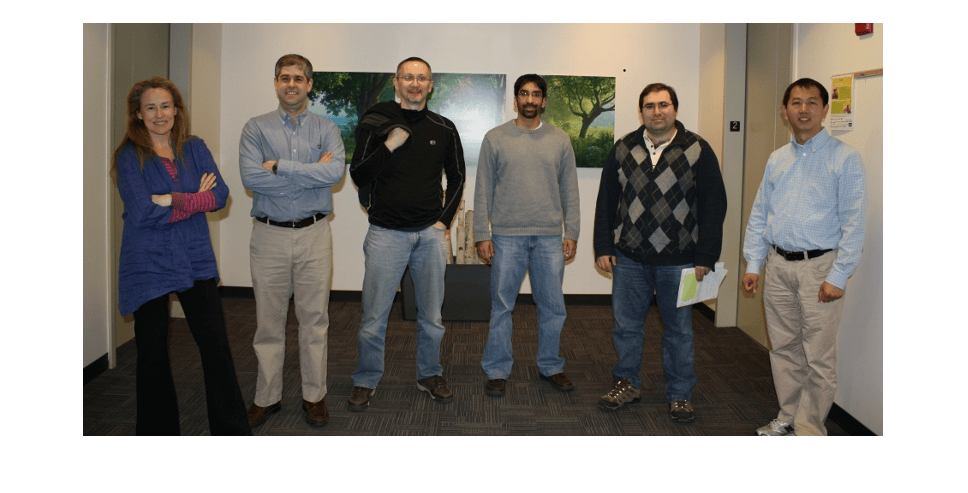
Read an input image into the workspace.
I = imread("visionteam.jpg");Display the input image.
figure imshow(I)
Create a Grounding DINO object detector using the Swin-Base network as the backbone network.
name = "swin-base";
detector = groundingDinoObjectDetector(name);Specify the class names for the detector to use as output labels for the detection results.
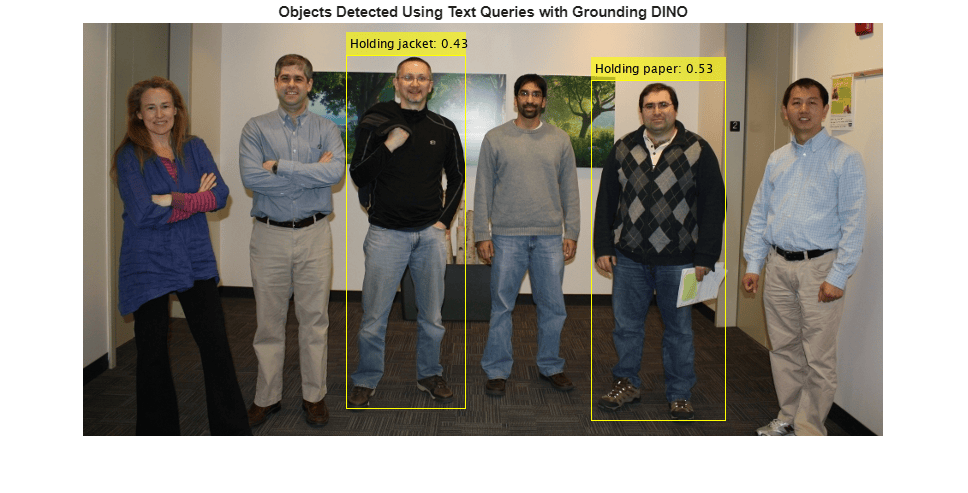
labels = {'Holding paper','Holding jacket'};Specify the class descriptions for the detector to use as text queries for performing object detection.
descriptions = {'Person holding paper','Person holding jacket'};Detect objects in the image using the specified class names and descriptions.
[bboxes,scores,labels] = detect(detector,I,ClassNames=labels,ClassDescriptions=descriptions);
Format the detected labels and scores for image annotation.
outputLabels = compose("%s: %.2f",string(labels),scores);Annotate the detected objects in the image.
detections = insertObjectAnnotation(I,"rectangle",bboxes,outputLabels);Display the image, annotated with the detection results.
imshow(detections)
title("Objects Detected Using Text Queries with Grounding DINO")
This example uses a small vehicle dataset that contains 295 images. Many of these images come from the Caltech Cars 1999 and 2001 datasets, available at the Caltech Computational Vision website created by Pietro Perona and used with permission.
Unzip the vehicle images to the working folder.
fileNames = unzip("vehicleDatasetImages.zip");Create an imageDatastore object to read the images for object detection.
imds = imageDatastore(fileNames);
Load a pretrained Grounding DINO object detector with a Swin‑Base backbone network. Use the classNames name‑value argument to specify text prompts for detecting the car and the license plate.
To improve detection accuracy and establish semantic context, specify both license plate and car as text prompts. This ensures that language-guided query selection correctly assigns the vehicle's large-scale features to car, preventing them from being falsely localized as the license plate.
detector = groundingDinoObjectDetector("swin-base",classNames=["License plate","car"]);
Read images from the image datastore using the read function. Detect cars and license plates in each image using the detect function of the groundingDINOObjectDetector object.
detectionResults = detect(detector,imds);
Visualize Detection Results
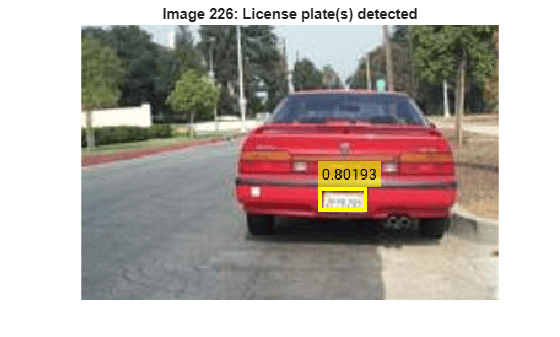
Extract the bounding boxes, detection scores, and labels from the results table. Iterate over the images in the datastore and filter detections to include only license plates. For each image, display the image and overlay bounding boxes with the corresponding attention scores when license plates are detected.
figure allBoxes = detectionResults.Boxes; allScores = detectionResults.Scores; allLabels = detectionResults.Labels; for i = 1:length(imds.Files) img = readimage(imds,i); idx = (allLabels{i} == "License plate"); plateBoxes = allBoxes{i}(idx,:); plateScores = cellstr(string(allScores{i}(idx))); imshow(img); if isempty(plateBoxes) title(sprintf("Image %d: No license plate detections",i)); else annotatedImg = insertObjectAnnotation(img,'rectangle',plateBoxes,plateScores,... 'LineWidth',3); imshow(annotatedImg); title(sprintf("Image %d: License plate(s) detected",i)); end pause(0.1) end
Input Arguments
Grounding DINO object detector, specified as a groundingDinoObjectDetector object.
Test image, specified as a matrix for a grayscale image or a 3-D array of size height-by-width-by-3 for an RGB image.
Data Types: uint8 | uint16 | int16 | double | single
Test images, specified as an ImageDatastore object,
CombinedDatastore object, or
TransformedDatastore object containing the full paths of the test
images. The images in the datastore must be grayscale or RGB images.
Search region of interest, specified as a vector of form [x y width height]. The values of x and y specify the coordinates of the upper-left corner of a rectangular region, and width and height specify its size in pixels.
Name-Value Arguments
Specify optional pairs of arguments as
Name1=Value1,...,NameN=ValueN, where Name is
the argument name and Value is the corresponding value.
Name-value arguments must appear after other arguments, but the order of the
pairs does not matter.
Example: detect(detector,I,ExecutionEnvironment="gpu") to use the GPU
to run the detector.
Labels, specified as a string scalar, string array, cell array of character vectors, or categorical vector.
If you do not specify
ClassDescriptions, the object uses the values inClassNamesas both output labels for annotation and natural language queries for detection. In this case, the total number of words across all elements, with each comma also counted as a word, must not exceed 255 words.If you specify
ClassDescriptions, the object uses the values inClassNamesas output labels for annotation, and the word limit does not apply.
If you specify both ClassNames and
ClassDescriptions, the number of elements in them must
match.
This argument sets the ClassNames property.
Data Types: char | string | cell | categorical
Natural language queries, specified as a string scalar, string array, cell array of character
vectors, or categorical vector. The total number of words across all elements, with
each comma also counted as a word, must not exceed 255 words. Each entry must
correspond to an element in ClassNames. This argument sets the
ClassDescriptions property.
In general, the ClassDescriptions are more detailed and descriptive than
the ClassNames to guide the detection process. The queries
provide additional context about an object, such as its appearance, color, size, or
activity.
For an example, if you want to detect a brown-colored dog lying on grass, you can specify
ClassDescriptions as "brown dog lying on
grass" to query the Grounding DINO object detector, and specify the
corresponding ClassNames as "dog" to label the
detected object.
Data Types: char | string | cell | categorical
Minimum region size, specified as a vector of the form [height width]. Units are in pixels. The minimum region size defines the size of the smallest region that can contain the object.
Maximum region size, specified as a vector of the form [height width]. Units are in pixels. The maximum region size defines the size of the largest region that contain the object.
By default, MaxSize is set to the height and width of the
input image I. To reduce computation time, set this value to the
known maximum region size for the objects that can be detected in the input test
image.
Minimum batch size, specified as a scalar value. Use the
MiniBatchSize to process a large collection of image. Images
are grouped into minibatches and processed as a batch, which can improve computational
efficiency at the cost of increased memory demand.
Detection threshold, specified as a scalar in the range [0, 1]. The function removes detections that have attention scores less than this threshold value. To reduce false positives, increase this value.
Select the strongest bounding box for each detected object, specified as
true or false.
true— Returns only the strongest bounding box for each object. After object detection, thedetectfunction calls theselectStrongestBboxMulticlassfunction, which uses nonmaximal suppression to eliminate overlapping bounding boxes based on their attention scores.By default, the
detectfunction make this call to theselectStrongestBboxMulticlassfunction:selectStrongestBboxMulticlass(bboxes,scores,labels, ... RatioType="Union", ... OverlapThreshold=0.5);
false— Returns all detected bounding boxes. You can then write your own custom function to eliminate overlapping bounding boxes.
Hardware resource on which to run the detector, specified as
"auto", "gpu", or "cpu".
"auto"— Use a GPU if it is available. Otherwise, use the CPU."gpu"— Use the GPU. To use a GPU, you must have a Parallel Computing Toolbox™ license and a CUDA® enabled NVIDIA® GPU. If a suitable GPU is not available, the function returns an error. For information about the supported compute capabilities, see GPU Computing Requirements (Parallel Computing Toolbox)."cpu"— Use the CPU.
Output Arguments
Locations of the detected objects within the input image, returned as an M-by-4 matrix. M is the number of bounding boxes detected in the image. Each row of the matrix is of the form [x y width height]. The x and y values specify the coordinates of the upper-left corner, and width and height specify the size, of the corresponding bounding box, in pixels.
Attention scores for each bounding box, returned as an M-by-1 numeric vector. M is the number of bounding boxes detected in the image. Each element indicates the attention score for a bounding box in the corresponding image, and values are in the range [0, 1].
Labels for bounding boxes, returned as an M-by-1 categorical vector. M is the number of bounding boxes detected in the image.
Detection results when the input is a datastore, ds, returned
as a table with these columns, in which each row corresponds to an image.
bboxes | scores | labels |
|---|---|---|
Predicted bounding boxes, defined in spatial coordinates as an M-by-4 numeric matrix with rows of the form [x y width height], where:
| Attention scores for each bounding box, returned as an M-by-1 numeric vector with values in the range [0, 1]. | Labels assigned to the bounding boxes, returned as an M-by-1 categorical vector. |
References
[1] Liu, Shilong, Zhaoyang Zeng, Tianhe Ren, et al. “Grounding DINO: Marrying DINO with Grounded Pre-Training for Open-Set Object Detection.” In Computer Vision – ECCV 2024, vol. 15105, edited by Aleš Leonardis, Elisa Ricci, Stefan Roth, Olga Russakovsky, Torsten Sattler, and Gül Varol. Springer Nature Switzerland, 2025. https://doi.org/10.1007/978-3-031-72970-6_3.
Extended Capabilities
GPU Arrays
Accelerate code by running on a graphics processing unit (GPU) using Parallel Computing Toolbox™.
Version History
Introduced in R2026a
MATLAB Command
You clicked a link that corresponds to this MATLAB command:
Run the command by entering it in the MATLAB Command Window. Web browsers do not support MATLAB commands.
Web サイトの選択
Web サイトを選択すると、翻訳されたコンテンツにアクセスし、地域のイベントやサービスを確認できます。現在の位置情報に基づき、次のサイトの選択を推奨します:
また、以下のリストから Web サイトを選択することもできます。
最適なサイトパフォーマンスの取得方法
中国のサイト (中国語または英語) を選択することで、最適なサイトパフォーマンスが得られます。その他の国の MathWorks のサイトは、お客様の地域からのアクセスが最適化されていません。
南北アメリカ
- América Latina (Español)
- Canada (English)
- United States (English)
ヨーロッパ
- Belgium (English)
- Denmark (English)
- Deutschland (Deutsch)
- España (Español)
- Finland (English)
- France (Français)
- Ireland (English)
- Italia (Italiano)
- Luxembourg (English)
- Netherlands (English)
- Norway (English)
- Österreich (Deutsch)
- Portugal (English)
- Sweden (English)
- Switzerland
- United Kingdom (English)