Resume an Incomplete Analysis
R2026bWhen you run Simulink® Design Verifier™ and the analysis stops before completion due to time limits, resource constraints, or manual interruption, the state of the analysis is automatically saved, provided the analysis mode (such as from test generation to design error detection), or any input or output ports in the model remain unchanged. This state enables you to resume the analysis later without restarting from the beginning. By reusing previously computed data, Simulink Design Verifier avoids redundant processing, shortens analysis time, and improves overall efficiency. This approach is particularly useful for large models or long-running analyses, where interruptions can occur due to time limits or resource constraints.
Continue an Incomplete Analysis
This example shows how to continue an incomplete analysis.
Run analysis
Generate test cases for sldvdemo_cruise_control model by specifying the sldvoptions.
Set the analysis mode to 'TestGeneration' to generate tests for your model, and limit the analysis duration by setting opts.MaxProcessTime to 10 seconds.
model = "sldvdemo_cruise_control";
open_system(model);
opts = sldvoptions;
opts.Mode = "TestGeneration";
opts.MaxProcessTime = 10;
Analyze the model by using this command
[status,files] = sldvrun("sldvdemo_cruise_control",opts,true);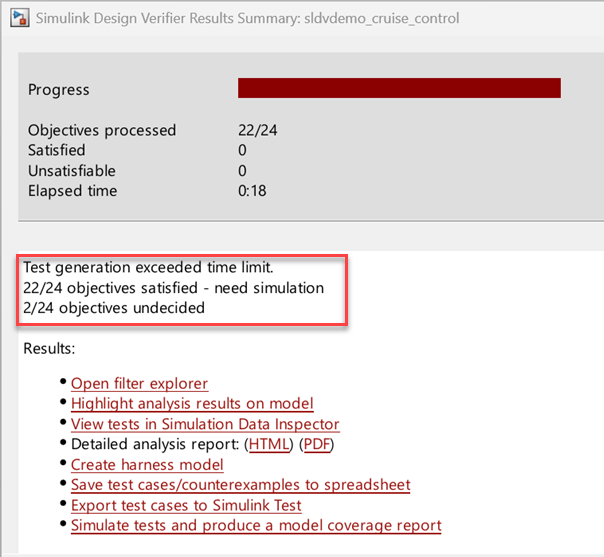
Note that the analysis is not complete due to timeout; hence, only 22 out of 24 objectives are satisfied.
Restart analysis from saved state
To resume the analysis, increase the maximum analysis time. When the Rebuild model representation option is set to If change is detected, Simulink Design Verifier validates the cache model representation, detects no change, and reuses the model representation for analysis.
You can also resume the analysis in the user interface.
Reopen the exact model that you have analyzed in the Configuration Parameters dialog box, in the Design Verifier pane, increase Maximum analysis time to 300 seconds for this example. Any modification to the model or the analysis option invalidates the saved state.
Click Advanced parameters, and from the Rebuild model representation list, select
If change is detected.On the Design Verifier tab of the Simulink Toolstrip, click Generate Tests.
opts.MaxProcessTime = 300;
[status2,files2] = sldvrun(model,opts);
07-Aug-2026 03:03:25
Validating cached model representation from 07-Aug-2026 03:03:04...done

07-Aug-2026 03:03:26

'sldvdemo_cruise_control' is compatible for test generation with Simulink Design Verifier.

Continuing test generation analysis using results saved at 07-Aug-2026 03:03:22...


Generating output files:

07-Aug-2026 03:03:41
Results generation completed.

    Data file:
    /tmp/Bdoc26b_3351752_1768239/tpbfbc3e92/sldv-ex56805367/sldv_output/sldvdemo_cruise_control/sldvdemo_cruise_control_sldvdata1.mat
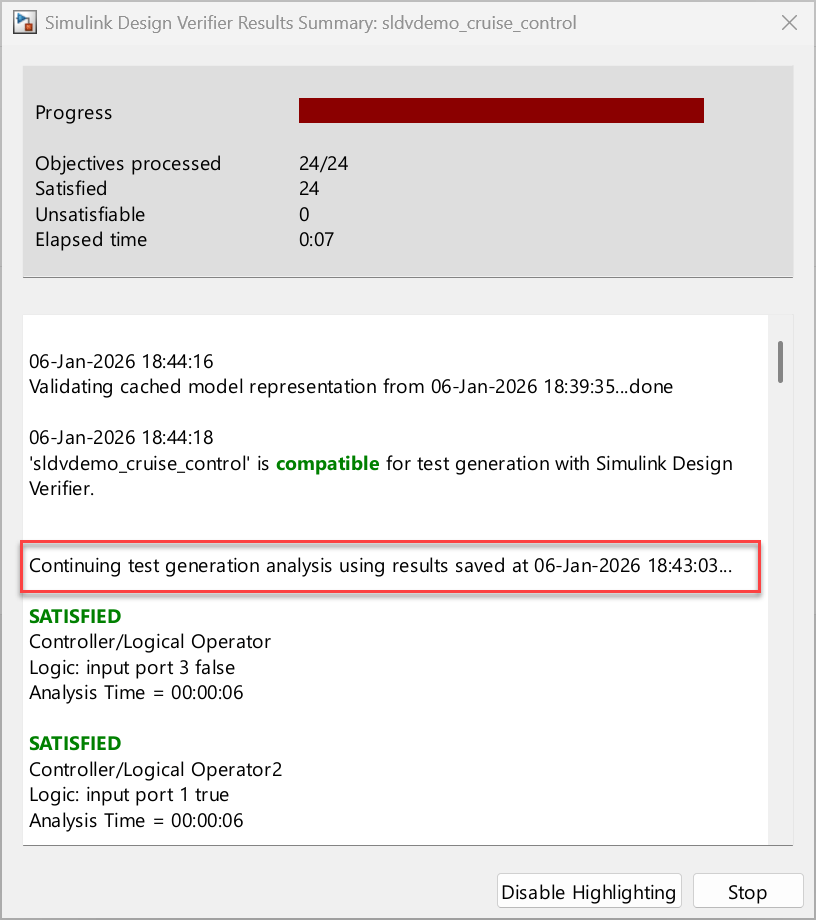
Simulink Design Verifier uses the previously computed objectives and the partial test cases generated earlier to continue analysis on your model and generate tests from where it stopped.
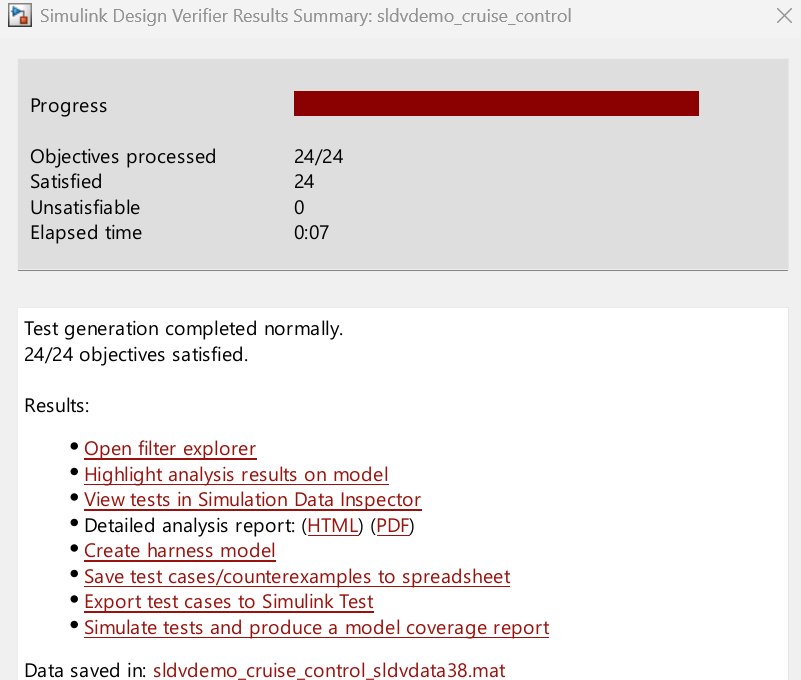
The Results Summary window shows that all 24 objectives are satisfied.
Limitations
If you change the model, switch the analysis mode (such as from test generation to design error detection), or modify input or output ports during analysis, Simulink Design Verifier cannot reuse the cache to resume the analysis.
To resume an analysis, the Simulink Design Verifier options
MaxViolationSteps,MaxTestCaseSteps,TestSuiteOptimization,RandomizeNoEffectData,IgnoreCovSatisfied,DefectChecker, andProvingStrategymust be unchanged from the previous analysis run.

