このページの内容は最新ではありません。最新版の英語を参照するには、ここをクリックします。
Simulink Copilot を使用してプロセス アドバイザーで定義されているタスクを実行および監視する
R2026aSimulink® Copilot をプロセス アドバイザーと共に使用すると、プロジェクト内で開発アクティビティと検証アクティビティを自動化して実行できます。プロセス アドバイザーは、開発アクティビティをプロセス モデル内に自動タスクとして整理することで、繰り返し可能なワークフローを定義します。Simulink Copilot は、[Copilot チャット] パネル内に会話型インターフェイスを用意することで、このワークフローを拡張します。ユーザーは、このパネルからプロセス モデルに定義されているタスクを検出、実行、確認できます。Copilot は、ワークフローを操作して、定義されているプロセスに従い、タスクの進行状況を監視するのを支援します。プロセス アドバイザーの詳細については、プロセス アドバイザーでのタスクの実行 (Simulink Check)を参照してください。
この例では、[Copilot チャット] パネルを使用して、プロセスに定義されているタスクを実行します。
前提条件
Simulink Check™ ライセンスが必要です。
CI/CD Automation for Simulink Check がインストールされている必要があります。詳細については、https://www.mathworks.com/products/ci-cd-automation.htmlを参照してください。
プロジェクトを開く
モデルおよびサポート ファイルが MATLAB® プロジェクト内にある必要があります。詳細については、Simulink での MATLAB プロジェクトの使用を参照してください。この例では、次のコマンドを実行してプロジェクト例を開きます。
openExample('simulink/UsingAProjectExample')modelsフォルダー内のモデルAnalogControlを開きます。[シミュレーション] タブと [モデル化] タブの Simulink ツールストリップにある [Simulink Copilot チャット] ボタンを使用して、[Copilot チャット] パネルを開きます。
タスクを実行して結果を確認する
[Copilot チャット] パネルからタスクを実行するには、プロンプトを入力します。この例では、モデルがモデリング標準に準拠しているかどうかをチェックするよう Copilot に指示します (例:
Run the "Check Modeling Standards" task)。Copilot は依頼を処理し、[Check Modeling Standards] タスクを実行する許可を求めます。このタスクでは、モデル アドバイザーを使用してモデルが業界の標準とガイドラインに準拠しているかどうかをチェックします。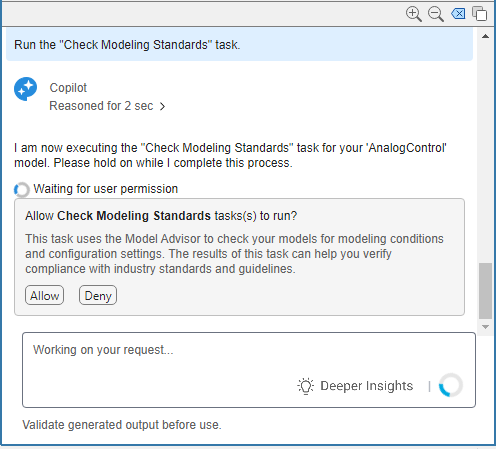
[Allow] を選択して、許可します。この手順では、プロジェクトにプロセス モデル (
processmodel.m) が含まれていない場合、プロセス アドバイザーが既定のプロセス モデルを作成し、[Check Modeling Standards] タスクを実行します。実行後、プロセス アドバイザーは、レポートへのリンクを含む結果を [Copilot チャット] パネルに渡します。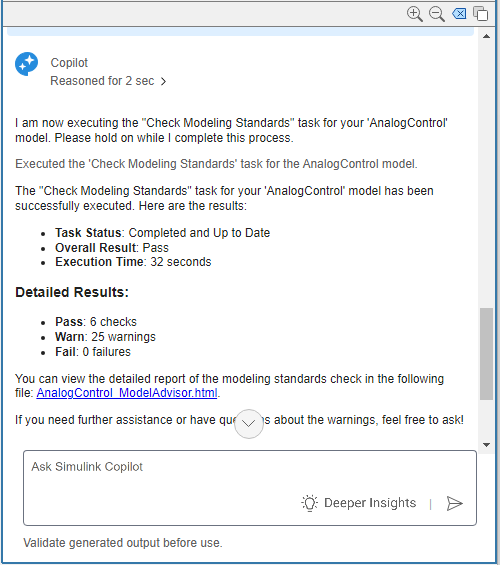
チャット ペインから、プロセス モデルの別のタスクまたはすべてのタスクを実行するには、要件を指定するプロンプトを入力します。必要な製品ライセンスを所有していないために特定のタスクが無効になっている場合、Copilot はそれらのタスクを [Not run] ではなく、
Pendingとしてマークする場合があります。次のプロンプトを入力して、Copilot にプロセス モデル (
processmodel.m) 内のタスクを一覧にして説明するように依頼することもできます。List and explain the tasks defined in the process model located in this project.
ただし、プロセス モデルに複数のプロセスが含まれている場合は、Copilot によりそれらが個別に認識されないことがあります。各セッションでは、一度に 1 つのプロセスについてのみ質問して回答を得たり、アクションを実行したりします。プロセス アドバイザーを使い慣れていない場合は、Copilot を使って理解を深めてください。

