Freehand
R2026bDescription
A Freehand object labels an interactive hand-drawn closed path
in a Viewer object. The properties of the object control the appearance
and behavior of the freehand annotation.
Interactive viewer-based ROIs enable you to draw, edit, and
measure regions of interest on images and volumes displayed using imageshow
and volshow. Interactive ROIs support dragging, resizing, event callbacks,
and measurement labels. Use interactive viewer-based ROIs to manually annotate an image, build
annotation workflows in apps, or respond to user interactions with ROI shapes. For a comparison
of interactive viewer-based ROIs with other ROIs, see Choose Approach to Annotate ROIs in Images.
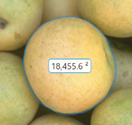
Creation
You can create a Freehand object in these ways. For more information,
see Create Interactive Viewer-Based ROIs.
Use the
uidrawfunction to interactively draw the ROI in a specified viewer and create the ROI object.Use the
images.ui.graphics.roi.Freehandfunction described here. After you create the ROI, you can display it by adding the object to theAnnotationsproperty of aViewerobject.
Description
f = images.ui.graphics.roi.Freehand creates a
Freehand object with default property values. Use
f to query and modify properties of the object after you
create it.
f = images.ui.graphics.roi.Freehand(Name=Value) sets one or more
writable properties using
name-value arguments.
Example:
images.ui.graphics.roi.Freehand(Position=[1 1 1; 100 1 1; 1 200
                  1])
creates a freehand annotation with three vertices at the
xyz-coordinates (1, 1, 1), (100, 1, 1) and (1, 200,
1).
Properties
Shape and Position
Position of the ROI, specified as an n-by-3 numeric matrix or an n-by-2 numeric matrix, where n is the number of points that define the ROI.
n-by-3 matrix — Specify each row as a set of xyz-coordinates in the form [
x y z].n-by-2 matrix — Specify each row as a set of xy-coordinates in the form [
x
                                 y
]. The object sets the z-coordinate of each point to1.
The object always stores this property value as an n-by-3 matrix.
This property is read-only.
Area covered by the ROI, represented as a numeric scalar.
This property is read-only.
Perimeter of the ROI, represented as a numeric scalar.
Color and Styling
ROI color, specified as an RGB triplet, a hexadecimal color code, a color name, or a short color name.
These are the RGB triplets for the default colors used in 2-D and 3-D
Viewer scenes.
| RGB Triplet | Appearance | Default Use |
|---|---|---|
[0 0.5610 1] |
| This is the default color when creating an ROI in a 2-D
Viewer object from the toolbar or by using the
uidraw function. |
[0.8660 0.3290 0] |
| This is the default color when creating an ROI in a 3-D
Viewer object from the toolbar or by using
uidraw. This color is also the default when you
create an ROI in any Viewer object by using an object
constructor function such as
images.ui.graphics.roi.Circle. |


For a custom color, specify an RGB triplet or a hexadecimal color code.
An RGB triplet is a three-element row vector whose elements specify the intensities of the red, green, and blue components of the color. The intensities must be in the range
[0,1], for example,[0.4 0.6 0.7].A hexadecimal color code is a string scalar or character vector that starts with a hash symbol (
#) followed by three or six hexadecimal digits, which can range from0toF. The values are not case sensitive. Therefore, the color codes"#FF8800","#ff8800","#F80", and"#f80"are equivalent.
Alternatively, you can specify some common colors by name. This table lists the named color options, the equivalent RGB triplets, and the hexadecimal color codes.
| Color Name | Short Name | RGB Triplet | Hexadecimal Color Code | Appearance |
|---|---|---|---|---|
"red" | "r" | [1 0 0] | "#FF0000" |
|
"green" | "g" | [0 1 0] | "#00FF00" |
|
"blue" | "b" | [0 0 1] | "#0000FF" |
|
"cyan"
| "c" | [0 1 1] | "#00FFFF" |
|
"magenta" | "m" | [1 0 1] | "#FF00FF" |
|
"yellow" | "y" | [1 1 0] | "#FFFF00" |
|
"black" | "k" | [0 0 0] | "#000000" |
|
"white" | "w" | [1 1 1] | "#FFFFFF" |
|








This table lists the default color palettes for plots in the light and dark themes.
| Palette | Palette Colors |
|---|---|
Before R2025a: Most plots use these colors by default. |
|
|
|


You can get the RGB triplets and hexadecimal color codes for these palettes using the
orderedcolors and rgb2hex
functions. For example, get the RGB triplets for the "gem" palette
and convert them to hexadecimal color
codes.
RGB = orderedcolors("gem");
H = rgb2hex(RGB);
Example: Color="r"
Example: Color="green"
Example: Color=[0 0.4470 0.7410]
Example: Color="#00FFFF"
Transparency of the ROI face, specified as a scalar in the range [0, 1].
When the value is 1, the ROI face is completely opaque. When
the value is 0, the ROI face is completely
transparent.
In 3-D viewers, when the freehand ROI is oblique to the x-, y-, and z-planes, the ROI face is completely transparent.
ROI visibility, specified as "on" or "off", or as
. A value of "on" is equivalent to
true, and "off" is equivalent to
false. The value is stored as an on/off logical value of type
OnOffSwitchState.
| Value | Description |
|---|---|
"on" | Display the ROI. |
"off" | Hide the ROI without deleting it. You can still access the properties of an invisible ROI. |
ROI label, specified as a string scalar or character vector. By default, the
label shows the area of the ROI. If the parent Viewer has a
nondefault value for the SpatialUnits property, such as
"mm", then the label includes the specified units.
To display a custom label, specify the label to display as a string scalar
or character vector. To display no label, specify the
Label value as "".
In 3-D viewers, when the freehand ROI is oblique to the x-, y-, and z-planes, no label is displayed.
Interactivity
Interactivity of the ROI, specified as one of the values in this table.
| Value | Description |
|---|---|
"all" | You can fully interact with the ROI. Reshape the ROI by changing the position of individual drag points on the boundary of the ROI, or translate (move) the entire ROI. |
"none" | You cannot interact with the ROI or access the context menu. No drag points are visible. |
"translate" | You can translate the entire ROI within the drawing area. No drag points are visible and you cannot reshape the ROI. |
"click" | You can click the ROI, but you cannot translate the ROI
interactively. After you click the ROI, the parent
Viewer broadcasts the
AnnotationMoved event.
|
ROI face supports interactions, specified as "on" or
"off", or as a numeric or logical
1 (true) or 0
(false). A value of "on"
is equivalent to true, and "off" is
equivalent to false. The value is stored as an on/off
logical value of type OnOffSwitchState.
| Value | Description |
|---|---|
"on"
| The ROI face supports interactions. If
Interactions is "all"
or "translate", then you can interact with
the ROI by clicking the face and dragging the ROI. |
"off"
| You cannot interact with the face of the ROI. |
To support interactions in 3-D viewers, the ROI face must be parallel to the x, y, or z plane.
Identifiers
Tag to associate with the ROI, specified as a character vector or string scalar. This property has no effect on the display, and the viewer does not use this property. You can use this property to track annotations for app building.
Data to associate with the ROI, specified as any MATLAB data. For example, you can specify a scalar, vector, matrix, cell array, string, character array, table, or structure. This property has no effect on the display, and the viewer does not use this property. You can use this property to append metadata to the ROI for app building.
Object Functions
createMask | Create binary mask image from ROI |
Examples
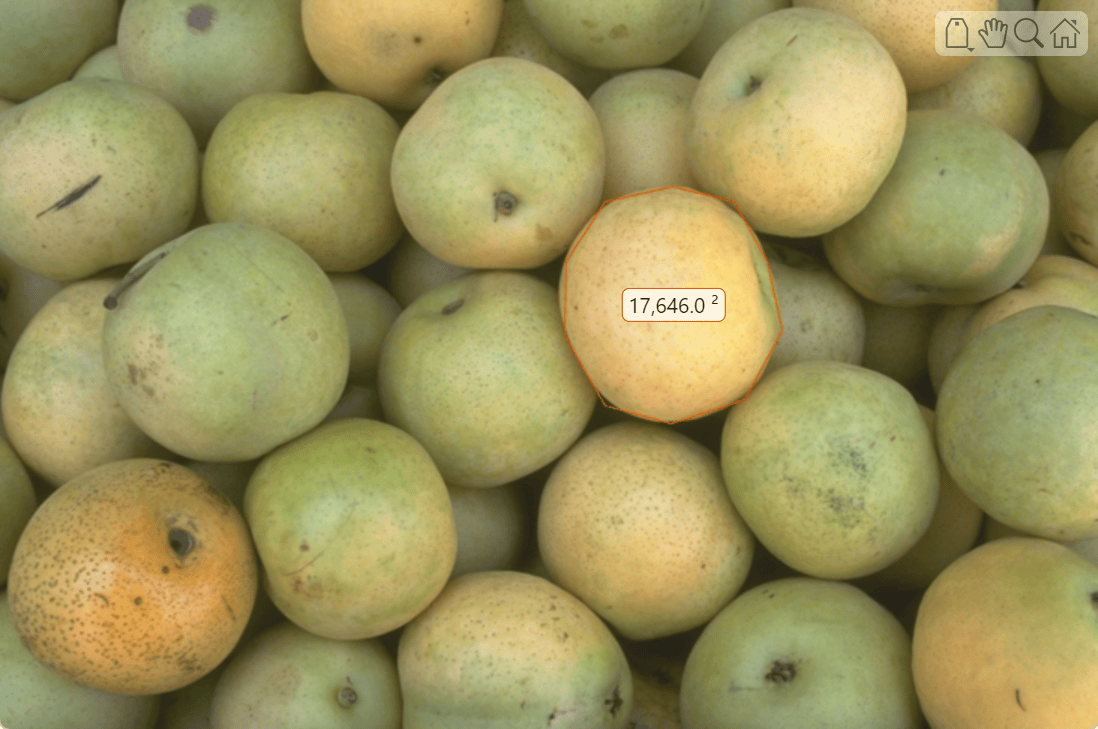
Display an image in a Viewer object. The viewer v is the parent of the image object created by imageshow.
img = imageshow("pears.png");
v = img.Parent;
Create a freehand ROI with 10 vertices on the image, using the Position property to specify the vertex positions for the ROI.
position = [449 125;
            404 135;
            378 175;
            377 224;
            404 271;
            448 283;
            497 267;
            522 221;
            512 175;
            490 135];

f = images.ui.graphics.roi.Freehand(Position=position);
Display the ROI by adding it to the Annotations property of the Viewer object.
v.Annotations = [v.Annotations; f];
Tips
The ROI supports this interactivity, including keyboard shortcuts.
Behavior Interaction Add annotation To enable interactive drawing, call the
uidrawfunction and specify the second argument as"freehand". Click and drag to draw a smooth line that follows the pointer. Click to add a vertex connected by a straight line segment.Make drawn line snap at 15 degree angles Hold Shift while drawing. Finish drawing annotation Double-click, which adds a vertex at the pointer position and draws a line connecting this vertex to the first point drawn, closing the ROI.
Right-click, which draws a line connecting the last vertex drawn to the first vertex drawn.
Cancel drawing annotation Press Esc. Move annotation Pause on the edge of the ROI and drag it. Edit annotation label Right-click the edge of the ROI. From the context menu, select Edit label. When the label text highlights, type new text for the label. To finish editing, click outside the label. Remove annotation Right-click the edge of the ROI and choose Remove annotation from the context menu. Select Remove all annotations to remove all annotations in the viewer.
Version History
Introduced in R2026a

