Tracking Data Importer
Description
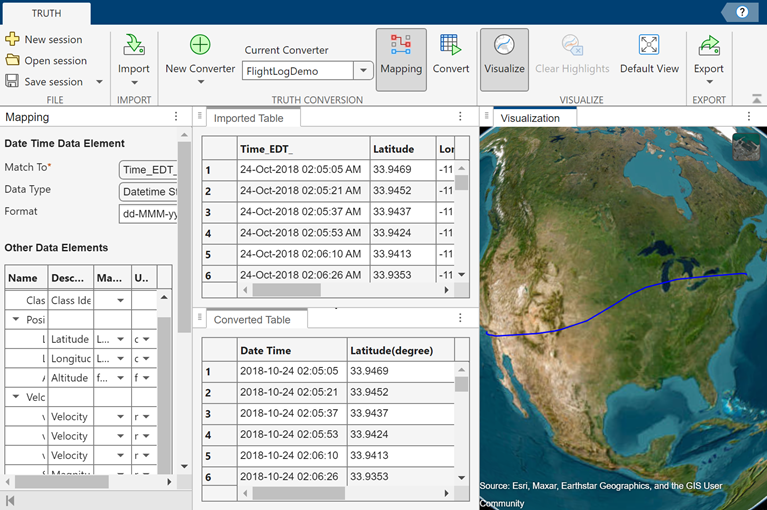
The Tracking Data Importer app enables you to import tracking data, convert the tracking data to a standardized format supported by Sensor Fusion and Tracking Toolbox™, visualize the tracking data on a globe, and export your converted data to the MATLAB® workspace. You can also create an importer object for batch conversion of tracking data belonging to the same format.
Open the Tracking Data Importer App
MATLAB Toolstrip: On the Apps tab, under Radar and Tracking, click the app icon .
MATLAB command prompt: Enter
trackingDataImporter.
Examples
The Tracking Data Importer enables you to import truth data, convert data units, formats and coordinate systems, visualize the data on a map, and exporting the data in formats compatible with the Sensor Fusion and Tracking Toolbox™.
Launch Tracking Data Importer
To launch the application, either select it from the app gallery:
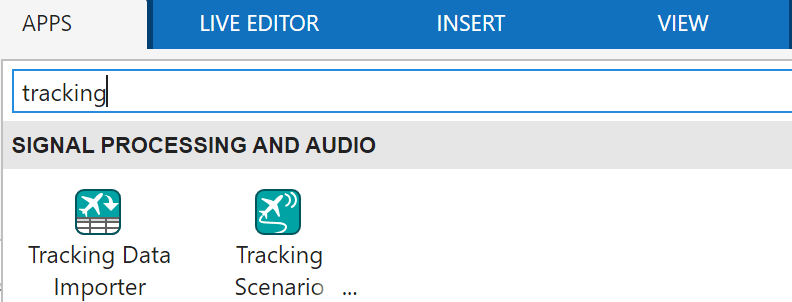
![]()
or, use the command:
>> trackingDataImporter
The app opens and prompts you to import truth data to start.
Import Flight Log File
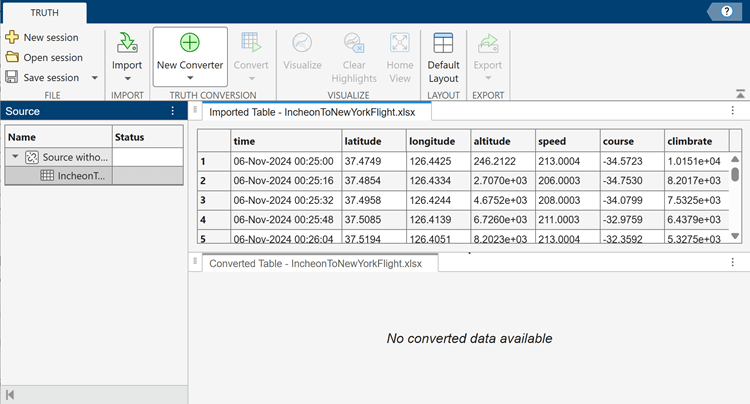
Import a flight log file named IncheonToNewYorkFlight.xlsx. The file has seven columns:
time — Flight time, written in the
dd-MMM-yyyyHH:mm:ssformat.latitude — Flight latitude in degrees.
longitude — Flight longitude in degrees.
altitude — Flight altitude in feet.
speed — Flight speed in miles per hour.
course — Flight course in degrees.
climbrate: Flight climbrate in feet per minute.
Click the Import button and select Import from file. For more information on the import options, see Import. Then, follow the prompts to import the XLSX file from the example folder.
![]()
Create New Converter and Convert
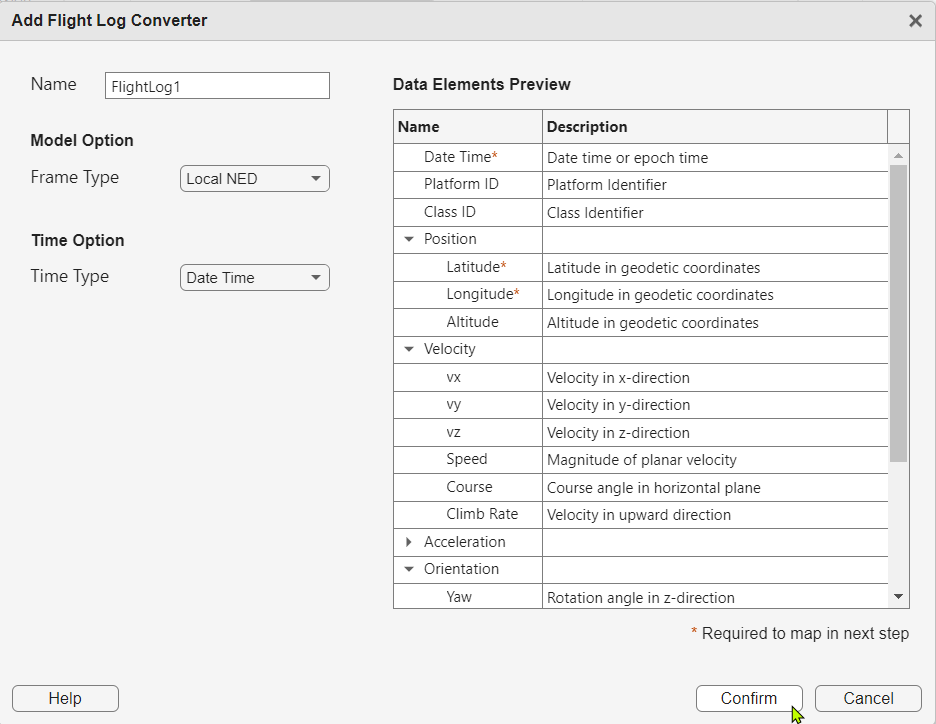
Click New Converter and then select Flight Log. For more information on different pre-built converters, see New Converter and Converter Options. You can modify the Name, Model Option, and Time Option for the converter.
![]()
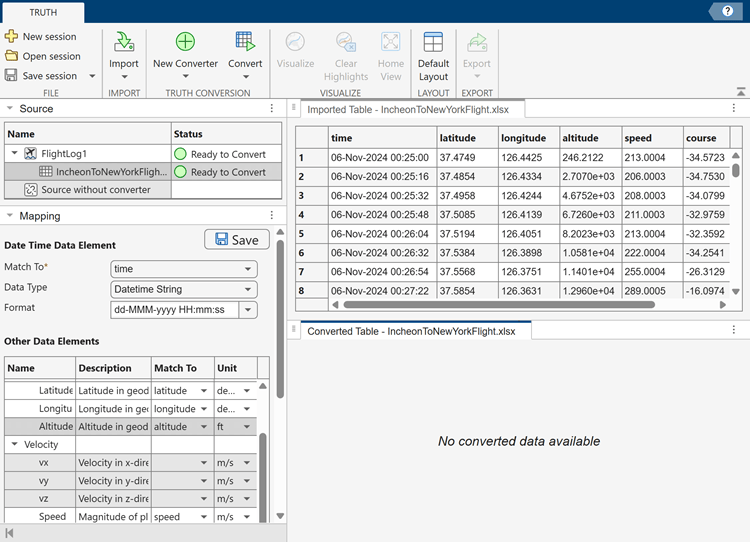
Map the imported Table to the data elements and select appropriate units.
![]()
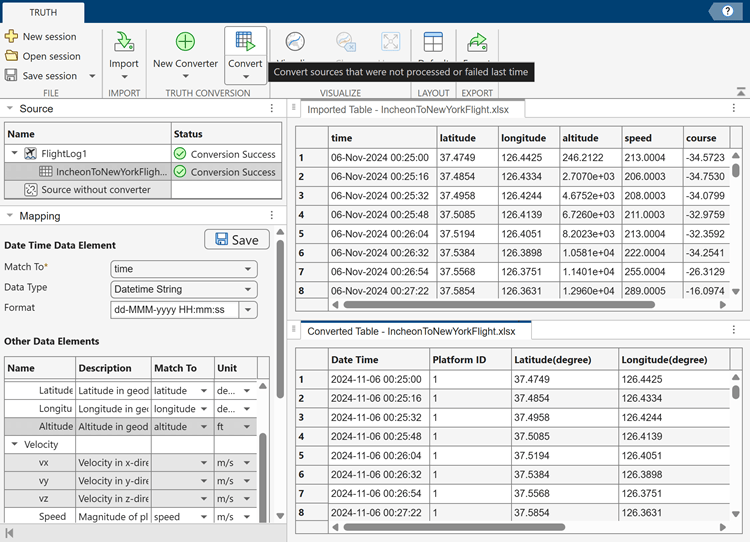
Click Convert, and the app converts the Imported Table to a Converted Table based on the current converter.
![]()
Visualize Data on Globe
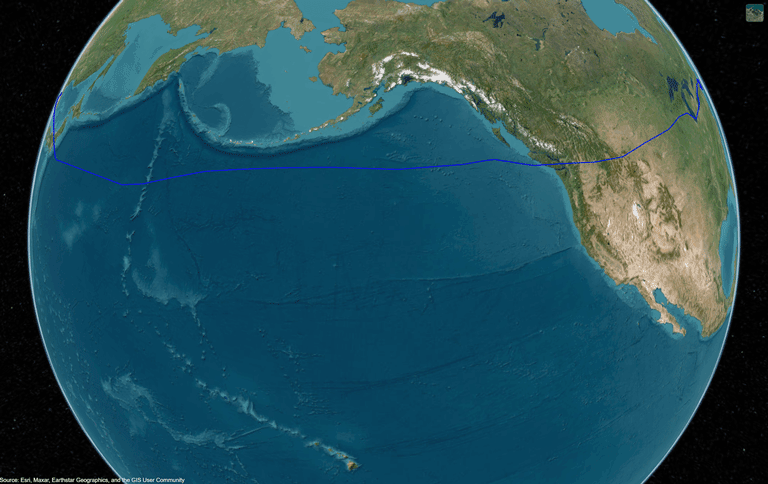
You can optionally visualize the converted table data on a globe. Click Visualize and the app displays the trajectory of interest. You can change the camera direction and height of the view by using your mouse. You can highlight data points by clicking any row in either the Imported Table or Converted Table.
![]()
Export Truth Data
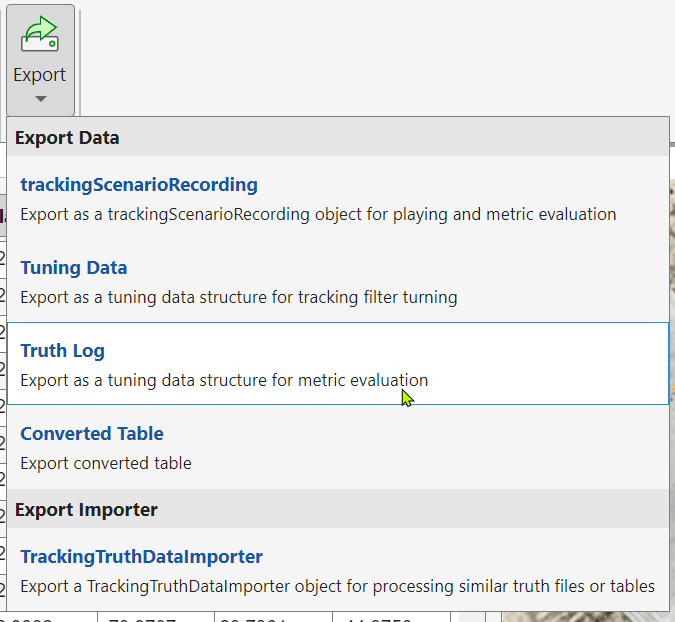
Once the data conversion is complete, the app enables the Export button on the toolstrip. Click the button and then select Truth Log. Follow the prompts to export the truth log to the workspace. For more information on the export options, see Export and Export Options.
![]()
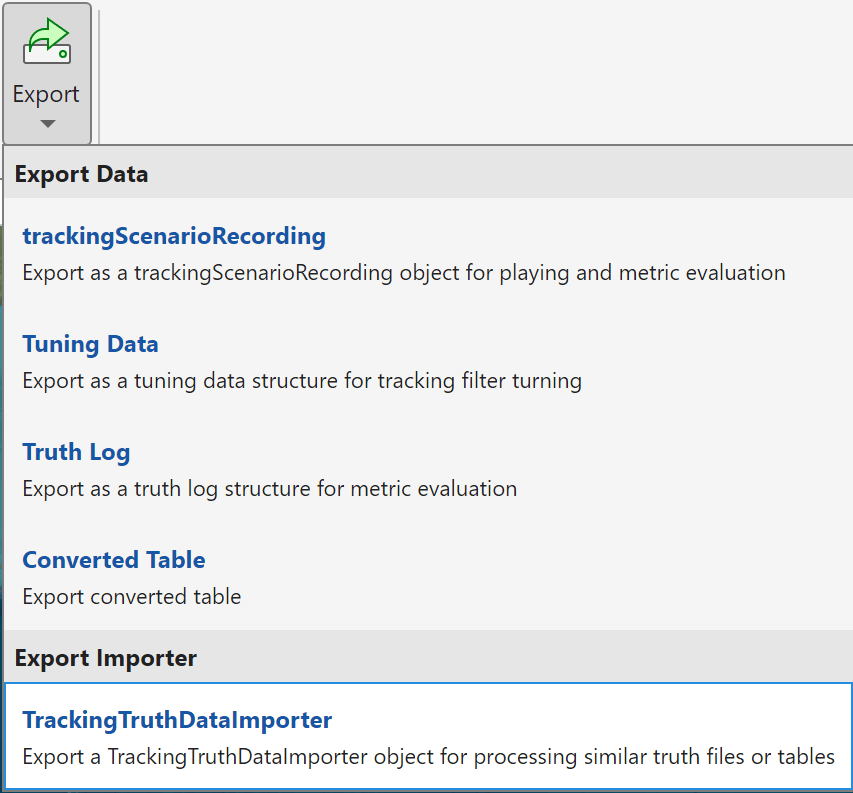
Export TrackingTruthDataImporter Object
In addition, you can export a TrackingTruthDataImporter object that holds the core algorithms of the converter and mapping for processing tracking data belonging to the same format.
![]()
Load a saved TrackingTruthDataImporter object and displays the object properties.
load truthImporterFile.mat;
truthImportertruthImporter =
TrackingTruthDataImporter with configurations:
Converter Name: FlightLog1
Input File Format: spreadsheet
Input Data Information:
Category: Flight Log
Frame Type: Local NED
Elements and Mapping:
State Element Unit Original Column Unit(Format)
------------- ------ --------------- -------------------------------------
Date Time sec time datetime string(dd-MMM-yyyy HH:mm:ss)
Latitude degree latitude degree
Longitude degree longitude degree
Altitude m altitude ft
Speed m/s speed mi/h
Course degree course degree
Climb Rate m/s climbrate ft/m
Output Data Information:
Coordinate Type: Cartesian
Frame Type: ECEF
Usage:
trackingScenarioRecording: Export as a trackingScenarioRecording object for playing and metric evaluation
truthlog: Export as a truth log structure for metric evaluation
tuningData: Export as a tuning data structure for tracking filter turning
convertedTable: Export converted table
Apply the truthImporter object to a different file, LAToBostonFlightLog.xlsx, to get a trackingScenarioRecording.
trackingScenarioRecording(truthImporter,"LAToBostonFlightLog.xlsx")ans =
trackingScenarioRecording with properties:
RecordedData: [592×1 struct]
CurrentTime: 0
CurrentStep: 0
Related Examples
Parameters
Toolstrip Buttons

Import tracking data using one of these options:
Import from file — Use this option to import truth data directly from a XLSX, XLS, TXT, or CSV file.
Import from workspace — Use this option to import truth data from a
tableortimetable.Import from file using MATLAB Import tool — Use the Import Tool to import custom data.

Create new converter using one of these options:
Flight Log — Create a converter to interpret a common flight log.
GPS Log — Create a converter to interpret a common GPS log.
Driving Log — Create a converter to interpret a driving log recorded from an ego vehicle.
Custom — Customize a converter by specifying the reference frame information of the imported truth data.
For more information on the converter options, see Converter Options.

Switch between saved converters or manage all converters. Manage converters using one of these options:
Edit — Edit the Name, Model Option, or Time Option of an saved converter.
Duplicate — Duplicate a saved converter.
Delete — Delete a saved converter.

Display or close the Mapping pane.

Convert imported data using the current converter.

Visualize truth data on a globe. The geographic globe uses terrain data derived from the GMTED2010 model. (since R2026a) You need an active internet connection to access this terrain data. The default view displays all trajectories. You can highlight specific data in three ways:
Clicking on any row in the Imported or Converted table highlights the corresponding data point by displaying a triangle or a mesh box for its position and its Platform ID on the trajectory.
Right-click any cell in the Date Time column of the converted table and choose
Highlight all platform poses at this time. This action highlights all platforms at this time by displaying their positions and Platform IDs.Right-click any cell in the Platform ID column of the converted table and choose
Highlight trajectory for this platform. This action highlights the data points of this platform at all times by displaying its position and Platform ID.
Note
To visualize truth data, the data must be Earth referenced. For more information, see Reference frame.

Clear highlights in the visualization by removing the position-indicating triangles or mesh boxes and the platform ID from the globe.

Restore the default view that displays all trajectories on the globe.

Export converted data or a TrackingTruthDataImporter object using one of these options:
trackingScenarioRecording: Export the truth data as a
trackingScenarioRecordingobject. You can use the object for metric evaluation, or use theplayfunction to visualize the recordings.Tuning Data: Export the truth data as a tuning data structure for tuning tracking filters.
Truth Log: Export the truth data as a truth log structure array for metric evaluation.
Converted Table: Export the converted table.
TrackingTruthDataImporter: Export a
TrackingTruthDataImporterobject.
In addition, you can optionally export the platform and class ID conversion information. For more information on the export options, see Export Options.
Converter Options
Import data that follows a flight log format. You can customize the name of the converter and define the Model Option and Time Option parameters by specifying the Frame Type and Time Type options.
Set Frame Type to one of these values:
Local NED(North-East-Down)Local ENU(East-North-Up)
For more information, see Reference frame.
Set Time Type to one of these values:
Date TimeDuration
For more information, see Time Format.
Import data that follows a GPS log format. You can customize the name of the converter and define the Model Option and Time Option parameters by specifying the Frame Type and Time Type options.
Set Frame Type to one of these values:
Local NED(North-East-Down)Local ENU(East-North-Up)
For more information, see Reference frame.
Set Time Type to one of these values:
Date TimeDuration
For more information, see Time Format.
Import data that follows a driving log format. You can customize the name of the converter and define the Model Option and Time Option parameters by specifying the Frame Type and Time Type options.
Set Frame Type to:
Ego — Ego is currently the only supported frame type for driving log. The truth data, including position, velocity, acceleration, orientation, angular velocity, and angular acceleration of all platforms, are recorded with respect to the ego vehicle.
Tip
When exporting data from a driving log, the export Reference Frame can only be
ego.
Set Time Type to one of these values:
Date TimeDuration
For more information, see Time Format.
Import data that follows a custom format. You can customize the name of the converter and define the Model Option and Time Option parameters by specifying the Coordinate Type, Frame Type, Target Extent, and Time Type options.
Set Coordinate Type to one of these values:
Cartesian— Represents positions in a three-dimensional space using a set of three numerical values, denoted as (x, y, z).Geodetic— Represents positions on the Earth's surface using a set of values that include latitude, longitude, and optionally altitude.
For more information, see Coordinate system.
Set Frame Type to one of these values when you set
Coordinate Type to Cartesian:
ECEF(Earth-Centered, Earth-Fixed)Fixed NED(North-East-Down)Fixed ENU(East-North-Up)Non-Earth Referenced
Set Frame Type to one of these values when you set
Coordinate Type to Geodetic:
Local NED(North-East-Down)Local ENU(East-North-Up)
For more information, see Reference frame.
Set Target Extent to one of these values:
Point— Represent target as a single point in space.Box— Represent target as a finite-size bounding box.
Set Time Type to one of these values:
Date TimeDuration
For more information, see Time Format.
Export Options
Export the truth data as a trackingScenarioRecording object. You can use the object for metric
evaluation, or use the play
function to visualize the recordings. You can customize the name of the export object
and define the Coordinate Frame Options by specifying the
Coordinate Type and Frame Type.
Set Coordinate Type to one of these values:
Cartesian— Represents positions in a three-dimensional space using a set of three numerical values, denoted as (x, y, z).Geodetic— Represents positions on the Earth's surface using a set of values that include latitude, longitude, and optionally altitude.
For more information, see Coordinate system.
Set Frame Type to one of these values when you set
Coordinate Type to Cartesian:
| Frame Type | Comment |
|---|---|
ECEF (Earth-Centered, Earth-Fixed) | Applies when the converter is earth referenced. |
Fixed NED (North-East-Down) | Applies when the converter is earth referenced. |
Fixed ENU (East-North-Up) | Applies when the converter is earth referenced. |
Non-Earth Referenced | Applies when the converter is a non-earth referenced custom converter. |
Ego | Applies when the converter is a driving converter. |
Set Frame Type to one of these values when you set
Coordinate Type to Geodetic:
Local NED(North-East-Down)Local ENU(East-North-Up)
For more information, see Reference frame.
Export the truth data as a tuning data structure for tuning tracking filters. The
tuning data consists of a cell array of timetables. Each timetable saves the time,
position, velocity, acceleration, orientation, angular velocity, and angular
acceleration for a specific platform. You can use the truth tables as inputs for the
tune
function. You can customize the name of the export tuning data and define the
Coordinate Frame Options by specifying the Coordinate
Type and Frame Type.
Set Coordinate Type to one of these values:
Cartesian— Represents positions in a three-dimensional space using a set of three numerical values, denoted as (x, y, z).Geodetic— Represents positions on the Earth's surface using a set of values that include latitude, longitude, and optionally altitude.
For more information, see Coordinate system.
Set Frame Type to one of these values when you set
Coordinate Type to Cartesian:
| Frame Type | Comment |
|---|---|
ECEF (Earth-Centered, Earth-Fixed) | Applies when the converter is earth referenced. |
Fixed NED (North-East-Down) | Applies when the converter is earth referenced. |
Fixed ENU (East-North-Up) | Applies when the converter is earth referenced. |
Non-Earth Referenced | Applies when the converter is a non-earth referenced custom converter. |
Ego | Applies when the converter is a driving converter. |
Set Frame Type to one of these values when you set
Coordinate Type to Geodetic:
Local NED(North-East-Down)Local ENU(East-North-Up)
For more information, see Reference frame.
Export the truth data as a truth log structure array for metric evaluation. You
can use the truth log as input for the trackOSPAMetric and trackGOSPAMetric System
objects. You can customize the name of the export truth log and define the
Coordinate Frame Options by specifying the Coordinate
Type and Frame Type.
Set Coordinate Type to one of these values:
Cartesian— Represents positions in a three-dimensional space using a set of three numerical values, denoted as (x, y, z).Geodetic— Represents positions on the Earth's surface using a set of values that include latitude, longitude, and optionally altitude.
For more information, see Coordinate system.
Set Frame Type to one of these values when you set
Coordinate Type to Cartesian:
| Frame Type | Comment |
|---|---|
ECEF (Earth-Centered, Earth-Fixed) | Applies when the converter is earth referenced. |
Fixed NED (North-East-Down) | Applies when the converter is earth referenced. |
Fixed ENU (East-North-Up) | Applies when the converter is earth referenced. |
Non-Earth Referenced | Applies when the converter is a non-earth referenced custom converter. |
Ego | Applies when the converter is a driving converter. |
Set Frame Type to one of these values when you set
Coordinate Type to Geodetic:
Local NED(North-East-Down)Local ENU(East-North-Up)
For more information, see Reference frame.
Export the converted table. You can customize the name of the export table.
Export a TrackingTruthDataImporter object. You can use the object for batch
converting tracking data belonging to the same format. You can customize the name of
the export object and define the Coordinate Frame Options by
specifying the Coordinate Type and Frame
Type.
Set Coordinate Type to one of these values:
Cartesian— Represents positions in a three-dimensional space using a set of three numerical values, denoted as (x, y, z).Geodetic— Represents positions on the Earth's surface using a set of values that include latitude, longitude, and optionally altitude.
For more information, see Coordinate system.
Set Frame Type to one of these values when you set
Coordinate Type to Cartesian:
| Frame Type | Comment |
|---|---|
ECEF (Earth-Centered, Earth-Fixed) | Applies when the converter is earth referenced. |
Fixed NED (North-East-Down) | Applies when the converter is earth referenced. |
Fixed ENU (East-North-Up) | Applies when the converter is earth referenced. |
Non-Earth Referenced | Applies when the converter is a non-earth referenced custom converter. |
Ego | Applies when the converter is a driving converter. |
Set Frame Type to one of these values when you set
Coordinate Type to Geodetic:
Local NED(North-East-Down)Local ENU(East-North-Up)
For more information, see Reference frame.
Programmatic Use
The trackingDataImporter command opens the Tracking Data
Importer app.
More About
The Tracking Data Importer app support both
datetime and duration data types.
datetime: This data type represents a point in time as a datetime string, a
datetimeobject, or a numerical value with units that start from POSIX time (epoch time), which is time elapsed since 00:00:00 UTC on 1 January 1970 excluding leap seconds.duration: The
Durationdata type represents elapsed time in units of fixed length, such as hours, minutes, and seconds. You can specify the duration as a duration string, adurationobject, or a numeric value with units.
A coordinate system is a mathematical framework used to specify the position of points in space. The Tracking Data Importer app uses two types of coordinate systems, Cartesian and Geodetic.
Cartesian — The Cartesian coordinate system is one of the most widely used systems for representing spatial data. It is defined by three perpendicular axes: the X-, Y-, and Z- axes. Each point in space is described by a set of three numerical values (x, y, z), representing its coordinates along these axes from a fixed origin point.
Geodetic — The geodetic coordinate system is used to describe locations on the Earth's surface. The app uses the WGS84 geodetic system. This system uses latitude, longitude, and altitude to define positions. Latitude and longitude are angular measurements, while altitude is the height above the Earth's surface.
A reference frame defines the origin and orientation of the coordinate system relative to a set of reference points or objects. The Tracking Data Importer app uses seven types of reference frames, five for Cartesian and two for Geodetic.
When the coordinate system is Cartesian:
ECEF (Earth-Centered, Earth-Fixed) — A global Cartesian coordinate system that rotates with the Earth. The origin is at the Earth's center of mass, the x-axis extends through the equator at the prime meridian, the y-axis extends through the equator at 90 degrees east longitude, and the z-axis extends through the North Pole.
Fixed NED (North-East-Down) — A Cartesian coordinate system, where the x-axis points towards the geographic north, the y-axis points towards the geographic east, and the z-axis points downward, perpendicular to the Earth's surface. You must specify the origin latitude, longitude, and altitude to use this option.
Fixed ENU (East-North-Up) — Another Cartesian coordinate system, where the x-axis points towards the geographic east, the y-axis points towards the geographic north, and the z-axis points upwards, away from the Earth's surface. You must specify the origin latitude, longitude, and altitude to use this option.
Ego — A Cartesian coordinate system where the truth data, including position, velocity, acceleration, orientation, angular velocity, and angular acceleration of all platforms, are recorded with respect to the ego vehicle. This is similar to how a driver perceives other cars and pedestrians from their own point of view.
Non-Earth Referenced — A generic Cartesian coordinate system that is not referenced on the Earth. The origin is defined as
(0 0 0)and does not rely on the Earth's surface or on any Earth-based points as a reference.
When the coordinate system is Geodetic:
Local NED (North-East-Down) — A local geodetic coordinate system. Local indicates that the origin of the reference frame is at the geodetic position of each data item. The x-axis points towards the geographic north, the y-axis points towards the east, and the z-axis points downward, perpendicular to the Earth's surface. State variables, such as velocity, acceleration, and orientation, are measured relative to their specific local frame.
Local ENU (East-North-Up) — A local geodetic coordinate system. Local indicates that the origin of the reference frame is at the geodetic position of each data item. The x-axis points towards the east, the y-axis points towards the north, and the z-axis points upwards, away from the Earth's surface. State variables, such as velocity, acceleration, and orientation, are measured relative to their specific local frame.
Version History
Introduced in R2025aGlobe display includes terrain information derived from the GMTED2010 model.
You can optionally export platform and class ID conversion information.
You can rename Converter directly in the Converter Management dialog.
MATLAB Command
You clicked a link that corresponds to this MATLAB command:
Run the command by entering it in the MATLAB Command Window. Web browsers do not support MATLAB commands.
Web サイトの選択
Web サイトを選択すると、翻訳されたコンテンツにアクセスし、地域のイベントやサービスを確認できます。現在の位置情報に基づき、次のサイトの選択を推奨します:
また、以下のリストから Web サイトを選択することもできます。
最適なサイトパフォーマンスの取得方法
中国のサイト (中国語または英語) を選択することで、最適なサイトパフォーマンスが得られます。その他の国の MathWorks のサイトは、お客様の地域からのアクセスが最適化されていません。
南北アメリカ
- América Latina (Español)
- Canada (English)
- United States (English)
ヨーロッパ
- Belgium (English)
- Denmark (English)
- Deutschland (Deutsch)
- España (Español)
- Finland (English)
- France (Français)
- Ireland (English)
- Italia (Italiano)
- Luxembourg (English)
- Netherlands (English)
- Norway (English)
- Österreich (Deutsch)
- Portugal (English)
- Sweden (English)
- Switzerland
- United Kingdom (English)