Check for Code Generation Issues by Generating and Running a MEX Function
R2026bBefore generating standalone C or C++ code or an accelerated MEX function, generate and run a MEX function. This process enables you to:
Detect and fix issues in the MATLAB® code that are more difficult to diagnose in the generated code. For example, when you generate and run a MEX function, the MEX function checks for memory integrity issues, such as out-of-bounds array access, by default. These checks can be more difficult to implement in the generated code.
Verify that the generated code provides the same functionality as the original MATLAB function. If you write a script to test the MATLAB code, you can use the same script to test the generated MEX function.
In this example, you use the MATLAB Coder™ app to generate MEX code for the collatz entry-point function and test this function by using the test script collatz_test.m.
To create the project file and specify the type of the input argument to the collatz function, follow the previous steps in this tutorial. Alternatively, run the script collatz_step3.m.
Run Generated MEX Function
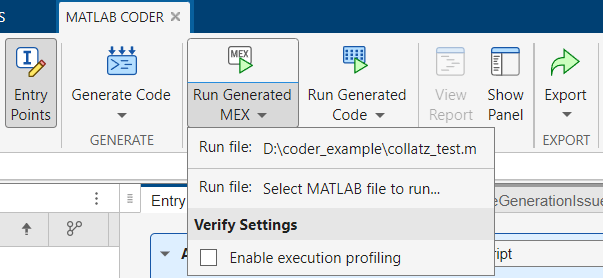
In the MATLAB Coder tab, the Run Generated MEX button generates a MEX function from your entry-point functions, runs the generated MEX function by using a test script that you specify, and reports issues. To generate and test a MEX function, click Run Generated MEX and select the test file:
If you completed the previous tutorial step, the app suggests the test file you used to define input types. Click Run file: collatz_test.m.
If you did not complete the previous tutorial step, click Run file: Select MATLAB file to run. Navigate to and select the script file
collatz_test.min the working directory.
The app generates a MEX function. It replaces calls to collatz with calls to collatz_mex in the test script collatz_test and then runs the script. If the app detects issues during the MEX function generation or execution, it displays the warning and error messages in the Command Window. Click these messages to navigate to the problematic code and fix the issue. In this example, the app does not detect issues. The text in the Output section of the MATLAB Coder panel indicates that the test file ran successfully.
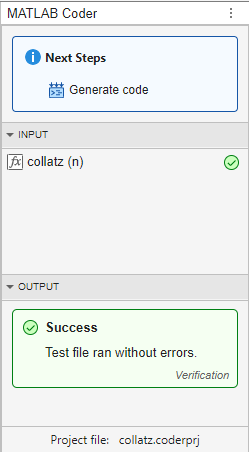
If the generated MEX function produces answers that are different from MATLAB, or produces an error, you must fix these issues before generating standalone code or an accelerated MEX function. Otherwise, the standalone code that you generate might have undefined behavior.
Next, configure the code generation settings and generate C and C++ code.

