Speech Command Recognition Code Generation Using Simulink
R2026bThis example demonstrates how to deploy feature extraction and a convolutional neural network (CNN) for speech command recognition on Intel® processors. To generate the feature extraction and network code, you use Embedded Coder in Simulink® and the Intel® Math Kernel Library for Deep Neural Networks (MKL-DNN). In this example you generate Software-in-the-loop (SIL) code for a reference model which performs feature extraction and predicts the speech command. The generated SIL code is called in a Simulink model which displays the predicted speech command and predicted scores for the given inputs. For details about audio preprocessing and network training, see Train Deep Learning Network for Speech Command Recognition.
Prepare Simulink Model to Deploy
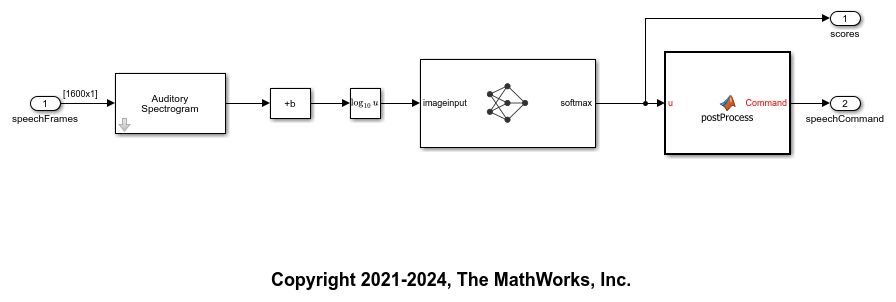
Create a Simulink model and capture the feature extraction, convolutional neural network and postprocessing as developed in Apply Speech Command Recognition Network in Simulink. This model is shipped with this example. Open the model to understand its configurations.
modelToDeploy = "recognizeSpeechCommand";
open_system(modelToDeploy)
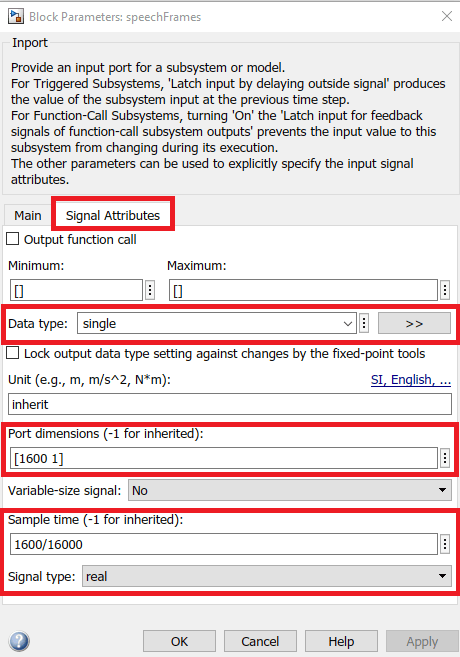
Set the Data type, Port dimensions, Sample time, and Signal type of the input port block as shown.
Configure Code Generation Settings
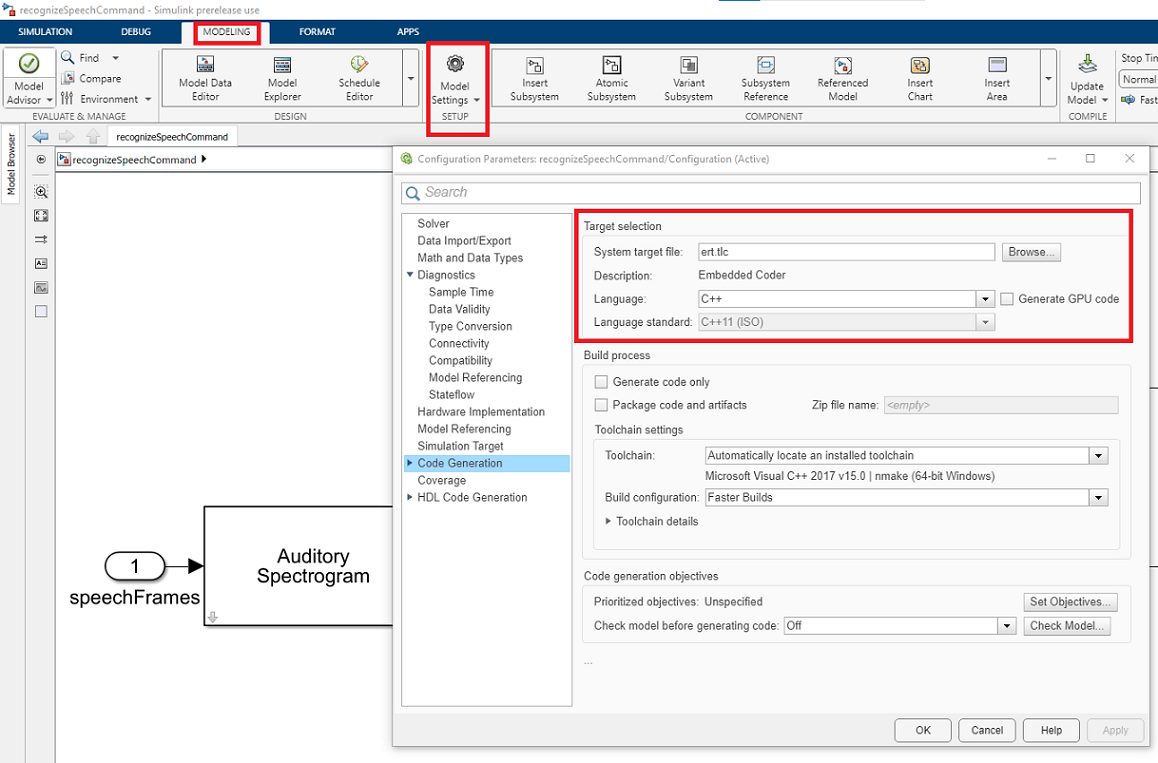
Open the recognizeSpeechCommand model. Go to the Modeling Tab and click Model Settings or press Ctrl+E. Select Code Generation and set the System Target File to ert.tlc whose Description is Embedded Coder. Set the Language to C++, which will automatically set the Language Standard to C++11 (ISO).
Alternatively, use set_param to configure the settings programmatically,
set_param(modelToDeploy,SystemTargetFile="ert.tlc")
set_param(modelToDeploy,TargetLang="C++")
set_param(modelToDeploy,TargetLangStandard="C++11 (ISO)")
Select a solver that supports code generation. Set Solver to auto (Automatic solver selection) and Solver type to Fixed-step.
set_param(modelToDeploy,SolverName="FixedStepAuto")
set_param(modelToDeploy,SolverType="Fixed-step")
In Configuration > Hardware Implementation, set Device vendor to Intel and Device type to x86-64 (Windows64) or x86-64 (Linux 64) depending on your target system. Alternatively, use set_param to configure the settings programmatically.
switch(computer("arch"))
    case "win64"
        ProdHWDeviceType = "Intel->x86-64 (Windows64)";
    case "glnxa64"
        ProdHWDeviceType = "Intel->x86-64 (Linux 64)";
end
set_param(modelToDeploy, "ProdHWDeviceType", ProdHWDeviceType)
To automate setting the Device type, add the above code in Property Inspector > Properties > Callbacks > PreLoadFcn of the recognizeSpeechCommand model.
Use Embedded Coder app to generate and build the code. Click Apps tab and then click Embedded coder as shown.

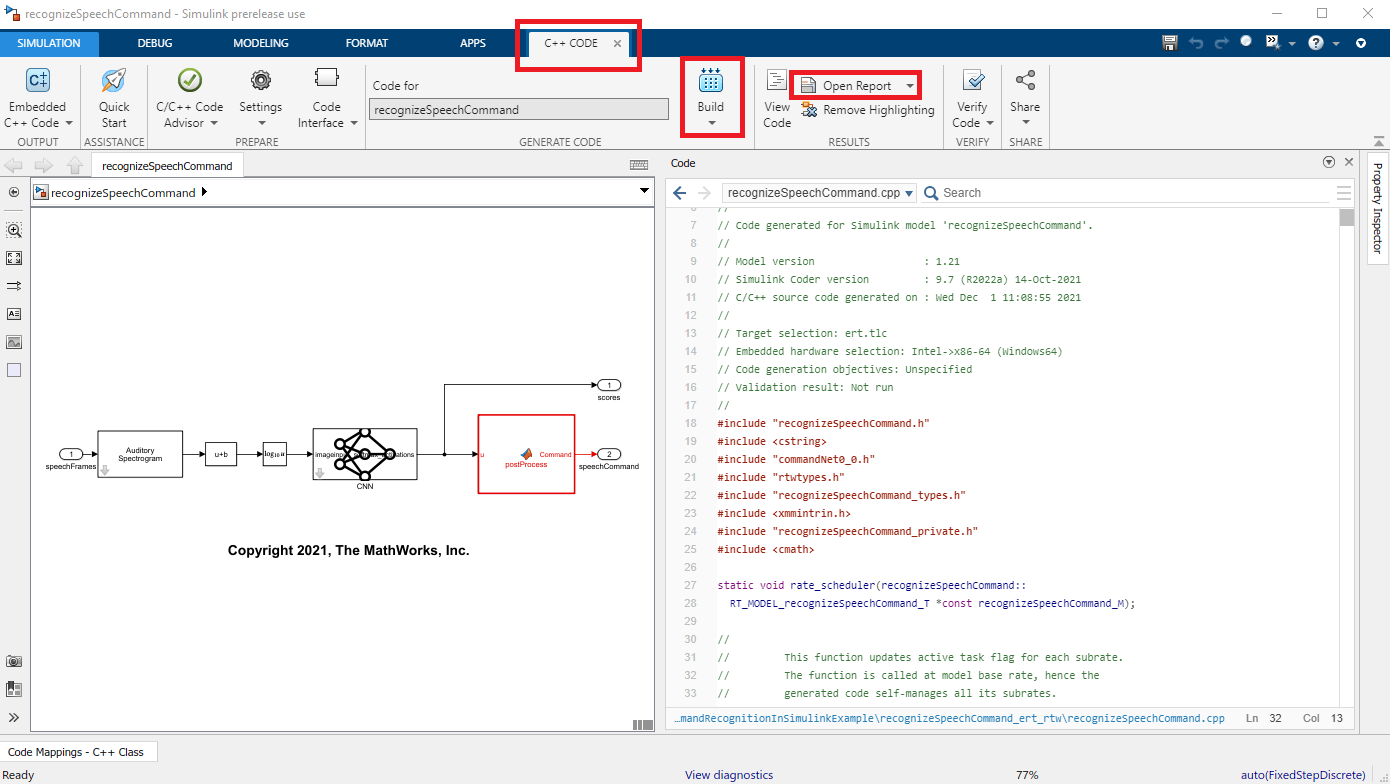
It will open a new C++ Code tab, then click Build to generate and build the code. It will generate the code in a folder named recognizeSpeechCommand_ert_rtw. After generating the code, you view the report by clicking Open Report.
Alternatively, you can use slbuild to generate the code programmatically.
slbuild(modelToDeploy);
### Skipped unpacking from Simulink cache file "recognizeSpeechCommand.slxc" because the relevant build artifacts on disk are up to date.
### Searching for referenced models in model 'recognizeSpeechCommand'.
### Total of 1 models to build.
### Starting build procedure for: recognizeSpeechCommand
### Generating code and artifacts to 'Model specific' folder structure
### Generating code into build folder: C:\Users\user\OneDrive - MathWorks\Documents\MATLAB\ExampleManager\user.Bdoc.j3141211\deeplearning_shared-ex14618832\recognizeSpeechCommand_ert_rtw
### Generated code for 'recognizeSpeechCommand' is up to date because no structural, parameter or code replacement library changes were found.
### Skipping makefile generation and compilation because C:\Users\user\OneDrive - MathWorks\Documents\MATLAB\ExampleManager\user.Bdoc.j3141211\deeplearning_shared-ex14618832\recognizeSpeechCommand.exe is up to date.
### Successful completion of build procedure for: recognizeSpeechCommand

Build Summary

0 of 1 models built (1 models already up to date)
Build duration: 0h 0m 20.752s
Now close the recognizeSpeechCommand model.
save_system(modelToDeploy)
close_system(modelToDeploy)
Create a Simulink Model that Calls recognizeSpeechCommand and Displays its Output
Create a Simulink model and add recognizeSpeechCommand as a model block to it. Add the same base workspace variables, source blocks, and sink blocks as developed in Apply Speech Command Recognition Network in Simulink. Use a radio button group for selecting speech command files. For your reference, this model is shipped with this example. Open the same Simulink model.
mainModel = "slexSpeechCommRecognitionCodegenWithMklDnnExample";
open_system(mainModel)

To set the Software-in-the-loop (SIL) simulation mode for the model block, click Modeling tab.

Now click the drop-down button as shown above, and it will open a window. Select Property Inspector as shown below.
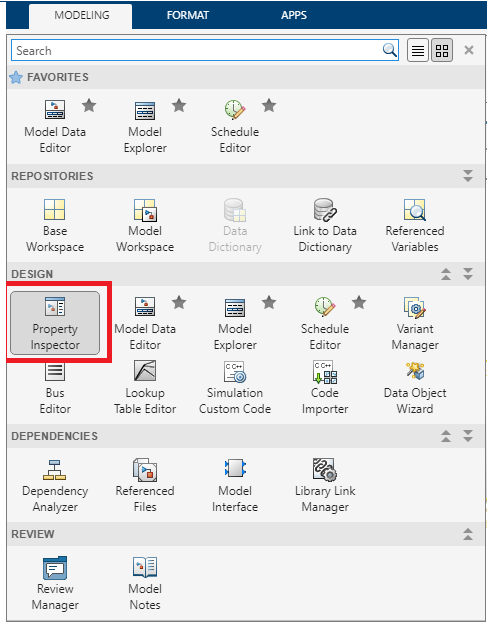
You will get a Property Inspector window at the right of your model. Click the Model block to get its Property Inspector. If the Model name is not set, browse for the recognizeSpeechCommand.slx and set the Model name. Now set Simulation mode to Software-in-the-loop (SIL) as shown.
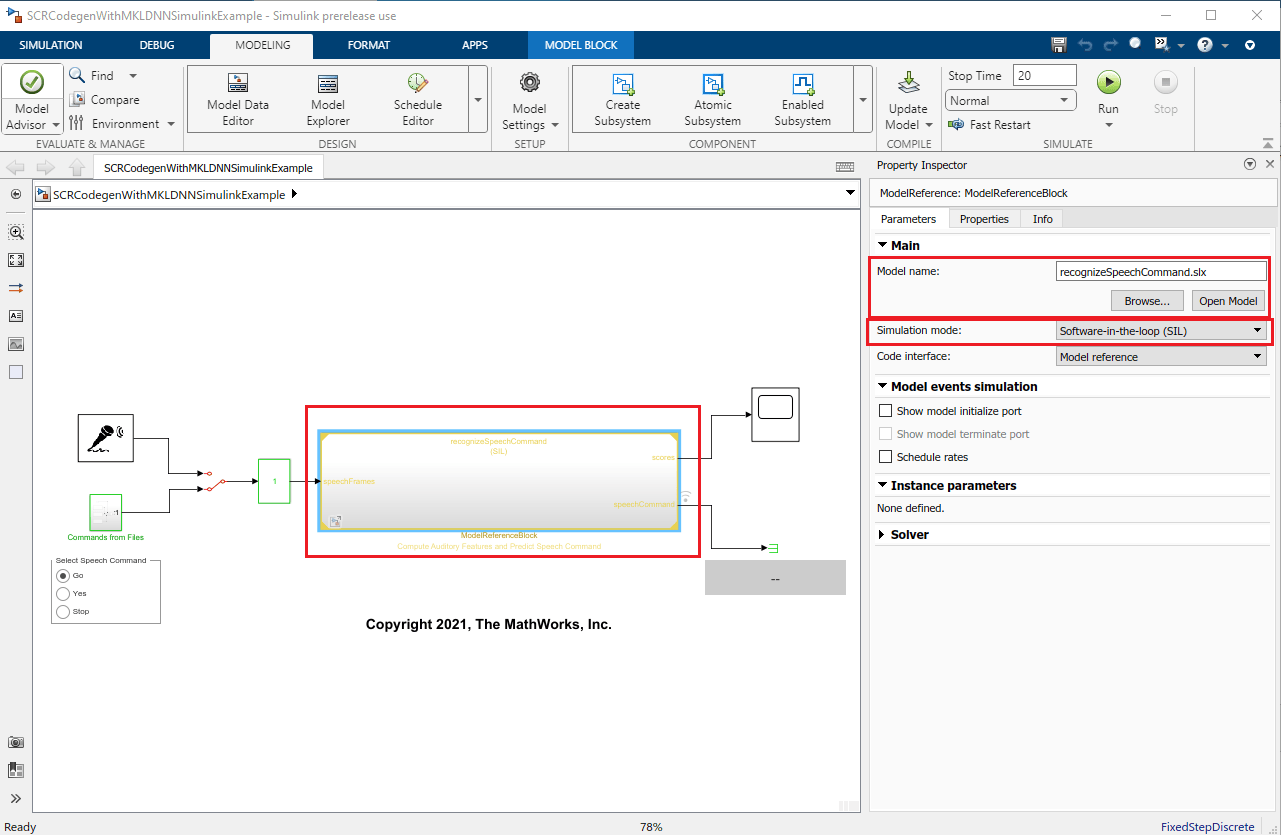
Run the model to deploy the recognizeSpeechCommand.slx on your computer and perform speech command recognition.
set_param(mainModel,StopTime="20")
sim(mainModel)
### Searching for referenced models in model 'slexSpeechCommRecognitionCodegenWithMklDnnExample'.
### Total of 1 models to build.
### Model reference code generation target for recognizeSpeechCommand is up to date.

Build Summary

0 of 1 models built (1 models already up to date)
Build duration: 0h 0m 1.2533s
### Preparing to start SIL simulation ...
### Skipping makefile generation and compilation because C:\Users\user\OneDrive - MathWorks\Documents\MATLAB\ExampleManager\user.Bdoc.j3141211\deeplearning_shared-ex14618832\slprj\ert\recognizeSpeechCommand\coderassumptions\lib\recognizeSpeechCommand_ca.lib is up to date.
### Skipping makefile generation and compilation because C:\Users\user\OneDrive - MathWorks\Documents\MATLAB\ExampleManager\user.Bdoc.j3141211\deeplearning_shared-ex14618832\slprj\ert\recognizeSpeechCommand\sil\recognizeSpeechCommand.exe is up to date.
### Starting SIL simulation for component: recognizeSpeechCommand
### Application stopped
### Stopping SIL simulation for component: recognizeSpeechCommand

ans =

  Simulink.SimulationOutput:

     SimulationMetadata: [1x1 Simulink.SimulationMetadata]
           ErrorMessage: [0x0 char]
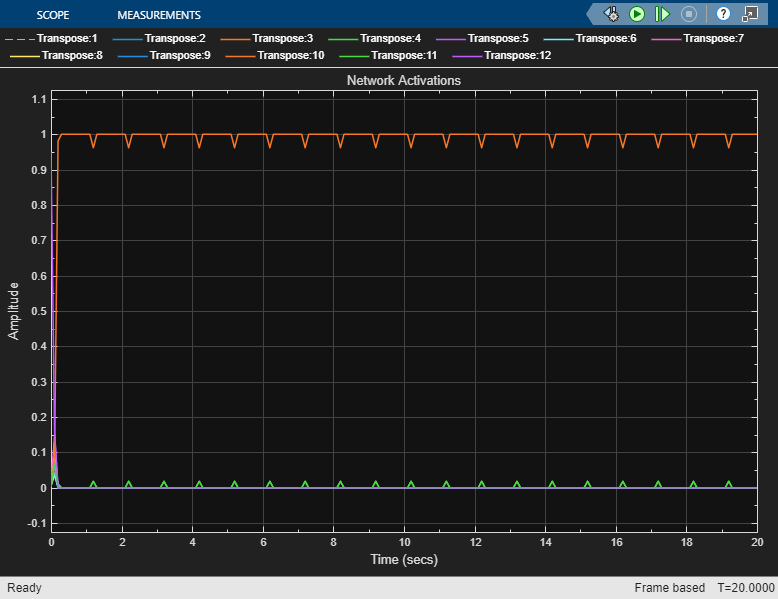
Now close the mainModel.
save_system(mainModel)
close_system(mainModel)

