Optimize Electric Vehicle Thermal Management System Under Multiple Scenarios (GUI)
R2026bThis example shows how to optimize an electric vehicle thermal management system under the summer and winter scenarios using the Response Optimizer app.
Electric Vehicle Thermal Management System
sdoElectricVehicleThermalManagement is a Simulink® model of an electric vehicle. It includes subsystems which control the battery temperature and vehicle cabin temperature under both summer and winter driving conditions by using battery power.
Open the model.
open_system("sdoElectricVehicleThermalManagement")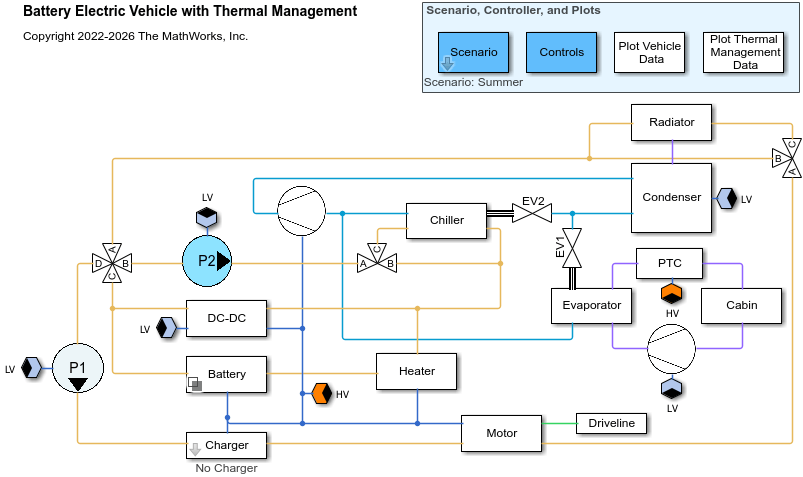
To open the app, in the model, in the Apps gallery, click Response Optimizer.
Optimization Problem
The goal of optimization is to minimize energy consumed by the battery while satisfying these constraints:
To ensure safety, the system must bring the battery temperature within the range of 5 degrees C to 35 degrees C (approximately 41 degrees F to 95 degrees F) within 10 minutes of startup under both summer and winter driving conditions.
To ensure comfort, the system must bring the vehicle cabin temperature within the range of 24 degrees C to 26 degrees C (approximately 75 degrees F to 79 degrees F) within 12 minutes of startup under both summer and winter driving conditions.
These are the summer and winter driving conditions:
During summer, the ambient temperature is 40 degrees C (approximately 104 degrees F) and you simulate the car in a highway drive cycle.
During winter, the ambient temperature is -5 degrees C (approximately 23 degrees F) and you simulate the car in an urban drive cycle.
Specify Design Variables
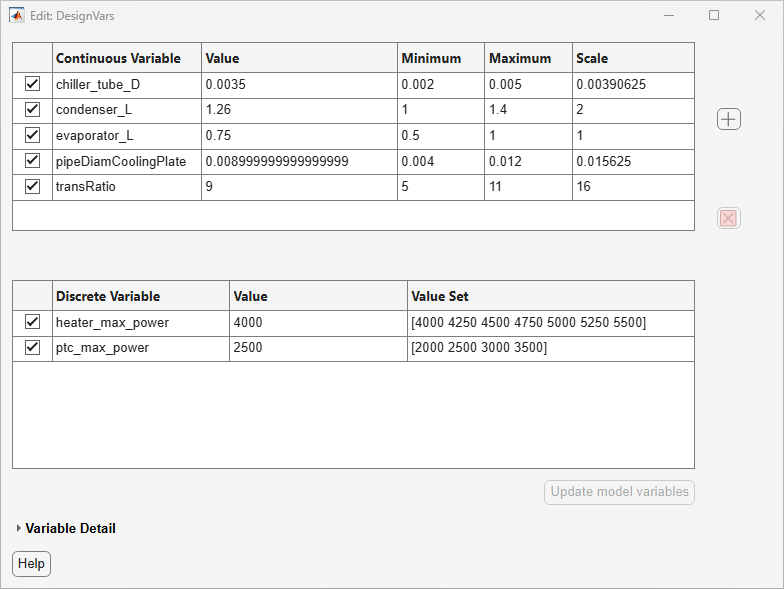
To meet the requirements, tune these continuous and discrete design variables:
Chiller tube diameter in meters (
chiller_tube_D) — The chiller transfers heat from the battery to the air conditioning refrigerant.chiller_tube_Dis a continuous variable.Condenser length in meters (
condenser_L) — The condenser is a heat exchanger and transfers heat away from the battery.condenser_Lis a continuous variable.Evaporator length in meters (
evaporator_L) — The evaporator cools the car cabin during summer.evaporator_Lis a continuous variable.Cooling plate pipe diameter in meters (p
ipeDiamCoolingPlate) — The cooling plate circulates liquid coolant next to the battery.PipeDiamCoolingPlateis a continuous variable.Gearbox transmission ratio (
transRatio) — The gearbox reduces the motor rotation speed to match the wheels.transRatiois a continuous variable.Heater maximum power in watts (
heater_max_power) — The heater warms the battery during winter.heater_max_poweris a discrete variable.Positive temperature coefficient (PTC) maximum power in watts (
ptc_max_power) — The PTC heater warms the car cabin during winter.ptc_max_poweris a discrete variable.
For information on specifying the design variables, see Specify Design Variables for Optimization.
To view the specified design variables, on the app toolstrip, in the Variables section, click the Edit button to the right of the Design Variables Set menu.
Specify Requirements
To define the objective of minimizing energy consumed by the battery, create a custom requirement. On the app toolstrip, in the Requirements section, click New Requirement > Custom Requirement. The Create Requirement dialog box opens.
Specify Name as
MinEnergy.Select Type as
Minimize the function output.Specify Function as
@computeVehicleEnergy.To specify the signal source, click
 . In the model, click the
 Power SensorSimscape™ block. You can find this block undersdoElectricVehicleThermalManagement/Battery/Lumped/PWRS1. The Create Signal Set dialog box is populated with the relevant Simscape variables. SelectsdoElectricVehicleThermalManagement/Battery/Lumped/PWRS1/Power Sensor.Pand click OK.Close the Create Requirement dialog box by clicking OK.
To define the constraint on the battery temperature, create another custom requirement. In the Create Requirement dialog box, specify these values:
Specify Name as
BatteryTemperature.Select Type as
Constrain function output to be <=0.Specify Function as
@checkBatteryTemperature.To specify the signal source, click
 . In the model, right-click the Thermal Management block, select Edit Mask > Look Inside Mask and click the signal
 tempBattery. The Create Signal Set dialog box is populated with the signal. Click OK.Close the Create Requirement dialog box by clicking OK.
To define the constraint on the vehicle cabin temperature, create a third custom requirement. In the Create Requirement dialog box, specify these values:
Specify Name as
CabinTemperature.Select Type as
Constrain the function output to be <=0.Specify Function as
@checkCabinTemperature.To specify the signal source, click
 . In the model, right-click the Thermal Management block, select Edit Mask > Look Inside Mask and click the signal
 tempCabin. The Create Signal Set dialog box is populated with the signal. Click OK.Close the Create Requirement dialog box by clicking OK.
Specify Scenarios
The model is designed to use variables for quantities that are different in different scenarios. The Summer and Winter scenarios are distinguished by the variables environment_temperature, environment_relative_humidity, environment_sun_radiation, cabin_AC_OnOff, and cycle. You can find these variables in sdoElectricVehicleThermalManagement/Scenario. You can find cycle within the Drive Cycle block.
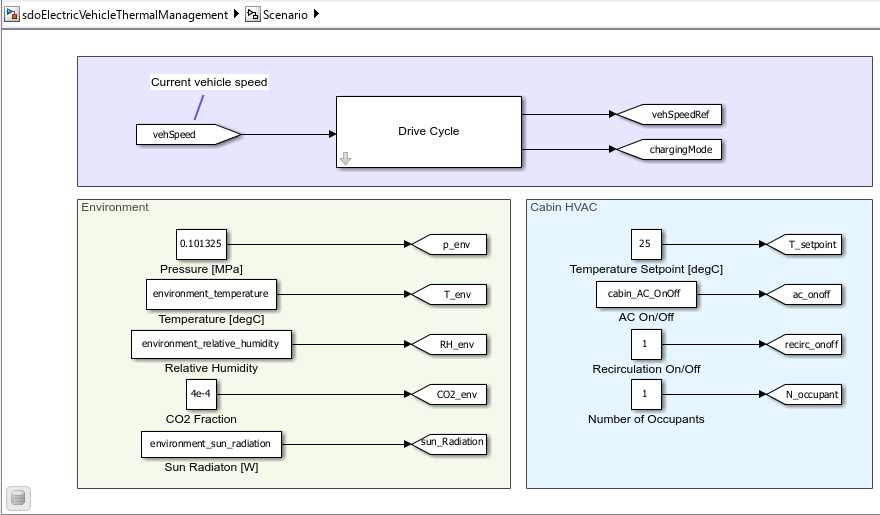
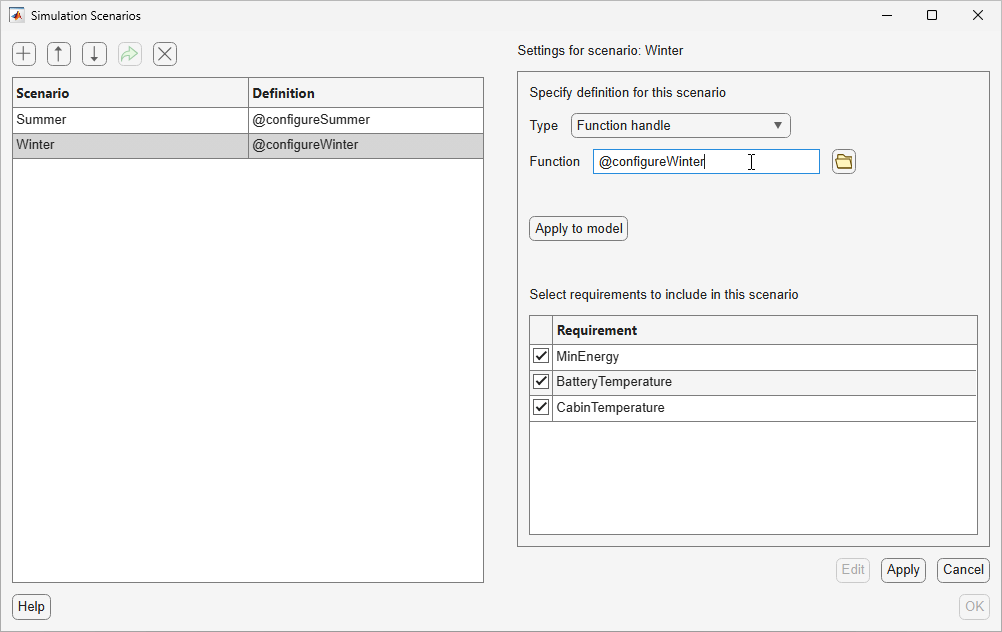
To specify the scenarios, on the app toolstrip, click Scenarios. The Simulation Scenarios dialog box opens.
To specify the Summer scenario, rename the default scenario as
Summerby double-clicking it and then click Edit. Select Type asFunction handleand specify Function as@configureSummer. The output of this function is aSimulink.SimulationInputobject which configures the model for the Summer scenario. The scenario definition sets theVariablesproperty of this object. Verify that all three requirements are selected for this scenario. Click Apply.To specify the Winter scenario, create a new scenario by clicking
 and rename it to
 Winter. Click Edit, select Type asFunction handle, and specify Function as@configureWinter. Select all three requirements to include in this scenario. Click Apply.
To view the functions configureSummer and configureWinter, use type.
type configureSummerfunction simin = configureSummer()
%CONFIGURESUMMER Configure summer scenario
% Create a Simulink.SimulationInput object, "simin". During optimization,
% SDO (Simulink Design Optimization) will use this to set up the model in
% the Summer scenario.
%
% Use the "setVariable" function of "simin" to set variable values. Note,
% you cannot set variables which are also design variables or uncertain
% variables in the optimization problem.
%Start with blank SimulationInput for the model
simin = Simulink.SimulationInput('sdoElectricVehicleThermalManagement');
mdl = simin.ModelName;
%Temperature of ambient environment [deg C]
simin = setVariable(simin, 'environment_temperature',40, 'Workspace',mdl);
%Relative humidity
simin = setVariable(simin, 'environment_relative_humidity',0.5, 'Workspace',mdl);
%Solar radiation [Watts]
simin = setVariable(simin, 'environment_sun_radiation',600, 'Workspace',mdl);
%Air conditioning - whether it is on or off
simin = setVariable(simin, 'cabin_AC_OnOff',1, 'Workspace',mdl);
%Starting temperature of the car [Kelvin]
startTemperature = 313.15;
simin = setVariable(simin, 'battery_T_init', startTemperature, 'Workspace',mdl);
simin = setVariable(simin, 'plate_T_init', startTemperature, 'Workspace',mdl);
simin = setVariable(simin, 'Emachine_T_init', startTemperature, 'Workspace',mdl);
simin = setVariable(simin, 'DCDC_T_init', startTemperature, 'Workspace',mdl);
simin = setVariable(simin, 'coolant_T_init', startTemperature, 'Workspace',mdl);
simin = setVariable(simin, 'cabin_T_init', startTemperature, 'Workspace',mdl);
%Drive cycle: Urban
cycle = driveCycleParam('UDDS');
simin = setVariable(simin, 'cycle',cycle, 'Workspace',mdl);
end
type configureWinterfunction simin = configureWinter()
%CONFIGUREWINTER Configure winter scenario
% Create a Simulink.SimulationInput object, "simin". During optimization,
% SDO (Simulink Design Optimization) will use this to set up the model in
% the Winter scenario.
%
% Use the "setVariable" function of "simin" to set variable values. Note,
% you cannot set variables which are also design variables or uncertain
% variables in the optimization problem.
%Start with blank SimulationInput for the model
simin = Simulink.SimulationInput('sdoElectricVehicleThermalManagement');
mdl = simin.ModelName;
%Temperature of ambient environment [deg C]
simin = setVariable(simin, 'environment_temperature',-5, 'Workspace',mdl);
%Relative humidity
simin = setVariable(simin, 'environment_relative_humidity',0.65, 'Workspace',mdl);
%Solar radiation [Watts]
simin = setVariable(simin, 'environment_sun_radiation',300, 'Workspace',mdl);
%Air conditioning - whether it is on or off
simin = setVariable(simin, 'cabin_AC_OnOff',0, 'Workspace',mdl);
%Starting temperature of the car [Kelvin]
startTemperature = 268.15;
simin = setVariable(simin, 'battery_T_init', startTemperature, 'Workspace',mdl);
simin = setVariable(simin, 'plate_T_init', startTemperature, 'Workspace',mdl);
simin = setVariable(simin, 'Emachine_T_init', startTemperature, 'Workspace',mdl);
simin = setVariable(simin, 'DCDC_T_init', startTemperature, 'Workspace',mdl);
simin = setVariable(simin, 'coolant_T_init', startTemperature, 'Workspace',mdl);
simin = setVariable(simin, 'cabin_T_init', startTemperature, 'Workspace',mdl);
%Drive cycle: Highway
cycle = driveCycleParam('HWFET');
simin = setVariable(simin, 'cycle',cycle, 'Workspace',mdl);
end
Close the Simulation Scenarios dialog box by clicking OK.
During optimization, the app searches for the design variable values that satisfy all constraints for all scenarios and minimizes a weighted sum of the objectives.
To set these weights, on the app toolstrip, click Configure. The Configure Requirements dialog box opens. In the Objectives section, verify that the MinEnergy objective for both the scenarios is selected to be included in optimization. Under the Weight column, specify the weight for the Summer scenario objective as 0.7407 and the weight for the Winter scenario objective as 0.3534. These weights are based on the average energy consumption in each scenario.
In the Constraints section, verify that all constraints for all scenarios are selected to be included in optimization.
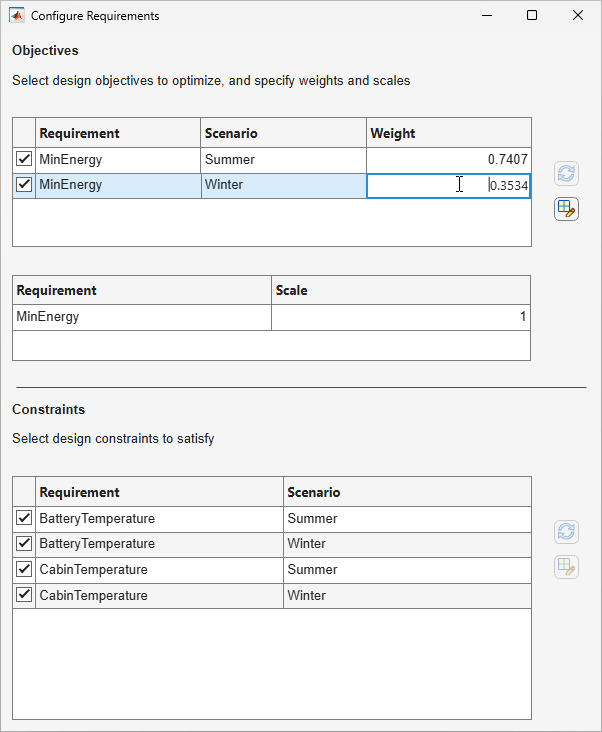
For more information on specifying multiple scenarios, see Specify Multiple Scenarios for Model Simulation.
You can skip to this step in the example by opening the sdoElectricVehicleThermalManagement_BeforeOptimization_sdosession.mat session file.
Specify Optimization Options
To specify the optimization options, on the app toolstrip, click More Options > Optimization. The Response Optimization Options dialog box opens. As some of the specified design variables are discrete, select the Method as Surrogate optimization. Specify Objective limit as 0.001. Specify Maximum evaluations as 1000.
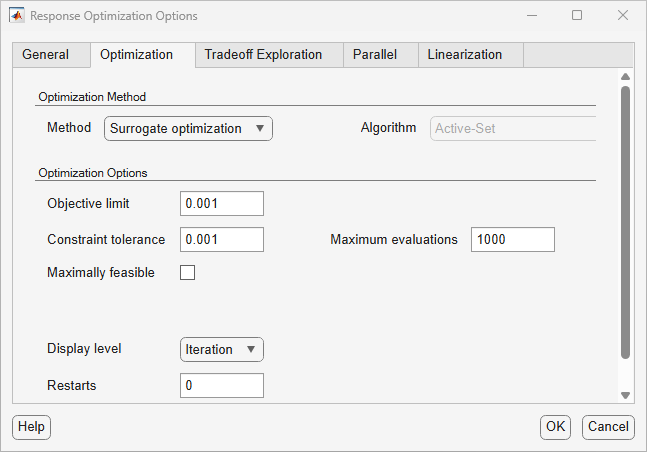
Close the Response Optimization Options dialog box by clicking OK.
Speed Up Model Simulations During Optimization
During optimization, the model will be simulated a lot of times. To speed up model simulations, put the model in fast restart mode and run the optimization in parallel.
To put the model in fast restart mode, in the model, on the Simulation tab, click Fast Restart. During optimization, the app applies the Summer scenario to the model and simulates it. Then, it applies the Winter scenario to the model and simulates it. While the model is in fast restart mode, the app changes the variable values according to the specific scenario.
To run the optimization in parallel, on the app toolstrip, click Use Parallel. The dependency checker searches for model file dependencies. To ensure the parallel workers have all the files needed to run the model and evaluate the cost function, add additional files by clicking Add file dependency.
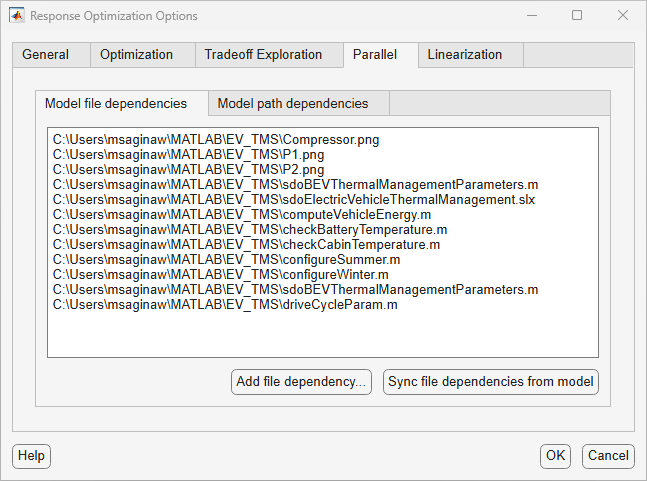
Optimize the Model
On the app toolstrip, click Optimize.
Initially, during optimization, some of the constraints are not satisfied. After about 56 function evaluations, the optimizer finds a combination of design variables that satisfies all the constraints. This is indicated by negative values for all four constraints. After finding the design variable combination, the optimizer works to minimize the battery energy use. As you specified the maximum evaluations to be 1000, the solver stops after 1000 evaluations of the cost function.
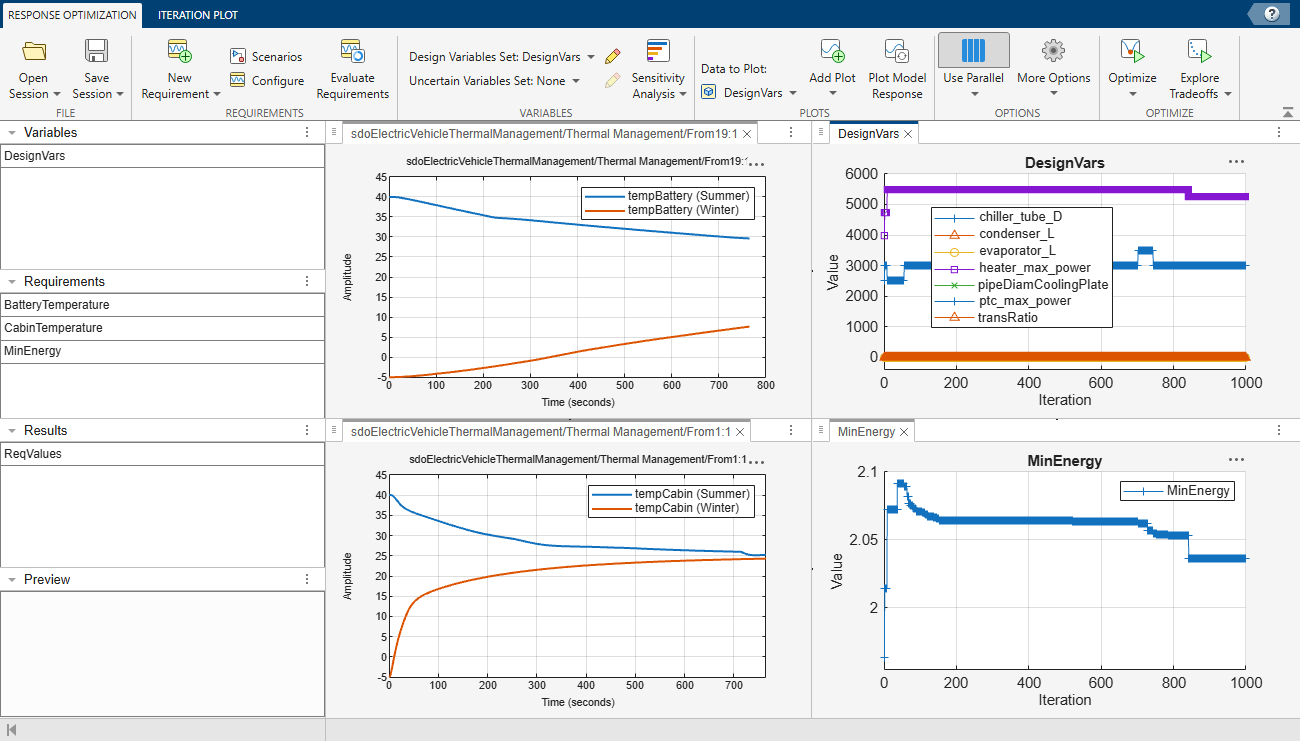
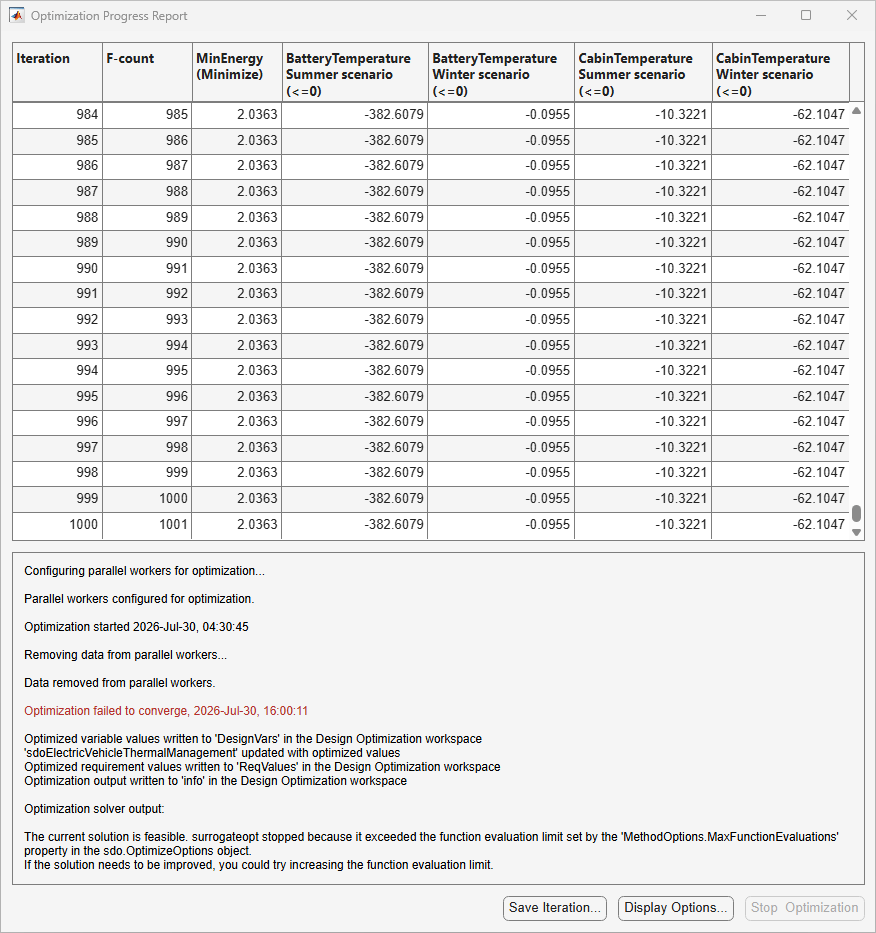
In summer, the constraints on battery temperature and vehicle cabin temperature are satisfied with comfortable margins whereas in winter, the constraints are satisfied with slimmer margins. Even though the MinEnergy objective does not reach the specified limit of 0.001, the optimization is considered successful as all the constraints are satisfied and the optimizer minimizes the battery energy as much as possible.
You can skip all steps in the example and view the optimization results by opening the sdoElectricVehicleThermalManagement_AfterOptimization_sdosession.mat session file.
See Also
Simulink.SimulationInput | setScenario

