Organize Mask Initialization and Callbacks in a MATLAB File
R2026bMask initialization code and callback code enable you to programmatically control a block mask. Mask initialization code configures the block, modifies the contents of your subsystem dynamically, and sets the parameters of child blocks within the subsystem. For each masked block, Simulink® creates a unique instance of a MATLAB® workspace, known as the mask workspace. This mask workspace stores the evaluated values of the mask parameters. Simulink executes the mask initialization code within the context of this mask workspace. Mask parameter callback code dynamically shows or hides the parameters based on the values of other parameters, or dynamically changes a popup option. This simplifies the mask dialog box by presenting only relevant options to the user. Mask parameter callbacks execute in a temporary workspace.
You can author the initialization and parameter callback code by using one of these methods:
Save the code in a MATLAB® class file.
Save the code within the mask.
By using a separate MATLAB class file, you can:
Use code debugging capabilities such as breakpoints in MATLAB Editor.
Reduce the memory footprint of the masks since the callbacks are stored in a MATLAB code file instead of in memory.
Edit the mask callback code using either Mask Editor or MATLAB Editor.
Achieve tunability of parameters.
Explore the Model
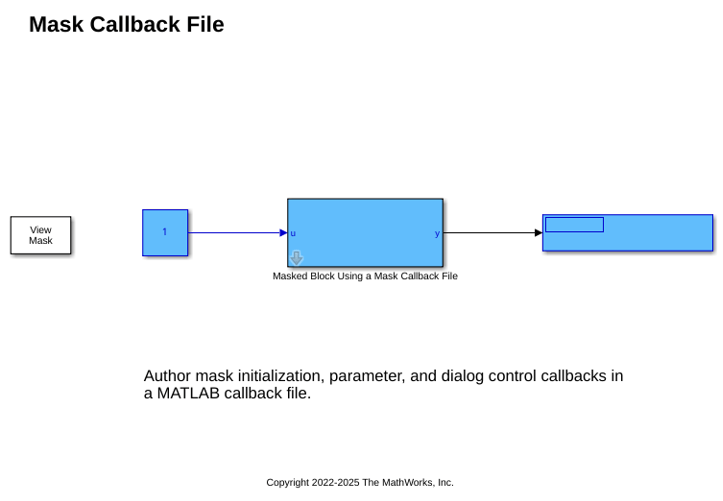
Open the model slexMaskCallbackFileExample. This example model implements the equation y = u*gain + bias through mask initialization and callbacks. There are three mask parameters, gain, bias, and EnableBias. You set the value of EnableBias by selecting or clearing the Enable Bias check box. In the mask initialization section, the value of EnableBias is retrieved from the mask workspace. If it is not enabled, then the value of bias is set to 0. In the mask parameter callback section, if EnableBias is enabled, then the Enabled property of each parameter is set to on. Otherwise the Enabled property of each parameter is set to on except for the biasValue parameter. In the mask control callback section, you can set the Enabled property for each parameter to on by clicking the Reset Visibility button.
open_system("slexMaskCallbackFileExample");
Write Mask Initialization Code
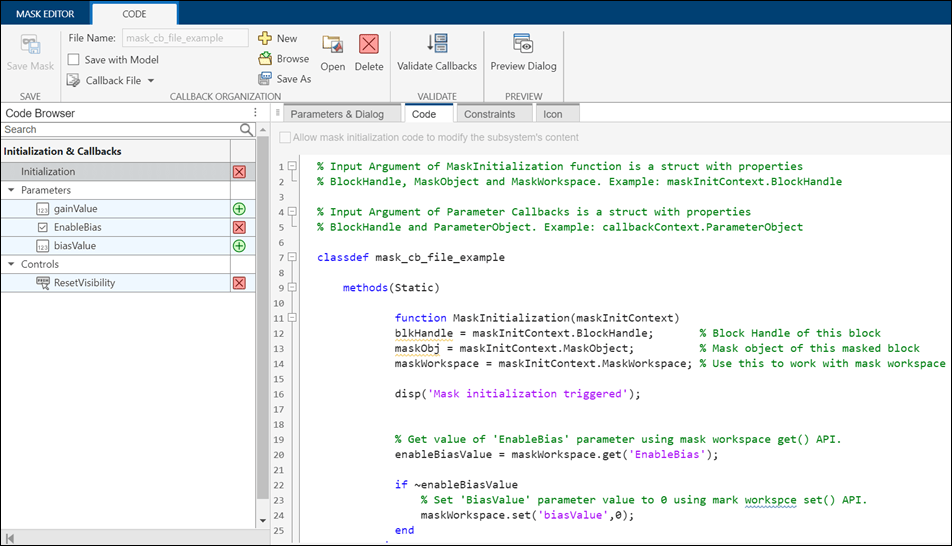
To view the mask initialization code written for this example, right-click Masked Block Using a Mask Callback File. In the context menu, select Edit Mask. On the Code tab, the mask_cb_file_example.m file contains the initialization and callback code for the model.
The mask initialization function in the mask callback file must be in this format:
The name of the callback file and the name of the class that the function belongs to must be the same. In this example, the name of the callback file is
mask_cb_file_example.mand the name of the class file ismask_cb_file_example. The MATLAB code file must be in the MATLAB path.
The method in the callback file that executes the mask initialization code must be
Static.
The mask initialization function must be named
MaskInitialization.
The input argument to the mask initialization function is a structure with these fields:
BlockHandle— Handle of the block.
MaskObject— Mask object of the masked block. For more information To know more about mask objects, see Control Masks Programmatically.
MaskWorkspace— Property to access mask workspace. Simulink associates a workspace with each masked block.
maskWorkspace = maskInitContext.MaskWorkspace;
In this example, the mask initialization code sets biasValue to 0 if the parameter EnableBias is set to off.
function MaskInitialization(maskInitContext)
    blkHandle = maskInitContext.BlockHandle;       % Block Handle of this block
    maskObj = maskInitContext.MaskObject;          % Mask object of this masked block
    maskWorkspace = maskInitContext.MaskWorkspace; % Use this to work with mask workspace
disp('Mask initialization triggered'); % Get value of 'EnableBias' parameter using mask workspace get() API.
enableBiasValue = maskWorkspace.get('EnableBias'); if ~enableBiasValue
% Set 'BiasValue' parameter value to 0 using mark workspace set() API.
maskWorkspace.set('biasValue',0);
end
endUse the set function to create or update a mask workspace variable, for example, maskWorkspace.set('biasValue',0). If biasValue is a mask workspace variable then its value is set to 0. Otherwise, a new variable biasValue is created in mask workspace and its value is set to 0. Use the get function to get the value of a mask workspace variable, for example, enableBiasValue = maskWorkspace.get('EnableBias').
Note: The fields of the input argument of the initialization function are case sensitive.
Write Mask Parameter Callback Code
Parameter callback code is the code that is executed when a parameter value of a masked block is changed. It allows you to perform custom actions based on parameter changes. Parameter callback code in mask callback file must be in the following format:
The function name of the parameter callback must be same as the parameter name.
The input argument to the mask parameter callback function is a structure having the context of the parameter with these fields:
BlockHandle— Block handle of the block.
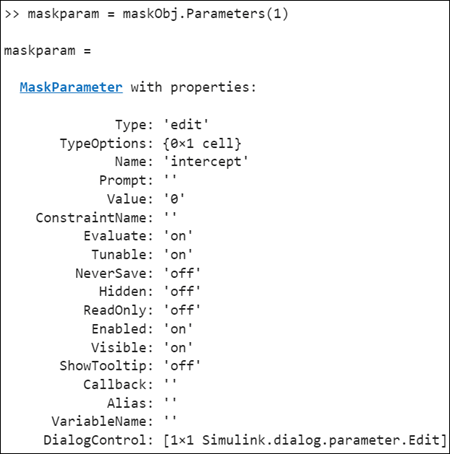
ParameterObject— Parameter object of a mask dialog parameter. The ParameterObject contains the properties of the specific parameter. For example, an edit parameter object has these properties:
In this example, the parameter callback code enables or disables the Bias parameter in the mask dialog box when you clear or select Enable Bias.
function EnableBias(callbackContext)
   blkHandle = callbackContext.BlockHandle; % Block Handle of this block
   maskObj = Simulink.Mask.get(blkHandle);
   parameterObj = callbackContext.ParameterObject; % Parameter object for 'EnableBias'.
disp('EnableBias callback triggered'); % Set the 'MaskEnables' property for each parameters
if strcmp(get_param(blkHandle,'EnableBias'),'on')
maskObj.getParameter('gainValue').Enabled = 'on';
maskObj.getParameter('biasValue').Enabled = 'on';
maskObj.getParameter('EnableBias').Enabled = 'on';
else
maskObj.getParameter('gainValue').Enabled = 'on';
maskObj.getParameter('EnableBias').Enabled = 'on';
maskObj.getParameter('biasValue').Enabled = 'off';end end
Note:Parameter callback code does not have access to the mask workspace.
Write Mask Dialog Control Callback
The dialog control callback is the code that is executed when a specific action or event occurs on a dialog control element of a masked block. It allows you to customize the behavior of the dialog controls and perform actions based on user interactions. The dialog control callback must be in this format:
The function name for the control callback must be same as the name of the dialog control.
The input argument to the mask control callback function is a structure with these fields:
BlockHandle— Block handle of the block.
DialogControlObject— Dialog control object of the dialog control. The DialogControlObject contains the properties of the specific dialog control. For example, a button object has these properties:
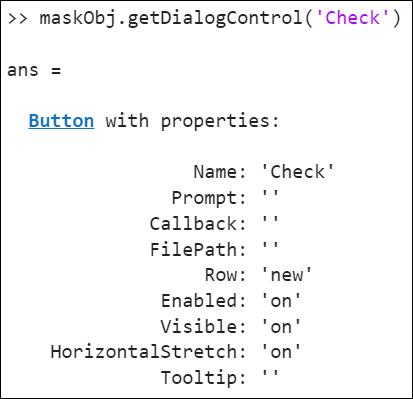
In this example, the dialog control callback code enables all the mask parameters when you click the ResetVisibility button in the mask dialog control.
function ResetVisibility(callbackContext)
    blkHandle = callbackContext.BlockHandle; % Block Handle of this block
    maskObj = Simulink.Mask.get(blkHandle);
    resetButtonObj = callbackContext.DialogControlObject; % Dialog Control object for 'ResetVisibility'.
    disp('ResetVisibility button callback triggered');
    % Reset mask enables.
    maskObj.getParameter('gainValue').Enabled = 'on';
    maskObj.getParameter('biasValue').Enabled = 'on';
    maskObj.getParameter('EnableBias').Enabled = 'on';
end
Migrate Existing Callback Code to MATLAB File
You can migrate existing callback code stored in a mask to a MATLAB class file. Inspect the mask initialization code and make corrections before executing it. For example, you must modify the code to create, modify, or retrieve the values of parameters or variables from the mask workspace in the mask initialization section using the mask workspace methods set and get.
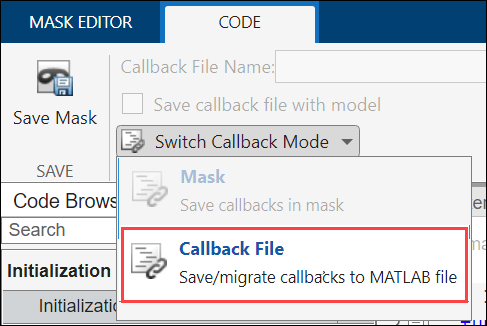
To migrate the existing callback code, right-click the masked block and then select Edit Mask. In the Code tab, click Switch Callback Mode and select Callback File.
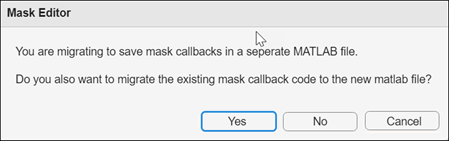
In the dialog box, click Yes to migrate the existing callback and save. Click No, to save mask callbacks in a separate MATLAB file and without migrating the code. Save the mask to save the callback file.
If you want to store the mask callback in the mask object rather than in a separate MATLAB file, in the Code tab, click Switch Callback Mode and select Mask.
Create or Update Mask Workspace Variables
After migrating the existing mask callback to the MATLAB class file mode, inspect the mask initialization code and make any necessary corrections before executing it. For example, you must modify the code to set and get values of variables from the mask workspace in the mask initialization section using the mask workspace methods set and get.
Use the
setfunction to create or update a mask workspace variable, for example,maskWorkspace.set('biasValue',0). IfbiasValueis a mask workspace variable then its value is set to0. Otherwise, a new variablebiasValueis created in the mask workspace and its value is set to0.
Use the
getfunction to get the value of a mask workspace variable, for example,enableBiasValue = maskWorkspace.get('EnableBias').
Save Callback File with the Model
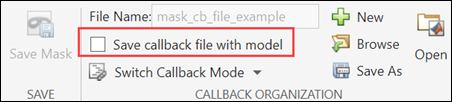
You can also package the callback file along with the model. Use the option Save callback file with model in the toolstrip. You must also save the model to package the callback file along with the model.
To edit the callback file saved with a model, you must load the model. Use the Open option in the toolstrip to open the callback file in MATLAB editor. You can also rename a callback file using Save As.