Configure the Variable Viewer
R2026bThe Variable Viewer app displays the variable initialization results for a Simscape model. You can customize which information the app displays.
Configure the Visible Columns in the Table
You can configure the columns that appear in the table. By default, the table displays these columns:
| Name | Description |
|---|---|
| Status | Initialization status of each variable. The icon indicates the status:
|
| Priority | Variable initialization priority. You specify this value in the block dialog box or the underlying component file. |
| Target | Initial target value for a variable. |
| Start | The initial value of the variable computed by the solver. |
| Unit | The variable base unit, common for all the values. Simscape™ unit manager automatically converts values as needed. For example, if you specify the Initial Target parameter in the block dialog box as 20 and the Unit as mm, the Variable Viewer displays the Target as 0.2 and Unit as m. |


To display more columns, you can select them manually by selecting Show columns. Alternatively, click Advanced to view these additional columns:
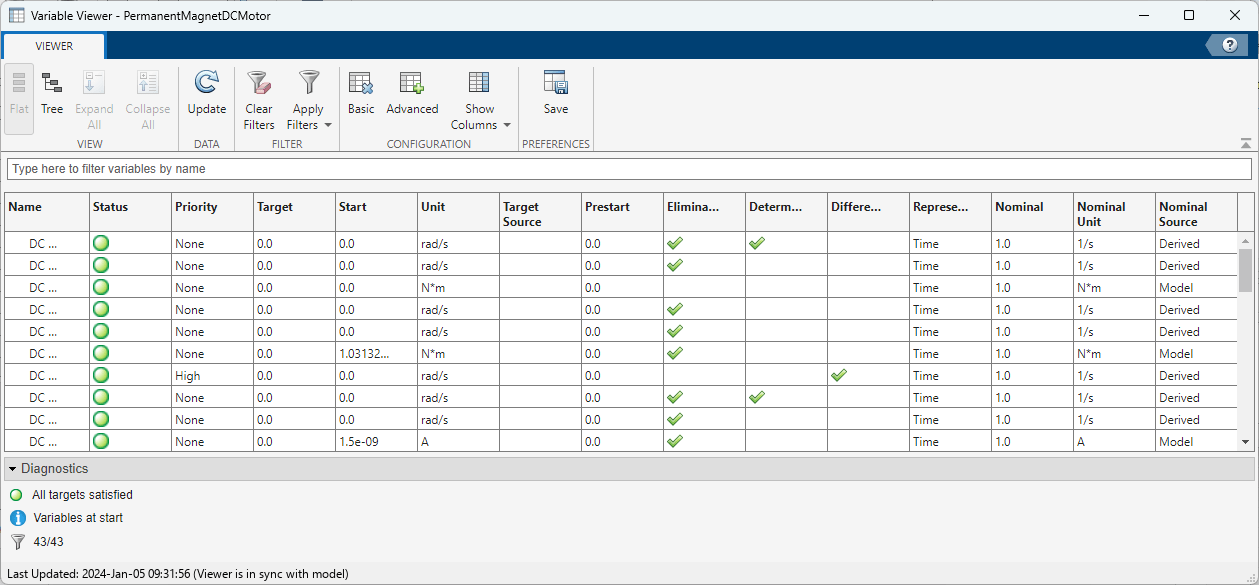
In advanced configuration, the Variable Viewer app displays these columns in addition to those in the basic view:
| Name | Description |
|---|---|
| Target Source | Source of the variable target. When you set a variable target with an operating
point, this column displays |
| Prestart | Value of the variable that the solver uses to solve for initial conditions. For variables with no targets, the column shows the variable declaration from the underlying component file. If the initialization process fails, you can use these values to determine the reason. You can adjust undesirable prestart values by setting a target and priority. |
| Eliminated | Eliminated variables that the solver does not use. Prestart values for these variables have no effect on the system solution. You can specify targets and priorities for these variables that may affect other retained variables. |
| Determined | Variables that depend on the system inputs or that have predetermined values. Specifying initialization priority and targets for these variables has little or no impact on system solution. The solver spends extra time attempting to solve determined variables with high-priority targets. |
| Differential | Variables whose time derivatives appear in equations. These variables add dynamics to the system and can produce independent states. These variables are more likely to require high initialization priority. |
| Representation | How the solver identifies the variable when using frequency and time simulation. The
value can be either Frequency or Time. For more
information, see Frequency and Time Simulation Mode. |
| Nominal | Nominal value of the variable. For more information, see System Scaling by Nominal Values. |
| Nominal Unit | Physical unit associated with the nominal value of the variable. For more information, see System Scaling by Nominal Values. |
| Nominal Source | Source of the nominal value and unit. The value can be either
Block, Model, Derived, or
Fixed. For more information, see Possible Sources of Nominal Values and Their Evaluation Order. |
View Arrays of Components
If your model contains blocks with underlying arrays of components, you can view the arrays in either tree mode or flat mode. The arrays appear differently in each mode.
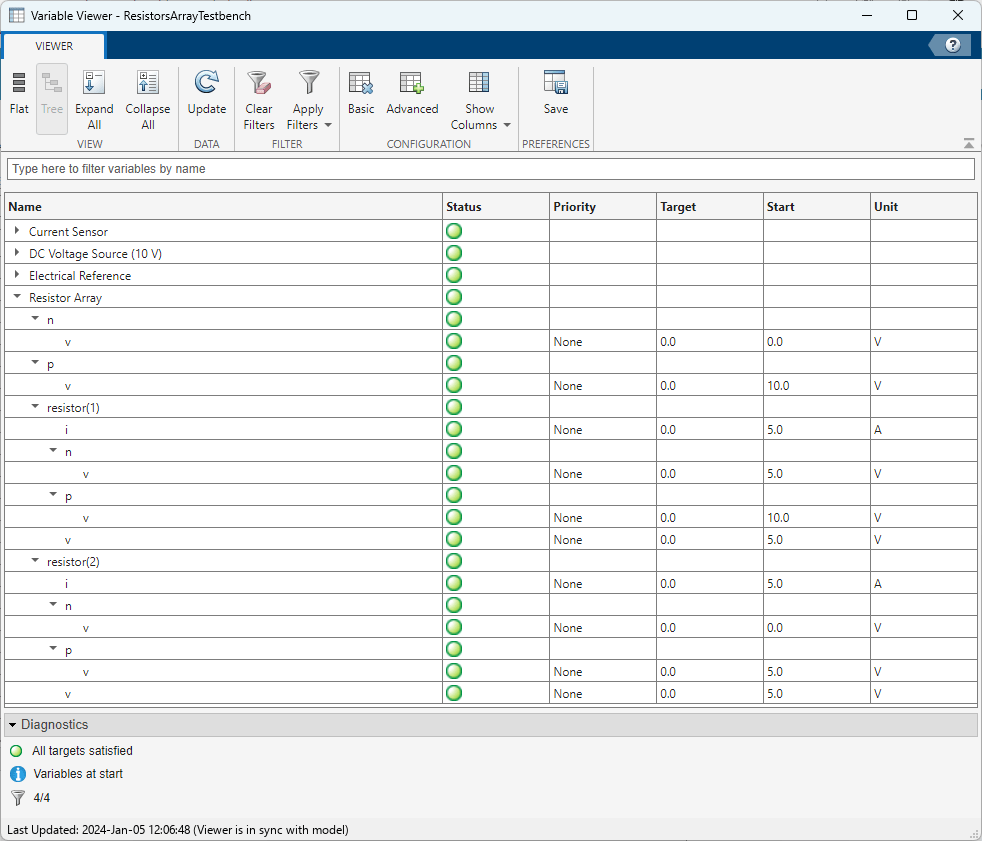
For example, in this image, the custom Resistor Array block
contains an underlying array of resistors. In tree view, the Variable Viewer table contains the
nodes n and p, which correspond to the ports of the
Resistor Array block, which each have a variable,
v. The Variable Viewer table also contains tree nodes for each of the array
members, resistor(1), resistor(2), and so on. Each of
these numbered nodes, in turn, contains rows that correspond to the nodes and variables of the
underlying resistor component. Only the rows that represent variables contain data such as
targets and actual values.
If the component array size is 1xN, the members are numbered
comp(1), …, comp(N). If the array size is
NxM, the members are numbered comp(1,1),
comp(1,2), …, comp(NxM).
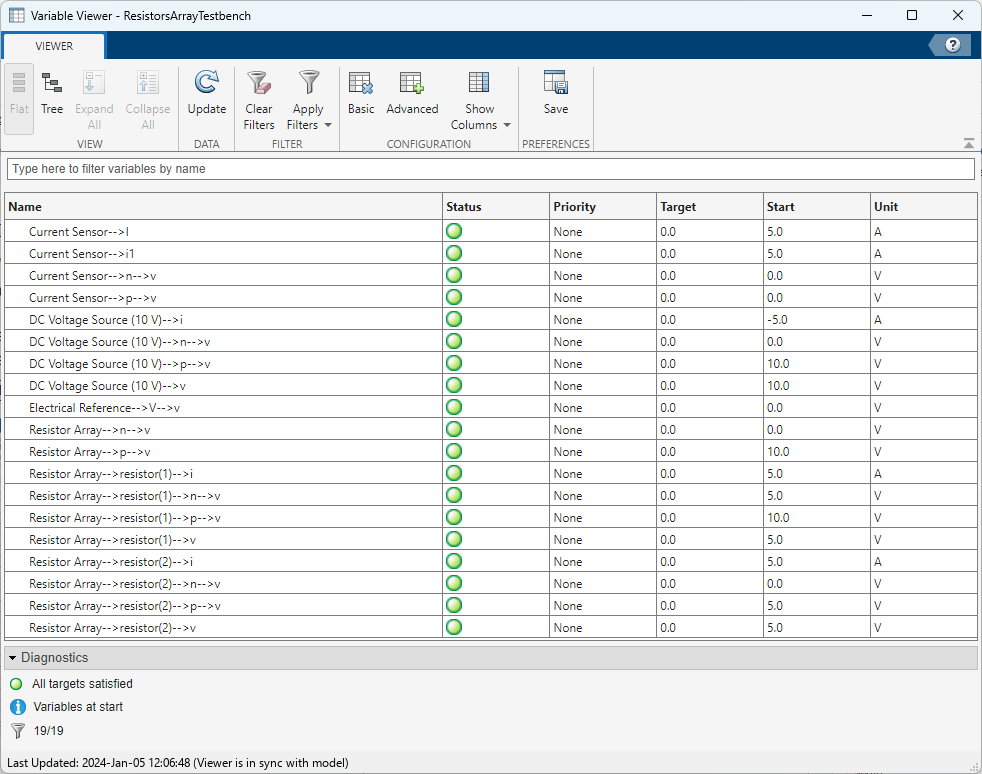
In flat view, the table displays only row for each variable, and the Name column includes the complete path to the variable from the top-level model. For variables that belong to the members of the component array, the path to the variable contains the numbered component name.
Filter Variables
You can use the Apply Filters button to filter the table rows based on their values.
For example, you can view only the high- or low-priority variables in a large model by
clicking Apply Filters > Priority and selecting the High or
Low check boxes.
You can also use the filtering settings to help troubleshoot your model. For example, if you:
Select Apply filters > Differential, then select
True, you can display only the rows for differential variables. The time derivatives of these variables appear in equations. Because these variables add dynamics to the system and can produce independent states, these variables are more likely to require high initialization priority.Select Apply filters > Differential, then select
True, you can verify that these variables have no initialization priority. Because the values of these variables are either determined by the equation analysis or depend on the system inputs, specifying initialization priority and targets for these variables has little or no effect on model initialization.
To clear all filters, click Clear Filters.
Save Viewer Configuration
You can use the Save button to save your configurations for these settings:
Variable Viewer view type
Visible columns
Column order
Filters applied for all columns
Sorting on a specific column
If you save viewer configuration, the app uses this configuration when you open the Variable Viewer app.
Update Variable Results
When you open the Variable Viewer, it displays the data from the last simulation. The status bar at the bottom of the app window displays the timestamp of its last update. To update the model results in the app, click the Update button.
The button displays a warning icon  when the model is not synchronized with the app.
Because Variable Viewer computes the actual initial values of the variables by running the
simulation for 0 seconds:
The model must be in an executable state when you refresh the viewer.
Scopes turn blank when you click Update. Run the simulation to see the new results.
If you run the simulation while the Variable Viewer app is open, the results in the viewer are automatically refreshed when the simulation starts.
If you update block diagram while the app is open, the previously computed actual values become unavailable and the Status column displays the
 icon. The status at the bottom of the app window is also not
available. Click Update to compute the new values of the variables and
update the status.
icon. The status at the bottom of the app window is also not
available. Click Update to compute the new values of the variables and
update the status.

