Set Up Feature and Strategy
R2026bA feature calibration is the process of calibrating lookup tables by comparing an electronic control unit (ECU) strategy to a statistical model. A Simulink® model represents the ECU strategy. For more information about the process, see Process for Calibrating and Filling Feature Tables.
The Model-Based Calibration Toolbox™ calibrates an estimator, or feature, for a control subsystem in an ECU. Features are usually algebraic collections of one or more lookup tables. You use the features to estimate signals in the engine that are unmeasurable, or expensive to measure, and are important for control. The toolbox can calibrate the ECU subsystem by directly comparing it with a plant model of the same feature.
A strategy is an algebraic collection of lookup tables, and forms the structure of the feature. Model-Based Calibration Toolbox uses the strategy to estimate signals in the engine that cannot be measured.
To evaluate the feature side by side with the model, you need to have a strategy that takes some or all of the same variables as the model. The strategy is expressed using Simulink diagrams. You can either import a strategy or you can construct a strategy.
You can import features for selected Simulink subsystems.
Add a Feature
A feature consists of a model and a collection of lookup tables organized in a strategy.
To add a feature, select File > New > Feature. This automatically switches you to the Feature Filling view and adds an empty feature to your session.
An incomplete feature is a feature that does not contain both an assigned model and a
strategy. If a feature is incomplete, CAGE displays  in the tree display. If a feature is complete, CAGE
displays
in the tree display. If a feature is complete, CAGE
displays  in the tree display.
Import a Strategy from Simulink
Highlight the top feature node in the tree display.
Select File > Import > Strategy.
Select the appropriate Simulink model file.
If there is a single outer outport, CAGE automatically imports the strategy.
If there are multiple outer outports, CAGE prompts you to import all output ports into separate features.
Use the MBC Feature Importer to preview lookup tables and import features for selected Simulink subsystems. Click OK.
To view a text representation of your strategy, select the Feature node.
If parsing the Simulink diagram fails and you see an error message, then the toolbox discards changes in the current CAGE project. Correct the Simulink model and reparse it.
Model Structure and Strategy Hierarchy
CAGE uses the Subsystem hierarchy in the Simulink model to generate subfeatures in CAGE. This makes it easier to understand the structure of the strategy and relate it to the Simulink model. However, be aware how CAGE creates subfeatures from Simulink models:
When a subsystem has more than one outport, CAGE adds the outport name to the subsystem for the subfeature name. Rename an outport before importing if you want a particular name for the CAGE subfeature. CAGE creates unique names.
CAGE creates a subfeature from outports in subsystems. CAGE works backward from outports and includes all input blocks to the outport in the subfeature, including blocks outside the subsystem. Subfeatures are not identical to Simulink subsystems.
CAGE shows the subfeature hierarchy in the Feature tree. Each subfeature is also visible at the top level of the tree.
Lookup Tables, Normalizers, and Constants
Names and reuse |
|
Lookup table and normalizer structure |
|
Data import |
|
Block Support
CAGE supports a subset of Simulink blocks. To view the supported blocks, open the cgeqlib
library.
cgeqlib
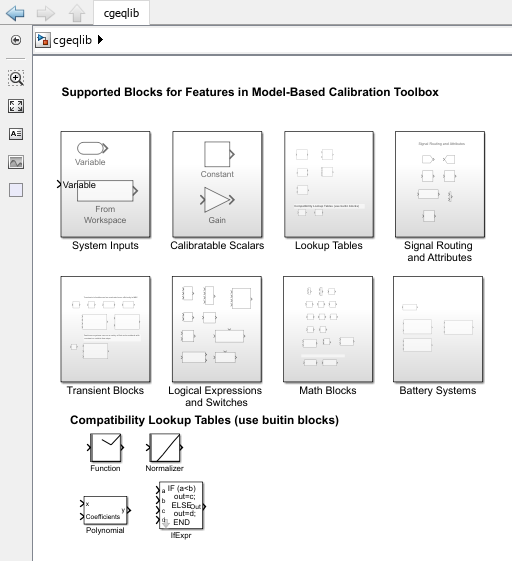
These supported blocks are in these library subsystems.
| Subsystem | Description | ||||||||||
|---|---|---|---|---|---|---|---|---|---|---|---|
| System Inputs | Supported system input blocks, including the Variable and From Workspace blocks. | ||||||||||
| Calibration Scalars | Supported calibration blocks, including the Constant and Gain blocks. | ||||||||||
| Lookup Tables | Supported lookup table blocks, including the 1-D Lookup Table and Interpolation Using Prelookup blocks. | ||||||||||
| Signal Routing and Attributes | Supported signal routing blocks, including the Goto and Mux blocks. CAGE ignores signal conditioning blocks. Several standard Simulink blocks are intended for conditioning signals, but you can ignore the blocks for analysis in CAGE. These blocks include the Signal Conversion, Rate Transition, Data Type Conversion, and Initial Condition blocks. CAGE ignores them, making it easier to import existing strategy diagrams. | ||||||||||
| Transient Blocks | Supported blocks for feature fills to optimize calibrations with transient controllers. The subsystem also includes blocks that CAGE uses to create a single top-level feature for the first-order transient system, improving the optimization performance. The Continuous
First-order System block in the
| ||||||||||
Logical Expressions and Switches | Supported logical and switch blocks, including the Logical Operator, Relational Operator, and MultiportSwitch blocks. When you import the Switch block, CAGE converts it to a CAGE block called IfExpr. Logical expressions are only an issue if inputs to the logical expression include a lookup table that you are trying to fill. Connecting logical expressions to measured inputs (inports) or constants is fine because the logical expressions do not require differentiation. Caution If inputs to the logical or switch blocks include lookup tables that CAGE will try to fill, feature filling may fail. CAGE cannot differentiate non-smooth logical or switch expressions. If inputs to the logical or switch blocks are measured inputs or constants, however, CAGE can fill the feature. | ||||||||||
Math Blocks | Supported math blocks, including the Dot Product and Math Function blocks. For polynomials, CAGE builds polynomial expressions using Horner’s form (Product and Sum blocks). Only scalar inputs
are supported except for the MATLAB Function,
Dot Product, Polynomial, and
Interpreted MATLAB Function blocks, which
accept multiple inputs as inputs to the expression (e.g.,
Caution Feature filling may fail if your model contains:
| ||||||||||
| Battery Systems | Supported blocks for feature filling models that contain battery blocks from Simscape™ Battery™ and Powertrain Blockset™. Each block models common components used in battery equivalent circuits. They include:
For more information on calibrating battery blocks, see Calibrate Powertrain Blockset and Simscape Battery Blocks. |
This table summarizes the transient and steady-state block support for feature fills.
| Block | Transient | Steady-State |
|---|---|---|
| ✔ | Ignored | |
Delay - Discrete, fixed, and variable | ✔ | Ignored |
Discrete-Time Integrator - Forward, backward, and trapezoidal | ✔ | Not supported |
Discrete Transfer Fcn - Initial conditions set to zero with no ability to modify the transfer function | ✔ | ✔ — Treated as a steady-state gain if transfer function is stable |
| ✔ | ||
| Continuous First-Order System* | ✔ | |
| First-Order Filter* | ✔ | |
| First-Order Transfer Function* | ✔ | |
*Block that CAGE uses to create a single top-level feature for the first-order transient system, improving the optimization performance. Use the first-order system to estimate time constants and gains specified by lookup tables or scalars in CAGE. | ||
Loop Handling
This table summarizes the CAGE algebraic look implementation for transient and steady-state feature fills.
Feature Fill Type | Implementation |
|---|---|
Steady-state | CAGE cannot handle expressions with loops. If CAGE detects
a loop, then CAGE asks if you want to break the loop by
introducing a variable called
If you decide not to break the loop, an error message informs you which blocks are involved in the loop. CAGE ignores Delay blocks and Resettable Delay blocks to facilitate loop parsing. |
Transient | Transient feature calibration does not allow models with algebraic feedback loops. Each loop must have at least one block with no direct feedthrough for example, a Delay or Discrete-Time Integrator - Forward integration block. |
Importing Older Strategies
To parse strategies from previous releases, you can use the function
cgStrategyTables to set the style for strategy parser behavior.
Use cgStrategyTables to import any older strategies saved as
Simulink model files.
For strategies from R2013a or later, CAGE interprets the first input to a 2-D lookup table as Y (rows). Previously, CAGE parsed the first input as columns and the second as rows. Use the
cgStrategyTablesbackward compatibility modes for previously saved strategies, if needed.For strategies from R2008a to R2012b, lookup table blocks are always interpreted as lookup tables, because there are separate lookup and normalizer blocks. In R2008a, a normalizer block was added to the
cgeqliblibrary.To set the parser style to R2008a, use:
cgStrategyTables('R2008a')For strategies older than R2008a, CAGE interprets 1-D lookup tables as normalizers if they feed into a lookup table.
To parse pre-R2008a strategies, use this function:
This reverts the parser behavior to the pre-R2008a interpretation of 1-D lookup tables. CAGE issues a warning when converting a 1-D lookup table to a normalizer. You can turn off the warning:cgStrategyTables('Pre-R2008a')warning off mbc:cgslparser:ObsoleteNormalizer
To reset the parser style to R2013a and later, use:
cgStrategyTables('R2013a')To query the current strategy table style, enter:
Style = cgStrategyTables
Construct a Strategy
To construct a strategy from CAGE rather than import an existing model:
Highlight the correct feature by selecting the Feature node.
Select Feature > Edit Strategy.
Three Simulink windows open:
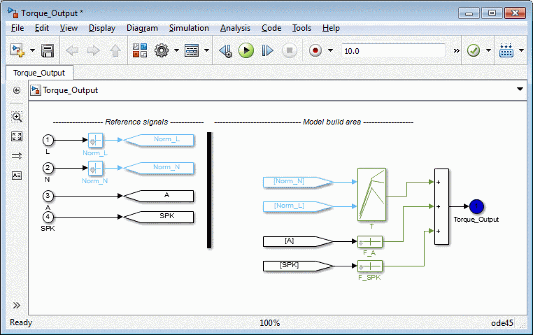
Window Description Strategy
Use to edit your strategy.
Library,
cgeqlibBlocks available for building a strategy.
CAGE Project Library
Existing blocks in your CAGE project, organized into libraries. Blocks are From blocks referencing the CAGE items such as tables and normalizers.
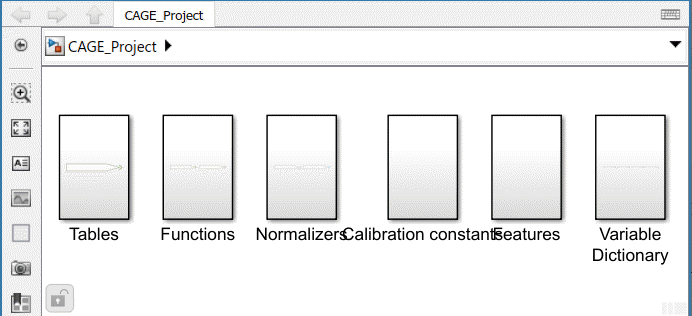
In the strategy window, build your strategy using the blocks in the library windows. To perform a feature calibration, the strategy and the model must have some variables in common.
To parse the strategy into the CAGE session, double-click the blue outport circle.
The cgeqlib library contains all the blocks available for building
a strategy.
Export Strategies
Export Simulink strategies if you want to:
Include a strategy in a Simulink vehicle model.
Compile the strategy using Simulink Coder™ to produce C code.
Evaluate the strategy using Simulink.
To export a strategy from CAGE:
Highlight the Feature node that contains the strategy that you want to save.
Select File > Export > Strategy.
Assign a name for your strategy.
The strategy is saved as a Simulink model file.
On export, table data is stored in variables. Indices are written to Simulink parameters using colon expressions.
For 2-D lookup tables,
0:size (Table,1)-1,0:size (Table,2)-1,TableNameFor 1-D lookup tables with shared normalizers,
0:length (Table)-1,TableNameFor 1-D lookup tables,
NormalizerNameandTableNameNormalizerName,0:length(Normalizer)-1
The data is stored in the model workspace. The model workspace data is copied to the new model when you copy the strategy block. You must be able to run Update Diagram on the Simulink model or the copy process does not work. Copying the strategy model requires a Model-Based Calibration Toolbox.

