テスト結果レポートの作成
R2026bこの例では、Simulink テスト マネージャーを使用してベースライン テストのテスト結果レポートを生成する方法を示します。
テスト結果とテスト マネージャーを開く
モデル sldemo_absbrake についてベースライン テストを実行するには、ベースライン データとのシミュレーションの比較の手順に従います。それ以外の場合は次のようにします。
1.baselineTestResults ファイルをインポートします。
sltest.testmanager.importResults("baselineTestResults.mldatx");2.テスト マネージャーを開きます。
sltest.testmanager.view
テスト結果レポートの生成
1.テスト マネージャーの [結果とアーティファクト] ペインの最新の結果で、baselineTestCase を選択します。
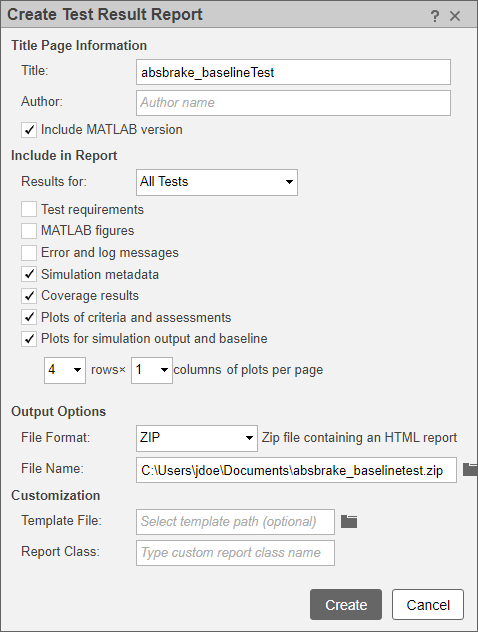
2.ツールストリップの [結果] セクションで [レポート] をクリックします。[テスト結果のレポートの生成] ダイアログが開きます。
3.[タイトル] を absbrake_baselineTest に設定します。
4.[レポートに含める] セクションで、[次の結果] セクションを [All Tests] に設定し、レポートに含める情報を選択します。テスト結果レポートのオプションの詳細については、Create, Set Options, and Use Templates for Test Result Reportsを参照してください。
5.[ファイル形式] ドロップダウン メニューを [ZIP] に設定します。
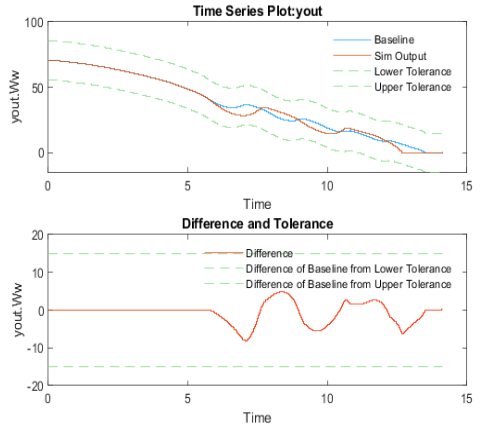
5.[作成] をクリックします。テスト マネージャーで HTML レポートが生成されます。[テスト結果のレポートの生成] ダイアログで選択したテスト情報がレポートに表示されます。yout.WW 信号のセクションまでスクロールします。グラフから、yout.Ww 信号とベースライン信号データの差が許容誤差の基準を満たしていることがわかります。