Import File Log Data Manually into the Simulation Data Inspector Using Simulink Real-Time
R2026bThis example shows how to copy Simulink® Real-Time™ file log data to local folders by using MATLAB® or third-party tools for later import into the Simulation Data Inspector by using slrealtime.fileLogImport.
Unlike the direct file log import workflow, this approach separates the file transfer from the data import into the Simulation Data Inspector. This separation can be useful when file transfer and data analysis occur on different computers. This workflow does not require MATLAB for file transfer. MATLAB and Simulink Real-Time are required for importing the data into the Simulation Data Inspector.
Note: If file log data import into the Simulation Data Inspector is not required, consider instead the workflow in Import File Log Data as Parquet Format Files Using MATLAB or Third-Party Tools, which requires importing fewer files. For an overview of ways to import file log data, see Import File Log Data from Speedgoat Target Computer.
Generate File Logs for Import
Create a Target object for the default target computer and connect to the target computer. In the MATLAB Command Window, type:
tg = slrealtime;
connect(tg);
Open the model slrt_ex_osc. Configure the model for the connected target computer.
model = 'slrt_ex_osc';
open_system(model);
modelSTF = getSTFName(tg);
set_param(model,'SystemTargetFile',modelSTF);
Build the model.
evalc('slbuild(model)');Close the model.
bdclose(model);
Using the Target object tg, load and start the real-time application for multiple runs with different values for the Transfer Fcn block C parameter. Set the maximum number of logs to be retained, and suppress automatic import the generated file logs.
load(tg,model);
start(tg,AutoImportFileLog=false,FileLogMaxRuns=4);
while ~strcmp(tg.status,'stopped')
    pause(0.1);
end
load(tg,model);
setparam(tg,'slrt_ex_osc/Transfer Fcn','C',-100);
start(tg,AutoImportFileLog=false,FileLogMaxRuns=4);
while ~strcmp(tg.status,'stopped')
    pause(0.1);
end
load(tg,model);
setparam(tg,'slrt_ex_osc/Transfer Fcn','C',-50);
start(tg,AutoImportFileLog=false,FileLogMaxRuns=4);
while ~strcmp(tg.status,'stopped')
    pause(0.1);
end
Copy Application Folders from Target Computer to Local Folders
To import file log data into the Simulation Data Inspector at a later time, copy application folders that contain the logged data from the target computer by using MATLAB functions or third-party tools, such as the PuTTY pscp utility or FileZilla®.
To access the application folders, connect to the SFTP (SSH File Transfer Protocol) server on the target computer by using port 22, the default user name slrt, and the default password slrt. For this approach, make sure that you copy the entire applications folder or real-time application subfolder. For example:
/home/slrt/applications /
/home/slrt/applications /<model>/
This example Windows system command shows how to use the PuTTY pscp utility to copy the content of the applications folder from a target computer with IP address 192.168.7.5 at port 22 to the local directory C:\work\my_logdata\.
"C:\Program Files\PuTTY\pscp.exe" -v -P 22 -pw slrt -r slrt@192.168.7.5:applications C:\work\my_logdata\
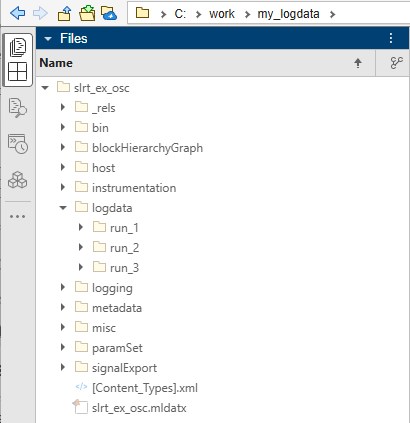
For this example, you can use the MATLAB sftp and mget functions to copy the application-specific /home/slrt/applications/slrt_ex_osc subfolder from the target computer to the development computer. In the MATLAB Command Window, type:
baseDir = "C:\work\my_logdata\";
s = sftp('192.168.7.5','slrt',Password='slrt',StartingFolder='/home/slrt/applications');
mget(s,'slrt_ex_osc',baseDir);
The real-time application folder is copied to the specified local destination folder.
List Available File Logs on Development Computer
After copying the application folder to a development computer with MATLAB and Simulink Real-Time, a test engineer can import the file log data into the Simulation Data Inspector. To view the full list of available file log runs from application slrt_ex_osc in a development computer folder, in the MATLAB Command Window, type:
slrealtime.fileLogList('Directory',baseDir)ans = 3×3 table
Application StartDate Size (in MB)
_____________ ____________________ ____________
1. "slrt_ex_osc" 08-Jul-2026 20:55:40 0.040672
2. "slrt_ex_osc" 08-Jul-2026 20:56:08 0.040648
3. "slrt_ex_osc" 08-Jul-2026 21:10:51 0.040639
Import File Logs on Development Computer into the Simulation Data Inspector
To import the file logs for the real-time application slrt_ex_osc from the development computer folder into the Simulation Data Inspector, in the MATLAB Command Window type:
slrealtime.fileLogImport('slrt_ex_osc','Directory',fullfile(baseDir,model));
  Importing Log file 1 of 3 ...
  Importing Log file 2 of 3 ...
  Importing Log file 3 of 3 ...
Open the Simulation Data Inspector to view the imported data.
Simulink.sdi.view
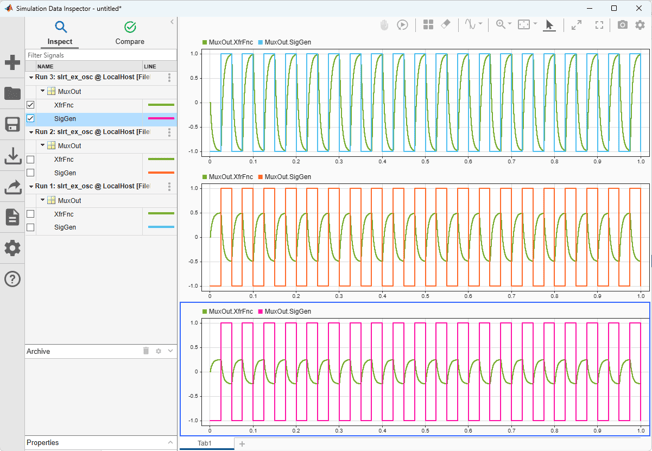
By default, the Simulation Data Inspector only shows the latest file log run, and moves older file log runs to the archive. You can use Simulink.sdi.setAutoArchiveMode to change this behavior.
Cross-Release Compatibility Considerations
In R2022a and later releases, the slrealtime.fileLogImport function does not support importing file logs from log data obtained in different versions of MATLAB. If you have log data from older versions of MATLAB to import, use these steps:
Load log data into the MATLAB release in which it was created.
Export data to a MAT file.
Load the MAT file into the current MATLAB release.
See Also
import | openImportDialog | parquetread | start

