Generate SSL/TLS Credentials for MQTT Broker Using OpenSSL
R2026bWhen you use a Simulink® model to set up a board to establish a secure data communication between a publisher and subscriber over unsecure networks, it is essential to secure the communication.
To enable a secure and authenticated communication, Simulink supports Secure Socket Layer/Transport Layer Security (SSL/TLS) encryption for message queuing telemetry transport (MQTT).
You can use OpenSSL to generate the SSL credentials for brokers such as Eclipse™ Mosquitto™ and ThingSpeak™.
Data Flow Diagram
Arduino MQTT Handshake Between Publisher and Subscriber
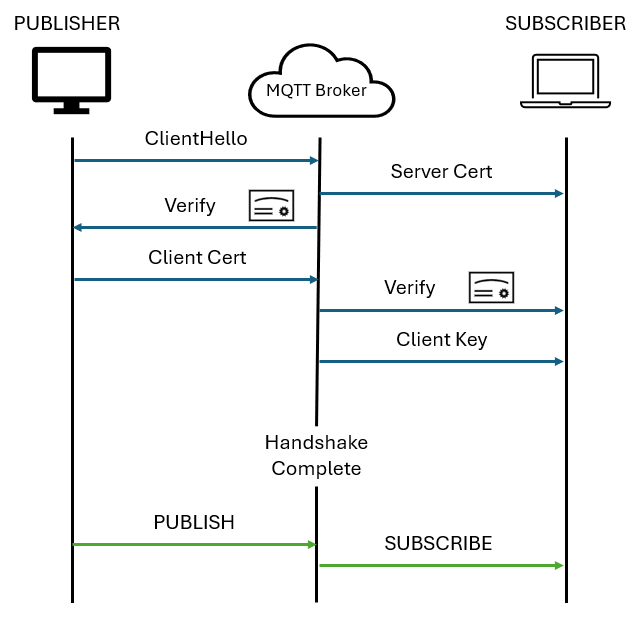
The diagram shows the process of mutual TLS authentication in MQTT. The MQTT broker authenticates both publisher and subscriber, and all data exchange between publisher and subscriber is encrypted and secure.
Generate SSL/TLS Credentials for Mosquitto MQTT Broker
If you want to use the Mosquitto MTTQ broker, create SSL/TLS credentials using OpenSSL to establish a secure connection and communicate between Arduino® and Mosquitto port 8884 broker in Simulink.
Download and install OpenSSL from https://www.openssl.org/ website. Also, create a folder on your local host computer to store all the certificate and key files.
Obtain Mosquitto Server Certificate
Download an MQTT server certificate from the Mosquitto web site.
On the MQTT broker website, click mosquito.org.crt.
Move the generated mosquito.org.crt file from the Downloads folder to the local folder you created.
Generate Client Key and Certificate
Create a client key and certificate.
In the
opensslterminal, navigate to your local folder and generate a client key.openssl genrsa -out client.key
The client.key file is generated and stored in the folder.
Generate a new certificate signing request (CSR) to request a digital certificate from a Certificate Authority (CA).
openssl req -out client.csr -key client.key -new
Follow the prompts to enter additional information for the digital certificate. When you have done so, client.cs file is generated and stored in the same folder.
Open the client.csr file and copy all the content inside the file.
On the MQTT broker website, click generate your own certificate.
Paste the CSR content in the Paste your CSR here section and click Submit. The client.crt file is generated and stored in the Downloads folder of your local host computer. Move this file to the local folder you created.
Configure MQTT Properties in Simulink Model
After you generate the mosquito.org.crt, client.crt, and client.key files, open the Configuration Parameters for your publisher and subscriber Simulink models. In the Hardware Implementation pane, under Target hardware resources, in the MQTT properties tab, enter the file locations in the Server certificate file, Client certificate file, and Client key file parameters.
Generate SSL/TLS Credentials for ThingSpeak MQTT Broker
If you want to use ThingSpeak MQTT broker, create SSL/TLS credentials using OpenSSL to establish a secure connection and communicate between Arduino and ThingSpeak MQTT broker in Simulink.
To establish a connection with ThingSpeak, see Create a ThingSpeak MQTT Device (ThingSpeak). After creating the ThingSpeak MQTT device, you can obtain the client ID, username, and password of the device. Enter these values in the Client ID, Username, and Password parameters.
Obtain ThingSpeak Server Certificate
Download the ThingSpeak MQTT server certificate.
Open the OpenSSL terminal.
openssl s_client -connect mqtt3.thingspeak.com:8883 -showcerts
This command establishes an SSL/TLS connection to the ThingSpeak server at
mqtt3.thingspeak.comon port8883and inspects the server certificate.Copy the certificate content from BEGIN CERTIFICATE to END CERTIFICATE and save the file as a .crt or .pem file in the local folder location.
Generate Client Key and Certificate
Create client key and certificate.
In the
opensslterminal, navigate to your local folder and generate a client key.openssl genrsa -out client.key
The client.key file is generated and stored in the folder.
Generate a new certificate signing request (CSR) to request a digital certificate from a Certificate Authority (CA).
openssl req -out client.csr -key client.key -new
Follow the prompts to enter additional information for the digital certificate. When you have done so, client.cs file is generated and stored in the same folder.
Generate a client certificate using CSR.
openssl x509 -req -in client.csr -signkey client.key -out client.crt
The client.crt file is generated and stored in the same folder on your local host computer.
Configure MQTT Properties in Configuration Parameters Dialog Box of Simulink Model
After you generate the server.crt, client.crt, and client.key files, open the Configuration Parameters for your publisher and subscriber Simulink models. In the Hardware Implementation pane, under Target hardware resources, in the MQTT properties tab, enter the file locations in the Server certificate file, Client certificate file, and Client key file parameters.
See Also
WiFi MQTT Subscribe | WiFi MQTT Publish | MQTT properties
Topics
- Publish MQTT Messages and Subscribe to Message Topics
- Publish and Subscribe to Messages on ThingSpeak Using MQTT Blocks on Arduino
- Securely Publish and Subscribe to Messages on Mosquitto Broker Using Arduino Hardware

