Variant Configurations
R2026bWhat Is a Variant Configuration?
Using variant elements in Simulink®, you can represent all design alternatives of a system component in a single model. Each variant of a system component is depicted as a variant choice in the model. A variant control associated with each variant choice allows you to activate or deactivate the choice in the model.
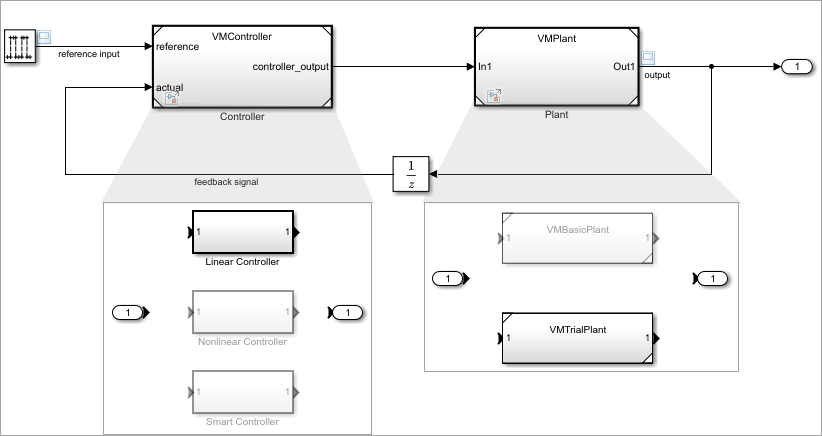
For example, consider a model for a system with a plant and a controller. The controller
component has three variant choices, Linear,
NonLinear, and Smart. The plant component has two
choices, Basic and Trial. This model uses
Variant Subsystem blocks to represent these components and their choices.
Combinations of these variant choices represents different modes or different configurations
of the system, for example, a linear controller with a trial plant or a
nonlinear controller with a basic plant. The former configuration is
shown in this figure.
A variant configuration represents a combination of variant choices across the model hierarchy. It contains a set of variant control variables and their values, which you can use to activate a specific variant in the model hierarchy. It helps you to easily define and manage variation points in a model.
The number of variant configurations for a model can be high depending on the number of variant choices. Configuring the choices and switching between them manually can be complicated and can introduce errors. You can use Variant Manager to define, apply, and manage variant configurations for the model.
Variant Manager enables you to:
Create variant configurations and define constraints.
Automatically generate and validate all possible variant configurations for a model.
Validate and activate a configuration on the model.
Use Variant Reducer to generate a reduced model that contains only selected configurations.
Use Variant Analyzer to compare multiple variant configurations in a tabular form, verify that all variant choices have been activated at least once, and identify any inconsistencies in the configurations.
To understand licensing requirements for Simulink Variant Manager™ workflows, see License Requirements for Simulink Variant Manager.
Types of Variant Configurations
The workspace variant controls:
The variant control variables and their values currently defined in the data sources used by the model work as a temporary variant configuration for the model. This configuration is temporary because it is not saved to the variant configuration object associated with the model.
A named variant configuration:
You can create multiple named variant configurations that contain a set of control variables, their values, a set of constraints, and a description. You can set one of these named configurations as a preferred configuration for the model.
You can automatically generate all possible variant configurations for a model using Variant Manager. See Generate Variant Configurations Automatically.
Constraints on Variant Configurations
A constraint is a user-defined check that you can use to prevent
invalid variant combinations in a model. The constraint must be satisfied by all variant
configurations created for the model. It is represented as a conditional expression created
using variant control variables, names of referenced component
configurations (since R2025a), or both. The expression must evaluate to true
to satisfy the constraint.
For example, this constraint checks that a Linear controller in a
system does not have an External plant.
~((Ctrl == ControllerType.Linear) && (PlantLoc == PlantLocation.External))When a model is associated with a VariantConfigurations that has
constraints, Simulink validates the variant configurations against these constraints during Variant
Manager activation, update diagram, simulation, and code generation workflows. To learn more
about adding a constraint, see Define Constraints for Variant Configurations and addConstraint.
Variant Configurations Object
You can use a variant configurations object of type Simulink.VariantConfigurations to
manage and reuse variant configurations for a model. The object stores all the variant
configurations and constraints created for a model. You can define the object in the base
workspace or in the Design Data section of a data dictionary. If the
model is not associated with a variant configurations object, Variant Manager helps you to
set up a new variant configurations object.
From the Manage tab in Variant Manager, you can:
Specify a name for the variant configurations object for the model.
Apply the changes made to the variant configurations object from Variant Manager to the base workspace or data dictionary used by the model.
Export the variant configurations object to a MAT file or MATLAB® script file.
Import a variant configurations object from a MAT file or MATLAB script file into Variant Manager.
Reload the object from the base workspace or data dictionary used by the model. This allows you to revert the changes that are not yet exported to the data sources used by the model.
When you export the variant control variables in a variant configuration or when you activate a variant configuration, the control variables are pushed to the data sources where the variables are stored. Reloading the variant configurations object from Variant Manager does not revert these changes.
Disassociate the variant configurations object from the model.
For an example that shows how to perform these actions from Variant Manager, see Save and Reuse Variant Configurations Using Variant Configurations Object.
The Simulink.VariantConfigurations object has methods that enable you to
add or remove variant configurations, constraints, and control variables.
Get Variant Configurations Object for Model
To get the variant configurations object associated with a model programmatically, execute this command from the MATLAB Command-Line window.
vco = Simulink.VariantManager.getVariantConfigurations('model');To get only the name of the variant configurations object associated with the model, use this command:
get_param('model','VariantConfigurations');
Associate or Disassociate Variant Configurations Object from Model
To associate or disassociate a variant configurations object from a model
programmatically, use the VariantConfigurations model
parameter.
% Associate vco
set_param('model','VariantConfigurations','name_of_vco');
% Disassociate vco
set_param('model','VariantConfigurations','');
% Save the model
save_system('model');
Edit Variant Configurations Object from Workspace
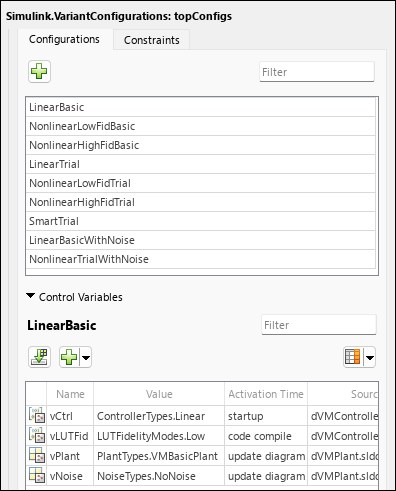
You can edit a variant configurations object from the base workspace or data dictionary
without launching Variant Manager. Double-click the object that is present in the base
workspace or in the Design Data section of the data dictionary in
the Model Explorer. This action opens the Simulink.VariantConfigurations
property dialog box. See Manage Variant Configurations Without Simulink Model.
Activate a Variant Configuration
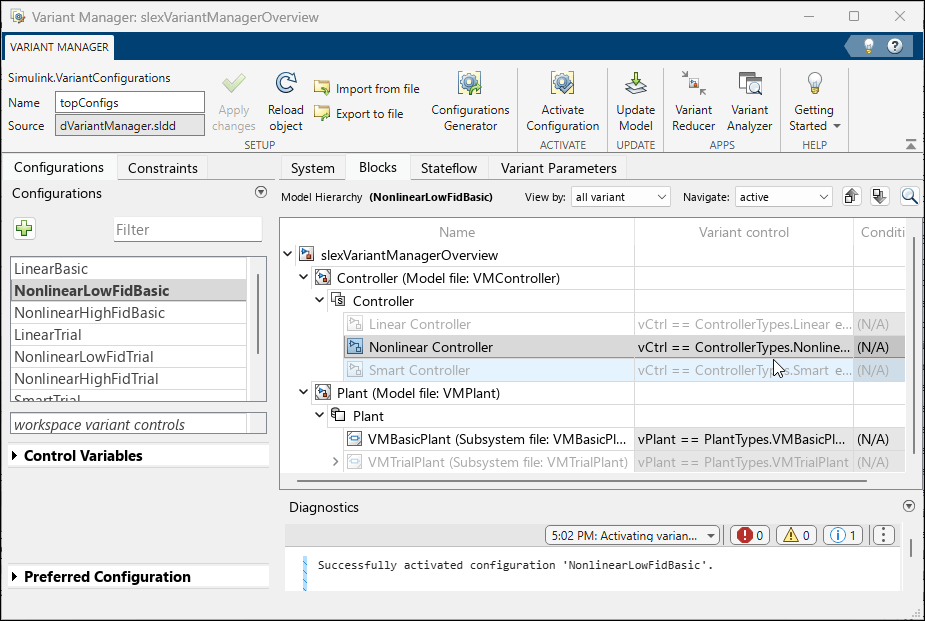
Activating a variant configuration using Variant Manager validates that the variant elements in the model and the variant configuration are set up correctly and applies the configuration to the model. This operation pushes the control variables to the data sources where they are defined. It also validates the configuration against applicable constraints. You can then compile, simulate, or generate code from the model for this configuration.
You can activate these configurations from Variant Manager:
A named variant configuration:
Activation is only based on the values of control variables defined in the configuration.
Workspace variant controls:
Activation is based on the control variables that are currently defined in the data sources used by the model.
For detailed steps to create and activate a variant configuration, see Create and Activate Variant Configurations. To
activate a variant configuration programmatically, use the Simulink.VariantManager.activateModel method.
Tip
On successful activation, the model hierarchy reflects the active configuration.
Differences Between Variant Manager Activation and Update Diagram Process
Activation of a variant configuration using Variant Manager or using the Simulink.VariantManager.activateModel method differs from the update diagram
process that Simulink performs before simulation or when you update the diagram while editing the
model (Ctrl+D).
Activation using Variant Manager analyzes variant elements such as variant blocks,
variant parameters, or variant transitions in the model individually. The process validates
that the variant elements and the variant configuration are set up correctly and then
activates the configuration for the model. For example, for a variant block with
Variant control mode set to expression,
the process evaluates the variant controls on the block and checks if the control variables
used by the block are defined in the variant configuration. Variant Manager does not analyze
activeness information based on block connectivity and variant condition propagation.
Referenced Configurations
The variant configurations for a top-level model must also define the variant control variables used by any referenced components in the model hierarchy, such as referenced models. This approach helps to maintain a single consistent definition for a variant control across the hierarchy.
If the referenced component has existing named variant configurations of its own, you can use them to set up the corresponding variant control variables in the top-level model configuration. You can also use referenced configurations to define the top-level model constraints. For more information, see Compose Variant Configurations and Constraints for Top Model Using Referenced Configurations.
Preferred Configuration
You can set any of the named configurations defined for a model as the preferred variant configuration. You can use this property to indicate the configuration that is suited for the model for common workflows.
Note
The preferred configuration does not function as the default configuration for a model. You must activate the preferred configuration explicitly on the model, if required.
To programmatically apply the PreferredConfiguration on your model
before compiling or simulating the model, use the applyConfiguration
method:
% Get the variant configurations object for your model
vco = Simulink.VariantManager.getVariantConfigurations(model);
% Apply the preferred configuration on the model
Simulink.VariantManager.applyConfiguration ...
(model, 'Configuration', vco.getPreferredConfigurationName());
Simulink.VariantManager.applyConfiguration ...
 (model, 'Configuration', Simulink.VariantManager.getPreferredConfigurationName(model));
Variant Manager View of Variant Configurations
Open the slexVariantManagement model using the following
command.
openExample('simulink_variants/VariantConfigurationObjectForAModelRefPageExample');
open_system('slexVariantManagement');
View the Configurations tab in Variant Manager.
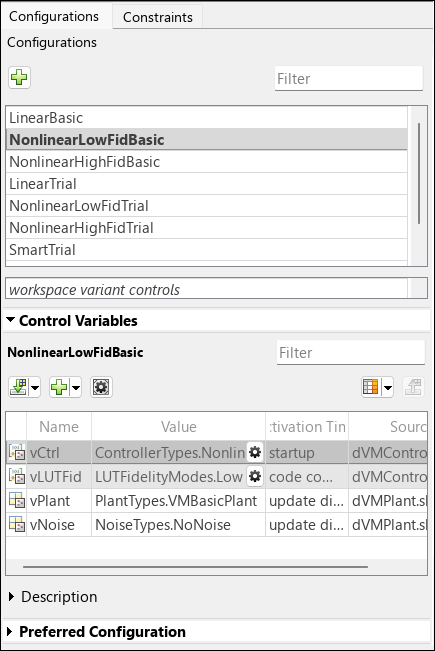
The table lists the named variant configurations created for the model. These configurations are stored in the variant configurations object (of type
Simulink.VariantConfigurations) associated with the model.The workspace variant controls read-only box indicates the variant control variables and their values currently defined in the data sources used by the model. This configuration is temporary because it is not saved to the variant configurations object associated with the model.
The table in the Control Variables section shows the variant control variables and their values defined in a selected configuration. All control variables are listed in the table, either when the variant configurations object for the model is loaded, or when you import them from the workspace.
In the Control Variables table of a top-level variant configuration, the control variables that are populated using a referenced component configuration are read-only and appear with a gray background color.
You can click the workspace variant controls box and then import the control variables currently defined in the data sources used by the model.
The Preferred Configuration section allows you to select a named configuration that is suitable for the model for common workflows.
Use Variant Configurations in Simulation and Testing Workflows
Since R2024a
When you run simulations for your variant model programmatically, you can specify the
variant configuration to apply to the model during simulation. For simulation functions such
as sim, parsim, and batchsim,
you can set the VariantConfiguration property in the Simulink.SimulationInput object. For an example, see Run Simulations for Variant Models Using Variant Configurations.
You can specify the variant configuration to use when running a test case or a test iteration on a model from Simulink Test Manager (since R2024b) or by using the Simulink Test™ programmatic interface. For an example, see Run Tests for Variant Models Using Variant Configurations.
Limitations
For a variant block, you can define variant configurations only if the Variant control mode parameter of the block is set to
expression.Specifying variant configurations in Simulink Test is not supported for multiple-release testing and real-time testing.
Variant Manager constraints are evaluated based on the values of variant control variables defined in the base workspace or data dictionaries linked to the model.
See Also
Objects
Functions
Topics
- Simulink Variant Manager
- Variant Manager Workflow to Set Up Variant Configurations for Models
- Variant Manager Workflow to Manage Existing Variant Configurations in Models
- Reduce Variant Models Using Variant Reducer
- Analyze Variant Configurations in Models Containing Variant Blocks
- Simulink Variants Overview

