Find Variant Configurations for Referenced Components
R2026bYour Simulink® model hierarchy might include referenced components such as referenced models or subsystems. In Simulink Variant Manager™, you can set up variant configurations for these individual components before creating variant configurations for the top-level model. Once you define these variant configurations, you can reuse them to build configurations for your top-level model. In the context of a model hierarchy, these configurations from the referenced components are known as referenced component configurations.
From the top-level model slexVariantManagerOverviewGS, find
referenced configurations defined for the plant model.
Open Example Model
This tutorial uses the example model slexVariantManagerOverviewGS, which comes with a minimal set of variant configurations. You can use this model to follow along with the steps in the tutorial.
modelName = "slexVariantManagerOverviewGS";
open_system(modelName);
Find Referenced Component Configurations
Use Variant Manager to locate and open the Plant component from
the top-level model hierarchy. Next, identify the configurations defined for this
component and access these configurations in the Variant Manager of the top-level
model.
Open Variant Manager of the top-level model.
In the model hierarchy, expand the nodes to view referenced components. The hierarchy contains two referenced models and two referenced subsystems. This image shows the result of activating the
LinearBasicconfiguration.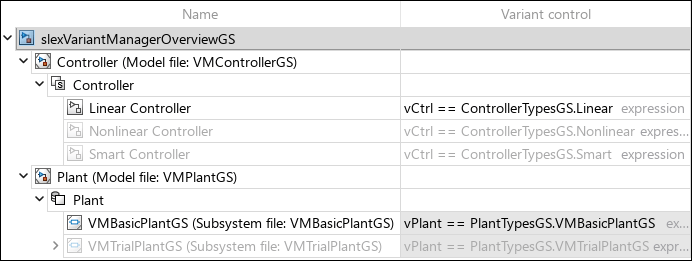
In the Configurations section, right-click a variant configuration or click the Open context menu button
 and select Referenced component
configurations.
and select Referenced component
configurations.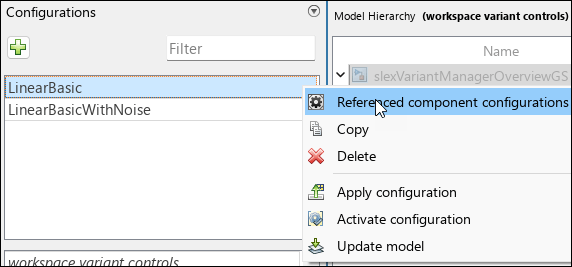
This action opens the Referenced Configurations tab, which shows you the hierarchy of components and their available configurations. This view is specific to the selected configuration, which in this example is the
LinearBasicconfiguration.To close this tab, click the same button. The Show referenced component configurations button
 in the Control
Variables section of a configuration also helps you to open
or close this tab.
in the Control
Variables section of a configuration also helps you to open
or close this tab.Locate the
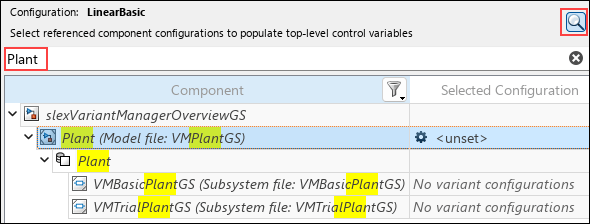
Plantcomponent by expanding the nodes and navigating through the hierarchy. Once you locate the component, look at the Selected Configuration column, which shows the available configurations from the variant configurations object of this component.
Tip
A
 icon for a component in the
Selected Configuration column indicates that it
has predefined variant configurations.
icon for a component in the
Selected Configuration column indicates that it
has predefined variant configurations.To easily locate a component in the hierarchy, use the Search in model hierarchy view button
 .
.
This capability lets you define and test configurations at the component level and reuse them in your top-level model.
See Also
Simulink.VariantConfigurations

