SSD1306 OLED Display
R2026bSSD1306 OLED Display block
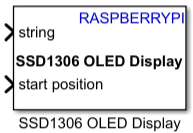
To add a block to a model, double-click the canvas and start typing the block name. Then, select the block from the list.
Libraries:
Raspberry Pi Blockset /
Basic
Description
Use the SSD1306 OLED Display block to interface with and control SSD1306-based organic light emitting diode (OLED) screens. The block integrates the SSD1306 OLED driver to display text and images on OLED displays connected to Raspberry Pi® hardware.
Note
To generate C/C++ code for this block, you must have an Embedded Coder® license.
Ports
Input
Use this port to provide a string of text to render on the OLED display.
The OLED display supports up to 9 rows of text, automatically wrapping characters to the next row if they exceed the row length or if a line break '\n' is detected. Any text that exceeds the available display area either in terms of rows or columns will not render on the OLED display.
For text input, the number of rows and columns (1 character per column) on the OLED display depends on the font size and OLED display size.
With an 5x7 font size on an 128x32 OLED display, 4 rows and 25 columns are available.
With an 8x8 font size on an 128x32 OLED display, 4 rows and 16 columns are available.
With an 5x7 font size on an 128x64 OLED display, 9 rows and 25 columns are available.
With an 8x8 font size on an 128x64 OLED display, 8 rows and 16 columns are available.
Dependencies
To enable this port, set Input data type to
Text.
Data Types: string
Use this port to specify the location on the OLED display where rendering of text
or image begins. Specify the location as a two-element row vector
[x, y], where x is a value
between 1 and the number of available rows, and y is a value
between 1 and the number of available columns. The number of available rows and
columns depends on the Input data
type parameter.
Data Types: single | double | int8 | int16 | int32 | int64 | uint8 | uint16 | uint32 | uint64
Use this port to provide the image buffer data to render on the OLED display.
For image buffer input, the number of rows and columns on the OLED display depends on the display size. Each byte sent to a row and column controls the on or off state of 8 vertical pixels in that column, with the bits mapped from the top to the bottom of the row. For example,
On a 128×32 display (4 rows and 128 columns) — Sending a byte to row 2, column 10, affects pixels 16–23 of column 10.
On a 128×64 display (8 rows and 128 columns) — Sending a byte to row 6, column 50, affects pixels 48–55 of column 50.
Dependencies
To enable this port, set Input data type to
Image buffer.
Data Types: uint8
Use this port to provide the width in pixels of the image to render on the OLED display.
Dependencies
To enable this port, select Specify width and height of image via input port.
Data Types: single | double | int8 | int16 | int32 | int64 | uint8 | uint16 | uint32 | uint64
Use this port to provide the height in pixels of the image to render on the OLED display.
Dependencies
To enable this port, select Specify width and height of image via input port.
Data Types: single | double | int8 | int16 | int32 | int64 | uint8 | uint16 | uint32 | uint64
This port controls the color inversion mode on the OLED display using boolean values.
1— Enable inversion.0— Disable inversion.
Dependencies
To enable this port, set Color inversion to
Specify via input port.
Data Types: Boolean
This port controls the power state of the OLED display to optimize power consumption using boolean values.
1— Put the display into a low-power sleep state.0— Wake the display and display the content.
Dependencies
To enable this port, select Control display power via input port.
Data Types: Boolean
Parameters
Basic
Select the OLED display driver.
Select the size of the OLED display connected to your Raspberry Pi hardware.
128x32— 128 columns (width) x 32 rows (height)128x64— 128 columns (width) x 64 rows (height)
Select the communication interface type between the Raspberry Pi hardware and OLED display.
Select the I2C module on the Raspberry Pi hardware to communicate with the I2C peripheral. For information about enabling the secondary I2C bus on your Raspberry Pi hardware, see Enable Secondary I2C Bus of Raspberry Pi Hardware.
Specify the I2C peripheral device address.
Select the type of input data sent to OLED display for rendering on the display screen.
Text— Display text on the OLED display.Image buffer— Display images on OLED display.
Select the font size for displaying text on the OLED display. The font size determines how many characters fit on each row and how many rows are available. For more information, see Input data type.
Dependencies
To enable this parameter, set Input data type to
Text.
Advanced
Specify the contrast levels to enhance the OLED display readability and visual quality according to your ambient conditions.
Control color inversion of the OLED display. When color inversion is enabled, pixels that are lit (on) become unlit (off) and vice versa.
Disable— Indicates that the display operates in normal mode (no inversion).Enable— Indicates that the display operates in inverted mode (all colors of display are swapped).Specify via input port— This option enables the input port, invert, on the block. Using this port, you can control the pixel inversion by sendingbooleanvalues.Sending a value of
1(true) inverts the display.Sending a value of
0(false) returns the display to normal mode.
Enable this parameter to invert the text or image on the OLED display across the horizontal axis (top-to-bottom). The content that appears at the top of the display when this parameter is off appears at the bottom when the parameter is on, and vice versa.
Enable this parameter to invert the text or image on the OLED display across the vertical axis (left-to-right). The content that appears on the left side of the display when this parameter is off appears on the right when the parameter is on, and vice versa.
Enable this parameter to add an input port to the block, disable. This port controls the power state of the OLED display. You can turn the display on or put it into a low-power sleep state, while keeping the VCC power of the display connected. Use this parameter to optimize power consumption.
Enable this parameter to automatically scroll text or image content across the OLED display.
Select the type of content scrolling on the OLED display. In horizontal scrolling, the content moves left or right across the display.
Dependencies
To enable this parameter, select Enable scroll.
Select the direction in which the horizontal scroll occurs on the OLED display.
Right— The content moves from left to right. New data appears at the left edge and old data exits from the right edge of the OLED display.Left— The content moves from right to left. New data appears at the right edge and old data exits from the left edge of the OLED display.
Dependencies
To enable this parameter, select Enable scroll.
Specify the range of display lines (rows) over which the scrolling operation takes
place. Set the parameter two a two-element vector of the form
[startLine
endLine], where, startLine and
endLine define the first and last display lines included in the
scroll region, respectively. Only content within this span will scroll. These values
must be within the total number of available display rows for the selected OLED size.
For more information, see Input data
type.
Dependencies
To enable this parameter, select Enable scroll.
Select the frame frequency to set how fast the content scrolls on the OLED display. Lower frequency means the content moves slowly, making it easier to read. Higher frequency means the content moves quickly, suitable for rapid data updates.
Dependencies
To enable this parameter, select Enable scroll.
Extended Capabilities
To generate C/C++ code for this block, you must have an Embedded Coder license. For more information on selecting the right product stack according to your development goals, see Product Stack for Raspberry Pi Blockset.
Version History
Introduced in R2026a
MATLAB Command
You clicked a link that corresponds to this MATLAB command:
Run the command by entering it in the MATLAB Command Window. Web browsers do not support MATLAB commands.


Web サイトの選択
Web サイトを選択すると、翻訳されたコンテンツにアクセスし、地域のイベントやサービスを確認できます。現在の位置情報に基づき、次のサイトの選択を推奨します:
また、以下のリストから Web サイトを選択することもできます。
最適なサイトパフォーマンスの取得方法
中国のサイト (中国語または英語) を選択することで、最適なサイトパフォーマンスが得られます。その他の国の MathWorks のサイトは、お客様の地域からのアクセスが最適化されていません。
南北アメリカ
- América Latina (Español)
- Canada (English)
- United States (English)
ヨーロッパ
- Belgium (English)
- Denmark (English)
- Deutschland (Deutsch)
- España (Español)
- Finland (English)
- France (Français)
- Ireland (English)
- Italia (Italiano)
- Luxembourg (English)
- Netherlands (English)
- Norway (English)
- Österreich (Deutsch)
- Portugal (English)
- Sweden (English)
- Switzerland
- United Kingdom (English)