Link C/C++ Sources and Tests to Requirements in Requirements Toolbox
R2026bYou can link C/C++ tests in the Polyspace Platform user interface to test requirements authored in an external editor such as Microsoft® Word or a requirements management tool such as Requirements Toolbox™ or IBM® DOORS®. If you have Requirements Toolbox installed, instead of linking directly to external requirements, you can channel all links between tests and requirements via the Requirements Editor interface that is available with the Requirements Toolbox. Linking via Requirements Toolbox provides you additional features such as ability to navigate from requirements to the corresponding tests or see a traceability matrix with an overview of links between requirements and tests.
This topic describes how to link from a C/C++ source or test to requirements in the Requirements Toolbox. For information on linking to requirements without Requirements Toolbox, see Link C/C++ Sources and Tests to Requirements.
Initial Setup
To enable the additional requirements linking features available with Requirements Toolbox, you must point to your Requirements Toolbox installation from Polyspace® Test™. The version and update number of your Polyspace Test installation must be the same as the version and update number of your MATLAB®/Requirements Toolbox installation. For instance, if you are using the release R2026b update 1 of Polyspace Test, it must point to the release R2026b update 1 of MATLAB/Requirements Toolbox.
To point to your Requirements Toolbox installation from Polyspace Test, follow these steps:
Open the Polyspace Platform user interface.
Select Help > About to see the Polyspace version and update number. Make sure that this version and update number matches the version and update number of your MATLAB installation.
On the toolstrip, select Settings.
On the Testing and Profiling tab, for the option MATLAB installation folder, enter the MATLAB folder containing a Requirements Toolbox installation (same as
matlabrootfor the installation). For instance, on Windows®, if you installed MATLAB in the default location, enterC:\Program Files\MATLAB\R2026b.
Create Links Between Requirements and Tests
You can select the item to link in a Polyspace Platform project and link to a requirement in the Requirements Editor interface (available with Requirements Toolbox).
Open Polyspace Platform Project and Parse Code
Set up a Polyspace Platform project for requirement linking:
Open the project in the Polyspace Platform user interface.
Select Parse Code on the toolstrip to analyze the C/C++ code added to the project. This step is not required if you only want to link from graphical test cases to requirements.
Open Requirements Set in Requirements Editor
Open your requirements set in the Requirements Editor interface:
On the Polyspace Platform toolstrip, select Requirements Editor.
This action opens the Requirements Editor interface.
In the Requirements Editor interface, select New Requirement Set on the toolstrip to create a new requirements set or select Import to import requirements authored in another format. For more information, see Requirements Editor (Requirements Toolbox).
Select Linkable Element in Project and Create Link
You can link the following elements to requirements:
In a C/C++ source file, you can link each function to requirements.
In a graphical test, you can link the entire test or a specific step in the test to requirements.
In a C/C++ xUnit test file, you can link each xUnit test to a requirement.
To link an element to requirements:
Select the linkable element in the Polyspace Platform project:
To link to a function in a source file, double-click the function name in the project to open the function definition. Then, select the function name in the function definition.
To link to a graphical test, select the test name in the browser on the left of the test case editor. To link to a step in the test, select the step name instead.
To link to an xUnit test, select one of these test creation macros:
PST_SIMPLE_TESTorPST_SIMPLE_TEST_BODY(simple tests)PST_TESTorPST_TEST_BODY(tests that are part of a suite)
For more information, see Link from Polyspace Test Elements (Requirements Toolbox).
Right-click a requirement in the requirements set opened earlier in the Requirements Editor interface and select Link from selected Polyspace Test element.
You see a requirement link next to the linkable element in the project. For instance, the links can appear as follows:
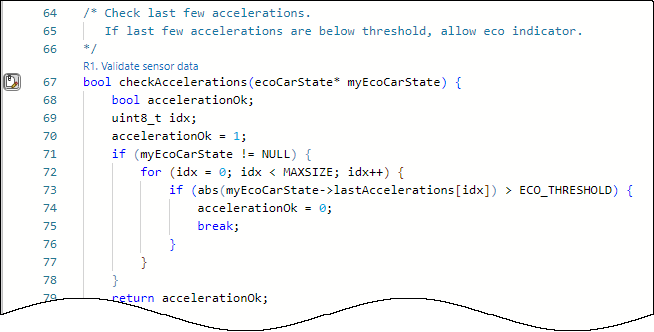
In a source file, the link appears above the function definition.
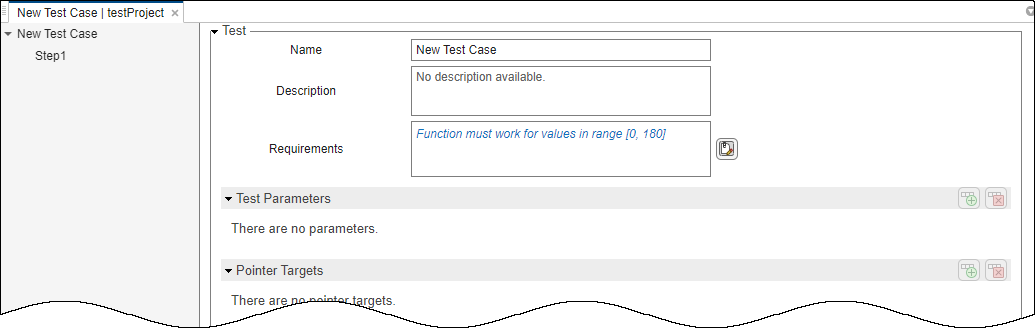
In a graphical test, the link appears in the Requirements field in the test case header or test step.
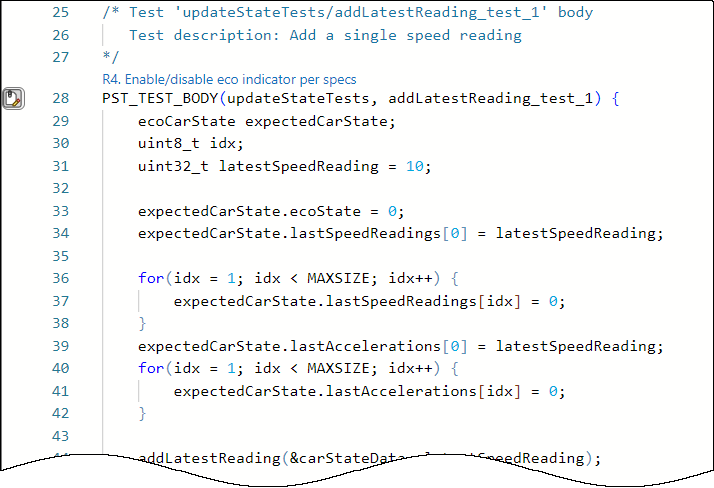
In a C/C++ xUnit test, the link appears above the test creation macro.
Navigate from Requirements to Linked Tests
Once your tests are linked to requirements, you can start from a requirements set in the Requirements Editor interface and open linked tests in the Polyspace Platform user interface:
In the Requirements Editor interface, open a requirement set.
Select a requirement in the requirement set. Below the Properties section on the right, you see a Links section containing the elements linked to the requirement.
Select a linked element to open the element in the Polyspace Platform user interface.
For instance, if the linked element is a test step, selecting the link opens the project containing the test in the Polyspace Platform user interface and then opens the test step.
See Overview of Links Between Requirements and Tests
Once your tests are linked to requirements via the Requirements Editor interface, you can also see an overview of the links between your requirements and tests:
On the Polyspace Platform toolstrip, select Traceability Matrix.
In the Traceability Matrix window, click Add.
In the Select Artifacts dialog box, in the Left dropdown, select your Polyspace Platform project (
.psprjxfile) and in the Top dropdown, select your requirements set (.slreqxfile).
You see a traceability matrix with the linkable elements of the project on the left and the requirements on the top. For each link between a linkable element and a requirement, you see an upward pointing arrow in the corresponding cell of the traceability matrix indicating a link between the test and requirement.
From the traceability matrix, you can perform actions such as see requirements that are not linked to tests or vice versa, and create new links between requirements and tests. For more information on using the traceability matrix, see Track Requirement Links with a Traceability Matrix (Requirements Toolbox).
Run Tests from Requirements
You can run tests directly from requirements in the Requirements Editor interface. In order to run a test from a requirement, you must change the type of the requirement link from the default value of Related to to Verifies.
To change the link type, see Modify the Link Type for Tests (Requirements Toolbox).
To run tests from the Requirements Editor interface:
Right-click a requirement set and select Run Tests.
In the Run Tests window, select the tests that you want to run and click Run Tests.
After the tests run to completion, when you select a requirement, in the Links section, you see a pass/fail icon next to the test case. Click this icon to open the test results in the Polyspace Platform user interface.
Additionally, in the Polyspace Platform user interface, in the Results pane, you can see a new node corresponding to the latest run. For more information on opening results from this node, see Open Polyspace Results in Polyspace Platform User Interface.
For more information, see Review Requirements Verification Status (Requirements Toolbox).

