Customize Linear Analysis Plots Using Property Editor
R2026bAfter you create a linear analysis response plot, you can interactively edit the plot using the Property Editor dialog box. To open the Property Editor, do one of the following:
Double-click in the plot region.
Right-click the plot, and select Properties from the context menu.
If you plot multiple responses in the same figure, you can edit the properties for each plot individually.
You can also modify response plot properties:
At the command line. For more information, see Customize Linear Analysis Plots at Command Line (Control System Toolbox).
Using the Property Inspector.
Overview of Property Editor
The appearance of the Property Editor dialog box depends on the type of response plot.
In general, you can change the following properties of response plots. Only the Labels and Limits tabs are available when using the Property Editor with Simulink® Design Optimization™ software.
Titles and X- and Y-labels on the Labels tab.
Numerical ranges of the X and Y axes on the Limits tab.
Units where applicable (for example, rad/s to Hz) on the Units tab.
If you cannot customize units, the Property Editor displays that no units are available for the selected plot.
Styles on the Style tab.
You can show a grid, adjust font properties, such as font size, bold, and italics, and change the axes foreground color
Change options where applicable on the Options tab.
These options include peak response, settling time, phase and gain margins, and so on. The Property Editor displays only the options supported for the selected response plot. For example, gain and phase margins are not available for step responses.
When you change the value in a field, press Enter to update the response plot. As you make changes in the Property Editor, the response plot updates immediately. Conversely, if you make changes in a plot using right-click menus, the Property Editor for that plot automatically updates.
Labels Tab
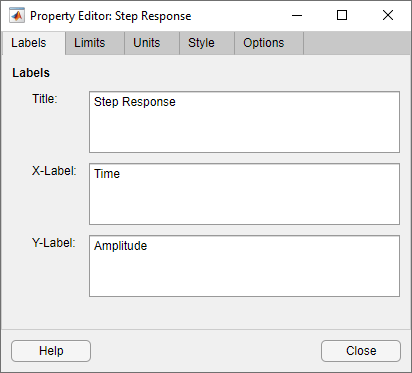
To specify new text for plot titles and axis labels, type the new names in the field next to the label you want to change.
Limits Tab
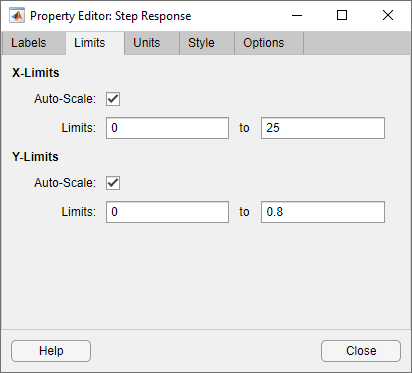
Default values for the axes limits ensure that the maximum and minimum x and y values are displayed. To override the default settings, change the values on the Limits tab. When you specify a custom limit value, the Auto-Scale parameter automatically clears.
To reset the limits to the default values, select Auto-Scale.
For MIMO systems, you can configure different limits for each input or output. You can also use the same limits for all inputs or all outputs. In the Group drop-down lists, select:
Allto specify limits for all inputs or all outputs.An individual input or output to specify different limits. Once you specify options for a specific input or output, the corresponding limits for the
Alloption are cleared.
Units Tab
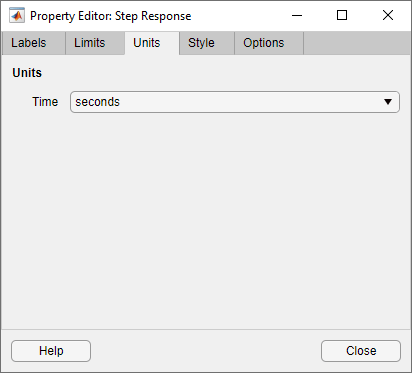
On the Units tab you can change units in your response plot. The contents of this tab depend on the response plot associated with the editor. Use the drop-down lists to select values for each type of unit.
Response Plot | Unit Properties |
|---|---|
Bode and |
|
Impulse |
|
Nichols Chart |
|
Nyquist Diagram |
|
Pole/Zero Map |
|
Singular Values, |
|
Step |
|
Style Tab
On the Style tab you can toggle grid visibility and configure font settings and axes foreground colors for response plots.
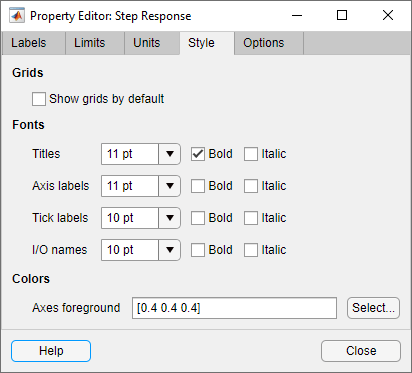
You can modify the following parameters:
Grids — Activate grids by default in new plots.
Fonts — Set the font size, weight (bold), and angle (italic) for fonts used in response plot titles, X/Y-labels, tick labels, and I/O names. Select font sizes from the menus or type any font-size values in the fields.
Colors — Specify the color vector to use for the axes foreground, which includes the X-Y axes, grid lines, and tick labels. Use a three-element vector to represent red, green, and blue (RGB) values. Vector element values can range from 0 to 1.
If you do not want to specify RGB values numerically, click Select to open the Color dialog box.
Options Tab
The Options tab enables you to customize response characteristics for plots. Each response plot has its own set of characteristics and optional settings.

Response Characteristic Options for Response Plots
Plot | Customizable Feature |
|---|---|
Bode Diagram and Bode Magnitude |
|
Impulse |
|
Nichols Chart |
|
Nyquist Diagram |
|
Passivity Indices | None |
Pole/Zero Map |
|
Sector Indices | None |
Singular Values | None |
Step |
|

