Hardware Setup
R2026bDescription
Add-On Required: This feature requires the MATLAB Coder Support Package for NVIDIA Jetson and NVIDIA DRIVE Platforms add-on.
The Hardware Setup tool sets up the third-party libraries required to use an NVIDIA® Jetson™ board with MATLAB®.
The tool installs the minimum required software for the Jetson board to work with MATLAB and can optionally install the NVIDIA CUDA® Toolkit and Robot Operating System (ROS) 2. You can optionally install additional software for:
Audio and video processing
Internet of Things (IoT) communication
The Modbus® protocol
The tool also sets the required environment variables so MATLAB can locate the required libraries during code generation. Use the Hardware Setup tool to prepare a Jetson board for use with the MATLAB Coder™ Support Package for NVIDIA Jetson and NVIDIA DRIVE® Platforms.
To use the Hardware Setup tool, you must:
Install Jetson Linux® on your NVIDIA Jetson board.
Connect the Jetson board to the internet.
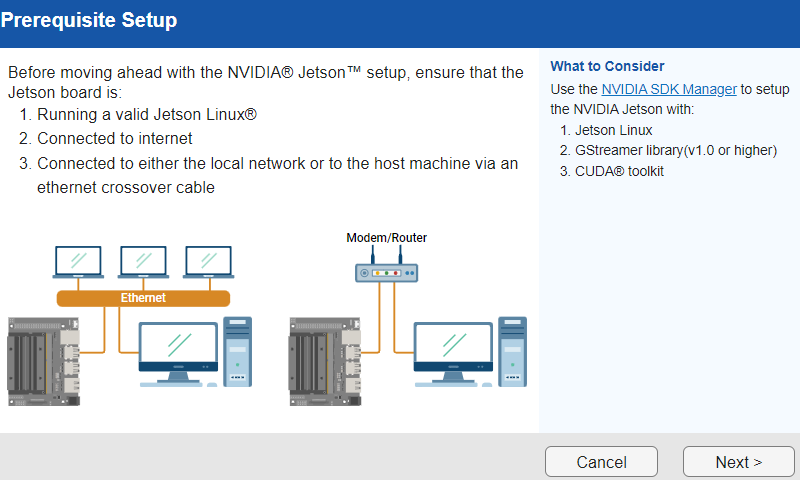
Connect the Jetson board and the host computer running MATLAB to the same local network. Alternatively, connect the host computer to the Jetson board by using an Ethernet crossover cable.
The Hardware Setup tool does not install the required libraries for NVIDIA DRIVE. To install required libraries for NVIDIA DRIVE, see Install Required Libraries on NVIDIA Boards Using the Terminal.
Open the Hardware Setup
MATLAB command prompt: Enter
jetsonSetup.MATLAB Toolstrip: In the Home tab, select Add-Ons > Manage Add-Ons. In the Add-Ons panel, in the Installed section, select the options button, and select Setup.
Examples
At the MATLAB command prompt, enter jetsonSetup. The Hardware
Setup tool opens.
jetsonSetup();
To connect the Hardware Setup tool, the board must be running Jetson Linux, be connected to the internet, and be connected to the local network or directly to the host machine running MATLAB.
To open the Connect to NVIDIA Jetson page, click Next.
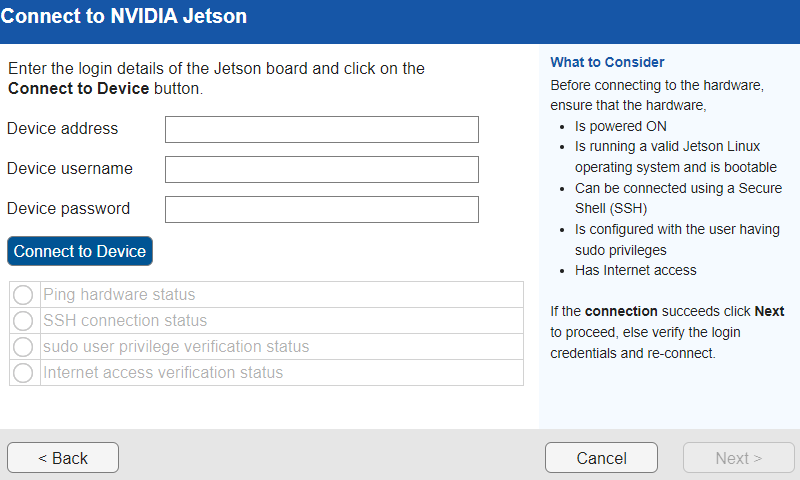
Enter the IP address or host name of the device in the Device address box. Enter the username and password for the board. Select Connect to Device. The tool checks if:
It can ping the board
It can connect to the board via secure shell (SSH)
The user profile has
sudoprivilegesThe board is connected to the internet
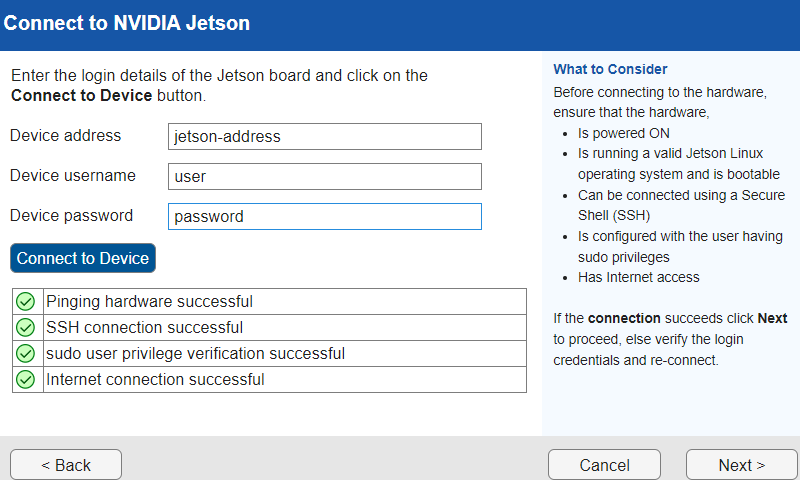
This image shows the results from a successful connection.
To continue setting up the board, click Next.

