Review C/C++ Test Execution Results
R2026bYou can author and execute C/C++ tests in the Polyspace Platform user interface or using the C/C++ xUnit-based API. After you build and run tests, you can review test execution results such as:
Test pass/fail information
Expected and actual values
This topic shows how to open and review your test results.
If you enable code coverage data collection before building and running tests, you can see code coverage results along with test execution results. See Review C/C++ Code Coverage Results.
Open Test Execution Results
You can open test execution results in the Polyspace® Platform user interface or in the Polyspace Access™ web interface:
You can see test execution results after building and running tests in the Polyspace Platform user interface. You can also open test execution results (
.pstestrfile) directly from your file explorer.In the Polyspace Platform user interface, once you have test execution results open, the Results pane contains a Test node. The node shows one of these icons:
 icon if at least one of the tests fails.
 icon if all tests pass.
 icon if at least one test is incomplete due to situations such as a run-time error.
You can right-click this node and open a summary of results in the Dashboard perspective or more detailed information in the Review perspective.
For more information, see Open Polyspace Results in Polyspace Platform User Interface.
You can upload test execution results to a Polyspace Access web server, and review the results in a web browser.
In the Polyspace Access web interface, you see test results on the Project Explorer pane. You can select a test result set to open a summary of results in the Dashboard perspective or select the Review button on the toolstrip to open more detailed information in the Review perspective.
For more information, see Upload Results to Polyspace Access.
You see the same display of test execution results in the Polyspace Platform user interface and the Polyspace Access web interface.
Once you open the results, you can see a summary of the results in the Dashboard perspective or more detailed information in the Review perspective.
You can also export your results to an HTML report. See Generate Reports from C/C++ Test Results.
See Overview of Test Results on Dashboard
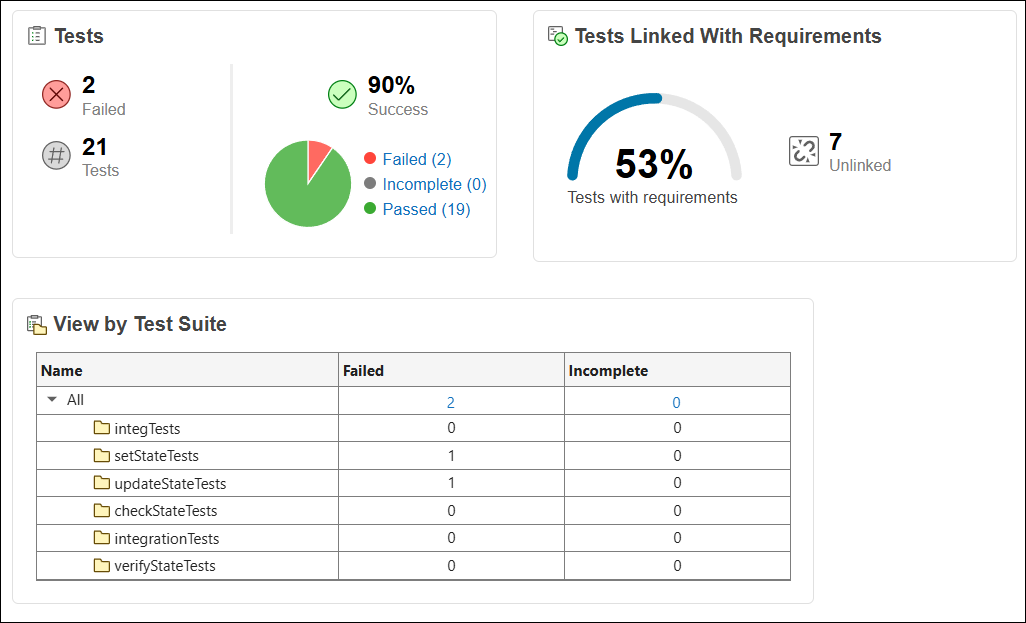
In the Dashboard perspective, open the Tests dashboard to see a high-level overview of the test results. The overview is composed of the following sections:
Test Points: This section shows the number of failed, incomplete, and passed test points. One test case may contain multiple test points.
A failed test point is one that contains one or more assessment failures. If a test is expected to fail but passes, it counts as a failed test point. A test can also fail because of a run-time error or an uncaught exception (C++).
An incomplete test point is one that has not run either because of a failed assertion during setup or because of a failed assumption.
For more information on:
Assertions (
ASSERTassessments) and assumptions (ASSUMEassessments), see Assessment Macros in Polyspace Test API for C/C++ Code.Test setup, see Group C/C++ Tests into Suites with Common Setup and Teardown Code.
A passed test point is one where all assessments pass. Even if an assessment fails, the failure is an expected one. For more information on how to write assessments that are expected to fail, see Write C/C++ Tests with Known Errors or Failures to Support Test-Driven Development.
Tests Linked to Requirements: This section shows the percentage of tests that are linked to requirements.
Note that a parameterized test counts as one test when this metric is reported even though each parameter value combination leads to a different test iteration, which results in multiple test points. This is because you can link an entire parameterized test to requirements but you cannot link an individual iteration to a requirement.
View by Test Suite: This section contains a per-suite breakdown of the test results.
View by Project: In the Polyspace Access web interface, you can also see a dashboard that spans several projects by selecting a parent folder in the Project Explorer pane. To help you distinguish between results from different projects, the Tests dashboard in Polyspace Access has an additional section View by Project that shows a per-project breakdown of the test results.
A typical Tests dashboard looks like this in the Polyspace Platform user interface.
Browse Through List of Test Results
The Review perspective contains three panes that show further details about your results: Results List, Result Details, and Test Definition.
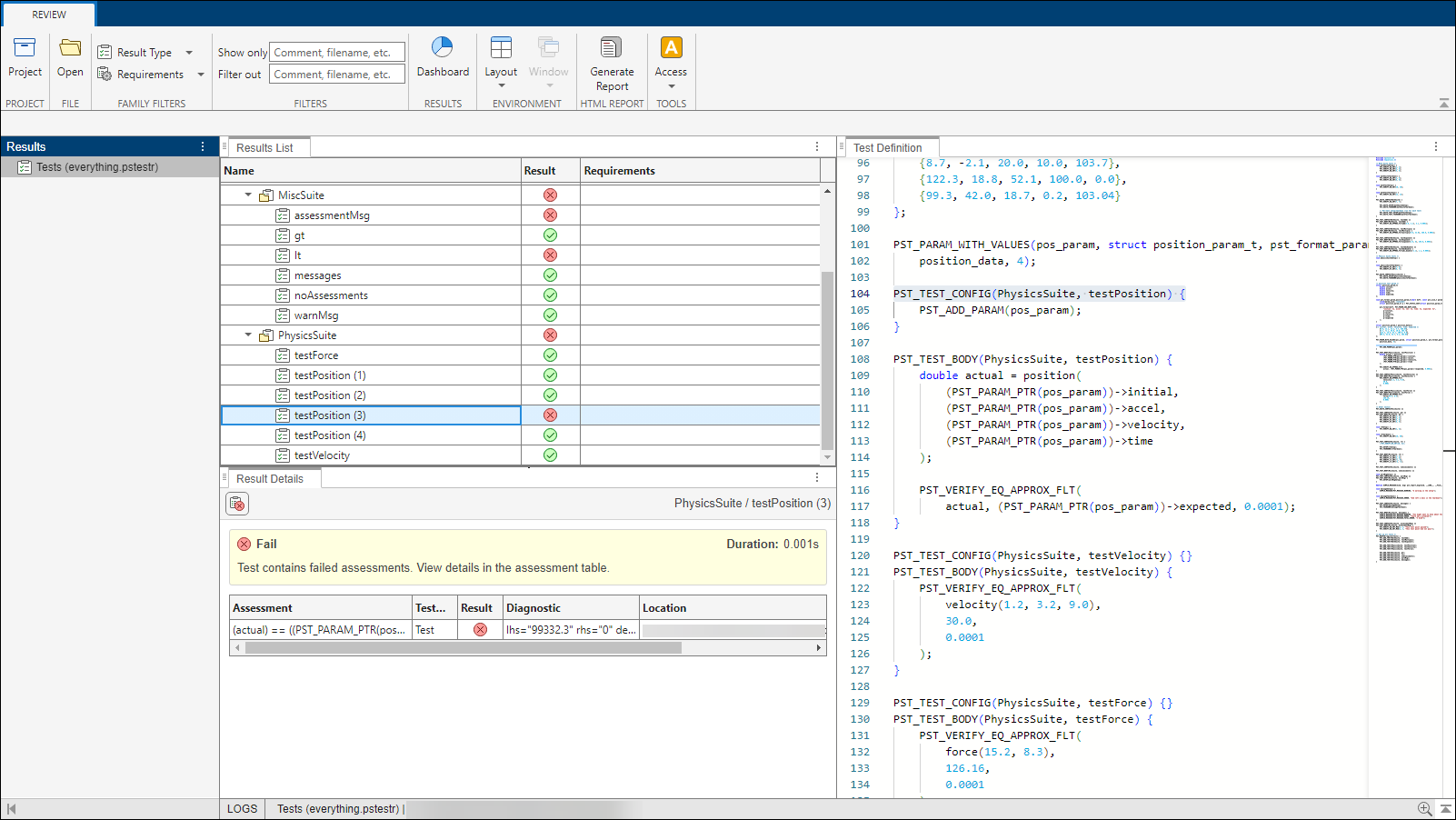
In this example, multiple test suites were run and the results show in the Results List pane. Select a result in the Results List pane to see:
Further information about the result on the Result Details pane.
A read-only copy of the test case definition on the Test Definition pane.
Instead of clicking through the results, you can use the arrow keys to navigate the list and use the space bar to expand or collapse each suite node.
Identify Reasons for Test Failure
Review detailed test result information in the Result Details pane. If you are reviewing a test suite, the cumulative statistics show in this pane as a table.
When you select an individual test case on the Results List pane, you see further information on the Result Details pane. For instance, you see whether the test passed or failed, and if it failed, determine whether the failure was due to failed assessments, an exception, or another reason.
In addition, you see the following information for each assessment in the test:
Assessment — The test assessment in comparison form, for example
lhs==rhsorlhs < rhs.Test Phase — The step (graphically authored tests) or phase (xUnit-authored tests) that contains the assessment. For xUnit tests, you see
Per-Test Setup,Setup,Test,Teardown, orPer-Test Teardown. For graphically authored tests, you see the step name that contains the assessment (graphically authored tests do not support test setup and teardown).Result — Whether the assessment passes, fails, or does not execute (incomplete).
Diagnostic — If a test fails, you see the values on the left-hand side (
lhs) and the right-hand side (rhs) of the assessment.If the assessment involves floating-point variables, you also see the value of the tolerance
tolthat you specified when authoring the test.Location (xUnit only) — The path to the file containing the assessment along with the line number of the assessment.
Type (xUnit only) — The type of test, either
ASSERTorVERIFY. For more information onASSERTandVERIFYassessments, see Assessment Macros in Polyspace Test API for C/C++ Code.Message (xUnit only) — Custom message that appears when a test fails. You can write a custom failure message only for tests authored using the C/C++ xUnit API.
Selecting an assessment in the Result Details table shows the location of the assessment at the time of execution in the Test Definition pane. For graphically authored tests, the location is the corresponding step in the test case editor. For xUnit tests, the location is the corresponding line of code where the assessment is defined.
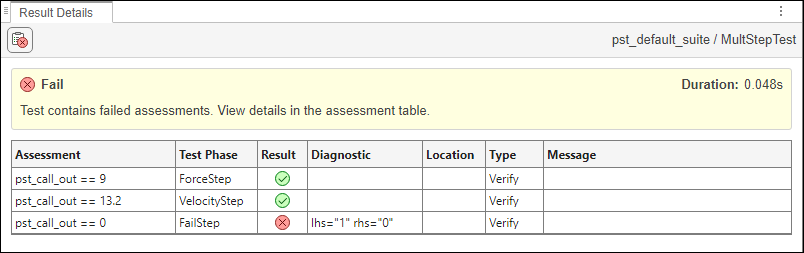
In this example, the graphically authored test MultiStepTest is selected in the Results List. The Result Details pane shows this information:
The test consists of three phases named
ForceStep,VelocityStep, andFailStep. Each step contains a single assessment.The assessments in the first two phases pass.
The assessment in the third phase fails. The Diagnostic column shows that the left-hand side of the assessment is 1 (actual value) while the right-hand side is 0 (expected value).
To further diagnose why a test failed, you might have to step through the test in a debugger. For more information on attaching a debugger for stepping through test execution, see Debug Test Failures from Polyspace Platform User Interface.
Navigate to Test Definition
When you select a test in the Result Details pane, the Test Definition pane shows a read-only copy of the test.
If you used the graphical user interface to author a test, each field appears as it does during test authoring.
If you imported an xUnit test, you see the test code.
You can see a pass status
or fail status in the test code:Next to the configuration of each test or test suite, indicating the pass/fail status of the test or suite.
Next to each assessment in the test body, indicating the pass/fail status of the assessment.
You can click the status icon next to an assessment to navigate to details of the assessment on the Result Details pane.
If an assessment runs multiple times, for instance, in a loop or in a parameterized test case, an annotation next to the assessment shows how many times the assessment ran and how many times it passed or failed.

You cannot edit tests in the Test Definition pane. If you need to edit a test case definition, you have to return to the test authoring view. For instance, to edit a graphical test, on the toolstrip, select Project to return to your project and open the test from the project.
Filter Test Results
In most cases, when reviewing test results, you want to focus on failing tests or failing assessments in a test. You can use filters on the Results List pane or the Result Details pane to focus on the types of test results you are interested in.
Filter Tests on Results List
When reviewing test execution results, you can use filters on the Polyspace Platform toolstrip to narrow down the scope of your review. These filters narrow down the list of tests displayed on the Results List pane.
Use the Result Type filter in the toolstrip to narrow your scope to passing, failing, or incomplete results. You can combine these filters. For instance, to see all failing and incomplete test results, select both the Fail and Incomplete filters.
Use the Requirements filter in the toolstrip to show only tests that are linked with requirements.
For more specific filtering, use the Show only and Filter out fields to show or hide results containing your specified text.
Filter Test Assessments on Result Details
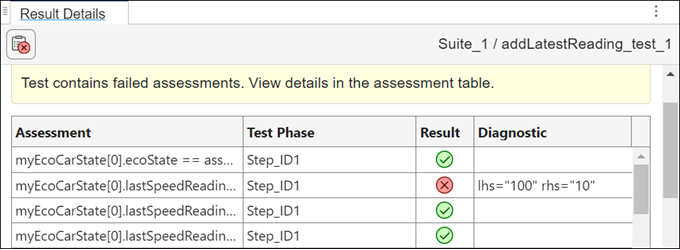
If a test contains multiple assessments, you can use filters on the Result Details pane to narrow down the list of assessments.
For instance, in the following example, the Result Details pane contains the results of a failing test that contains several assessments. Select the  icon to see only the assessments that are failing.
Review Function Call Sequence Assessment Results
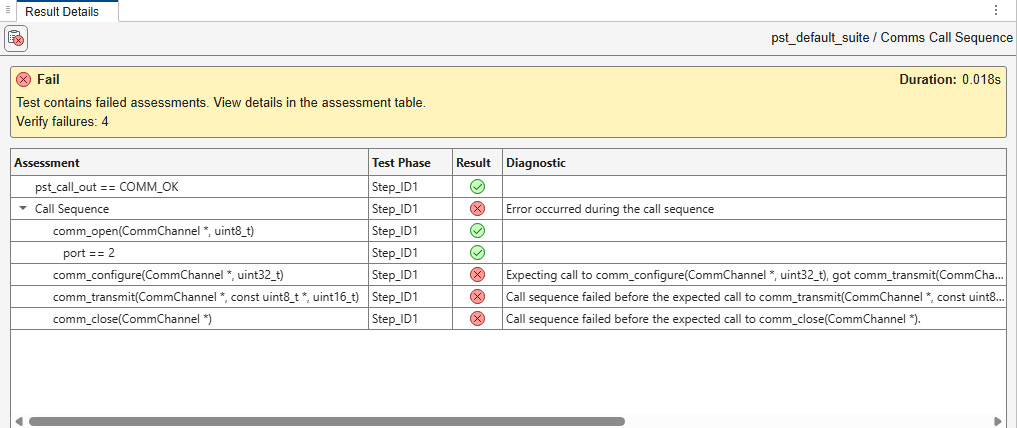
When a test step contains a function call sequence assessment, the Result Details pane displays an expandable Call Sequence node. When you expand the Call Sequence node, each expected function call appears as a separate assessment result. If the function call has any input parameter assessments enabled, those results appear indented below the function call.
When a call sequence assessment fails, the Diagnostic column provides details about the failure. Common scenarios that cause a call sequence assessment to fail include:
A function was called out of order.
A function in the sequence was not called.
A function included in the call sequence was called outside the defined sequence. The function call sequence is strict. When you include a function in the call sequence, it can only be called at the locations you specify.
An input parameter value did not match the expected value.
You can also review call sequence results using the Polyspace
Python® API. For more information, see polyspace.test.AssessmentResult.

