Prepare Model for Structured Text Generation
R2026bPrepare your model for Structured Text code generation by performing action such as setting the solver, identifying if your model is a single rate or multirate model, and checking model compatibility for structured text code generation.
Tasking Mode
If your Simulink® model contains multirate signals, you must set the tasking mode. If your Simulink model does not contain multirate signals, proceed to solver selection.
Simulink PLC Coder™ generates code for single-tasking subsystems. For multirate subsystems, you must first explicitly set the tasking mode to single-tasking before selecting a solver. In the model configuration, on the Solver pane, clear the check box for Treat each discrete rate as a separate task.
Choose a Solver
Choose a solver for your Simulink PLC Coder model.
| Model | Solver Setting |
|---|---|
| Variable-step | Use a continuous solver. Configure a fixed sample time for the subsystem for which you generate code. |
| Fixed-step | Use a discrete fixed-step solver. |
Configure Simulink Models for Structured Text Code Generation
This tutorial uses the example model plcdemo_simple_subsystem.
In the Command Window, enter the model name to open the model.
openExample('plcdemo_simple_subsystem');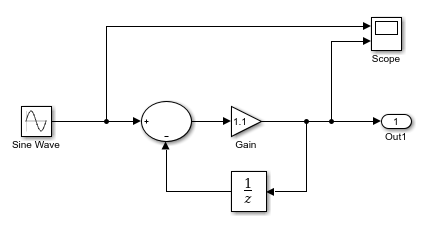
Configure the model to use the fixed-step discrete solver. Click the solver link in the lower-right corner of the model window. In the Solver information pane, click View solver settings to open the Solver pane of the model configuration parameters. Under the Solver selection, set Type to
Fixed-stepand Solver todiscrete (no continuous states).If your model uses a continuous solver and has a subsystem, configure a fixed sample time for the subsystem for which you generate code.
Save this model as
plcdemo_simple_subsystem1.Create an atomic subsystem containing the components for which you want to generate Structured Text code. To generate an atomic subsystem, select the components, right-click and select Create Subsystem from Selection > Atomic Subsystem.

Optionally, rename
In1andOut1toUandYrespectively, resulting in a subsystem shown in this image: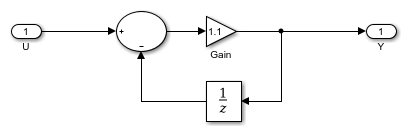
Save the model with the new subsystem.
Click OK.
Simulate, and then save your model.
You can now:
Set up your subsystem to generate structured text code. See Verify System Compatibility for Structured Text Code Generation.
Generate structured text code for your IDE. See Generate and Examine Structured Text Code.
Verify System Compatibility for Structured Text Code Generation
You must already have a model configured to work with the Simulink PLC Coder software. If not, see Prepare Model for Structured Text Generation
In your model, navigate to the subsystem for which you want to generate code.
Click the subsystem block and in the Apps tab, click PLC Coder. In the PLC Code tab, click Model Advisor. In the Model Advisor window, select all the Simulink PLC Coder checks, and click Run Checks.
If the subsystem is not atomic, right-click the Subsystem block, and in the PLC Coder app section
 , click Convert to Atomic
Subsystem to Generate PLC Code.
, click Convert to Atomic
Subsystem to Generate PLC Code.
Generate structured text code for your IDE. See Generate and Examine Structured Text Code.

