Manage Deployed Archives Using Admin Portal
R2026bDeployable archives are the atomic packaging mechanism used by MATLAB® Production Server™. The Production Server Compiler app, part of the MATLAB Compiler SDK™ product, generates a deployable archive that contains compiled MATLAB functions. A MATLAB Production Server instance loads a deployable archive and makes the compiled functions available at a URL containing the name of the archive and the name of the MATLAB function. MATLAB Production Server clients use the name of the deployable archive when they evaluate MATLAB functions against a server instance. For more information on creating deployable archives, see Create Deployable Archive for MATLAB Production Server (MATLAB Compiler SDK).
Note
Client developers must be informed of the name of the archive when Admin Portal is being used so that they can modify the client code to use the correct deployable archive name when invoking functions.
Add Archive
Select Deployed Archives from the leftmost menu.
Click the + Upload button.
Click Choose File in the Upload New Archive pop-up.
In the file browser, select the deployable archive to upload.
Click Upload.
Call Deployed Functions from Admin Portal
To call a function from the Admin Portal, select the Deployed Archives tab.
Select the name of your archive from the list of deployed archives.
Select the function you want to call from the Functions panel.
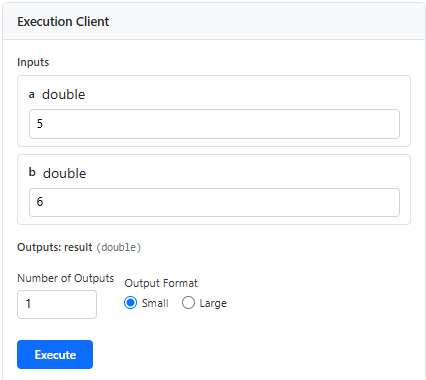
If your deployable archive included a function signature, you can use the Execution Client form to generate a request payload. Select Execute to make a call to the server.
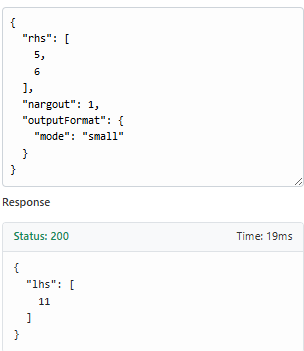
The Request Payload form contains the request in JSON format and the server response.
Undeploy Archive
To undeploy an archive from the Admin Portal, select the Deployed Archives tab.
Select the name of your archive from the list of deployed archives.
Select the Delete Archive icon.
Select Delete to confirm.

