Export Models to Simulink
R2026bExport Models for Simulation
You can export statistical models developed in the Model Browser to a Simulink® model for simulation and hardware-in-the-loop (HIL) testing.
From the Model Browser test plan or any model node, select File > Export Models. The Export Models dialog box opens.
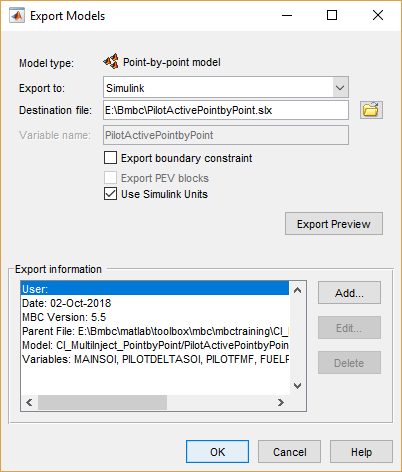
Ensure
Simulinkis selected in the Export to list.Edit the Destination file name if desired, or browse to locate a destination file using a file browser.
If you have a boundary model and you want to export it, select the Export boundary constraints check box.
If your model supports PEV blocks and you want to export PEV, select the Export PEV blocks check box. This option creates a PEV block as part of the Simulink diagram so that you can evaluate the prediction error variance along with the model.
If your model contains units, select the Use Simulink check box. This option exports the units to the input and output port signals in the Simulink model.
(Optional) Click Export Preview to check the models you have selected for export:
From the test plan node, you export all the response models in the test plan (provided you have selected best models for them all), or point-by-point models (when all local models are multiple models).
From a local model, you export all the local models as a point-by-point model.
From other model nodes, you export only the current model.
The Model type field on the Export Models dialog box displays the model type you are exporting: two-stage, point-by-point, or other model type.
(Optional) Click Add to add a comment to Export information.
Click OK to export the models to your specified destination file.
If you export a group of models, each model creates a block in the Simulink diagram.
Note
If you will use your Simulink model to generate code, on the Optimization
configuration parameter pane, ensure that Default parameter behavior
is set to Inlined. If you copy a block to another system, then
select Inlined before building the exported block into an
S-function.
Use Statistical Models for Plant Modeling and Optimization
You can use statistical models developed in the toolbox to capture real-world complex physical phenomena that are difficult to model using traditional mathematical and physical modeling. For example, you can export models for torque, fuel consumption, and emission (such as engine-out HC, CO, NOx, and CO2) to Simulink. You can then perform powertrain matching, fuel economy, performance, and emission simulations to improve powertrain component selections, drivability-related controls, and emission-related controls.
The key physical components of your model are derived from measured engine performance data. Therefore your models yield more accurate results than detailed physical models derived from theory that do not capture the complete physical phenomenon of the real-world system.
You can also reduce the time taken by computationally intensive simulations by creating an accurate statistical surrogate model of an existing detailed high-fidelity engine model. For example, you can use the toolbox to generate accurate, fast-running models from complex Simulink models or subsystems over the design space of interest. The statistical surrogate can then replace the long-running subsystems in Simulink to speed up simulation time.
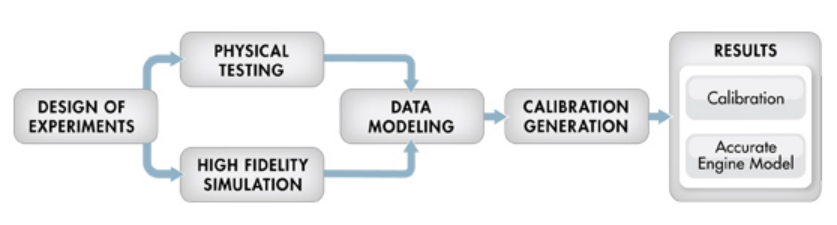
This graphic describes the model-based calibration workflow. You can use the accurate statistical engine model to replace the high-fidelity simulation and run much faster.
Use Statistical Models for Hardware-in-the-Loop Testing
You can use Model Browser statistical models exported to Simulink in real-time simulations with hardware to provide fast, accurate plant model emulation to the ECU sensor and actuator harnesses. Exported models can help you explore the effects of calibration changes in simulation without using prototype vehicles. You can simulate and test multiple engine and calibration options for earlier validation of ECU algorithm designs.
In the workflow graphic, this is represented by the Results section, where you can use the accurate engine model to fine-tune the calibration in simulation.
See Also
Topics
External Websites
- Integral Powertrain Helps Bentley Motors Increase Horsepower, Reduce Emissions, and Improve Driveability
- Mazda Speeds Next-Generation Engine Development of SKYACTIV TECHNOLOGY
- Reducing Time to Market Using Model-Based Design: Q&A with Toyota
- Toyota Front-Loads Development of Engine Control Systems Using Comprehensive Engine Models and SIL+M

