Lookup Table Optimization Overview
R2026bAfter fitting response models, use the Generate Calibration tool in the MBC Model Fitting app or the MBC Optimization app in the Model-Based Calibration Toolbox™ to generate lookup tables by solving optimization problems based on the fitted models.
Optimization results populate lookup tables, such as spark advance tables, boost control tables, or temperature estimation tables, and support analysis of calibration outcomes. Optimization can support development of base tables as well as the corrections and limits that act as modifiers. The lookup tables are intended to represent system behavior across the operating region and support calibration for control implementation. For more information, see Lookup Table Optimization.
You can export lookup tables to external files for use in ETAS® INCA or ATI VISION, or export them to a Simulink model or data dictionary for simulation.
Lookup Table Optimization Setup
Import fitted models and select the models to use for lookup table generation. Optionally, include function models to represent additional relationships or replace individual inputs. Define the operating points used for optimization, refine the ranges of input and optimization variables, and generate lookup tables to evaluate tradeoffs. See Calibration Setup.
The table lists common tasks when setting up calibration lookup tables.
| Task | Description | More Info |
|---|---|---|
| Import models |
| Import Models and Calibration Items |
| Create lookup tables |
|
Create and Run Optimization
Use optimizations to generate calibrations that meet performance goals while satisfying system constraints. Create optimizations at individual operating points or across operating ranges and representative drive cycles. Supported workflows include multiobjective tradeoffs, such as performance versus emissions, and modal optimization for discrete operating modes. If you have a Parallel Computing Toolbox™ license, you can execute operating‑point optimizations in parallel.
Optimization workflows support drive‑cycle weighting, parallel evaluation of operating points, and constraints such as operating boundaries, smoothness requirements, and per‑point limits to produce robust, cycle‑relevant lookup tables.
| Task | Description | More Info |
|---|---|---|
| Set optimization objectives |
| |
| Add constraints |
| |
| Specify optimization and operating point variables |
| Edit Optimization Variable Values |
| Set optimization options |
| Edit Optimization Options |
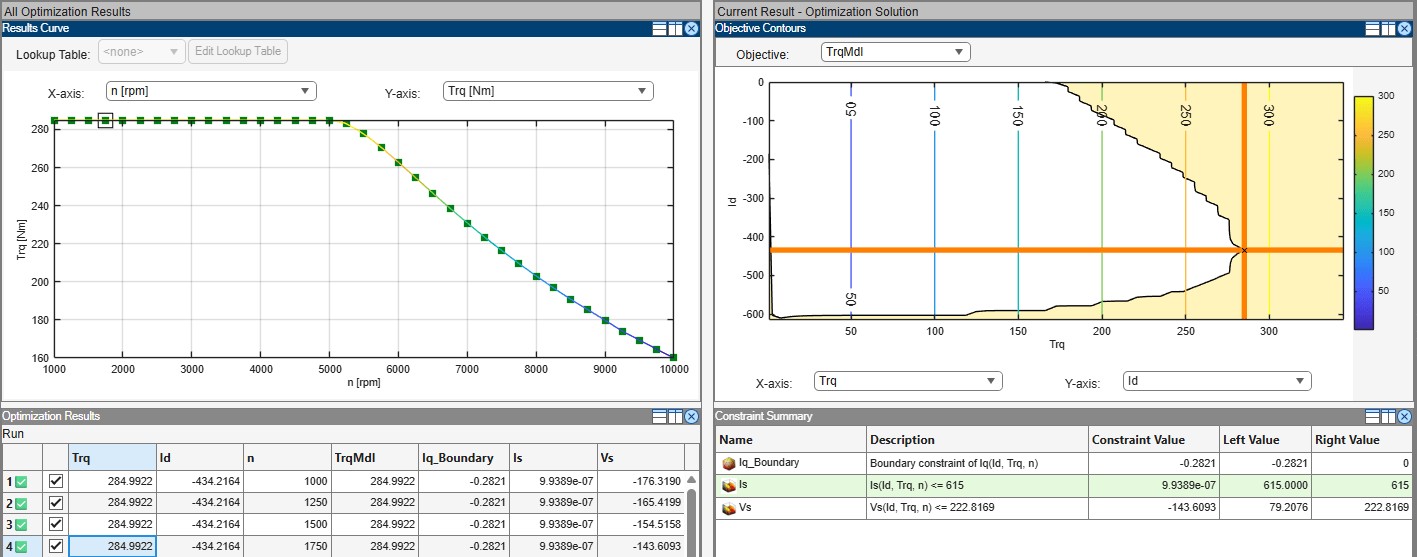
The optimization results screen allows you to view the results in plots or tables. The Results Curve plot marks successful optimizations with a green square. The Objective Contours plot shows the contour of the objective function on the optimization variable axis as well as the constraint-violated region in yellow and the solution for the optimization at the crosshairs. In the Optimization Results table, you can accept the results for the operating points that you want to use by selecting the corresponding check box.
Analyze Optimization Results and Fill Lookup Tables
Analyze optimization results using visualizations and tables, and then select the solutions to use and fill the lookup tables. Compare results across operating points and evaluate the shape of the resulting lookup tables or response surfaces. Populate lookup tables with the selected optimization results automatically, or selectively accept certain results. See View Your Optimization Results.
CAGE provides visualization tools to:
Identify solutions that violate constraints or boundary tolerances.
Inspect optimization results at individual operating points.
Compare optimized values against current calibration tables.
Explore Tradeoffs
Create a tradeoff calibration to balance competing objectives. Visualize optimization results from a lookup table perspective, manually adjust table values, and compare the modified tables with the original optimization results. See Set Up a Tradeoff Calibration.
For multiobjective optimizations, CAGE displays results as Pareto curves, so you can interactively select tradeoff solutions. For modal optimizations, you can select the optimal mode at each operating point and review mode selection across the operating range.
The Tradeoff tool lets you:
Interactively adjust lookup tables and observe the impact on objectives.
Synchronize optimization solutions with lookup table values.
Overlay measured data for comparison.
Revert to previous or optimized solutions.
This interactive exploration helps you to finalize calibration decisions before exporting tables.
Export Optimization Results
Export filled lookup tables to external files to be used in third-party calibration tools such as ETAS INCA or ATI VISION. For simulation workflows, you can export the tables into a Simulink model or data dictionary.
You can also update existing optimizations, replace or merge existing models, and rerun optimizations when models or data change.

