Add and Configure Faults Programmatically
R2026bThis example models a flight control algorithm for the longitudinal motion of an aircraft. Under normal operating conditions, this model works without issues. However, faults in the controller hardware or software can prevent functional behavior and create hazardous conditions. By modeling faults, you can investigate their impact, and prevent or mitigate fault effects on your design if necessary.
You can create and manage faults programmatically. In this example, you programmatically open a model, add faults with behaviors, and simulate. For more information on how to define and model faults interactively, see Define and Model Faults.
Open the slexAircraftFaultedExample example model.
mdl = "slexAircraftFaultedExample";
open_system(mdl);
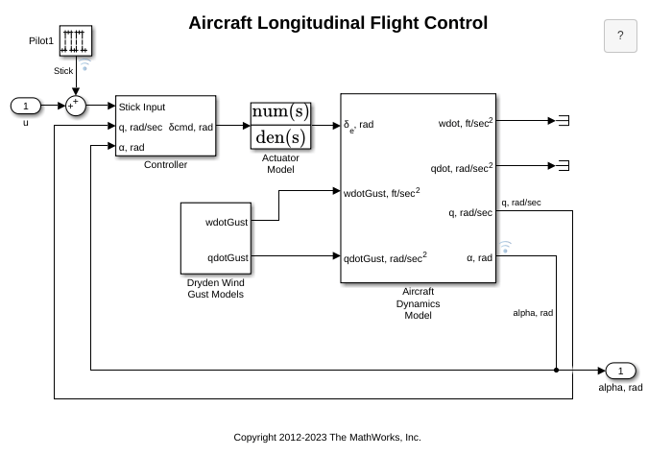
This model is a simplified and discretized version of the model in the Designing a High Angle of Attack Pitch Mode Control example.
Add Faults to the Model
In this example, the Controller subsystem represents the controller for the longitudinal flight control. Inside Controller, the alpha (rad) block represents the value of the pitch angle sensor and the Stick Input block represents the value of the control stick sensor. Use the Simulink.fault.addFaultSum1, and add one fault to the output of the Gain block, Gain3.
Simulink.fault.addFault(mdl + "/Sum1/Outport/1",Name="faultA");
Simulink.fault.addFault(mdl + "/Sum1/Outport/1",Name="faultB");
Simulink.fault.addFault(...
mdl + "/Controller/Gain3/Outport/1",Name="faultC");
Each fault you add has an associated Fault object. To modify the fault properties, retrieve the Fault objects as an array by using the Simulink.fault.findFaultsFault objects indexed alphabetically by name.
faults = Simulink.fault.findFaults(mdl);
Add Behaviors to the Faults and Specify Fault Triggers
In addition to adding faults to the model, you must assign behaviors to each fault in order to simulate their effects on the model. Use the addBehaviorfaultA and add noise behavior to faultB and faultC. Add the behaviors to a fault model named myBehaviors in the current folder.
addBehavior(faults(1),"myBehaviors",...
FaultBehavior="mwfaultlib/Stuck-at-Ground")
addBehavior(faults(2),"myBehaviors",...
FaultBehavior="mwfaultlib/Add Noise")
addBehavior(faults(3),"myBehaviors",...
FaultBehavior="mwfaultlib/Add Noise")
If you accidentally assign fault behavior, delete the fault behavior by using the deleteBehaviorFault object.
Faults are injected when specified conditions in the model occur. By default, faults are injected throughout simulation. However, you can specify different injection conditions, known as triggers. Specify the first and last faults as timed faults that are injected when the simulation time is equal to 30. Specify the trigger type and the trigger time by specifying the TriggerType and StartTime properties.
faults(1).TriggerType = "Timed";
faults(1).StartTime = 30;
faults(3).TriggerType = "Timed";
faults(3).StartTime = 30;
Create a Conditional
Specify the faultB trigger type as a conditional.
faults(2).TriggerType = "Conditional";
Conditionals have associated Conditional objects that you can create and customize. In this example, use the Simulink.fault.addConditional0.4.
myConditional = Simulink.fault.addConditional(...
mdl,"myConditional","u1 > 0.4");
Assign the conditional to faultB.
faults(2).Conditional = "myConditional";
Define the conditional so that it is true when the stick value is greater than 0.4. The output of Transfer Fcn block labeled Stick Prefilter represents the stick position. To assign the conditional symbol u1 to this model element, retrieve the symbol by using the getSymbolsType property of the Symbol object to "Model Element" and the Path property to the stick Prefilter output path.
mySymbol = getSymbols(myConditional);
mySymbol.Type = "Model Element";
mySymbol.Path = mdl + "/Controller/Stick Prefilter/Outport/1";
With this assignment, the conditional triggers when the stick signal value is greater than 0.4, and only then does the fault add noise to the value of the signal sent to the controller.
Enable Faults and Select the Active Fault
After defining the fault properties, enable faults on the specified model element, select the active fault, and turn on fault modeling. To enable faults, use the Simulink.fault.enablealpha (rad).
Simulink.fault.enable(mdl + "/Sum1/Outport/1",true);
Simulink.fault.enable(mdl + "/Controller/Gain3/Outport/1",false);
Set FaultA as the active fault.
activate(faults(1))
Turn on fault modeling.
Simulink.fault.injection(mdl,1);
Simulate and Inspect Results
To see the effects of the fault, simulate the model.
sim(mdl);
To view the status of the fault injection and the simulation results, open the Simulation Data Inspector by using the Simulink.sdi.view command.
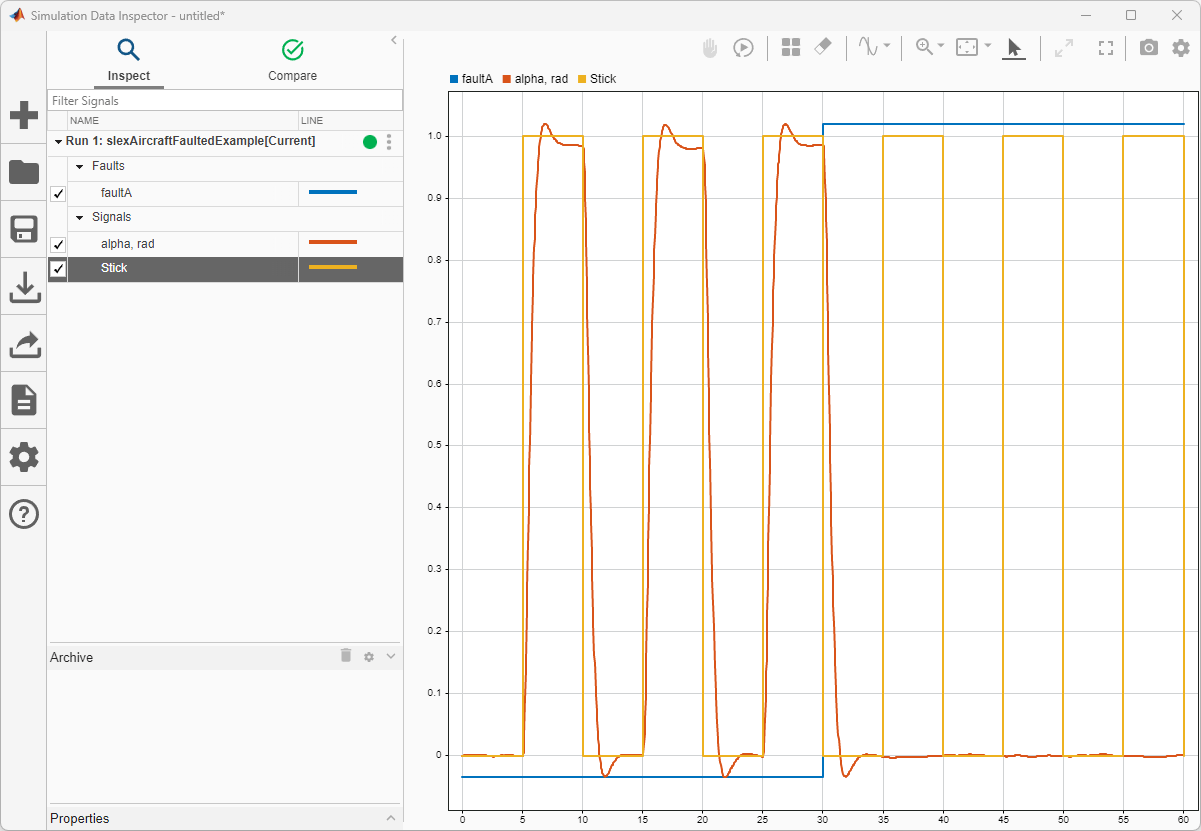
You cannot simulate faults on continuous signals unless their destinations are discrete. Consequentially, you can only simulate faultA or faultB.
See Also
getSymbols | Simulink.fault.addConditional | Simulink.fault.addFault | Simulink.fault.enable | Simulink.fault.save

