Pre-load TriCore0 with custom executable which enables current processing unit
R2026bPre-load TriCore 0 with custom executable file to enable current processing unit
Since R2026a
Model Configuration Pane: Hardware Implementation / Hardware board settings / Target hardware resources / Device
Description
Select to pre-load TriCore 0 with custom executable file to enable current processing unit.
Dependencies
For Infineon AURIX TC4x microcontrollers, enable this parameter by setting the
Processing unit parameter to TriCore1,
TriCore2, TriCore3,
TriCore4, TriCore5, or
PPU.
For Infineon AURIX TC3x microcontrollers, enable this parameter by setting the
Processing unit parameter to TriCore1,
TriCore2, TriCore3,
TriCore4, or TriCore5.
Settings
off
(default) |
on
off– Disable this parameter to manually deploy the executable and linkable format (ELF) file of any TriCore0 based model to enable the auxiliary core used in your application model.Follow these steps for Infineon AURIX TC4x microcontrollers:
Open TriCore 0 based application model. For example, open Getting Started with Embedded Coder Support Package for Infineon AURIX TC4x Microcontrollers example in MATLAB® and open
tc4x_8ledsBlinky.slxmodel.Click Ctrl+E or navigate to Modeling > Model Settings to open the Configuration Parameters.
Navigate to Hardware Implementation > Hardware board settings > Target hardware resources > Startup options and enable the preferred auxiliary core. For example, select Enable PPU parameter if your single-core flat model uses PPU core.
Click Apply to apply the changes.
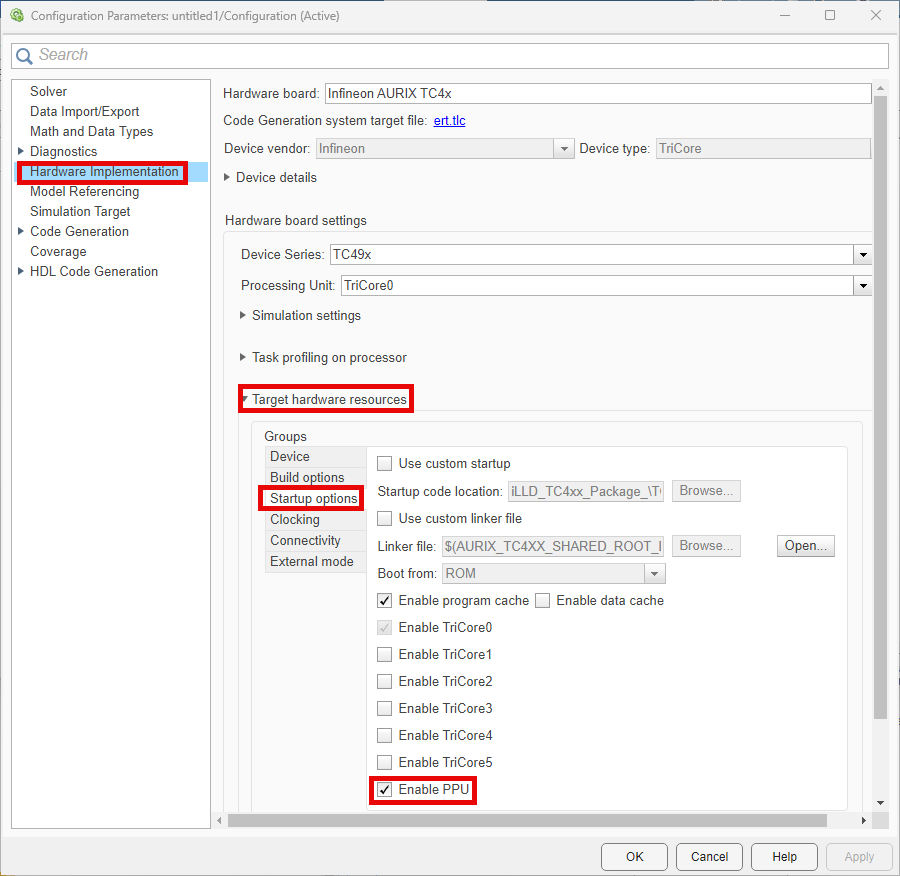
Click Build, Deploy & Start on the Hardware tab, follow the build process to generate executables, and deploy the generated ELF file of
TriCore0onto the hardware board.
Follow these steps for Infineon AURIX TC3x microcontrollers:
Open TriCore 0 based application model. For example, open Getting Started with Embedded Coder Support Package for Infineon AURIX TC3x Microcontrollers example in MATLAB and open
tc3x_2ledsBlinky.slxmodel.Click Ctrl+E or navigate to Modeling > Model SettingsModeling to open the Configuration Parameters.
Navigate to Hardware Implementation > Hardware board settings > Target hardware resources > Startup options and enable the preferred auxiliary core. For example, select Enable TriCore2 parameter if your single-core flat model uses TriCore 2 processing unit.
Click Apply to apply the changes.
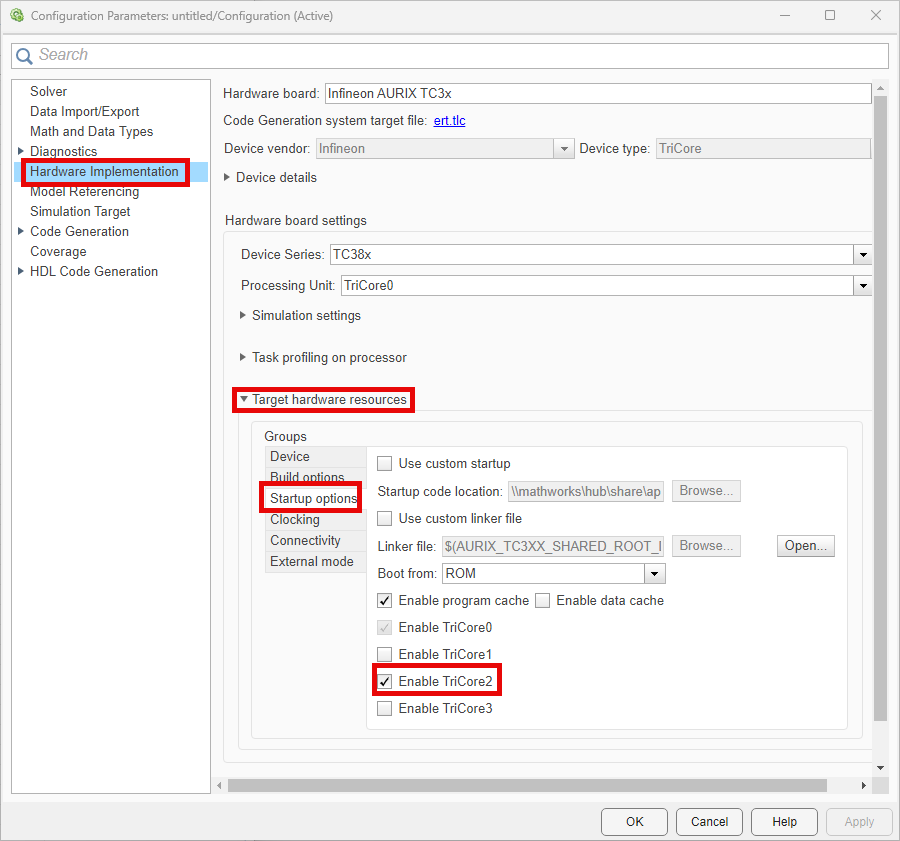
Click Build, Deploy & Start on the Hardware tab, follow the build process to generate executables, and deploy the generated ELF file of
TriCore0onto the hardware board.
This deployment kick-starts the selected auxiliary core and you can proceed with simulations, code generation, and deployment of your auxiliary core based application model.
on– Enable this parameter to view Executable file for TriCore0 parameter, where you can provide your own custom executable file to enable the auxiliary core used in your application model.
Recommended Settings
| Application | Setting |
|---|---|
| Debugging | No impact |
| Traceability | No impact |
| Efficiency | No impact |
| Safety precaution | No impact |
Programmatic Use
| No programmatic use is available. |
Version History
Introduced in R2026a

