Analyze Memory Usage of Compilers
R2026bEmbedded Coder® Support Package for Infineon® AURIX™ TC4x Microcontrollers requires third-party compilers tool chains to develop single-core and multicore application models. You can specify the Toolchain parameter in the Configuration parameters dialog box.
To view the memory allocated for different program regions on Infineon AURIX microcontrollers during the compilation process using compiler-specific commands, follow these steps:
Locate the executable and linkable format (ELF) file generated after building the Simulink® model.
From the Windows Start menu, open a Command Prompt window.
Navigate to
binfolder in the compiler installation path. For example, for the TASKING® compiler, navigate to…\TASKING\SmartCode v10.3r1\ctc\bin.To view the total memory usage by the compiler. run the command for your compiler, run the command for your compiler. The table lists supported third-party compiler toolchains, their installation paths, and the compiler-specific commands for analyzing memory usage. Replace model.elf file with the path to your generated ELF files.
Compiler Command Command Full Path TASKING Smartcode elfsize.exe [options] <model.elf file>…\TASKING\SmartCode v10.3r1\ctc\binGreen Hills® MULTI® gsize [-table] [-all] [-nototals] model.elf file1 [model.elf file2 ...]…\ghs\comp_202414HighTec LLVM
llvm-size.exe [options] <model.elf files>…\HighTec\toolchains\tricore\v9.1.1\bin>GCC for AURIX TriCore based on AURIX Development Studio tricore-elf-size.exe [options] [model.elf file(s)]…\tools\Compilers\tricore-gcc11\binSynopsys® MetaWare for Infineon AURIX TC4x
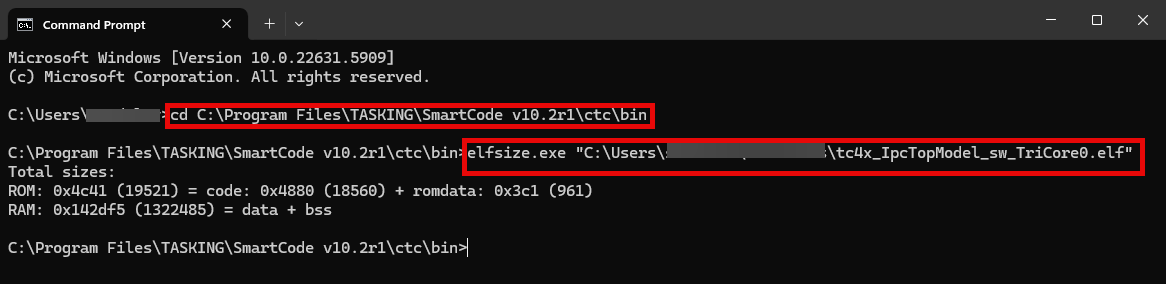
sizearc.exe [options] <model.elf file>…\MetaWare\arc\bin\For instance, this image shows the Command Prompt window with the commands for the TASKING compiler.
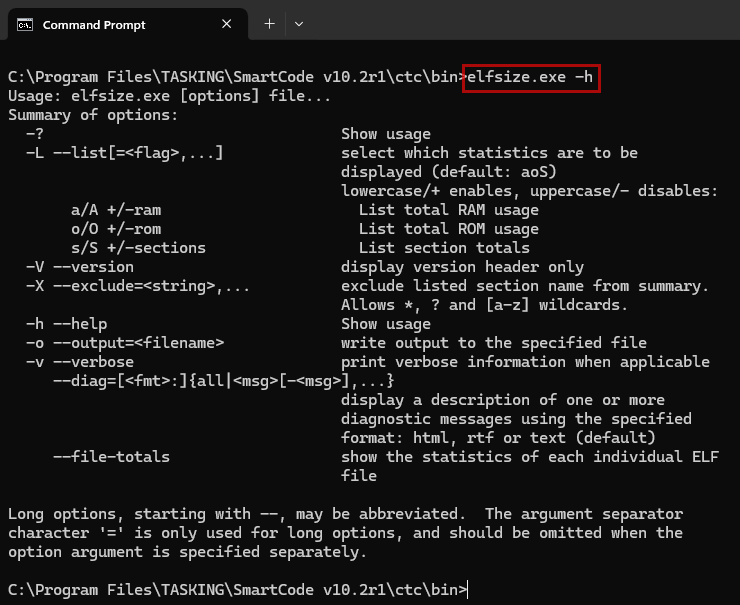
You can also explore other available compiler options by adding the -h flag to the compiler-specific command. For instance, list additional options for the TASKING compiler.
elfsize.exe -h