Simulink Real-Time Instrument Viewer
R2026bDescription
Simulink®
Real-Time™ Instrument Viewer tool provides a user interface to view and modify instrumented
signals from a real-time application that have been added to a Target object.
You can view and modify instruments by using Instruments for SDI,
Instruments for MATLAB, and Instruments for
FileLog selections.
Use the Simulink Real-Time Instrument Viewer for these tasks:
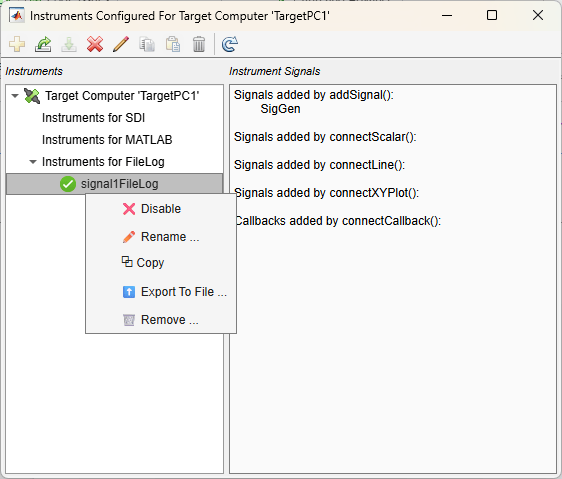
Create a new instrument — After naming the instrument, you can select signals to add to the instrument. These signals appear as Signals added by addSignal() in the Instrumented Signals list.
Export instrument(s) to file
Import instrument from file
Disable instrument or enable instrument
Edit instrument name
Copy instrument
Paste instrument
Remove instrument
Refresh dialog box
Open the Simulink Real-Time Instrument Viewer App
After connecting to the Target object
tg, in the MATLAB® Command Window, type:
view(tg.Instruments)
Examples
This example shows how to instrument a signal from a real-time application and configure the instrument for file logging on the target computer by using the Simulink Real-Time Instrument Viewer.
Open an example Simulink model, for example, slrt_ex_osc_rt. In the Command
Window, type:
openExample('slrt_ex_osc.slx')Create a target object and connect to the target computer. Open the model and configure the model for the target computer. Build the model.
tg = slrealtime;
connect(tg);
model = 'slrt_ex_osc';
modelSTF = getSTFName(tg);
set_param(model,"SystemTargetFile",modelSTF);
slbuild(model);
load(tg,model);
At this point, you can define instruments programmatically to add signals to the
instruments by using addForFileLog, addForMATLAB, or addForSDI. Instead, the next steps use the Instrument
Viewer user interface to add instruments.
Open the Instrument Viewer. In the Command Window, type:
view(tg.Instruments);
In the Instruments Configured For … window, select
Instruments for FileLog, then click Create.
Name the instrument signal1FileLog. In the Signal
Selector dialog box, expand the Named Signals node and
select the SigGen signal. Add the signal to the instrument and click
OK.
The Instruments Configured For … window displays the signal that you added to the instrument.
Parameters
No parameters are available for this application.
Programmatic Use
Version History
Introduced in R2026a

