Adjust Dashboard Thresholds to Match Your Testing Criteria
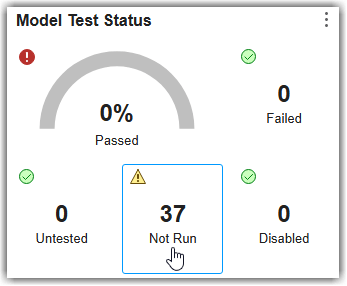
R2026bThe dashboards for model, SIL code, and PIL code testing show how metric results compare against shipping thresholds by displaying compliance overlays on widgets. Each overlay indicates whether the results are compliant, non-compliant, cause a warning, or are uncategorized. You cannot modify shipping threshold sets directly. Instead, to modify or remove thresholds for your project, copy a shipping set into a custom threshold set, then modify the copy. For example, you can make a widget show a warning for review instead of marking results as non-compliant.
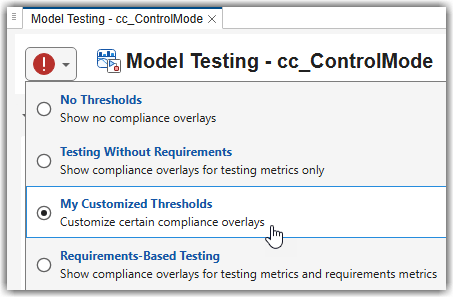
Your custom threshold sets appear alongside the shipping sets in the threshold settings menu.
What You Can Customize
You can customize threshold rules for any dashboard widget that displays a compliance overlay:
Change severity levels — Reclassify results as warnings so the widget highlights results for review without marking them as non-compliant. For example, you can display a warning when some tests have not run yet.
Define acceptable ranges — Adjust compliance conditions so results within a specified tolerance remain compliant. For example, you can allow a certain number of tests to remain not run and still report a compliant status.
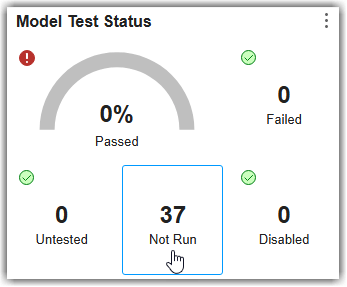
Remove a threshold rule — Remove a threshold rule from a widget to stop displaying a compliance overlay on that widget. For example, if your project does not require all tests to run, you can remove the threshold for the Not Run widget.
Add additional classifications — Extend threshold rules to add multiple classification levels, such as
Compliant,Warning, andNonCompliant. The shipping threshold sets include onlyCompliantandNonCompliantclassifications.
Each compliance overlay on a widget corresponds to a single threshold rule. You can customize rules independently. Changing the threshold for one widget does not affect other widgets, even within the same section of the dashboard.
Threshold Concepts and Terminology
There are four layers to a threshold definition. Each level controls how the dashboard evaluates results.
The threshold definition has the following hierarchy: a configuration contains a threshold set, which contains threshold rules, each of which contains classifications. Each of these hierarchy levels is represented by an object in MATLAB®.
| Term | Definition | Where Used | MATLAB Representation |
|---|---|---|---|
| Configuration | File that stores your threshold sets. | The file you save to disk and register with MATLAB. | |
| Threshold Set | Named collection of threshold rules. Each set defines a complete set of compliance criteria for the dashboard. | The options in the threshold settings dropdown in the top-left corner of the dashboard. | |
| Threshold Rule | Rule that associates one metric with a set of classifications. Each rule corresponds to one indicator on one widget. | A single compliance overlay that appears on a dashboard widget. | |
| Classification | Condition that determines the compliance status for a metric result. Each threshold rule has one or more classifications evaluated in order. | The compliance status shown in the overlay tooltip. | |
Each classification assigns one of four compliance statuses:
 Compliant — The metric result meets the
threshold criteria.
Compliant — The metric result meets the
threshold criteria. Non-Compliant — The metric result does
not meet the threshold criteria.
Non-Compliant — The metric result does
not meet the threshold criteria. Warning — The metric result needs
review.
Warning — The metric result needs
review. Uncategorized — No threshold rule
applies to the metric result.
Uncategorized — No threshold rule
applies to the metric result.
Identify Threshold to Customize
To modify a threshold, first identify the metric and rule used by a widget. Only widgets that have a shipping threshold display a compliance overlay. If a widget does not show a compliance overlay, it does not have a shipping threshold and you cannot customize its threshold.
Note
The Model, SIL Code, and PIL Code Testing dashboards include shipping thresholds and support threshold customization. The Project Model Testing, Model Maintainability, and Model Design dashboards do not include shipping thresholds and do not support threshold customization.
Open a Model Testing, SIL Code Testing, or PIL Code Testing dashboard.
For this example, open the Model Testing Dashboard on the cruise control example project:
openExample("slcheck/ExploreTestingMetricDataInModelTestingDashboardExample")
openProject("cc_CruiseControl");
modelTestingDashboard
In the dashboard, point to a compliance overlay for a widget, then expand the Threshold Details in the tooltip as shown in the video.
Note the IDs shown in the tooltip. You use these identifiers when editing thresholds.
For example, for the Not Run widget in the Model Testing Dashboard, the IDs are:
Metric ID —
modeltesting.TestResultAnalysis[slcomp.TestStatusDistribution]Threshold Rule ID —
NotRunThreshold Set ID —
ReqBasedTesting
Create Custom Threshold Set
To create a custom threshold set, copy a shipping threshold set and then modify its rules.
Identify which threshold sets are available in your project by using the
getThresholdSetsfunction with the metric engine.metricEngine = metric.Engine; ts = getThresholdSets(metricEngine); ts.Id
Copy a shipping threshold set by using the
copyThresholdSetfunction. For example, copy"ReqBasedTesting"into a new set called"MyTestingThresholds".config = metric.config.Configuration.copyThresholdSet( ... SourceThresholdSetId="ReqBasedTesting", ... TargetThresholdSetId="MyTestingThresholds")
To copy only threshold rules for specific metrics, specify the
MetricIdsargument.config = metric.config.Configuration.copyThresholdSet( ... SourceThresholdSetId="ReqBasedTesting", ... TargetThresholdSetId="MyTestingThresholds", ... MetricIds=["modeltesting.RequirementsBasedCoverage[slcomp.CoverageRatio]", ... "modeltesting.TestResultAnalysis[slcomp.TestStatusDistribution]"])
Update the threshold set name and description to identify the custom threshold set in the threshold settings.
config.ThresholdSets.Name = "My Customized Thresholds";
config.ThresholdSets.Description = "Custom compliance criteria for my project";
Set the
FileNameproperty on the configuration, then save and register the configuration so your custom threshold set appears in the dashboard. You must setFileNamebefore callingsaveAndRegister. The file must be in a location accessible to MATLAB, such as a folder on the MATLAB search path, in a MATLAB project, or in a MATLAB package. When you save the configuration in a MATLAB project, save the file in the project root folder.proj = currentProject; p = proj.RootFolder; config.FileName = fullfile(p,"MyConfig.json"); saveAndRegister(config,ResourcesLocation=p)The custom threshold set, My Customized Thresholds, now appears alongside the shipping sets. At this point, the compliance overlays are identical to Requirements-Based Testing because you have not yet modified any threshold rules.
Modify Threshold Rules
After you create a custom threshold set, modify its threshold rules to change how the dashboard evaluates specific metrics.
Change Classification Criteria
Get a threshold rule by using the getThresholdRule
function, then modify its Classifications property to
change the compliance conditions.
For example, the Not Run threshold rule has these default classifications:
Compliant:
"Value.NotRun == 0"Non-Compliant: otherwise
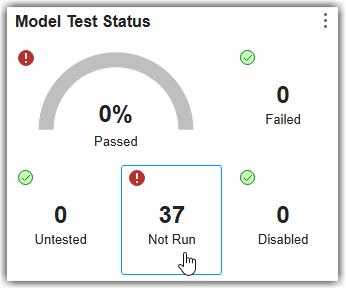
Suppose your project tolerates some tests not running and you want a warning instead of a non-compliant status. Get the threshold rule and view its classifications.
th = getThresholdRule(config, ...
    ThresholdSetId="MyTestingThresholds", ...
    MetricId="modeltesting.TestResultAnalysis[slcomp.TestStatusDistribution]", ...
    ThresholdRuleId="NotRun");

th.Classifications(1)
th.Classifications(2)
ans =

  Classification with properties:

     Category: Compliant
    Statement: "Value.NotRun == 0"
      Summary: "All tests have run"


ans =

  Classification with properties:

     Category: NonCompliant
    Statement: ""
Summary: "Some tests have not run"Category— Compliance status (Compliant,NonCompliant,Warning, orUncategorized)Statement— Comparison statement that determines when the classification applies. In the statement,Valuerefers to theValueproperty of themetric.Resultobject for the metric. The fields available onValuedepend on which metric was executed. The statement can use relational, logical, and arithmetic operators to compare metric result field values against expected values. Function calls are not supported.Summary— Message shown in the compliance overlay tooltip
The dashboard evaluates these classifications in order. Each
classification with a Statement property acts like an
if or else-if condition. The
classification with an empty Statement property acts as a
default else case and must be the last classification in the
threshold
rule.
To relax this threshold rule, change the non-compliant classification to a warning.
th.Classifications(2).Category = "Warning"You can relax the threshold rule even further by changing the classification statement. For example, to allow up to one test to remain not run and still compliant:
th.Classifications(1).Statement = "Value.NotRun <= 1";
th.Classifications(1).Summary = "One or fewer tests did not run";
th.Classifications(2).Summary = "More than one test did not run";
After making changes, save and register the configuration to apply updates in the dashboard.
saveAndRegister(config,ResourcesLocation=p)
The Not Run widget now shows a warning instead of a non-compliant status when tests have not run, and treats one not run test as compliant.
Remove Threshold Rule
To remove a threshold rule from the custom threshold set, use the
removeThresholdRule function.
For example, to remove thresholds from the Not Run widget entirely:
removeThresholdRule(config, ...
    ThresholdSetId="MyTestingThresholds", ...
    MetricId="modeltesting.TestResultAnalysis[slcomp.TestStatusDistribution]", ...
    ThresholdRuleId="NotRun")
saveAndRegister(config,ResourcesLocation=p)
The widget no longer shows a compliance indicator.
Add Threshold Rule
To add a threshold rule for a metric, use
addThresholdRule. A new rule has no classifications, so
you must add classifications to define the compliance criteria. Classifications
are evaluated in the order you add them. Place the fallback classification (with
an empty Statement) last. You can only add threshold rules
for metrics that already have a shipping threshold defined. You cannot add
thresholds to widgets that have no default
threshold.
For example, create a rule where having fewer than five tests not run is compliant and more than five is uncategorized:
newRule = addThresholdRule(config, ...
    ThresholdSetId="MyTestingThresholds", ...
    MetricId="modeltesting.TestResultAnalysis[slcomp.TestStatusDistribution]", ...
    ThresholdRuleId="MyNewRuleForTestsNotRun");

addClassification(newRule, ...
    Category="Compliant", ...
    Statement="Value.NotRun < 5", ...
    Summary="Less than 5 tests not run");

addClassification(newRule, ...
    Category="Uncategorized", ...
    Statement="", ...
    Summary="More than 5 tests not run");

saveAndRegister(config,ResourcesLocation=p)
Apply Custom Thresholds
You can apply custom thresholds in the dashboards and with the
metric.Engine API.
Interactively Apply Custom Thresholds
After you save and register a custom threshold configuration, the threshold set appears in the threshold settings in the top-left corner of the Model Testing, SIL Code Testing, and PIL Code Testing dashboards. Select the threshold set to apply your customized compliance criteria.
Programmatically Apply Custom Thresholds
You can execute metrics and classify results against a custom threshold set programmatically.
To see which threshold sets are available, including any custom threshold sets
you registered, use the getThresholdSets function on the
metric
engine.
metricEngine = metric.Engine;
sets = getThresholdSets(metricEngine)
You can execute metrics against a specific threshold set by using the
execute function with the
ThresholdSetId argument. For example, programmatically
assess metric results against the custom threshold set
"MyTestingThresholds".
metricIDs = ["modeltesting.TestResultAnalysis[slcomp.TestStatusDistribution]", ...
             "modeltesting.RequirementsBasedCoverage[slcomp.CoverageRatio]"];
results = execute(metricEngine,metricIDs,ThresholdSetId="MyTestingThresholds")
To compare existing results against a specific threshold set without
reexecuting the metrics, you can use the getMetrics
function with the ThresholdSetId
argument.
results = getMetrics(metricEngine,metricIDs,ThresholdSetId="MyTestingThresholds")Each metric result object includes a ThresholdOutcomes
property that contains the classification results. Access the outcomes to see
how each metric result was
classified.
to = results(1).ThresholdOutcomes
to =

  1×5 ThresholdOutcome array with properties:

    ClassificationCategory
    ThresholdRuleId
    ThresholdSetId
DiagnosticsClassificationCategory
property contains the compliance result for each threshold rule so that you can
identify whether the metric result was Compliant,
NonCompliant, Warning, or
Uncategorized against the specified threshold set. Each
outcome also includes the ThresholdRuleId and
ThresholdSetId that produced the classification.Unregister Configuration
To remove a custom threshold set from the dashboard, unregister the configuration file.
metric.config.unregister(config.FileName,p)
To verify that a custom threshold set is no longer available, you can check the registered threshold sets.
sets = getThresholdSets(metricEngine);
sets.Id
See Also
metric.config.Configuration | metric.Engine

