Import Data from DuckDB Database File Using Database Explorer
R2026bThis example shows how to use the Database Explorer app to import specific data that you select from a DuckDB™ database file. In this example, you use a data set from the New York City Taxi & Limousine Commission [1]. The data set is included with Database Toolbox™ in a database file, nyctaxi.db, which contains a single table, demo.
1. Open the Database Explorer app.
2. In the Connections section, click Connect.
3. Select Open DuckDB File.
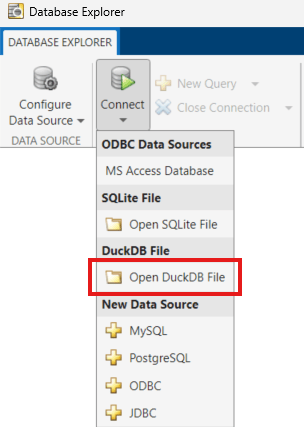
4. Navigate to the folder matlabroot\toolbox\database\dbdata, where matlabroot is the root directory where you installed MATLAB®, and select the nyctaxi.db file. Click OK. Database Explorer creates the DuckDB database connection, and the Database Browser pane displays the available tables in the database.
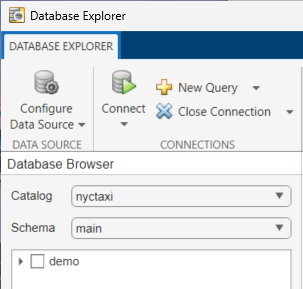
5. Expand the demo table to see the list of columns that the table contains.
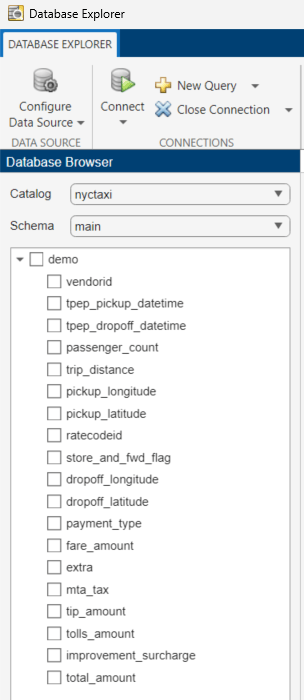
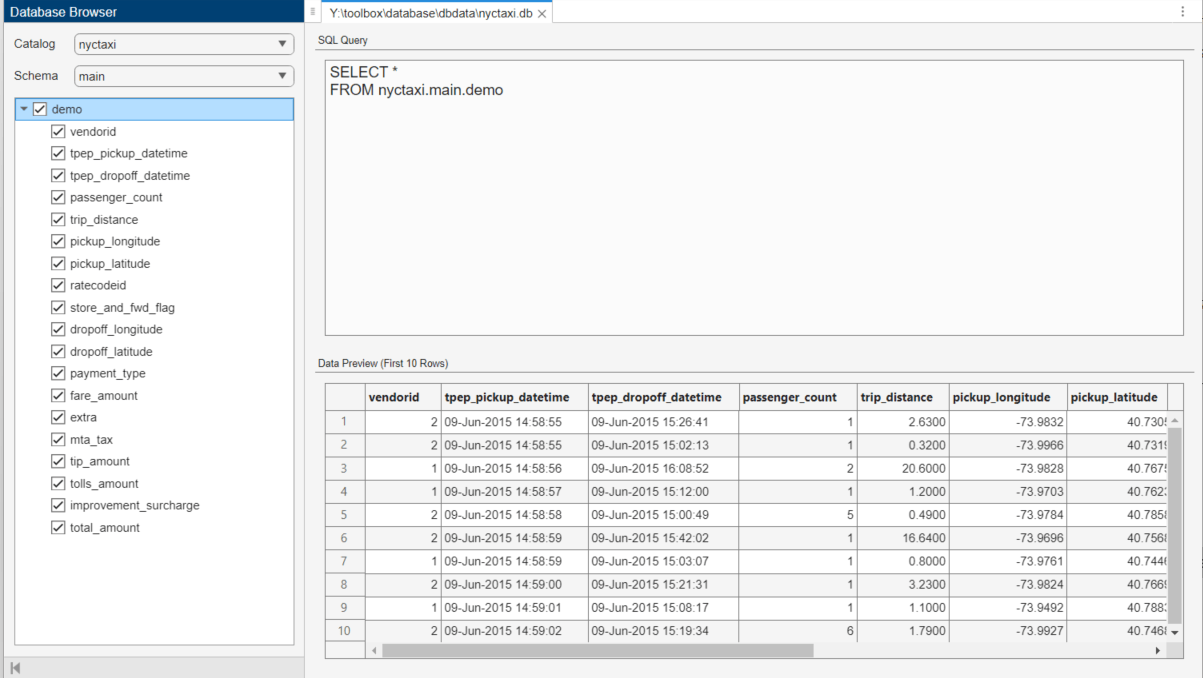
6. To explore the data, select the empty box next to the name of any column. You can select more than one column at once. This step triggers two actions:
The SQL Query box displays the SQL query used to access the selected columns.
The Data Preview box displays the first ten rows of the selected data by default.
For example, select the trip_distance, pickup_longitude, and pickup_latitude columns to see how the SQL query and data preview update.
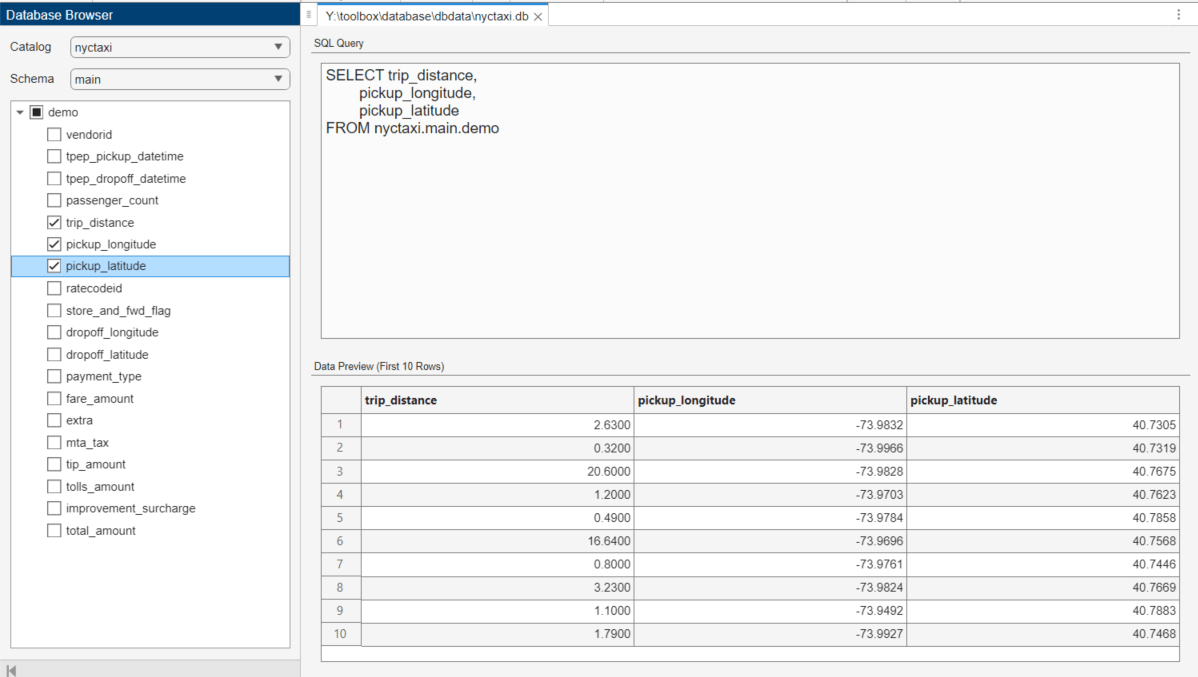
You can also click the empty box next to the demo table to view the data for all columns. The SQL query and data preview update to display your new selections.
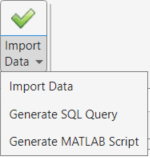
7. Import the selected columns into MATLAB® by clicking the green check mark on the Import Data button, or by opening the Import Data menu and selecting Import Data.
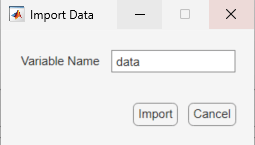
When the Import Data dialog box opens, choose your own variable name or keep the default name data. Click Import.
The Import Data menu also gives you the option of generating an SQL query or a MATLAB script. For more information, see Generate SQL Query and MATLAB Script.
References
[1] NYC Taxi & Limousine Commission, 2025, https://www.nyc.gov/site/tlc/about/data.page.

