R2023a

New Features, Bug Fixes, Compatibility Considerations

Analysis Setup

Project File Classification: Control precisely which files to include in analysis and how to analyze them

In R2023a, you can define file sets in your project that need specific treatment during analysis. For instance, you might want to skip the definitions of function bodies in third-party libraries or force analysis of all functions in files that you own. You can enumerate file sets with specific behaviors in a classification XML file and fine-tune the Bug Finder analysis using this classification file.

See also:

 Security Standards Support: Check explicitly for subsets of CWE rules

In R2023a, you can explicitly check for violations of Common Weakness Enumeration (CWE) rules by selecting the CWE rules that you want to enable during your analysis. To check for CWE rule violations, choose from these predefined subsets or create a custom subset that meets your requirements:

  • all — All supported CWE rules.

  • cwe-658-659 — CWE rules for weaknesses that are specific to C and C++ Software.

  • from-file — Custom selection of CWE rules that you configure with the Checkers selection interface. See Customize Checker Subsets.
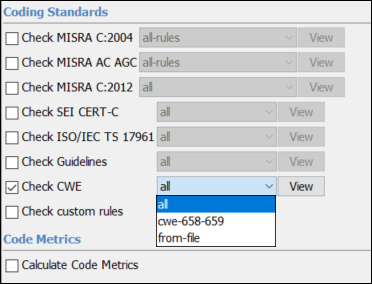
Coding Standards node on configuration pane

See also:

 Compatibility Considerations

In previous releases, you checked for violations of CWE rules by enabling defect checkers that were mapped to CWE rules (-checkers CWE). In R2023a, to check for violations of CWE rules, use the option Check CWE (-cwe).

The desktop interface automatically updates your project configuration by replacing the option -checkers CWE with the option and -cwe all.

To update your scripts, replace all instances of -checkers CWE with -cwe all. Alternatively, you can enable only a subset of CWE rule checkers instead of all CWE checkers.

Updated Clang Compiler Support: Set up Polyspace analysis for code compiled by using Clang version 13.x

In R2023a, Polyspace® supports Clang compiler version 13.x natively. If you build your source code by using this Clang compiler version, you can specify the compiler name for your Polyspace analysis.

You can now set up a Polyspace project without knowing the internal workings of this Clang compiler version. The analysis can interpret macros that are implicitly defined by the compiler and compiler-specific language extensions, such as keywords and pragmas.
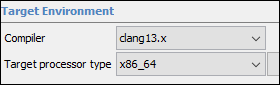
Polyspace compiler selection menu

At the command line, specify a compiler by using the option -compiler. For instance:

polyspace-bug-finder-server -sources file.c -compiler clang13.x ...
For more information, see Compiler (-compiler).

Updated GCC Compiler Support: Set up Polyspace analysis for code compiled by using GCC versions 11.x and 12.x

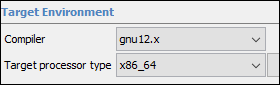
In R2023a, Polyspace supports GCC compiler versions 11.x and 12.x natively. If you build your source code by using these GCC compiler versions, you can specify the compiler name for your Polyspace analysis.

You can now set up a Polyspace project without knowing the internal workings of these compiler versions. The analysis can interpret macros that are implicitly defined by the compiler and compiler-specific language extensions, such as keywords and pragmas.
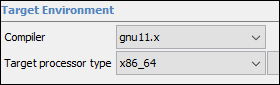
Polyspace compiler selection menu

Polyspace compiler selection menu

At the command line, specify a compiler by using the option -compiler. For instance:

polyspace-bug-finder-server -sources file.c -compiler gnu12.x ...
For more information, see Compiler (-compiler).

Configuration from Build System: Import compiler includes automatically without tracing build

In R2023a, Polyspace can import the include folder paths of compilers that provide native options to list the compiler includes, for instance gcc -Xpreprocessor -v. Polyspace passes the relevant options to the compiler and extracts the paths of the include folders from the output without tracing your build.

With this new import strategy, you can use polyspace-configure with a JSON compilation database on macOS to create a Polyspace project or to generate an analysis options file from your build system without specifying the compiler includes.

Previously, because the System Integrity Protection (SIP) on macOS prevents Polyspace from tracing your build, you specified the compiler includes manually.

See also polyspace-configure.

 Target Alignment: New default alignment for target x86_64 and alignment up to 128 bits available for supported targets

In R2023a, the default alignment for target x86_64 is now 128 bits. Previously, the default alignment for this target was 64 bits. See Target processor type (-target).

In addition, you can now specify that the struct or array objects of a target align with the 128, 64, 32, 16, or 8-bit boundary for any target that Polyspace supports. Use the option -align to specify the target alignment. See Generic target options. Previously, you could specify only a subset of alignments for each target.

Compilation of Large Projects: Improved performance and scalability when compiling large projects

Polyspace analyses now run faster because, during the compilation phase, the storage of information for each translation unit happens in parallel. The parallelization results in performance and scalability improvements, especially during the compilation of large projects. For instance, on a machine that uses an Intel Xeon W-2133 processor with 64GB of RAM, the compilation time is up to 50% faster.

This new behavior is enabled by default and can increase the disk usage during the analysis.

The faster compilation is disabled when you use fast analysis. See Use fast analysis mode for Bug Finder (-fast-analysis).

polyspace-access Command: View release and license information, upload from file path, view URL of uploaded results

In R2023a, polyspace-access has these new options and commands behaviors that simplify the management of the Polyspace Access™ software and results.

  • New option -ver

    Display the release version and license number of a Polyspace Access instance at the command line. Use option -host to specify the hostname of the Polyspace Access server. For example:

    polyspace-access -ver -host myAccessServer $LOGIN
    Connecting to https://myAccessServer:9443
    Connecting as jsmith
    ------------------------------------------------------------------
    polyspace-access command version: R2023a
    Polyspace Access Server version: R2023a 
    Polyspace Access license number: 12345678
    ------------------------------------------------------------------
    Command Completed
    The command returns:

    • The Polyspace Access server version and license number.

    • The version of the polyspace-access binary.

    Here, $LOGIN is a variable that stores the login credentials and other connection information. See Encrypt Password and Store Login Options in a Variable

    Previously, you could not display this information at the command line. To view the version and license number you logged into Polyspace Access and clicked help button > About Polyspace.

  • Improved -upload command

    • You can now specify the path of a results file when you upload results to Polyspace Access, for example -upload "C:\Polyspace_Workspace\My Example Project\Module1\ps_results.psbf"

      Previously, you could specify only the path of a folder containing a results file, or the path of a zipped file containing a results file.

    • View URL of update results — You can now view the Polyspace Access URL for the results that you upload with the command polyspace-access -upload. The URL is available in the command output, for example:

      polyspace-access %login% -upload C:\myProject\resultsDir\ps_results.psbf -parent-project public/myExample
      Zipping results
      Connecting to https://myAccessServer:9443
      Connecting as jsmith
      Upload C:\myProject\resultsDir\ps_results.psbf in public/myExample/PolyspaceProject (Bug Finder)
      Upload with IMPORT_ID 1673331466966_6517d659-769c-4233-9e13-c505781c962c.zip
      Uploading RunId: 1241 Progress: 10%
      Uploading RunId: 1241 Progress: 95%
      Upload successful for RUN_ID 1241 and PROJECT_ID 483
      You can now view the results via your web browser at
      ACCESS_URL https://myAccessServer:9443/metrics/index.html?a=metrics&p=483&r=1241
      Upload completed for 1 / 1 runs
      Command Completed
      Use the URL to open the uploaded results in Polyspace Access.

See also polyspace-access.

 Changes in analysis options and binaries

The value CWE for the option Find defects (-checkers -disable-checkers) will be removed in a future release

Warns

The value CWE for the option Find defects (-checkers -disable-checkers) will be removed in a future release. If you use the value CWE, Polyspace emits a warning and continues the analysis using the value all instead. To check your code for CWE violations, use the option Check CWE (-cwe) instead.

Option -function-behavior-specifications removed

Errors

The option -function-behavior-specifications was previously renamed to -code-behavior-specifications. Starting in R2023a, the old option has been removed.

If you were using the option -function-behavior-specifications, use -code-behavior-specifications instead. See also -code-behavior-specifications.

 Changes in MATLAB function, options object and properties

CheckersPreset option value CWE is removed

Errors

The option CWE for property CheckersPreset is removed. To update your MATLAB® code, see this table.

opts=polyspace.Options;

PropertyInstead Use
opts.Configuration.BugFinderAnalysis.CheckersPreset='cwe'
opts.CodingRulesCodeMetrics.EnableCwe=1;
opts.CodingRulesCodeMetrics.Cwe='all';

If you use the removed property, you get an error.

For more information, see polyspace.Project.Configuration Properties.

Analysis Results

Bug Finder Checkers: Check for duplicate code, copy-paste errors, and related issues

In R2023a, using these Bug Finder checkers, you can find opportunities for refactoring your code into more maintainable modules.

DefectDescriptionDefect Group
Duplicated codeA section of code is duplicated in other places.Good Practice
Partially duplicated codeA section of code is duplicated in other places with very minor changes.Good Practice
Possible copy-paste errorA section of code is duplicated in other places with exactly one minor change.Programming

Bug Finder Checkers: Check for security vulnerabilities such as SQL injection or LDAP injection

In R2023a, using these Bug Finder checkers, you can find security vulnerabilities in C/C++ code that queries possibly secure databases.

DefectDescriptionDefect Group
LDAP injectionData read from an untrusted source is used in the construction of an SQL querySecurity
SQL injectionData read from an untrusted source is used in the construction of an LDAP querySecurity

For the full list of security-related checkers, see Security Defects. See also Bug Finder Defect Groups.

Bug Finder Checkers: Check for infinite loops, reference to unnamed temporaries, and other issues

In R2023a, using new Bug Finder checkers, you can check for these additional issues.

DefectDescriptionDefect Group
Infinite loopLoop termination condition might never be satisfiedData flow
Reference to un-named temporaryA local reference is declared by using an unnamed temporary variable that is returned by valueGood Practice
Unnecessary construction before reassignmentInstead of directly constructing an object with a value, you construct an object and then immediately assign a value to it, resulting in inefficient codePerformance
Unnecessary implementation of a special member functionImplementing a special member function when the implicit version of the function in equivalent hinders code optimization, resulting in inefficient codePerformance

For the full list of checkers, see Defects. See also Bug Finder Defect Groups.

CERT C++ Support: Check for pointer arithmetic on polymorphic objects and other issues

In R2023a, you can look for violations of these CERT C++ rules in addition to previously supported rules.

CERT C++ RuleDescriptionPolyspace Checker
CTR56-CPPDo not use pointer arithmetic on polymorphic objectsCERT C++: CTR56-CPP

See also CERT C++ Rules.

MISRA C++:2008 Support: Check for issues caused by unused variables and enum types

In R2023a, you can look for violations of these MISRA™ C++:2008 rules in addition to previously supported rules.

MISRA C++:2008 RuleDescriptionPolyspace Checker
0-1-6A project shall not contain instances of non-volatile variables being given values that are never subsequently used.MISRA C++:2008 Rule 0-1-6
7-2-1An expression with enum underlying type shall only have values corresponding to the enumerators of the enumeration.MISRA C++:2008 Rule 7-2-1

See also MISRA C++:2008 Rules.

CWE Support: Updated CWE version and support for additional rules

In R2023a, Polyspace supports version 4.9 of the CWE standard. In this release, you can check for violations of this CWE rule in addition to previously supported rules.

CWE RuleDescriptionPolyspace Checkers
CWE Rule 1071Empty code blockCWE Rule 1071

For all CWE rules supported with Polyspace Bug Finder™, see Common Weakness Enumeration (CWE).

Reviewing Results

 Security Standards Support: View violations of CWE rules as analysis findings in the Results List and in reports

In R2023a, when you check for violations of the CWE rules, Polyspace reports violations of these rules as explicit findings in the Results List and in reports.
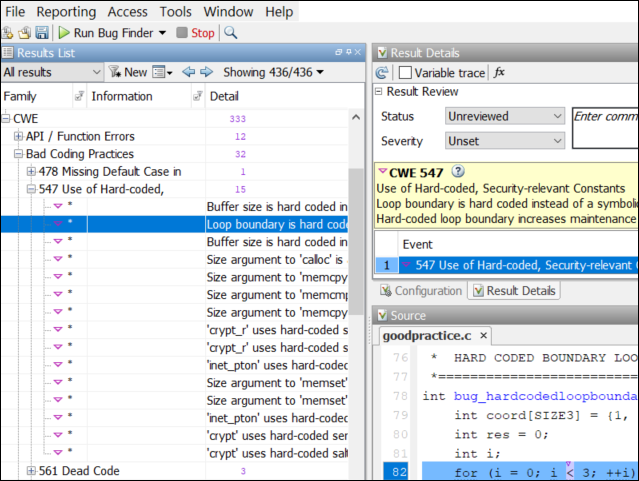
Polyspace results list and result details showing CWE findings

In the results list you see the rule number and you can filter the results by CWE rule for a more focused review.

See also:

 Compatibility Considerations

In previous releases, when reviewing violations of CWE rules, you reviewed the Bug Finder defects that were mapped to the rules. When you reviewed results in the results list, CWE rules that corresponded to a defect were listed in a CWE column. In R2023a, you can check for violations of CWE rules directly and review findings by CWE rule ID.

If you open results generated with a Polyspace product version R2022b or earlier, the CWE column is still available in the Results List. Starting with R2023a results, the CWE column is no longer available.

Polyspace Extension for Visual Studio Code (VSCode): Fix common defects or coding rule violations in one click

You can now fix some common defects or coding rule violations, such as not declaring an unmodified variable const, with a single click. You can apply the fix to one finding or to all instances of that finding in the currently active file.

To apply a fix, select a finding in the editor or the Problems panel, and then click the appropriate option in the light bulb menu. Polyspace inserts the fix in your code and removes the corresponding finding from the list of findings in the Problems panel.
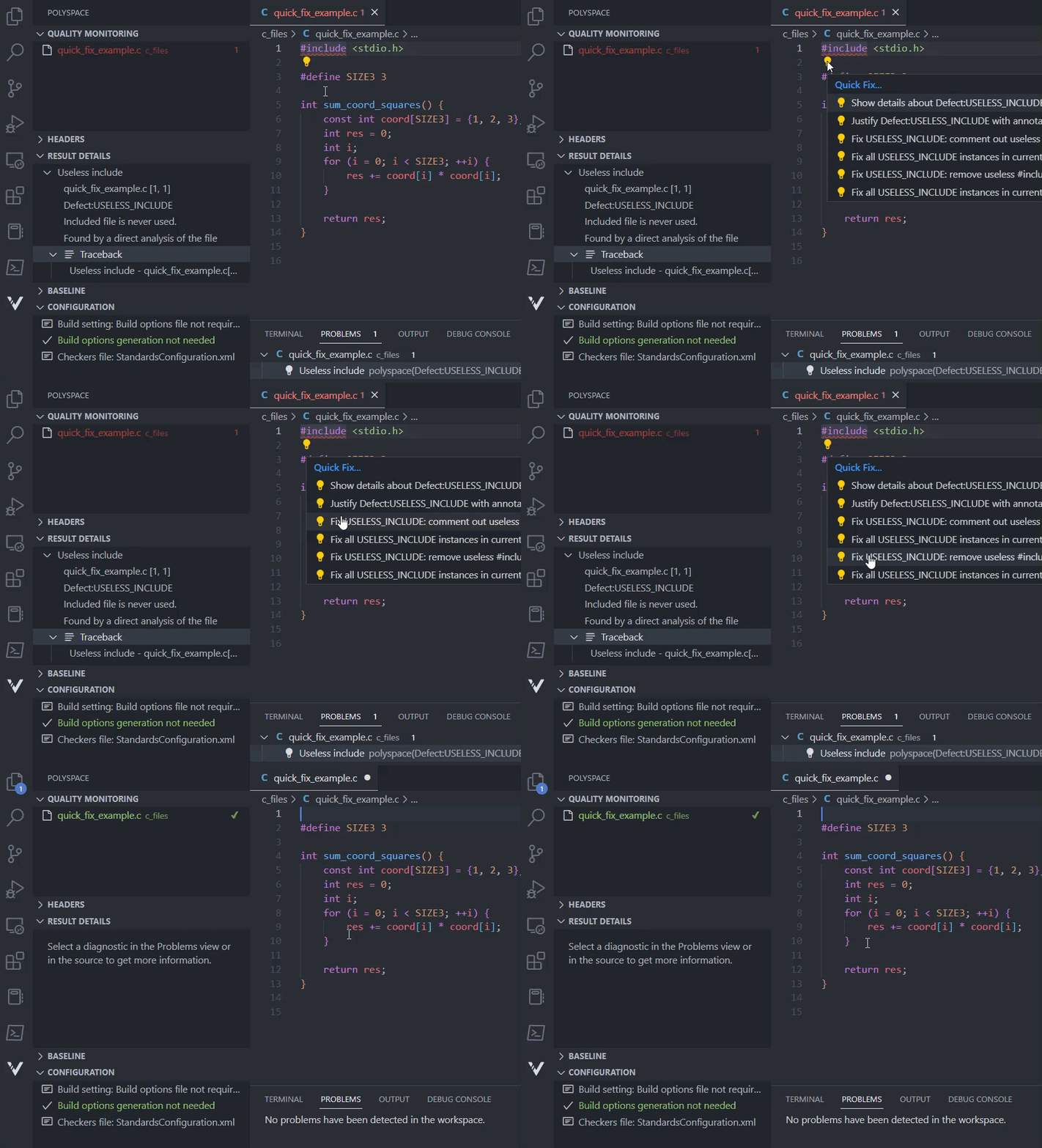
Polyspace as You Code quick fix in VS Code

See also Apply Suggested Fix for Common Defects or Coding Rule Violations.

Software Quality Objectives: View aggregated software quality objectives in Polyspace Access

In R2023a, Polyspace Access shows aggregate software quality objectives (SQO) statistics when you select a project folder. To view aggregate SQO statistics, click on a folder in the Project Explorer pane. A Quality Objectives card shows in the Project Overview dashboard. To view detailed SQO information for all items in the selected folder, click on the title of the Quality Objectives card to open the Quality Objectives dashboard.
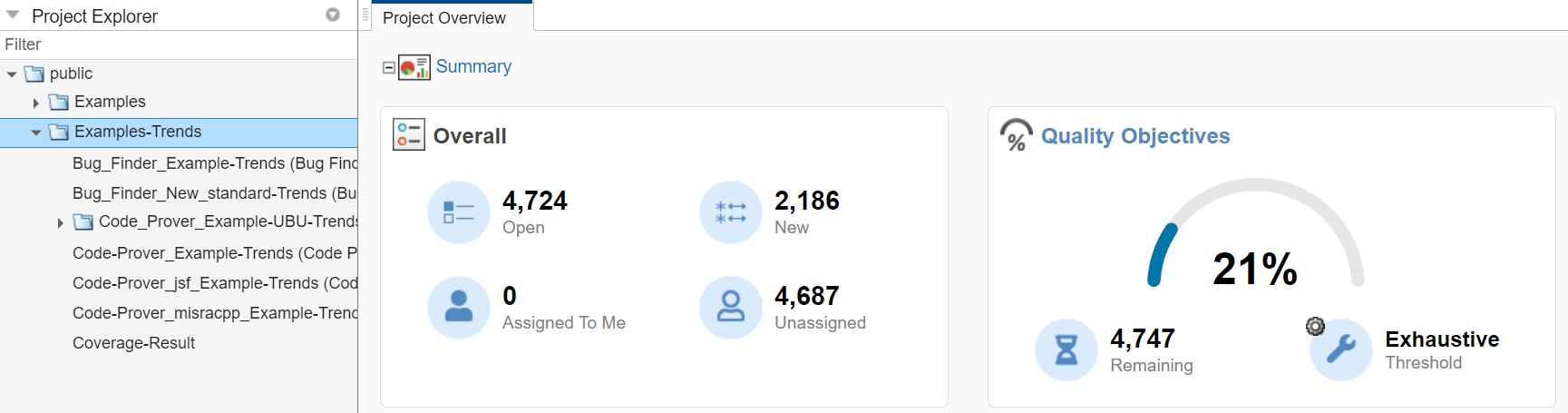
selecting a project folder shows an aggregated quality objectives card in the project overview dashboard

Note these differences between viewing SQO information at the folder level and the project level.

  • For folders, the Progress and Details sections do not contain links to filtered results in the tables.

  • You cannot assign quality objective levels to all projects in the folder at once.

  • The Quality Objectives card for folders does not show Pass, In progress, or Incomplete labels.

Polyspace Access aggregates SQO statistics even if the quality objectives configuration levels are not homogeneous. While individual projects might contain separate definitions of each SQO level, Polyspace Access does not separate the statistics by level details when aggregating the statistics. All SQO1 level projects are aggregated together, as are SQO2 and so forth.

For more information about the Quality Objectives dashboard, see Quality Objectives Dashboard in Polyspace Access.

 Report Generation: Use CodingStandards report template to generate report for CWE results

In R2023a, Polyspace supports a subset of the Common Weakness Enumeration (CWE) list natively and you can use the CodingStandards report template to generate a report for CWE results. You no longer use the SecurityCWE template.

You can find these templates in the folder polyspaceroot\toolbox\polyspace\psrptgen\templates\, where polyspaceroot is your Polyspace installation folder, for instance C:\Program Files\Polyspace\R2023a.

 Compatibility Considerations

If you use scripts where you specify a report template to generate a report for CWE results, update the path of the template to point to the CodingStandards template.

The SecurityCWE template is now located under polyspaceroot\toolbox\polyspace\psrptgen\templates\bug_finder\deprecated. You can still use this template for CWE results generated with a Polyspace product version R2022b or earlier.

Coding Standards Support: Display custom comments in Results List and Result Details pane

If you use the Checkers selection interface to enable coding rule checkers and you enter text in the Comment column for these rules, Polyspace now displays that text in the Result Details pane and in the Detail column of the Results List. You can then filter your results based on the text that you entered.

You can add custom comments, if, for instance, you want to customize the categorization of a coding standard. For example, if you want to treat a MISRA C™:2012 advisory rule as required.
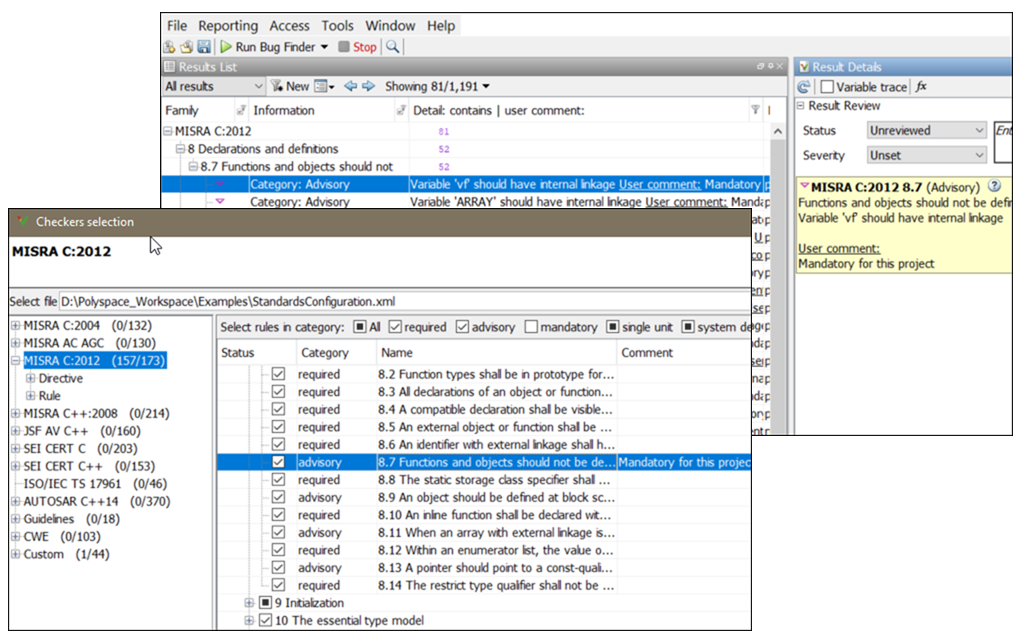
Checkers selection interface with custom comment displayed in Results Details

Inputs Causing Defect: See example system inputs that lead to non-initialized pointers

If a pointer in your code is initialized only for certain system input values, in R2023a, a Bug Finder analysis can report the defect along with one possible combination of input values causing the defect. Bug Finder shows problematic input values for these defects:

For instance, in this example, the if statement has a missing else branch. As a result, the pointer backup can be non-initialized for certain values of the input size.

void checkIfLowCount(int*, int);
void removeFirstElement(int *arr, int size)
{
    int *backup;
    if(size > 2)
        {
            backup = arr;
            for(int i = 0; i < size - 1; i++, arr++)
                {
                    *(arr+1) = *arr;
                }
            *arr = 0;
        }
    checkIfLowCount(backup, size);
}
If you use the option Run stricter checks considering all values of system inputs (-checks-using-system-input-values), the event list below the Non-initialized pointer defect shows a possible value of the input size that leads to the defect.
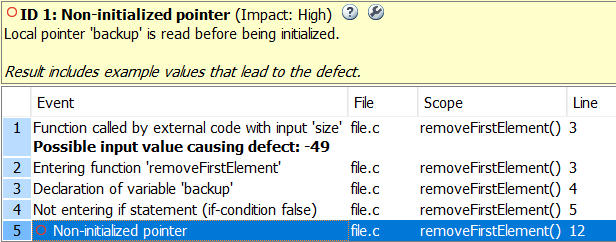
Event list of non-initialized pointer defect showing possible input value that causes the defect.

For the full list of defects that Bug Finder can report along with input values, see Extend Bug Finder Checkers to Find Defects from Specific System Input Values.

Simulink Support: Justify Known MISRA C++:2008 and AUTOSAR C++14 Violations

Starting in R2023a, Polyspace recognizes the justifying code annotations that MATLAB Coder™ inserts in code generated from MATLAB code.

When generating code from MATLAB code, If you set the properties JustifyMISRAViolations and GenerateComments to on, MATLAB Coder inserts code annotations that justify known MISRA C++:2008 and AUTOSAR C++14 violations. For instance, the generated code might contain dummy or placeholder functions that are intended to be modified. These functions can violate MISRA C++:2008 rules. By using the preceding properties, you generate code in which MATLAB Coder annotates such violations with justifying comments. When you run a Polyspace analysis on such generated code, the MISRA C++:2008 and AUTOSAR C++14 violations caused by the placeholder functions are reported as Justified.

For example, in this generated code, the function test_init() is noncompliant with MISRA C++:2008 Rule 0-1-8. If you set JustifyMISRAViolations and GenerateComments to on, MATLAB Coder inserts the comments the MW:begin and MW:end around the function:

// MW:begin MISRA-CPP:0-1-8 "Justify"
void test_init()  
{
  int i;  
}
// MW:end MISRA-CPP:0-1-8 "Justify"
Polyspace recognizes the MW:begin and MW:end annotations and shows the annotated results as Justified in the results list.

See:

Polyspace user interfaces now available in Chinese

Polyspace software is now available in Chinese. Starting in R2023a, if you work on a machine with a Chinese locale, the labels and messages in the Polyspace user interfaces and IDE extensions are now translated.

 Reduction in duplicate results on templates

In R2023a, for checkers of certain types, if the same issue is seen in multiple instantiations of a template, you see the result for only one instantiation. You do not have to review the same issue multiple times.

 Compatibility Considerations

You might see fewer results related to template instantiations compared to previous releases.

Polyspace Access Installation

Polyspace Extension for Visual Studio Code (VSCode): Polyspace as You Code available for macOS

Starting in R2023a, the Polyspace as You Code™ extension for Visual Studio Code is available for macOS. If your build system supports the generation of a JSON compilation database file, you can configure the extension to extract the build options from your build system automatically. See Get Build Configuration from JSON Compilation Database.

Previously, Polyspace could not extract the configuration of your build system if the System Integrity (SIP) feature was enabled. If you can generate a JSON compilation database file for your build system, you no longer need to disable this feature to extract the build configuration.

See also polyspace-configure.

 Polyspace as You Code Plugin for Eclipse: Plugin is not compatible with the Polyspace desktop integration plugin

Starting in R2023a, the Polyspace as You Code plugin for Eclipse™-based IDEs is no longer compatible with the Polyspace desktop plugin for Eclipse.

 Compatibility Considerations

If you use the Polyspace as You Code installer to install the plugin, Polyspace uninstalls the desktop plugin automatically. See Install Polyspace as You Code Using Installer.

If you install the Polyspace as You Code plugin manually, uninstall the desktop plugin for Eclipse first. See Uninstall Polyspace Plugin.